Airflow Direction Matters More Than Fan Count

I remember sitting in a cramped server closet back in 2008, the air thick with the smell of ozone and heated dust, listening to a single, desperate fan struggle to keep a rack of machines from melting down. Most “experts” will tell you that you need to invest in a thousand-dollar smart thermostat or some high-tech gadgetry to solve your heat problems, but they’re usually skipping the most basic step: checking if your vents are actually breathing. If you’re staring at a sluggish computer or a stifling room and wondering how to improve cooling without emptying your savings account, you don’t need a sales pitch; you need a sanity check.

I’m not here to sell you on some magical, expensive solution that only works half the time. My goal is to give you the same straightforward, stepwise troubleshooting I’ve used for sixteen years on the service desk. I am going to show you exactly how to identify the bottlenecks and clear the path so your equipment—and your living space—can actually breathe again. No fluff, no unnecessary jargon, just the verified steps that actually work when you’re already too frustrated to deal with more nonsense.

Table of Contents

Optimizing Airflow Patterns Before You Lose Your Mind

Optimizing Airflow Patterns Before You Lose Your Mind

Before we start talking about expensive hardware, we need to look at what’s actually happening inside your machine. Most people think a fan is just a fan, but if you have a mess of tangled wires blocking the path, you’re basically trying to breathe through a straw. I’ve spent way too many afternoons untangling nests of power cables just to get a single intake fan to actually do its job. Honestly, case cable management for airflow is the most underrated way to keep things stable. If your cables are slumped right in front of your GPU, you aren’t just losing efficiency; you’re trapping heat where it belongs.

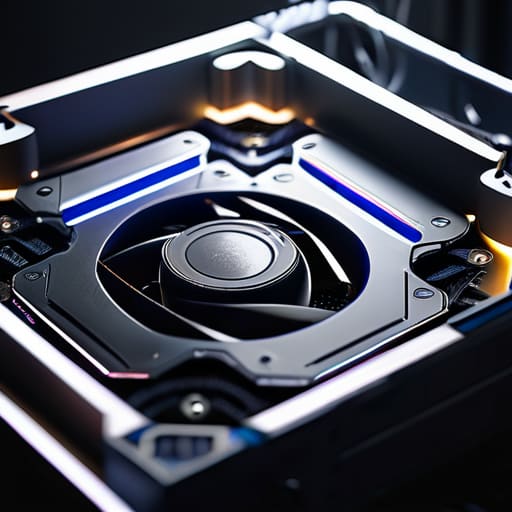
Once you’ve cleared the clutter, we need to talk about the actual direction of the air. It’s a common mistake to just throw fans in wherever there’s a screw hole. You want a clear path: cool air comes in through the front or bottom, and hot air gets pushed out the back or top. When you focus on optimizing airflow patterns this way, you aren’t just moving air around; you’re creating a continuous loop. If your fans are fighting each other, you’re just spinning your wheels and making more noise for zero gain.

Thermal Management Techniques for the Truly Exhausted

Thermal Management Techniques for the Truly Exhausted.

By the time you’re looking for thermal management techniques, you’ve probably already tried the “turn it off and on again” dance and realized it isn’t helping. I’ve been there, staring at a chassis that feels like it’s radiating heat from a small sun. If your fans are screaming but the air coming out is lukewarm, you aren’t actually moving heat away from the parts that matter. You’re just making noise.

First, let’s talk about the physical mess inside. I cannot stress this enough: case cable management for airflow is not just about making the machine look pretty for a photo. If you have a bird’s nest of power cables blocking the path between your intake fans and your GPU, you are fighting a losing battle. I always take a moment to tuck those wires into the shroud so the air actually has a clear lane to run.

If you’ve cleaned the dust and tidied the wires but things are still running hot, it might be time to look at your BIOS. Sometimes, reducing component temperatures is as simple as a little fan speed optimization. You don’t need them at 100% all day, but a slightly more aggressive curve can prevent that heat soak from starting in the first place.

Five Quick Wins to Stop the Heat Before It Starts

  • Stop using your laptop like a blanket. I’ve seen it a thousand times—someone tucking a running machine into a pillow or a soft duvet, and they’re basically suffocating the intake vents. If it doesn’t have a hard, flat surface, it isn’t breathing. Get it on a desk or a book.
  • Grab a can of compressed air and actually use it. I keep a few cans on my workbench for my old ThinkPads, and the amount of dust “felt” inside them is staggering. A quick blast through those side and bottom vents can drop your temps more effectively than any fancy software hack.
  • Check your background processes, because “ghost” apps are heat magnets. If your fan is screaming but you aren’t doing anything, open your Task Manager. I bet you’ll find some forgotten browser tab or a bloated updater eating up 40% of your CPU just sitting there.
  • Don’t ignore the ambient temperature of the room. I know, it sounds obvious, but if you’re working in a sun-drenched corner of the office with no airflow, your hardware is fighting a losing battle. Move the setup into the shade or closer to a circulating fan.
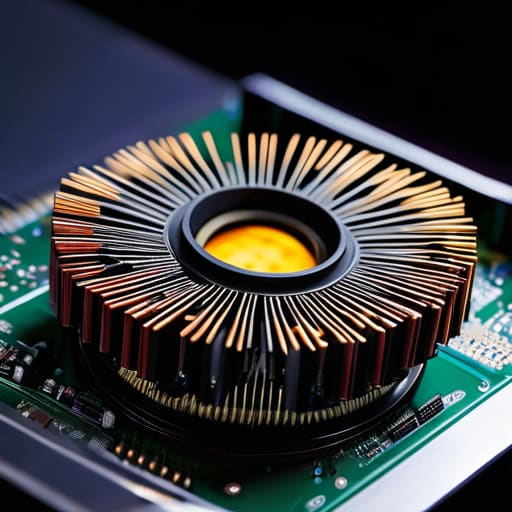
  • Clean out your desktop’s “internal graveyard.” If you have a tower, don’t just look at the outside. Open the side panel and clear out the dust bunnies collecting around the heat sinks. If the air can’t move through the fins, the heat has nowhere to go but back into the components.

One Last Check Before You Walk Away

One Last Check Before You Walk Away

We’ve covered a lot of ground, from clearing out those dust bunnies that are choking your vents to actually rethinking how your furniture is blocking the natural path of the air. Remember, it isn’t just about blasting the AC on high and hoping for a miracle; it’s about strategic airflow and making sure your hardware isn’t fighting against itself. If you’ve managed to clear the physical obstructions and addressed the thermal management, you’ve already done more than most people bother to do. I usually write down the final temperature reading in my log before I tell a client the job is done, so take a second to verify that your fans aren’t screaming anymore and the air actually feels different.

I know it feels like a losing battle sometimes, especially when you’re staring at a piece of tech that’s running hotter than a summer afternoon in a server room. But don’t let the frustration win. Most of these cooling issues aren’t permanent failures; they are just maintenance gaps waiting to be filled. Take it one step at a time, keep your vents clear, and give your machines the breathing room they deserve. You’ve got this, and once that heat drops, you’ll be glad you didn’t just settle for a broken, overheating mess.

Frequently Asked Questions

My laptop fans are spinning like crazy but the bottom feels ice cold; does that mean the cooling is actually working?

No, it actually means the opposite. If the bottom is ice cold but those fans are screaming, your heat isn’t actually moving away from the processor. It’s like a car engine revving in neutral; you’re making noise, but you aren’t going anywhere. Usually, this means the thermal paste has dried into a crust or the heat pipe has failed. The fan is working hard to move air that isn’t actually picking up any heat.

I tried cleaning out the dust with compressed air, but now the machine is running even hotter than before—what did I do wrong?

I’ve seen this happen more times than I care to count. Usually, when you use compressed air, you accidentally blow the dust deeper into the heatsink fins or, worse, you dislodged a fan cable. If it’s running hotter now, you likely created a “dust plug” inside the vent. Take a breath. Let’s open it back up, check that the fan is actually spinning, and make sure we aren’t just pushing the problem further in.

Is it actually worth buying one of those expensive cooling pads, or am I just throwing money at a hardware problem that can't be fixed?

Look, I’ve seen enough thermal throttling to know the truth. If your laptop is choked with dust and old thermal paste, a cooling pad is just an expensive paperweight. It won’t fix a broken internal system. However, if your vents are clear but the chassis just can’t shed heat fast enough, a good pad can actually help. Don’t buy one until you’ve cleaned out the grime first. Save your money for something useful.


One Printer, Twelve Machines

I was sitting in a cramped office last Tuesday, staring at a blinking amber light on a printer that had supposedly been “configured” three times already, while a line of three frustrated teachers waited by my door. Most manuals tell you that once you click ‘install,’ you’re done, but they always skip the part where the IP address changes or the driver decides to go on strike. If you’re currently staring at a “Printer Offline” error and wondering how to set up a network printer for everyone without wanting to throw the router out the window, I hear you. It isn’t about following a magic sequence of buttons; it’s about making sure the network actually knows the device is there.

I’m not going to give you a list of technical jargon that assumes you already have a degree in network engineering. Instead, I’m going to walk you through the actual, messy reality of getting a machine to talk to every computer in the room. I’ll show you how to lock down those settings so they stay fixed, and I’ll give you the exact steps I use when I’m tired, busy, and just want the job done right.

Table of Contents

Guide Overview

Total Time: 1-2 hours
Estimated Cost: $0 (assuming printer is owned)
Difficulty: Beginner

Tools & Supplies

  • Computer/Laptop for configuration and driver installation
  • Smartphone or Tablet for testing connectivity
  • Network Printer (1 unit)
  • Ethernet Cable or stable Wi-Fi network (1 connection)

Step-by-Step Instructions

  • 1. Before we touch a single setting on your computer, we need to make sure the printer is actually “visible” to the network. I always check this first because if the printer isn’t talking to the router, nothing else matters. Plug it in, turn it on, and ensure it’s connected to your Wi-Fi or, even better, tethered via an Ethernet cable to your router. If it doesn’t have a screen, look for a solid blue light on the wireless icon; if it’s blinking, it’s not actually on the network yet.
  • 2. Now, we need to find the printer’s “home address,” which in IT terms is the IP address. I usually go to the printer’s small control panel and look under Network Settings or Wireless Status to find a string of numbers that looks like 192.168.1.XX. Write this number down on a piece of paper—I’m doing that right now—because if we try to let Windows “find” the printer automatically, it often gets lost in the shuffle and fails.
  • 3. Head over to your main computer and open the Control Panel (not the new Settings app, trust me, the old Control Panel is more reliable for this). Click on Devices and Printers, then look for the option at the top that says “Add a printer.” When the window pops up and starts searching, give it a moment, but don’t panic if it doesn’t show up immediately.
  • 4. Since the automatic search is notorious for failing, look for the small text link that says “The printer that I want isn’t listed.” Click that. A new menu will appear, and you want to select the option that says “Add a printer using an IP address or hostname.” This tells your computer exactly where to look so it doesn’t have to wander around the network aimlessly.
  • 5. In the box that asks for the device type, set it to “TCP/IP Device,” and then type in that IP address you scribbled down in step two. Uncheck the box that says “Query the printer and automatically select the driver” for a second—sometimes the auto-query hangs and makes you think the computer has frozen. We want to take manual control here to ensure we don’t get stuck in a loop.
  • 6. Now, the computer might ask you for a driver. This is where most people throw their hands up in the air. If you have the driver file on a USB stick from the manufacturer’s website, click “Have Disk” and point it to that folder. If not, select your printer manufacturer from the list on the left and try to find your specific model on the right. If your exact model isn’t there, try the closest version available; it usually works just fine.
  • 7. Once the installation finishes, your computer will ask if you want to print a test page. Do it. I never consider a job finished until I see physical ink hitting the paper. Once that test page rolls out, you’re officially part of the club, and you can move on to the next person’s desk.

Mastering Wireless Printer Configuration Without the Constant Disconnects

Mastering Wireless Printer Configuration Without the Constant Disconnects

If you’ve ever had a printer work perfectly on Monday only to have it “disappear” from everyone’s computer by Wednesday, you aren’t crazy. This usually happens because your router decided to hand out a new address to the printer, and now all your computers are looking for it in the wrong place. To stop this cycle, you need to assign a static IP address for printers. I always do this first. By telling the router that this specific machine always gets the same “seat” at the table, you stop the constant guessing game that leads to those dreaded “Printer Offline” errors.

Once you’ve locked that address down, keep an eye on your signal strength. Wireless printer configuration can get finicky if the printer is tucked away in a metal cabinet or sitting in a dead zone behind a heavy desk. If the connection feels flaky, it might be time to look into troubleshooting network printer connectivity by moving the unit closer to an access point. It’s a small adjustment, but it saves me from answering the same “why won’t it print?” ticket every single morning.

The Secret to Stability Using a Static Ip Address for Printers

The Secret to Stability Using a Static Ip Address for Printers

Here is the truth that most of those glossy manuals won’t tell you: the reason your printer “disappears” from everyone’s computer every Tuesday morning isn’t because the hardware is broken. It’s because your router is playing musical chairs with your devices. Every time the router reboots, it hands out new addresses to everything on the network. If your printer gets a new number, all those computers you just spent an hour configuring will suddenly think the printer has gone on vacation.

To stop this cycle, you need to assign a static IP address for printers. This basically tells your router, “Hey, this specific address belongs to the printer, and it is never, ever changing.” I always make a note of this in my logbook before I even touch a keyboard. Once you lock that address in, you’ll find that troubleshooting network printer connectivity becomes a rare occurrence rather than a daily ritual. It takes five extra minutes of setup, but it saves you from the headache of re-installing drivers on every single desk in the office next week.

Five Things I Wish People Knew Before They Started Clicking 'Install'

  • Stop relying on the “Add a Printer” wizard in Windows. It’s great when it works, but it’s terrible when it doesn’t. If you can, find the printer’s IP address and add it manually using the TCP/IP port option. It skips a lot of the guesswork that leads to those “Printer Offline” errors later.
  • Name your printers something that actually makes sense. “HP-LaserJet-405-Accounting” is a lifesaver; “Unknown Device” is a nightmare. When you’re looking at a list of twenty devices, you don’t want to be the person sending sensitive payroll docs to the breakroom printer.
  • Check your driver version before you start the rollout. I’ve seen so many setups fail simply because someone used the “Universal Print Driver” when the machine specifically needed the manufacturer’s proprietary one. It’s a five-minute check that saves five hours of troubleshooting.
  • If you’re in a small office, don’t just let everyone connect directly to the printer. If you have a spare machine or a dedicated server, set up a print server. It gives you one central place to manage queues and permissions, so you aren’t chasing down individual laptops every time a driver needs an update.
  • Always keep a physical copy of the manual or a PDF of the network settings handy. I keep a little notebook next to my desk for this exact reason. When the network goes sideways, you don’t want to be hunting through a web interface that won’t load just to find your gateway settings.

One Last Thing Before You Walk Away

One Last Thing Before You Walk Away

We’ve covered a lot of ground here, from the initial handshake between the device and the router to the heavy lifting of assigning that static IP address so the printer doesn’t just vanish into thin air next Tuesday. I know it feels like a lot of technical hoop-jumping, but remember that the goal isn’t just to get a document out of a tray; it’s to stop the cycle of constant troubleshooting that eats up your entire afternoon. If you’ve followed these steps—especially the part about securing that wireless connection—you’ve moved past the “it worked yesterday” phase and into actual, reliable stability.

At the end of the day, technology is supposed to be a tool that serves us, not a temperamental pet that requires constant attention and soothing. I spent years watching people lose their cool over things that could have been solved with ten minutes of proper configuration, and I don’t want that for you. Take a breath, grab a coffee, and realize that you have finally tamed the machine. You’ve done the hard work of setting the foundation, and now you can actually get back to your real job without the printer becoming your unwanted nemesis.

Frequently Asked Questions

My printer is on the network, but my coworkers still can't see it—what did I miss?

Look, if the printer is online but invisible to the team, you’ve likely hit a discovery wall. Most of the time, it’s a subnet issue—your printer is sitting on one “island” while the computers are on another. Check if they’re on the same VLAN. If they are, it’s probably just a broadcast problem. Stop relying on “Auto-Detect”; it’s a liar. Manually add it using that static IP we talked about.

If I set a static IP, will that mess up my router's ability to assign addresses to other devices?

Not at all, and honestly, that’s a common fear. Think of it like reserving a specific parking spot for the printer so it doesn’t wander off. As long as you pick an address that’s outside the router’s “automatic” range—what we call the DHCP pool—the router won’t try to hand that same spot to someone else’s phone or laptop. It stays in its lane, and your printer stays exactly where it belongs.

Is there a way to make sure people don't accidentally print massive files and jam the whole office queue?

I’ve seen it a dozen times: someone tries to print a 500MB high-res PDF and suddenly the entire office is staring at a spinning loading icon. To stop this, you need to head into your print server settings and set a “Max Job Size” limit. It’s a bit of a blunt instrument, but it keeps one person’s massive graphic design project from choking the life out of everyone else’s spreadsheets.

Testing Ram Overnight

I was elbow-deep in the guts of a dusty 1998 ThinkPad last Tuesday when it hit me: I’d walked into the garage for a specific screwdriver and ended up staring blankly at a pile of capacitors, wondering why I was even there. It’s that sudden, hollow feeling in your chest—the one where you start wondering if your internal hard drive is finally hitting its end-of-life cycle. Most of the “experts” online will try to sell you a $50 app or a complicated neurological battery that looks like it was designed by a math professor having a breakdown, but that’s not how you actually figure out how to test memory in the real world.

I’m not here to give you a clinical diagnosis or a list of expensive brain games that feel like busywork. Instead, I’m going to walk you through a few practical, low-stakes ways to see if your brain is actually glitching or if you’re just running too many background processes at once. I’ve spent sixteen years troubleshooting systems that refuse to retain data, and I promise to give you the straightforward truth without the medical jargon or the unnecessary panic.

Table of Contents

Running the Windows Memory Diagnostic Tool Without Losing Your Mind

Running the Windows Memory Diagnostic Tool Without Losing Your Mind

First, let’s talk about the Windows Memory Diagnostic tool. I’ve spent more years than I care to admit staring at a Blue Screen of Death, and more often than not, it wasn’t some mysterious virus—it was just a single, dying stick of RAM. This tool is built right into your OS, so you don’t need to go hunting for fancy third-party hardware diagnostic software just yet. It’s going to force your computer to restart, so please, save your work and close everything before you trigger this. I always make sure my tabs are closed and my coffee is sipped before I hit that restart button.

Once the machine reboots, it’ll enter a blue-screen environment that looks like it’s from 1998 (don’t worry, it’s supposed to look that way). It’ll start running tests automatically. This is the part where most people panic because it feels like the computer is stuck. It isn’t. It’s just doing the heavy lifting of checking RAM health bit by bit. Just let it sit. If you see any red text or error messages, grab a pen; that’s your signal that you’ve managed to identify faulty RAM sticks that need to be replaced.

Checking Ram Health Before Your Entire System Collapses

Checking Ram Health Before Your Entire System Collapses

If you’ve been dealing with random freezes or that dreaded blue screen of death troubleshooting nightmare, we need to talk about your physical hardware. I’ve seen too many people spend hours reinstalling Windows only to realize they were fighting a losing battle against a dying stick of RAM. Before you start nuking your OS, we need to perform some serious system stability testing to see if your sticks are actually holding up their end of the bargain.

I usually grab my notebook and jot down the serial numbers before I even open the chassis, because once you start pulling components, things get messy. To really get to the bottom of it, you might want to move beyond the built-in Windows tools and try some dedicated hardware diagnostic software like MemTest86. It’s a bit more of a commitment—you’ll have to boot from a USB drive—but it’s the only way to truly identify faulty RAM sticks with any degree of certainty. If the errors start scrolling past like a bad movie, you’ve found your culprit.

Five Ways to Stop Guessing and Start Testing

  • Don’t trust the Task Manager. It’s great for seeing how much RAM you’re using, but it’s terrible at telling you if that RAM is actually dying. If you’re seeing Blue Screens of Death, stop looking at the usage percentages and start looking for hardware errors.
  • Get a bootable USB with MemTest86 ready to go. The built-in Windows tools are okay for a quick check, but if you want to be absolutely sure your sticks aren’t failing, you need to run a test outside of the operating system entirely.
  • Test one stick at a time. This is the part everyone skips because it’s tedious. If you have two sticks of RAM and your system is crashing, swap them out one by one. If the crashes stop with Stick A but happen immediately with Stick B, you’ve found your culprit.
  • Watch the temperature, not just the results. If you’re running a long-form memory test and the errors only start appearing after twenty minutes, you might not have a bad chip—you might just have a laptop that’s overheating and throwing math errors because it’s too hot.
  • Check your BIOS settings before you blame the hardware. Sometimes a “bad” memory test is actually just an unstable overclock or an aggressive XMP profile that your motherboard can’t actually handle. Reset to defaults before you go out and buy new parts.

The Final Check

Performing The Final Check on RAM.

Look, we’ve covered a lot of ground here, from running that built-in Windows diagnostic tool to the more heavy-duty hardware checks. If your results came back clean, you can breathe a little easier knowing your RAM isn’t the culprit behind those blue screens or sudden freezes. But if you saw errors, don’t panic; it usually just means a stick of memory has finally reached its expiration date. Remember, the goal isn’t to become a hardware engineer overnight, it’s just to identify the specific point of failure so you aren’t throwing money at the wrong parts. Always verify the results twice before you go out and buy a whole new kit, because sometimes a simple reseat of the module is all it takes to get things moving again.

I know how it feels when your machine starts acting up right in the middle of something important. It feels personal, like the computer is actively working against you. But technology is just a collection of parts, and parts fail. Dealing with a memory error isn’t a sign that you’re bad at this; it’s just part of the inevitable cycle of troubleshooting. Take a breath, grab a cup of coffee, and remember that you have the tools to fix this. You aren’t just staring at a broken screen anymore; you’re looking at a problem with a clear path toward a solution. You’ve got this.

Frequently Asked Questions

If the diagnostic tool says my RAM is fine but my computer is still blue-screening, what's the next thing I should check?

If the diagnostic tool gave you a clean bill of health but you’re still staring at a blue screen, don’t panic. It just means the hardware isn’t the culprit—the software is. Usually, this points to a corrupted driver or a system file that’s lost its way. I’d start by running `sfc /scannow` in the command prompt. It’s a standard move for a reason; it finds and fixes the broken bits.

Do I really need to run these tests overnight, or can I just run them for twenty minutes and get a result?

Look, I’ve seen people try to rush this, and it never ends well. If you stop a memory test halfway through, you’re basically reading half a book and guessing the ending. You might miss the exact moment a bit flips and tells you your RAM is dying. If you can, let it run overnight. If you’re in a massive rush, give it at least an hour, but don’t be surprised if it says “no errors” only to crash later.

If I find out a specific stick of memory is faulty, can I just replace that one stick instead of buying a whole new kit?

You absolutely can, but don’t just grab the cheapest stick you see on Amazon. I’ve seen too many people replace one faulty module only to have the whole system turn into a blue-screen nightmare. You want to match the capacity, speed, and latency of your existing stick as closely as possible. If you can, buy the exact same model number. It’s a bit of a headache to hunt down, but it saves you from more frustration later.

What Disk Cleanup Can Safely Remove

I was sitting in a cramped school IT office back in 2008, surrounded by the smell of ozone and stale coffee, watching a teacher stare at a “Low Disk Space” warning like it was a personal insult. She had already tried every “speed up your PC” pop-up advertisement she could find, and nothing worked. Most of those guides are useless because they skip the most important part: they don’t actually tell you how to use disk cleanup properly without accidentally deleting something you actually need. They assume you’re already an expert, which is exactly why you’re feeling so completely stuck right now.

I’m not going to give you a lecture or suggest you buy some overpriced “system optimizer” that just sits in your tray eating more RAM. Instead, I’m going to walk you through the actual, manual steps I’ve used for sixteen years to clear out the real junk. I’ll show you which boxes are safe to check and which ones will make you regret your life choices. My goal is to get your machine breathing again, one verified step at a time, so you can finally stop fighting your computer and get back to your actual life.

Table of Contents

Clear Cache and Temporary Files Without the Headache

Clear Cache and Temporary Files Without the Headache

First, let’s open the tool. Hit that Windows key, type “Disk Cleanup,” and hit enter. It’ll scan your drive, and then a little window pops up asking which drive you want to clean. Usually, that’s just your C: drive. Once that loads, don’t just click “OK” immediately. Look for the button that says “Clean up system files.” This is the step most people skip, and it’s exactly why they don’t see much change. It forces the tool to look deeper, allowing you to remove unnecessary system updates that have been sitting there like digital clutter for months.

Once that second scan finishes, you’ll see a much longer list of checkboxes. This is where we actually clear cache and temporary files that are hogging your resources. Check everything that looks like junk—Temporary Internet Files, Thumbnails, and Delivery Optimization Files. I always make sure to check the “Recycle Bin” too, because I’ve seen people “clean” their drive only to leave fifty gigabytes of trash sitting in the bin. Take a breath, double-check that you aren’t selecting anything you actually need, and then let the computer do the heavy lifting.

Delete System Files Safely to Reclaim Your Sanity

Delete System Files Safely to Reclaim Your Sanity

Now, this is where most people get nervous, and honestly, I don’t blame you. You see a list of files that look like gibberish and your first instinct is to stay far away so you don’t break something. But here is the secret: if you use the built-in tools, you aren’t going to accidentally delete your life’s work. When I’m working on an old ThinkPad from my workshop, I always start by clicking that “Clean up system files” button. This is the only way to truly remove unnecessary system updates that are just sitting there taking up gigabytes of room for no reason.

Once you click that button, the tool re-scans, and you’ll see a whole new list of options. This is where the real heavy lifting happens. You can finally delete system files safely—like old Windows installation files that you’ll never need again—without feeling like you’re playing Russian roulette with your OS. I always make a mental note to check the “Windows Update Cleanup” box first. It’s the fastest way to optimize storage performance and actually see that storage bar move back into the green.

Five Things I Wish Everyone Knew Before They Hit 'Delete'

  • Don’t just settle for the first window you see. Most people run Disk Cleanup, click OK, and think they’re done. You need to click that ‘Clean up system files’ button. It forces the tool to actually look for the heavy hitters like old Windows Update files that are just sitting there eating your storage for no reason.
  • Be careful with the ‘Downloads’ folder checkbox. I’ve lost more than a few users’ important PDFs because they checked that box thinking it only meant ‘junk.’ If you haven’t organized your downloads in a month, uncheck that box and move your files manually first.
  • Watch out for the ‘Thumbnails’ option. If you delete these, your computer isn’t going to crash, but the next time you open a folder full of photos, you’re going to see those little loading bars while Windows regenerates every single preview. It’s a minor headache, but it’s a headache nonetheless.
  • Stop running this every single day. Your computer needs a little bit of cache to actually run smoothly; if you’re too aggressive with clearing out everything every time you boot up, you’re just making your processor work harder to rebuild what you just deleted. Once a month is plenty.
  • If the tool says it’s going to take a long time, believe it. I once had a machine stuck on ‘Calculating’ for twenty minutes because it was trying to sift through a massive pile of old update logs. Don’t force-restart your computer while it’s working; just go grab a coffee and let it finish its job.

You’re Not Alone in This

You’re Not Alone in This cleanup process.

We’ve covered a lot of ground here, from clearing out those annoying temporary files to actually digging into the system files that take up way too much room. I know it feels like a lot of clicking, but remember that the goal wasn’t just to delete stuff—it was to stop your machine from choking on its own digital exhaust. By being selective about what you wipe and making sure you aren’t just guessing which boxes to check, you’ve essentially given your hard drive a much-needed breather. It’s about being methodical rather than frantic, ensuring that once you close that Disk Cleanup window, the problem stays solved for a little while longer.

At the end of the day, your computer is just a tool, and it shouldn’t be the thing that dictates your stress levels every Tuesday afternoon. I’ve spent sixteen years watching people fight with machines that just needed a little bit of housekeeping, and I promise you, it gets easier. Don’t let a slow progress bar or a full disk make you feel like you’re tech-illiterate; you’re just dealing with the reality of modern software bloat. Take a breath, grab a coffee, and enjoy the fact that you actually took control of the situation instead of just staring at the spinning wheel of death.

Frequently Asked Questions

Is it actually safe to delete everything in the "Downloads" folder, or am I going to lose important files I forgot about?

Look, I’ve seen so many people panic because they cleared their Downloads folder and realized a crucial tax document or a saved receipt was in there. The short answer? No, it isn’t “safe” to just wipe it blindly. Think of your Downloads folder like a junk drawer—it’s a landing zone, not a storage unit. Before you hit delete, take five minutes to skim through. If it’s not a temporary installer, move it to Documents first.

If I run Disk Cleanup every single day, am I going to break something or slow my computer down even more?

Honestly? You aren’t going to break anything, but you’re probably wasting your own time. Running it every single day is like sweeping your kitchen floor every ten minutes—it’s overkill. It won’t slow the machine down, but it won’t provide much benefit either. I usually tell my users to just let it run once a week or whenever they see that “low disk space” warning popping up. Save your sanity and your schedule.

I noticed a "Windows Update Cleanup" option that's huge—if I check that box, will my computer stop being able to update itself?

No, it won’t break your ability to update. I get why that looks scary—it’s a massive chunk of data—but “Windows Update Cleanup” is just the leftovers from previous updates that Windows keeps “just in case” you need to roll back. If you check that box, you’re just clearing out the old scaffolding. Your computer will still download and install new updates just fine. Go ahead and clear it; your hard drive will thank you.

Apps You Granted Access to

I was sitting in a cramped school IT office last Tuesday, listening to a teacher explain how her phone felt “heavy” with data, when I realized most people are being sold a lie. You don’t need to buy a $500 “privacy protection” suite or hire a consultant to figure out how to review app permissions; you just need to stop letting these developers treat your hardware like their personal playground. Most of the “security experts” online make this sound like you’re defusing a bomb, but the truth is much simpler and, frankly, a lot more annoying.

I’m not going to give you a lecture on encryption or throw a bunch of technical jargon at you that assumes you already know the basics. Instead, I’m going to show you exactly where to click to cut the cord on those apps that are overstaying their welcome. I’ve spent sixteen years cleaning up digital messes, and I promise to give you a straightforward, step-by-step way to reclaim your privacy without the headache. We’re going to do this one verified step at a time, so you can finally get back to your actual life.

Table of Contents

Start Your Mobile Device Permission Audit Immediately

Start Your Mobile Device Permission Audit Immediately.

First, let’s get your phone in your hand. Don’t worry about doing this while you’re driving or in the middle of a meeting; this isn’t a quick five-second task, and you’ll want to actually look at what you’re doing. If you’re on an iPhone, head straight into your Settings and scroll down until you see the list of every single app installed on your device. If you’re on Android, it’s a little different—you’ll want to tap your profile icon in the Play Store or dive into the main Settings menu under “Apps.”

The goal here isn’t to delete everything, but to start managing digital privacy settings with a bit of common sense. I always tell my junior techs to look for the “creepers”—those apps that don’t need your location or your microphone to function. If a flashlight app is asking for access to your contacts, that’s a massive red flag. By revoking third-party access to things that don’t make sense, you’re essentially closing the digital windows that people shouldn’t be looking through. Take it one app at a time.

Protecting Personal Information From Apps That Take Too Much

Protecting Personal Information From Apps That Take Too Much

The thing that gets me most when I’m sitting across from a user is seeing how much “background noise” an app creates. You download a simple flashlight app or a basic weather tool, and suddenly it’s asking for your contacts, your precise location, and access to your microphone. That’s not a feature; that’s a red flag. When you’re protecting personal information from apps, you have to be aggressive. If an app doesn’t need your location to function—like a calculator or a simple game—then don’t give it to them. There is no reason for a calculator to know exactly which street corner you’re standing on.

I also want you to take a moment for revoking third-party access that you forgot about months ago. We’ve all done it: we sign into a website using our Google or Facebook credentials just to save five seconds of typing. But every one of those connections is a potential leak. Go through your connected accounts and cut the cord on anything you haven’t used in the last ninety days. It’s much easier to re-authenticate later than it is to clean up your digital footprint after a breach.

Five things I do every time I audit my own phone

  • Check the “Always Allow” settings first. Most apps don’t actually need to know where you are while you’re sleeping, so change those location permissions to “Only while using the app” or just “Ask every time.”
  • Look for the “ghost” permissions. If a calculator app or a basic flashlight app is asking for access to your contacts or your microphone, deny it immediately. There is no good reason for that.
  • Audit your microphone and camera access specifically. I like to go into the privacy settings and see a list of every single app that has touched my camera in the last few days. If you don’t recognize the name, pull the plug.
  • Don’t forget about your Bluetooth. A lot of apps use Bluetooth to ping your location or scan for nearby devices even when you aren’t actively using the app, which is a massive privacy leak.
  • Set a calendar reminder to do this once a quarter. New apps get installed, old ones get updated, and permissions tend to creep back in like weeds if you don’t keep an eye on them.

One Last Thing Before You Close This Tab

One Last Thing Before You Close This Tab

I know, I know—you didn’t sit down today wanting to play digital janitor. But we’ve covered a lot here, from stripping back those invasive location trackers to finally telling your flashlight app that it definitely doesn’t need access to your contact list. The goal isn’t to delete every single app on your phone, but to make sure you are the one in the driver’s seat. By auditing your settings and killing off those unnecessary permissions, you’ve effectively closed the digital backdoors that most people leave wide open. It might feel like a chore now, but it’s much easier to prune the branches today than it is to deal with a privacy breach tomorrow.

At the end of the day, technology is supposed to work for us, not the other way around. I spent years watching users get overwhelmed by systems that felt like they were designed to be confusing, but privacy doesn’t have to be a mystery. You don’t need a degree in cybersecurity to take back control; you just need to be a little bit stubborn about your boundaries. Take a breath, trust your gut when an app asks for something weird, and remember that you have the right to say no. You’ve done the hard part by starting—now just keep that habit alive.

Frequently Asked Questions

If I revoke a permission that an app actually needs to function, will the whole thing just crash or stop working?

Look, I’ve seen this happen more times than I care to count. Usually, the app won’t just explode or crash entirely. Instead, it’ll hit a wall. You’ll tap a button—say, trying to upload a photo—and nothing happens, or you get a clunky pop-up asking for permission again. It’s annoying, but it’s actually a good safety net. If it does break, just go back and toggle that one specific permission back on.

Is there a way to see which apps have been accessing my location or microphone in the background while I wasn't even using them?

Yes, there is. I actually just sat down to write this part because I get asked this every single week. On your phone, go into your privacy settings and look for the “Permission Manager.” From there, you can filter by “Microphone” or “Location.” It’ll show you a list of every app that has touched those sensors recently. If you see something suspicious sitting there under “Always Allow,” just revoke it immediately.

Do I really need to go through this every month, or is there a setting that can just handle the "smart" stuff for me?

Look, I get it. You don’t want this to be a second job. To be honest, there isn’t a single “magic button” that does it all perfectly, but you can get close. On most modern phones, you can set permissions to “Only while using the app.” It’s not a total fix, but it stops those background creeps from snooping when you aren’t even looking. I still do a quick sweep once a month, though.

Cleaning a Pc Without Breaking a Fan

I was hunched over my workbench last Tuesday, squinting at the guts of a dusty old ThinkPad, when I realized why most people fail at this. You’ve probably been told that you need a professional technician or a specialized vacuum to handle the job, but that’s just not true. Most of the time, when people search for how to clean a computer internally, they end up making things worse because they skip the most basic preparation steps. I’ve seen more “repaired” machines fried by static electricity than I care to admit, and honestly, it’s usually because someone rushed the process without understanding the physics of what they were doing.

I’m not here to give you a lecture on electrical engineering; I just want to help you stop the overheating and the constant fan noise. In this guide, I am going to walk you through exactly how to clean a computer internally using tools you likely already have in your junk drawer. We aren’t going to skip any steps, and we aren’t going to use any “magic” solutions that cost fifty dollars. I’ll show you how to do this safely and methodically so you can get back to work without worrying about your hardware dying on you.

Table of Contents

Guide Overview

Total Time: 45-90 minutes
Estimated Cost: $20-40
Difficulty: Beginner

Tools & Supplies

  • Compressed air canister for blowing out dust
  • Soft brush or anti-static brush for loosening grime
  • Microfiber cloth for wiping surfaces
  • Screwdriver set for case removal
  • Isopropyl alcohol (90% or higher) 1 bottle
  • Thermal paste (if removing cooler) 1 tube

Step-by-Step Instructions

  • 1. Before you even touch a screwdriver, I need you to shut the thing down completely. Don’t just put it to sleep or close the lid; actually power it off. Once it’s off, pull the power cable out of the wall and the back of the machine. If you’re working on a laptop, and it has a removable battery, take that out too. I’ve seen too many people get a tiny static shock that ruins a motherboard because they thought “off” was enough.
  • 2. Find yourself a flat, stable surface—a kitchen table is usually better than a carpeted floor. I can’t stress this enough: stay off the carpet. Static electricity is the silent killer of old hardware, and if you’re working on a rug, you’re basically inviting a lightning strike into your components. Grab a small tray or even a magnetic bowl to hold your screws; there is nothing more soul-crushing than losing a tiny screw inside a dark computer case.
  • 3. Now, grab your screwdriver and carefully remove the side panel. If it’s a desktop, there are usually two large screws on the back that hold the panel in place. Once those are out, the panel should slide off. I always take a second here to write down which screw goes where in my notebook, just in case I get confused later. If you feel any resistance, don’t force it; check for a hidden screw you might have missed.
  • 4. This is the part where you grab that can of compressed air. Hold the can upright—if you tilt it too far, you’ll spray freezing liquid all over your expensive parts, and that is a mess you don’t want to clean up. Start with the fans. Use short, controlled bursts to blow the dust out of the blades. Hold the fan blades still with your finger while you do this; letting them spin wildly from the air pressure can actually damage the motor over time.
  • 5. Once the big clumps of dust are gone, move on to the heat sinks and the motherboard. You’ll see these metal fins that look like little radiators; they are magnets for hair and dust. Blow the air through those fins to make sure the path is clear. If you see a particularly stubborn patch of grime, don’t go digging at it with a screwdriver. Just give it another blast of air from a slightly closer distance.
  • 6. Take a quick look at your power supply unit (the big box where the cord plugs in). You don’t want to open that box—seriously, don’t ever open the PSU—but you should blow some air into the vents to clear out the buildup inside. If the dust is thick enough to see through the vents, it’s definitely choking your airflow and making your fans scream.
  • 7. Finally, once everything looks clean and the dust has settled, it’s time to put it all back together. Reverse the process: slide the panel back on, tighten the screws, and plug everything back in. I always wait a few seconds after finishing to double-check that nothing is loose before I hit the power button. Now, take a breath; you’ve actually done it.

Essential Pc Maintenance Tools You Actually Need

Essential Pc Maintenance Tools You Actually Need

Look, you don’t need a professional laboratory setup to do this right, but you also shouldn’t just grab whatever is in your junk drawer. I’ve seen too many people try to use a vacuum cleaner on a motherboard, and let me tell you, that is a one-way ticket to a dead machine. The most important thing is getting a decent can of compressed air. It’s the easiest way for removing dust from heat sinks without actually touching the delicate fins and bending them. If you can find a small, soft brush—like a clean makeup brush or an anti-static brush—keep that handy too. It helps nudge the stubborn clumps of hair and lint away from the fans before you blast them.

When it comes to the sticky stuff, like old thermal paste or grime on the casing, don’t reach for Windex. You really only want one thing: 90% or higher isopropyl alcohol for electronics. It evaporates quickly and won’t leave behind a conductive residue that causes shorts. Also, please, for the love of everything holy, remember your anti-static precautions. I always make sure I’m touching a grounded metal part of the case before I reach near the components. It’s a small habit, but it saves a lot of heartache.

Taking Anti Static Precautions for Pc Cleaning Right Now

Taking Anti Static Precautions for Pc Cleaning Right Now.

Now, before you go diving into that case with your screwdriver, we need to talk about the invisible killer: static electricity. I’ve seen too many people go in there thinking they’re just moving some dust, only to fry a component because they were wearing wool socks on a shag carpet. When it comes to anti-static precautions for PC cleaning, the simplest move is to keep your feet flat on the floor and touch the metal chassis of the computer case before you touch anything else. This helps discharge any built-up energy in your body.

If you want to be really careful, grab an anti-static wrist strap. They aren’t expensive, and they provide that extra peace of mind when you’re cleaning motherboard safely or reaching near sensitive RAM sticks. If you don’t have one, just make sure you aren’t working on a rug. I always make a note in my log: “Ground yourself before opening the chassis.” It sounds basic, but it’s the difference between a clean machine and a very expensive paperweight. Take your time; there is no rush to finish this.

A Few Things I Wish People Would Stop Doing to Their Hardware

  • Put the can down and stop shaking it. I see this all the time—people shake the compressed air like a cocktail shaker and then spray a freezing liquid onto a warm motherboard. It’s a great way to cause thermal shock, and I really don’t want to be the one explaining why your PC won’t post tomorrow.
  • Don’t use a vacuum cleaner. I know, it seems logical, but those little household vacuums build up a massive amount of static electricity right at the nozzle. You’re basically building a tiny lightning bolt to aim at your most expensive components. Stick to the air or a specialized ESD-safe brush.
  • Watch your fan blades. When you’re blasting air into a cooling fan, use your finger or a toothpick to hold the blades still. If you let the air spin them at high speeds, they can actually act like a little generator and send a reverse current back into the motherboard, which is just asking for a fried circuit.
  • Don’t be afraid of the “clump.” If you see a thick, felt-like layer of dust stuck in the fins of your heatsink, don’t just blow at it and hope it moves. Use a soft, anti-static brush to gently loosen the edge of that clump first, then blow. If you just blast it, you’ll just pack the dust deeper into the metal.
  • Stop skipping the “let it sit” part. Once you’re done blowing out the dust and you’ve closed the case, don’t just slam the power button immediately. If you used any specialized cleaners or if the components feel cold from the air, give it five or ten minutes to settle back to room temperature. It’s a small step, but it saves a lot of headaches.

One Last Thing Before You Close the Case

One Last Thing Before You Close the Case.

We’ve covered a lot of ground here, from grabbing that can of compressed air to making sure you aren’t accidentally frying a motherboard with static electricity. I know it feels like a lot of extra work, but remember: the goal wasn’t just to move some dust around, it was to actually clear the path for better airflow. You’ve got your tools ready, your precautions taken, and your workspace organized. If you followed these steps, you didn’t just clean a machine; you performed the essential maintenance that keeps your hardware from choking itself to death under a layer of grime.

I know how it feels when you’re staring at a machine that’s running hot and loud, making you wonder if it’s just time to throw the whole thing away. But take a second to look at that clean interior and realize you just extended the life of your tech by years. Don’t let the frustration of a messy build stop you from taking care of what you own. You don’t need to be a master technician to do this right; you just need to be patient and methodical. Now, go ahead and power that thing back up—you’ve earned a quiet, cool-running computer.

Frequently Asked Questions

Is it actually safe to use a vacuum cleaner if I'm careful, or am I just asking for a static disaster?

Look, I’ve seen enough fried motherboards to tell you: please, just don’t. I know it feels efficient, but a standard household vacuum is a static magnet. Even if you’re being careful, those plastic nozzles build up a charge that can jump right into your components the second you get close. It’s not worth the risk of a “static disaster.” Stick to the compressed air; it’s safer and actually gets the dust out of the tight spots.

I’ve seen people use isopropyl alcohol on their components—how high of a percentage do I actually need so I don't leave moisture behind?

Look, don’t go grabbing that 70% stuff you keep in the medicine cabinet. It has too much water in it, and that’s how you end up with corrosion or a component that won’t boot. You want 90% or, ideally, 99% isopropyl alcohol. It evaporates almost instantly, which is exactly what we want. I always keep a bottle of the 99% on my desk for exactly this reason. It gets the job done without the moisture headache.

If I see a thick layer of "dust bunnies" stuck to the fan blades, should I try to wipe them off manually or just blow them away?

Look, if you see those thick dust bunnies matted onto the fan blades, don’t just blast them with compressed air. You’ll likely just end up pushing the grime deeper into the motor or sending a clump flying into a corner you can’t reach. Grab a soft, clean paintbrush or even a Q-tip to gently whisk that buildup off first. Once the heavy stuff is gone, then you can use the air to finish it off.

Finding Twenty Gigabytes

I was sitting at my workbench last Tuesday, surrounded by the smell of ozone and old solder, trying to revive a ThinkPad from 1998, when it hit me: most “solutions” for storage are absolute garbage. I see it every single day on the help desk—people getting sold expensive, bloated “system optimizer” software that promises the world but actually just eats up more room than it saves. It’s infuriating. You’re staring at a red bar in your file explorer, panicking about how to free up disk space, and some pop-up tells you to pay $49.99 for a miracle. Don’t do it. You don’t need a subscription; you just need to stop the digital hoarding that’s choking your hardware.

I’m not going to give you a list of vague, “it is recommended” suggestions that skip over the actual hard parts. Instead, I’m going to walk you through the exact steps I use when I’m cleaning up a workstation for a school district or a busy medical office. We are going to find the real culprits—the massive, hidden cache files and the redundant downloads—and we’re going to clear them out one verified step at a time. No fluff, no paid junk, just the actual way to get your machine breathing again.

Table of Contents

A No Nonsense Disk Cleanup Utility Guide

A No Nonsense Disk Cleanup Utility Guide

Now, I’m not going to tell you to download some flashy, third-party “optimizer” that promises to make your PC run like a supercar. Most of those are just more bloatware you don’t need. Instead, let’s stick to what’s already built into your machine. My first stop is always the built-in Windows tools. If you haven’t touched your storage sense settings in a while, you’re basically leaving the door open for junk to pile up. I usually toggle this on so the system handles the small stuff—like temporary files—automatically, so I don’t have to babysit it.

Once that’s set, we need to get a bit more manual. I like to run the actual Disk Cleanup tool to clear system cache and old update files that are just sitting there taking up room. It’s a bit old-school, but it works every single time. If you’re still seeing that red bar on your drive, it’s time to go hunting. I’ll show you how to delete large files windows actually tracks, so you can find those massive video files or forgotten downloads that are choking your hard drive.

How to Delete Large Files in Windows Quickly

How to Delete Large Files in Windows Quickly

Now, if you’re tired of clicking through folders like a detective looking for a needle in a haystack, we need to change our approach. Instead of hunting for tiny documents, we’re going to hunt for the giants. I usually start by opening File Explorer and going straight to “This PC.” Once you’re there, you can use the search bar to delete large files in Windows by typing `size:gigantic` into the search box. This tells the system to ignore all your little text files and only show you things larger than 128MB. It’s a game-changer because it brings the real culprits—those forgotten video renders or old game installs—right to the surface.

Once you’ve identified those monsters, don’t just hit delete and hope for the best; check where they live. Sometimes, the easiest way to manage hard drive capacity is to realize you’ve been hoarding massive installers you used once three years ago. If you see a folder full of old setup files, get rid of them. Just take a second to breathe before you hit that permanent delete key; once they’re gone, they’re gone.

Five Things I Do When My Drive Is Screaming for Mercy

  • Check your Downloads folder. I’ve seen it a thousand times: people download a massive installer, run it, and then leave that 2GB file sitting there for three years. If you haven’t opened it in a month, it’s just digital clutter. Delete it.
  • Hunt down the “ghost” files in your cloud storage. If you use OneDrive or Dropbox, they often try to keep a local copy of every single thing you’ve ever saved. Go into the settings and switch them to “Online-only” so they stop eating up your actual hard drive space.
  • Clear out your browser cache. It sounds like a tiny thing, but if you haven’t cleared your Chrome or Edge data in six months, you’re likely sitting on several gigabytes of temporary junk that your computer is lugging around for no reason.
  • Look at your installed programs and be honest. We all have that one video editing suite or massive game we installed during a weekend whim and never touched again. If you aren’t using it, uninstall it. Don’t let it sit there taking up room just because you “might” need it later.
  • Empty your Recycle Bin—and I mean actually click the button. It sounds silly, but I’ve had users call me up frustrated that their space hasn’t changed, only to realize they’ve “deleted” 50GB of files that are still just sitting in the bin waiting for permission to actually disappear.

Taking a Breath and Moving Forward

Taking a Breath and Moving Forward.

We’ve covered a lot of ground here, from running the built-in cleanup utilities to hunting down those massive, forgotten files that are hogging all your precious gigabytes. I know it feels like a chore, but remember that the goal isn’t just to make the error message disappear; it’s about making your machine actually usable again. By clearing out the junk, managing your large downloads, and being a bit more intentional about what you keep on your drive, you’ve already done the heavy lifting. You don’t need to be a sysadmin to keep things running smoothly; you just need to stop letting the digital clutter pile up until it becomes a crisis.

I’ve spent sixteen years watching people get defeated by a spinning loading icon or a “low disk space” warning, but I promise you, it’s rarely a permanent death sentence for your hardware. Think of this like cleaning out a cluttered desk—it’s a bit tedious in the moment, but once the surface is clear, you can finally actually get some work done. Don’t let a full hard drive dictate your productivity or your mood. Take these steps, reclaim your space, and then get back to what you were supposed to be doing in the first place. You’ve got this.

Frequently Asked Questions

Is it actually safe to delete everything in my 'Downloads' folder, or am I going to regret it later?

Look, I’ve seen it all—people panic-deleting their entire Downloads folder only to realize three days later they actually needed that one tax PDF or a specific driver installer. It’s a gamble. If you haven’t touched a file in there for six months, you’re probably fine, but don’t just hit ‘Delete All’ blindly. Sort by file size first, grab what you need, and then clear the rest. Better safe than sorry.

I see these huge "System Files" taking up space—can I touch those without breaking my Windows installation?

Look, I’ve seen too many people try to play surgeon with their System Files and end up with a blue screen of death. The short answer? Don’t touch them manually. If it’s in a folder you didn’t create, leave it alone. Instead, use the built-in “Disk Cleanup” tool and click “Clean up system files.” It lets Windows safely prune things like old update logs without breaking your actual installation. Let the OS do the heavy lifting.

Will running these cleanup tools actually speed up my computer, or am I just making more room for it to stay slow?

Look, I’ll give it to you straight: cleaning up files isn’t a magic performance booster, but it stops the bleeding. If your drive is so full that Windows can’t even swap memory properly, your PC is going to crawl. Deleting junk won’t turn an old laptop into a gaming rig, but it will stop the system from choking on its own tail. Think of it as clearing the clutter so the engine can actually breathe.

Stop Codes That Point at Drivers

I remember sitting in a cramped school IT office back in 2008, the smell of ozone and stale coffee hanging in the air, staring at a machine that had just died mid-term. I had a student practically in tears because their project vanished into the void of a sudden crash. Most tech blogs will tell you that you need expensive diagnostic software or a degree in computer engineering to figure out how to diagnose a blue screen, but that is a complete load of nonsense. They skip over the most obvious culprits because they’re too busy chasing high-level theory, leaving you to feel like you’re staring at a brick wall instead of a computer.

I’m not here to sell you a subscription or bury you in jargon that doesn’t actually help. My goal is to walk you through this one logical, verified step at a time so you can actually find the root cause without losing your mind. I’m going to show you exactly how to diagnose a blue screen by looking at the things that actually matter—the error codes, the recent updates, and the hardware hiccups. We are going to find the culprit together, and we’re going to do it without the fluff.

Table of Contents

Decoding the Bsod Error Message Meaning Immediately

Decoding the Bsod Error Message Meaning Immediately

When that blue screen hits, your first instinct is probably to stare at the wall and wonder why you even bother with technology. I’ve been there, usually while trying to finish a ticket before my coffee gets cold. The screen usually presents you with a string of capital letters—something like `CRITICAL_PROCESS_DIED` or `MEMORY_MANAGEMENT`. Don’t let those cryptic strings intimidate you; that BSOD error message meaning is actually the breadcrumb trail we need to follow. Instead of just rebooting and hoping it doesn’t happen again, I want you to grab your phone and snap a photo of that screen. It’s much easier to search for a specific code later than it is to try and memorize it while your blood pressure is spiking.

Once you have that code, we aren’t just guessing. We are looking for the specific culprit, whether it’s a driver acting up or a physical part failing. If the code points toward a driver, we’re looking at software; if it’s something more obscure, we might be identifying faulty hardware components like a dying RAM stick. I always tell my junior techs: stop looking at the blue color and start looking at the text. That text is the only thing telling us if we’re dealing with a simple update error or a total system meltdown.

Scanning Windows Event Viewer Error Logs for Answers

Scanning Windows Event Viewer Error Logs for Answers

Now, I’m going to ask you to do something that feels a bit like digging through a digital trash can, but I promise it’s worth it. We’re going to look at the Windows event viewer error logs. I know, opening a tool that looks like it was designed in 1998 is the last thing you want to do when your computer is acting up, but this is where the computer actually confesses what happened right before the lights went out. To get there, just tap that Windows key, type “Event Viewer,” and hit enter. Once it’s open, look for the “Windows Logs” folder on the left and click into “System.”

Don’t panic when you see a massive list of icons; most of those are just background noise. You’re looking for the red circles with the white exclamation points—those are the “Critical” errors. When you find one that matches the exact timestamp of your crash, click it. This is where we move from guessing to troubleshooting system instability with actual evidence. Usually, the “General” tab below will give us a specific source or error code. If you see something about a driver or a kernel failure, we’ve finally found our smoking gun.

Five Things I Do Before I Start Pulling Hardware Apart

  • Grab your phone and take a photo of the screen. I know the blue screen disappears as soon as the machine restarts, and if you didn’t catch that stop code in the split second it was there, you’re flying blind. Having a photo means you aren’t trying to memorize a string of gibberish while your blood pressure is spiking.
  • Check your peripherals one by one. I’ve spent way too many afternoons realizing a “system failure” was actually just a faulty USB hub or a dying external drive that was throwing a tantrum. Unplug everything except your mouse and keyboard, then try to boot again; it’s the easiest way to rule out the obvious.
  • Think back to the “Last Known Good” moment. Did you install a new printer driver yesterday? Did Windows decide to run an update at 3:00 AM? Most blue screens aren’t spontaneous combustion; they are reactions to a change. If you can pinpoint the exact moment things went sideways, you’ve already won half the battle.
  • Listen for the hardware’s “death rattle.” If you hear clicking, grinding, or a fan that sounds like a jet engine taking off right before the crash, stop looking at software. You aren’t dealing with a Windows bug; you’re dealing with a physical component that is physically failing and needs to be replaced.
  • Run a memory test if the errors feel random. If your blue screens don’t have a pattern—if they happen while you’re just browsing or sometimes when you’re gaming—it’s often your RAM acting up. I always run the Windows Memory Diagnostic tool early on because troubleshooting software on a broken RAM stick is a complete waste of your time.

Taking a Breath Before the Next Step

Taking a Breath Before the Next Step.

We’ve covered a lot of ground today, and I know your head might be spinning a little. We started by learning how to actually read those cryptic error codes instead of just staring at them in defeat, then we moved into digging through the Event Viewer to see what Windows was trying to tell us behind the scenes. Remember, the goal isn’t to become a master engineer overnight; it’s simply to stop guessing and start investigating. Whether it was a driver conflict or a hardware hiccup, you now have the tools to identify the root cause rather than just blindly rebooting and hoping for the best.

If you’re still staring at a blank screen or a loop of restarts, please don’t let it ruin your entire week. I’ve spent sixteen years in the trenches of IT support, and I can promise you that almost every technical nightmare has a logical solution waiting to be found. Take a break, grab a coffee, and come back to it with fresh eyes. You aren’t “bad with computers”—you’re just in the middle of a troubleshooting process. You’ve got this, and one way or another, we are going to get that machine running smoothly again.

Frequently Asked Questions

If I see a "Memory Management" error, does that mean my RAM is actually dying, or is it just a software glitch?

That “Memory Management” error is a real headache because it’s a bit of a liar. It could be a software glitch—like a driver acting up or a corrupt system file—or it could mean your RAM stick is actually failing. I usually don’t assume the hardware is dead right away. I’ll write down “Run Windows Memory Diagnostic” in my notebook first; let’s rule out the easy software fixes before we start buying new parts.

I tried looking at the Event Viewer like you said, but it's just a massive wall of text—how do I actually find the one specific error that matters?

I know, looking at the Event Viewer for the first time feels like staring into a digital hurricane. It’s overwhelming. Don’t try to read every line; you’ll go cross-eyed. Instead, look at the right-hand pane and click “Filter Current Log.” Check the box for “Critical” and “Error,” then hit OK. Now, we aren’t looking for everything—just the red icons that appeared at the exact minute your screen went blue. That’s our smoking gun.

Can a bad driver from a peripheral I plugged in months ago suddenly cause a blue screen out of nowhere?

Short answer: Yes. Absolutely. I’ve seen it happen more times than I care to admit.

Signing Out Everywhere

I remember sitting in a cramped, windowless server closet back in 2008, listening to the rhythmic, dying whine of a cooling fan while a teacher panicked because her entire gradebook seemed to be “acting possessed.” It wasn’t a ghost in the machine; it was just a forgotten login on an old tablet in the staff lounge. Most people think you need some expensive, enterprise-grade security suite to keep your digital life tight, but that’s a lie. Learning how to review account sessions and devices isn’t about buying more software; it’s about knowing exactly where your digital footprints are currently stepping.

I’m not going to give you a lecture on theoretical cybersecurity or throw a bunch of jargon at you that requires a degree to decipher. Instead, I’m going to walk you through the actual, manual steps to see who is lurking in your accounts and how to boot them out for good. I write these guides for the person who is already tired of troubleshooting, so I promise to give you the straightforward truth without skipping the steps that actually matter. Let’s get your privacy back under your control.

Table of Contents

Identifying Suspicious Login Activity Before Its Too Late

Identifying Suspicious Login Activity Before Its Too Late

Before we dive into the actual buttons and menus, we need to talk about what you’re actually looking for. I’ve spent enough time on service desks to know that most people don’t realize they’ve been compromised until the damage is already done. When I’m identifying suspicious login activity, I’m not just looking for a weird name; I’m looking for the “impossible travel” scenario. If you see a successful login from your home in Chicago and then another one ten minutes later from an IP address in Singapore, you aren’t dealing with a glitch—you’re dealing with unauthorized access detection in real-time.

Keep an eye out for devices you don’t recognize, like a “Linux Desktop” when you only own a MacBook, or browser versions that seem ancient. Sometimes, it’s not a stranger in a different country, but just a session that stayed open on a library computer or a friend’s phone. If something looks even slightly off, don’t just shrug it off as a sync error. Trust that gut feeling. I always make a note of the weird device before I trigger the remote logout procedures, because once you clear those sessions, that digital breadcrumb trail is much harder to find.

Managing Active Login Sessions Without the Tech Headache

Managing Active Login Sessions Without the Tech Headache

Once you’ve spotted something that doesn’t look right, you don’t need to panic, but you do need to act. Most major platforms—think Google, Microsoft, or even your social media accounts—have a dedicated dashboard for managing active login sessions. I always tell my team that if you see a device listed that you don’t recognize, or even a location that’s three states away from where you’re sitting, don’t just ignore it. Look for the button that says “Sign out” or “Remove.” This is your primary tool for remote logout procedures, allowing you to sever that connection instantly without needing to physically grab the other device.

I’ve seen plenty of folks hesitate because they’re afraid they’ll accidentally kick themselves out, too. Don’t worry; usually, the platform will let you stay logged in while you boot the intruder. However, once you’ve cleared the deck, you really need to address the root cause. This is where the multi-factor authentication importance comes in. If someone got in once, they might try again. Treat that “Sign out of all sessions” button like a digital reset button; it’s the quickest way to regain control when things feel a bit out of hand.

Five things I check before I close a ticket

  • Check the location, but take it with a grain of salt. If you see a login from a city three states away, don’t panic immediately—some ISPs route traffic through different hubs—but if it says “Moscow” and you’re sitting in Des Moines, that’s your cue to act.
  • Look for the “ghost” devices. I always look for old tablets or phones you haven’t touched in two years that are still showing as “Active.” If you don’t recognize the hardware model, it’s better to sign it out now than to wonder about it later.
  • Pay attention to the browser footprint. If you only ever use Chrome on a Mac, but suddenly there’s an active session using Firefox on a Windows machine, that’s a massive red flag that someone else is piggybacking on your credentials.
  • Don’t just look at the “current” session; look at the “recent” history. Most platforms show you the last few successful logins. If there’s a gap in the timeline or a weird jump in time, someone might have been in there while you were asleep.
  • Treat “Sign out of all other sessions” as your emergency reset button. If you’re staring at a list of devices and your gut is telling you something is off, don’t waste time analyzing each one. Just hit the global sign-out and force everyone—including yourself—to re-authenticate.

One Last Check Before You Close the Tab

One Last Check Before You Close the Tab

We’ve covered a lot of ground here, from spotting that weird login from a city you’ve never visited to actually clicking that “log out of all sessions” button to clear the deck. I know it feels like just another chore on an endless to-do list, but remember: checking your active devices isn’t just about being paranoid; it’s about taking back control of your digital space. If you saw something that didn’t look right, don’t just ignore it because you’re tired. Do the logout now, change that password, and get it over with so you aren’t worrying about it while you’re trying to eat dinner later.

At the end of the day, technology is supposed to work for us, not leave us feeling vulnerable or constantly on edge. I’ve spent sixteen years watching people panic over things that could have been prevented with five minutes of proactive maintenance, and I don’t want that to be you. You don’t need to be a cybersecurity expert to keep your accounts safe; you just need to be a little bit intentional with your settings. Take a breath, run your checks, and trust your gut if something feels off. You’ve got this, and your future, less-stressed self will definitely thank you for it.

Frequently Asked Questions

If I see a device I don't recognize, will kicking it off immediately lock me out too?

I’ve seen this panic before, and I’ll tell you right now: take a breath. No, kicking a stranger off won’t lock you out. When you “sign out” a remote session, the system only kills the token for that specific device or browser. Your current session—the one you’re using to fix the mess—stays active. I always write down the steps first just to stay calm, and trust me, you’ll still have the keys to the house.

Why does it sometimes show a location that's hundreds of miles away from where I actually am?

Don’t panic—I’ve seen this a thousand times on the help desk. Most of the time, it’s just your Internet Service Provider (ISP) being a bit messy. When you connect to the web, you’re assigned an IP address, and that address is often registered to a central hub or data center rather than your actual house. If your provider’s main hub is in the next city over, your account might think you’re sitting there instead of in your living room.

Is there a way to stop these "new login" notifications from hitting my phone every single time I sign in?

I hear you. Those constant pings can feel like a second job you never applied for. Usually, this happens because your security settings are set to “maximum alert” for every single session change. You can typically dial this back in your account’s security or notification settings by toggling off “Login Alerts” or adjusting the sensitivity of “Sign-in approvals.” Just a heads-up: if you turn them off, you’ll have to be much more proactive about manually checking your active sessions.

A Shared Folder With Sensible Permissions

I remember sitting in a cramped back office at a local clinic five years ago, listening to the frantic clicking of mice and the heavy sighs of three different administrators all trying to open the same spreadsheet at once. They were trapped in a loop of “File is in use by another user” errors, and honestly, it was a complete mess. Most tech blogs will try to sell you on some massive, enterprise-grade cloud suite that costs a fortune and requires a PhD to configure, but let’s be real: you don’t need a complex ecosystem to solve a simple problem. If you are just trying to figure out how to set up a shared folder for a small team so you can stop emailing versions of “Final_v2_ACTUALLY_FINAL.docx” back and forth, you don’t need a massive budget; you just need a system that actually works.

I’m not going to waste your time with theoretical fluff or steps that assume you already have a dedicated server room in your basement. I’ve spent sixteen years on the service desk, and I’ve learned that the best solution is usually the one that doesn’t require a manual to use. I am going to walk you through the most reliable, low-stress ways to get this done, focusing on the practical steps that prevent permission headaches before they start. We’re going to do this one verified step at a time so you can finally get back to your actual job.

Table of Contents

Choosing Cloud Storage Solutions for Business Without the Headache

Choosing Cloud Storage Solutions for Business Without the Headache.

Before you go clicking on every shiny icon in the app store, let’s take a breath. I’ve seen too many small offices try to build a makeshift system using personal Dropbox accounts, only to realize three months later that they have no idea who can see what. When you’re looking at cloud storage solutions for business, you aren’t just buying space; you’re buying a way to keep your data from becoming a chaotic mess.

If you want to avoid a midnight support call, you need to prioritize centralized file management systems that actually make sense for your workflow. You want something that allows for clear, organized collaborative folder structures so that “Project_Final_v2_REAL_FINAL” doesn’t become the name of every file in your directory.

My rule of thumb? Don’t pick the one with the most bells and whistles. Pick the one that makes managing file permissions for employees feel like a secondary thought rather than a full-time job. You need a platform where you can set a folder to “read-only” for the interns and “full access” for your manager without needing a degree in systems administration just to find the toggle switch.

Building Collaborative Folder Structures That Actually Make Sense

Building Collaborative Folder Structures That Actually Make Sense

Once you’ve picked your platform, you have to actually organize the space. I’ve seen too many offices where the “Shared Drive” is just a digital junk drawer filled with files named “Final_v2_USE_THIS_ONE.” To avoid that chaos, you need to build collaborative folder structures that follow a logical hierarchy. I usually recommend organizing by department or project type rather than by individual person. If a folder is named after “Dave,” and Dave goes on vacation or leaves the company, that entire workflow hits a brick wall.

The trick is to keep the top levels broad and the subfolders specific. You want to aim for centralized file management systems where anyone in a specific role can find what they need in three clicks or less. While you’re at it, start thinking about managing file permissions for employees right from the start. You don’t want the summer intern accidentally deleting the entire accounting directory just because they were trying to clear some space. It’s much easier to set these boundaries now than to try and untangle a permissions nightmare six months down the line.

Five Ways to Keep Your Shared Folder From Turning Into a Digital Junk Drawer

  • Stop giving everyone “Owner” permissions. I’ve seen so many small teams accidentally delete their entire directory because someone clicked the wrong button while trying to move a file. Give people “Editor” or “Viewer” access by default, and only hand out the keys to the kingdom when they actually need them.
  • Name your folders like a human, not a robot. If I see a folder named “New Folder (3)” or “Project_Final_v2_ACTUALLY_FINAL,” I know I’m in for a bad day. Stick to a simple format like [Year]_[ProjectName] so your team can actually find things without using the search bar every five seconds.
  • Create a “Read Me” file in the root directory. It sounds old-school, but it works. Just a simple text document that says, “Hey, put client invoices here and keep the marketing assets in that other folder,” saves a dozen frantic Slack messages later in the week.
  • Don’t let the “Miscellaneous” folder exist. Every time a team member creates a folder called “Misc” or “Stuff,” a little piece of organizational soul dies. If a file doesn’t have a clear home, create a specific category for it instead of letting it rot in a digital graveyard.
  • Set a quarterly “Cleanup Day.” I know, I know—you’re busy. But if you don’t spend thirty minutes every few months archiving old projects and deleting those duplicate drafts, your shared drive will become so bloated and slow that nobody will want to use it anymore.

One Last Thing Before You Get Back to Work

One Last Thing Before You Get Back to Work

Look, we’ve covered a lot of ground here, from picking a cloud provider that won’t crash on you during a deadline to actually organizing your files so you aren’t digging through a digital junk drawer for twenty minutes. It’s easy to get overwhelmed by the technical side of things, but remember: the goal isn’t to build a perfect, complex system; it’s to build one that is predictable. Once you have your platform chosen and your folder hierarchy mapped out, you’ve done the heavy lifting. The most important part is staying consistent with those rules we talked about, because a shared folder is only as good as the discipline of the people using it.

I know it feels like just another task on an already overflowing to-do list, but I promise you, the time you spend setting this up now will save you hours of frustration later. There is nothing quite as soul-crushing as realizing a teammate accidentally deleted a crucial file or, even worse, that you’ve been working on three different versions of the same document all morning. Take a breath, implement these steps one by one, and trust the process. You’re not just organizing files; you’re building a smoother, quieter way for your team to actually exist without the constant digital friction. You’ve got this.

Frequently Asked Questions

How do I make sure one person doesn't accidentally delete everything we've worked on?

I’ve seen it happen more times than I care to count—one accidental click and months of work vanish. To stop this, you need to move away from “Editor” access and start using “Viewer” or “Commenter” permissions for anyone who doesn’t strictly need to move files. If they do need to edit, make sure you’re using a service with “Version History” enabled. That way, if someone wipes a folder, I can just roll it back.

Is it actually safe to keep our client files in the cloud, or am I asking for a data breach?

Look, I get it. The idea of putting your livelihood on someone else’s server feels like leaving your front door unlocked. But honestly? For most small teams, the cloud is actually safer than that dusty external hard drive sitting under your desk. Big providers spend billions on security that we just can’t afford. As long as you turn on Multi-Factor Authentication and stop using “Password123,” you’re doing better than most.

What happens if two of us try to edit the same document at the exact same time?

That’s the million-dollar question, isn’t it? If you’re using something like Google Drive or OneDrive, you’re usually fine—you’ll see each other’s cursors moving in real-time. But if you’re working on a traditional local server, you’re heading for a “File in Use” error or, worse, a “Conflicted Copy.” One person saves, and the other person gets a duplicate file with their name tacked on. It’s messy, so stick to the cloud if you can’t live in sync.