I remember sitting in a cramped, dimly lit server closet at a local middle school, staring at a laptop that had been stolen right out of a teacher’s bag. The panic in her voice over the phone was palpable, but the real tragedy wasn’t the hardware; it was that her entire curriculum—years of lesson plans and student data—was sitting there on an unencrypted drive, completely exposed. Most tech blogs will tell you that learning how to use BitLocker is some high-level enterprise task meant only for IT departments with massive budgets, but that is a total lie. If you have a Windows Pro license, you already have a powerful security tool sitting right under your nose, and ignoring it is just asking for a disaster.
I’m not going to bore you with a lecture on high-level cryptography or give you a manual that assumes you already know where every sub-menu is hidden. Instead, I’m going to walk you through this exactly how I’d do it for a colleague on the service desk: one verified step at a time. I’ll show you how to get it running, how to back up your recovery key so you don’t lock yourself out of your own life, and how to make sure it actually stays on. No fluff, no jargon—just the practical reality of keeping your data safe.
Table of Contents
Enable Bitlocker on Windows 1011 Right Now
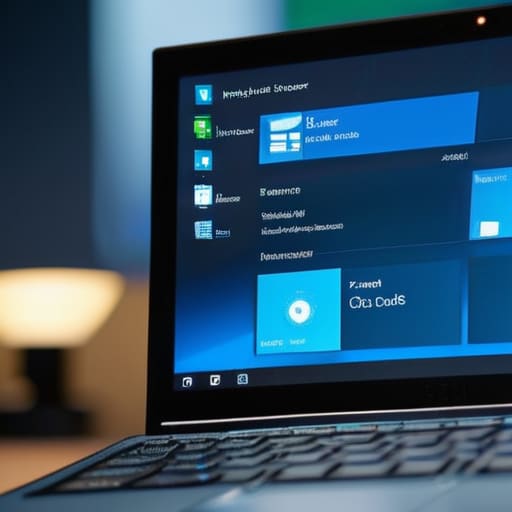
First, let’s get the actual work done. Go ahead and hit that Start button and type in “Manage BitLocker.” It should pop up right there in your search results. Once you click it, you’ll see a list of your drives. Look for the one you actually want to protect—usually your C: drive—and click the link that says “Turn on BitLocker.” Before you get too far, keep in mind that your computer needs to meet certain TPM chip requirements for BitLocker to run smoothly without a bunch of extra hoops to jump through. If your machine is relatively modern, it’ll handle this just fine.
Once you click that button, Windows is going to start asking you some very important questions. It’ll ask how you want to back up your recovery key. Do not skip this part. I’ve seen too many people lose years of photos because they ignored the prompt to save their key. You can save it to your Microsoft account, a USB flash drive, or even print it out. I personally prefer printing it and putting it in a physical file cabinet—digital keys are great until the computer won’t boot. Just follow the prompts to finish the Windows drive encryption setup, and let it run in the background. It might slow things down for a minute, but just let it do its thing.
The Tpm Chip Requirements for Bitlocker You Actually Need

Before you go diving into the settings, we need to talk about the hardware hurdle that trips everyone up: the TPM. Think of the Trusted Platform Module as a tiny, dedicated vault inside your computer that holds the keys to your kingdom. When we talk about TPM chip requirements for BitLocker, what we’re really saying is that your computer needs this physical chip to handle the encryption without you having to type a massive password every single time you boot up. If your machine is older than a few years, it might not have one, or it might just be turned off in the BIOS.
I’ve spent way too many afternoons staring at a “BitLocker is unavailable” error message because someone didn’t realize their TPM was disabled. To check if you’re actually ready for Windows drive encryption setup, just hit your Windows key, type “tpm.msc,” and hit enter. If a window pops up saying “Compatible TPM cannot be found,” don’t start tearing your laptop apart just yet. It usually just means you need to go into your motherboard settings and flip the switch from “Discrete” to “Firmware” or simply enable it. Once that chip is talking to Windows, the rest of the process becomes much less of a headache.
Five Things I Wish Every User Knew Before They Hit 'Encrypt'
- Print that recovery key out right now. I cannot stress this enough. Don’t just save it to a file on the same computer you’re encrypting—that’s like locking your keys inside a safe and then losing the combination. Get a physical piece of paper or a USB stick that stays in your desk drawer.
- Check your drive space before you start. If your hard drive is already screaming for mercy because it’s 99% full, BitLocker is going to struggle to move things around to encrypt them. Clear out your Downloads folder first so the process doesn’t hang halfway through.
- Don’t freak out if the encryption takes forever. Depending on how much data you have and how old your drive is, this could take an hour or it could take all afternoon. I usually just let it run in the background while I tinker with one of my old ThinkPads; just don’t force a shutdown while it’s working.
- Remember that BitLocker isn’t a magic shield against everything. It protects your data if someone steals your laptop, but it won’t save you if you click a phishing link or download a virus. It’s a lock on the door, not a bodyguard for your browser habits.
- Keep an eye on your “System Reserved” partition. If you’re using an older machine or a custom build, sometimes the boot files aren’t on the same drive as the OS. If BitLocker asks you to encrypt a second drive or a specific partition, read the prompt carefully—you don’t want to accidentally lock yourself out of the boot sequence.
Don't Let This Be a "Later" Task

We’ve covered a lot of ground here, from navigating the Control Panel to making sure your TPM chip isn’t acting up. If you’ve followed these steps, you’ve done the heavy lifting of securing your drive and, more importantly, you’ve actually backed up your recovery key. I cannot stress that enough. I’ve spent way too many afternoons on the service desk staring at a frozen screen, listening to a user explain that they “thought they saved the key somewhere in their email.” Please, for your own sanity, save that key in a physical spot or a separate cloud account before you close this tab. You’ve done the hard part; now just make sure you don’t lock yourself out of your own life.
I know that setting up encryption feels like one more thing on an already overflowing plate, especially when you just want your computer to work. But trust me, the five minutes you spend doing this now is a massive gift to your future self. It’s the difference between a minor inconvenience and a total digital catastrophe. Take a breath, finish that last backup step, and then go grab a coffee. You’ve taken a real, tangible step toward making your digital life a little more stable, and that is a win worth celebrating.
Frequently Asked Questions
What happens to my files if I lose my BitLocker recovery key?
I’ll give it to you straight: if you lose that recovery key and you’re locked out, your files are effectively gone. There is no “backdoor” and no magic reset button I can use to bypass the encryption. It’s a security feature, which means it works exactly as intended—by keeping everyone out, including you. Before we go any further, please, for the love of everything, print that key out or save it to your Microsoft account.
Will enabling BitLocker make my computer run slower or affect my gaming?
I get asked this every time I roll out a security update. The short answer? No, you won’t notice a difference. Modern CPUs have a dedicated piece of hardware designed specifically to handle this encryption in the background. It’s not like those old machines from my restoration bench that would chug just opening a browser. Your frame rates in games will stay exactly where they are. Just turn it on and stop worrying about the lag.
Can I still access my data if my hard drive physically fails?
The short answer is no. If the actual metal and silicon inside that drive physically snap or burn out, BitLocker isn’t going to save you. Encryption protects your data from thieves, not from hardware failure. I’ve seen too many people think BitLocker is a backup solution—it isn’t. Please, for the love of your sanity, make sure you have an external backup running. Encryption secures the door, but it won’t rebuild the house if it collapses.