I was sitting in a cramped server closet back in ’08, listening to the rhythmic, agonizing whine of a dying hard drive, when I realized something that most tech blogs completely ignore. Most of these tutorials on how to create a system image act like you’re just clicking a few buttons in a vacuum, but they never talk about the gut-wrenching panic of realizing your backup failed right when the blue screen of death hits. They skip the part where you’re staring at a blank monitor, wondering if your last three years of work just vanished into thin air.
I’m not here to sell you on some bloated, subscription-based “cloud solution” that costs fifty bucks a month just to keep your files safe. I’ve spent sixteen years in the trenches of school IT, and I know that the best way to protect yourself is to do it manually, correctly, and without the fluff. I’m going to show you exactly how to create a system image using tools you already have, walking through every single step so you don’t end up staring at a dead screen later.
Table of Contents
The Real Difference Between Full Disk Backup vs File Backup

Before we dive into the actual clicks and menus, we need to clear something up, because I see people mix these up all the time. Most people think a file backup is the same as a system image, but they aren’t even in the same league. A file backup is just you grabbing your photos, your spreadsheets, and your tax returns and shoving them onto a thumb drive. It’s great for saving your work, but it won’t save your soul if your operating system decides to quit on you.
When we talk about full disk backup vs file backup, we’re talking about the difference between saving your stuff and saving your entire digital life. A system image is a snapshot of everything—your Windows settings, your installed programs, your drivers, and every single little configuration that makes your computer actually run. If your hard drive dies tomorrow, a file backup means you’ll be spending three days reinstalling Windows and all your software from scratch. But if you’ve practiced disaster recovery using system images, you can get back to work in a fraction of the time.
Choosing the Right External Hard Drive for System Backup
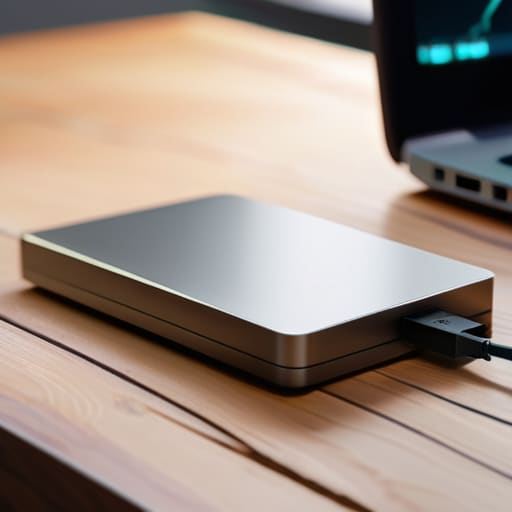
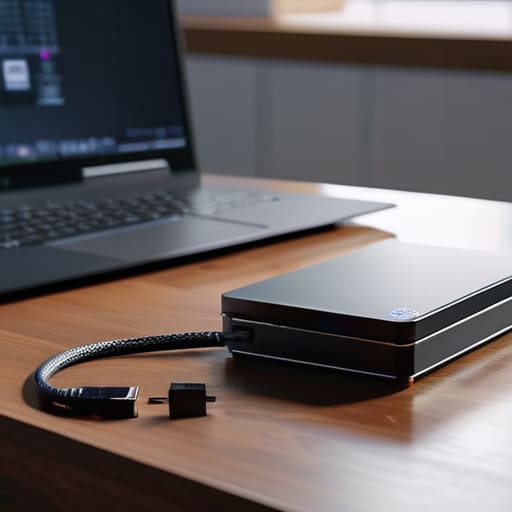
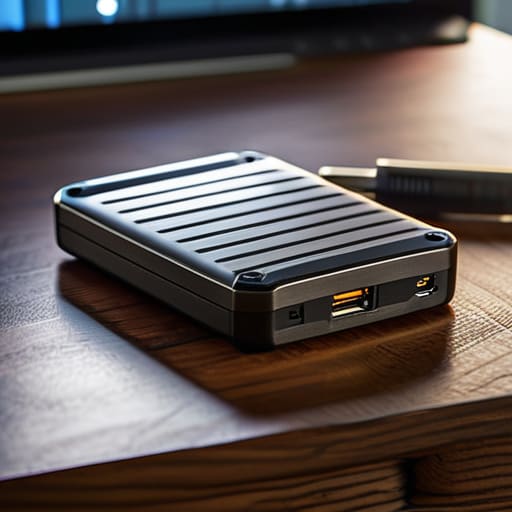
Before you go clicking through menus, we need to talk about the hardware. I’ve seen too many people try to run a windows system image backup tutorial only to have it fail halfway through because they used a thumb drive that was barely big enough to hold their photos. You aren’t just saving a few documents here; you’re trying to clone an entire operating system. You need an external hard drive for system backup that has significantly more capacity than whatever is currently sitting inside your computer. If you have a 500GB internal drive, don’t even think about using a 500GB external drive. You need breathing room.
I always tell my juniors to look for something with a solid connection—ideally USB 3.0 or higher—so you aren’t sitting there for three hours watching a progress bar crawl. I personally keep a dedicated, ruggedized drive in my desk specifically for this. It doesn’t need to be the fastest drive on the market, but it needs to be reliable. If the drive drops connection while you’re mid-process, you’re just adding more frustration to an already bad day. Get something with a bit of extra overhead, and you’ll be much happier when it comes time for restoring windows from a system image.
A few things I wish people would do before they hit 'start'
- Check your drive space first. There is nothing more soul-crushing than letting a backup run for forty minutes only to have it fail halfway through because your external drive is actually full. I always make sure the destination drive has at least double the space of what’s currently on my laptop.
- Don’t forget the “test drive.” A backup isn’t a backup until you’ve actually proven it works. Once you finish the image, try to mount it or at least see if the files are readable. I’ve seen too many people realize their “safety net” was actually just a folder of empty shortcuts when they needed it most.
- Keep your backup drive unplugged when you aren’t using it. If a piece of ransomware hits your computer and you’ve got your backup drive plugged in, it’s going to go after that too. I keep mine in a desk drawer, not the USB port.
- Label your drives physically. I’ve spent way too much time staring at three identical black external hard drives trying to remember which one holds the 2023 system image and which one is just holding my old photos. A piece of masking tape and a Sharpie save you a massive headache.
- Set a recurring reminder on your calendar. A system image from two years ago is basically just a digital paperweight if you’ve updated your software since then. I aim to run a fresh one at least once a quarter, or whenever I do a major OS update.
Before You Close This Tab
Look, I know we just went through a lot of technical ground, but let’s bring it home. We talked about why a simple file backup isn’t going to save your skin when Windows decides to throw a tantrum, and we made sure you picked a hard drive that actually has the guts to handle a full system image. Remember: a system image is your “get out of jail free” card. It’s the difference between spending your entire Saturday reinstalling every single driver and app, or just clicking a few buttons and being back to work in an hour. Just make sure you verify that the image actually finished before you unplug that drive and walk away.
I’ve spent sixteen years watching people panic because they thought they were “too busy” to do this. Trust me, you aren’t too busy to spend twenty minutes setting this up now. I still keep a stack of old 90s ThinkPads on my workbench just to remind myself that hardware is fickle and software is even more temperamental. Don’t let a blue screen be the thing that ruins your week. Get that image done, tuck that drive away safely, and give yourself the peace of mind you actually deserve. You’ve got this.
Frequently Asked Questions
If I make a system image, does that mean I don't need to back up my individual documents and photos anymore?
Look, I’ll give it to you straight: don’t do that. I know it feels redundant, but a system image is a snapshot of your whole machine—it’s great for when your hard drive decides to die entirely. But if you accidentally delete a folder or a file gets corrupted, digging through a massive image file just to find one photo is a nightmare. Keep your precious docs on a separate cloud or drive. One is for the system; one is for your life.
How much space am I actually going to need on this external drive to fit my entire computer?
Look, I’ve seen people try to cram a 500GB drive onto a system that’s already pushing 450GB, and it’s a recipe for a headache. Don’t do that. You need to check your “Used Space” in your storage settings first. Once you have that number, double it. I always aim for a drive that’s at least twice the size of my actual data. It gives the system breathing room and room for those inevitable updates.
What happens if my computer won't even turn on—how do I actually use the image I just made?
Look, I’ve been there—staring at a black screen, wondering if you just lost everything. If your machine is dead, you can’t use the image from within Windows. You’ll need to boot from a recovery drive or your Windows installation media first. Once you’re in that blue “Advanced Options” menu, select “System Image Recovery.” It’ll walk you through pulling that image from your external drive. Just take it slow; we’ll get it back.