Patching Everything, Not Just Windows

I was sitting in a cramped school IT office last Tuesday, listening to the rhythmic, soul-crushing click-click-click of a frantic teacher trying to force a frozen spreadsheet to work, when it hit me. She wasn’t tech-illiterate; she was just exhausted by a system that felt like it was fighting her at every turn. Most people think learning how to keep software updated requires a degree in computer science or a subscription to some overpriced “security suite” that does nothing but bloat your RAM. Honestly? That’s a lie sold by people who don’t have to actually fix the mess when things go south.

I’m not going to give you a lecture on cybersecurity protocols or a list of twenty different tools you don’t need. Instead, I’m going to show you the actual, manual steps I use to keep my own machines—and the ones I’m restoring in my garage—running smoothly without the constant headache. I promise to give you a straightforward roadmap that focuses on the small, repeatable habits that prevent a total system meltdown. We’re going to do this the right way, one verified step at a time, so you can stop babysitting your computer and actually get your work done.

Table of Contents

Mastering Your Vulnerability Management Lifecycle Without Losing Your Mind

Mastering Your Vulnerability Management Lifecycle Without Losing Your Mind

I’ve spent enough time on service desks to know that “vulnerability management lifecycle” sounds like something a corporate suit says right before they make your life miserable. In reality, it’s just a fancy way of saying you need a repeatable rhythm for fixing holes in your system. If you try to treat every single update like a high-stakes emergency, you’re going to burn out by Tuesday. The trick is to stop reacting and start planning. I always tell my junior techs to establish a basic patch management policy—even if it’s just a simple rule like “updates happen every Thursday after lunch”—so you aren’t constantly playing whack-a-mole with security threats.

You don’t need to be a wizard to get this right, but you do need to be consistent. I’m a big believer in setting up automated patch deployment wherever you can. I know, I know—the idea of a computer changing things on its own feels scary. But honestly, letting a tool handle the grunt work is much safer than manually clicking “Next” on fifty different machines while your coffee gets cold. Just make sure you test the updates on one machine first; I’ve seen enough broken drivers to know that blind trust is a dangerous game.

Why Automated Patch Deployment Is Your Only Saving Grace

Why Automated Patch Deployment Is Your Only Saving Grace

Look, I’ve spent enough time in the trenches of school IT departments to know that manual updates are a trap. You start the day thinking you’ll just click “install” on that one nagging prompt, and before you know it, you’re three hours deep into a rabbit hole of broken drivers and mismatched versions. If you’re trying to manage a dozen different machines by hand, you aren’t just losing time; you’re leaving the door wide open. Relying on human memory for your vulnerability management lifecycle is a recipe for a 2:00 AM emergency call.

This is exactly why I always advocate for automated patch deployment. It isn’t about being lazy—though it definitely feels that way when it works—it’s about removing the “human error” variable from the equation. When you use a centralized tool to push updates, you aren’t playing a guessing game with every single workstation. You’re establishing a consistent rhythm that follows your patch management policy without you having to babysit every single mouse click. It’s the only way to stay ahead of the chaos without losing your sanity.

5 Ways to Stop Playing Catch-Up With Your Own Computer

  • Turn on auto-updates for everything you can. I know, I know—you’re worried it’ll restart right in the middle of something important. But honestly, the five minutes of annoyance from a random reboot is much better than the three hours of chaos that happen when a security hole gets exploited because you were “getting around to it.”
  • Don’t just trust the OS; check your standalone apps. Windows Update is great for the heavy lifting, but it isn’t going to fix your browser or your PDF reader. I make it a habit to check the “About” section in my most-used apps once a month just to see if they’re lagging behind.
  • Set up a “Maintenance Window” for yourself. If you can’t trust auto-updates, pick one specific time—maybe Friday afternoon when things are winding down—to manually run every update you’ve been ignoring. It keeps the chaos predictable instead of letting it hit you at 9:00 AM on a Monday.
  • Keep a backup of your critical files before you hit that big “Update All” button. I’ve seen more than one “seamless” update turn into a boot loop that wiped out a user’s entire semester’s worth of work. It’s not paranoia; it’s just good practice.
  • Audit your installed software and just delete the junk. If you haven’t opened that weird photo editor or that old utility program in six months, uninstall it. You can’t have a security vulnerability in a piece of software that isn’t even on your machine.

Don't Let the Update Button Win

Don't Let the Update Button Win.

Look, we’ve covered a lot of ground here, from understanding why your vulnerability lifecycle is actually a living thing to why you need to let automation do the heavy lifting for you. At the end of the day, keeping your software updated isn’t about being a perfectionist; it’s about building a defense-in-depth strategy that keeps you from being the person calling me at 4:00 PM on a Friday because a known exploit took down your entire network. You don’t need to be a security expert to do this right, you just need to stop treating updates like an optional chore and start treating them like the essential maintenance they are.

I know it feels like a constant battle against a never-ending list of notifications, but I promise you, the effort you put in now is going to save you a massive amount of headache down the road. I’ve spent sixteen years watching people try to “wing it” with their security, and it almost always ends in a disaster that could have been avoided with a few clicks. Take a breath, set up your automated patches, and reclaim your peace of mind. You deserve to spend your time actually working, not cleaning up digital messes that were preventable in the first place.

Frequently Asked Questions

If I turn on automatic updates, is there a chance a bad patch will break my favorite program?

Look, I’ll be honest with you: yes, there is a chance. I’ve seen plenty of “mandatory” updates turn a perfectly good workstation into a paperweight because a developer missed a dependency. It’s why I always keep a notepad handy to jot down what I changed before I hit restart. If you’re running mission-critical software, don’t go full “auto-pilot.” Set your updates to notify you first, then verify they won’t break your workflow.

How do I know if my printer or scanner actually needs an update if it doesn't pop up a notification?

If your printer isn’t screaming at you with a pop-up, you have to go hunting. I usually skip the generic Windows update tool and head straight to the manufacturer’s website—HP, Epson, whatever you’re using. Look for a “Support” or “Drivers” tab and type in your specific model number. If the date on the driver listed there is newer than the one you currently have installed, grab it. Don’t guess; just check the source.

Is it really necessary to update every single little app, or can I just focus on the big ones like Windows and Chrome?

I get it—it feels like overkill to chase every tiny little utility. But here’s the thing: hackers don’t go for the front door of Windows; they slip in through the side window of that random PDF reader or old media player you haven’t touched in months. If an app is running on your machine, it’s a potential doorway. Don’t let a tiny, forgotten app be the reason your whole system goes sideways.


Reading a Battery Health Report

I was elbow-deep in the guts of a 1994 ThinkPad last Tuesday—trying to coax a dead CMOS battery back to life—when I realized just how much bad advice is floating around the internet. Most “experts” will tell you that you need a high-end digital multimeter and a degree in electrical engineering just to figure out how to diagnose a battery problem. They make it sound like some complex, mystical ritual, when in reality, most of the time it’s just a loose connection or a terminal that’s seen better days. Honestly, if you’ve been staring at a device that won’t power on, feeling like you’re hitting a brick wall, you don’t need a lecture on voltage theory; you just need to know what to touch first.

I’m not here to sell you a fancy diagnostic kit or waste your time with steps that assume you’ve already mastered the basics. My promise to you is simple: I am going to walk you through this one verified step at a time, starting with the stuff that actually matters. We’re going to skip the fluff and get straight to the real-world fixes that I’ve used for sixteen years on the service desk.

Table of Contents

Spotting the Obvious Signs of a Failing Battery

Spotting the Obvious Signs of a Failing Battery.

Before we start pulling out the tools, let’s talk about what your car is actually trying to tell you. Most of the time, a battery doesn’t just quit; it gives you a few warnings first. You might notice the engine cranking a little slower than usual in the morning, or maybe your headlights look a bit dim when you’re idling at a red light. These are classic signs of a failing battery that people often ignore until they’re stuck in a parking lot. If you’ve been hearing a clicking sound when you turn the key, that’s usually the starter solenoid struggling because it isn’t getting enough juice.

I also want you to pop the hood and just take a look before you do anything else. Don’t worry, you don’t need a degree for this. I always recommend a quick battery terminal corrosion check first. If you see that nasty white or bluish powder crusty stuff around the metal connectors, that’s likely your culprit. It acts like a layer of insulation, preventing the electricity from flowing where it needs to go. It’s frustrating, I know, but sometimes the “broken” battery is actually just a dirty connection.

The Quick Battery Terminal Corrosion Check You Need

The Quick Battery Terminal Corrosion Check You Need

Before you go pulling out a multimeter to run a full battery discharge rate analysis, I want you to do something much simpler. Pop the hood and just look at the battery. I’ve seen so many people assume their battery is dead when, in reality, it just can’t “talk” to the car because of a layer of gunk. A proper battery terminal corrosion check is often the fastest way to solve a starting issue without spending a dime.

If you see any white, ashy powder or a crusty green buildup around those metal connectors, that’s your culprit. That corrosion acts like an insulator, blocking the electricity from flowing where it needs to go. It’s incredibly frustrating because everything looks fine on paper, but the connection is physically blocked.

Don’t panic if you see it; it’s a common fix. Grab a stiff wire brush or even an old toothbrush and some baking soda mixed with water. You’re just going to gently scrub that buildup away until you see the clean metal again. Once those terminals are shiny and tight, you might find that your “dead” battery was actually just suffocating under a layer of salt.

Five Things to Check Before You Go Buying a New Battery

  • Grab a multimeter and check the voltage while the engine is off. If you aren’t seeing at least 12.6 volts, your battery isn’t holding a full charge, and no amount of jumping it is going to fix a dead cell.
  • Watch your headlights while someone else cranks the engine. If the lights dim significantly or go completely dark when you turn the key, your battery is struggling to provide the necessary amperage to the starter.
  • Listen for the “click-click-click” sound. If you hear a rapid clicking instead of the engine turning over, it usually means there’s enough power to engage the solenoid but not enough to actually spin the motor—a classic sign of a weak battery.
  • Check the age of the battery itself. Most of these things only have a lifespan of three to five years; if yours has been sitting in that engine bay since the last administration, it’s probably time to stop troubleshooting and start shopping.
  • Look for physical swelling or a “bloated” casing. If the battery looks like it’s trying to expand out of its housing, it’s been overcharged or subjected to extreme heat, and it’s officially a paperweight.

Don't Let a Dead Battery Win

Don't Let a Dead Battery Win.

At this point, you’ve likely checked the obvious signs, looked for that telltale slow crank, and hopefully scrubbed away any crusty corrosion on the terminals. If you’ve followed these steps, you aren’t just guessing anymore; you’re actually diagnosing the problem. Remember, if the terminals are clean and the connections are tight but the car still acts like it’s hibernating, the issue is almost certainly internal to the battery itself or perhaps a failing alternator. Don’t jump straight to buying the most expensive replacement on the shelf until you’ve verified these basics, because sometimes the fix is a lot cheaper—and a lot less stressful—than a trip to the auto parts store.

I know how it feels when you’re staring at a silent engine, wondering if your whole day is about to go down the drain. It’s frustrating, and it feels like the machine is working against you. But once you take that first step to look under the hood and actually interrogate the hardware, you take the power back. You aren’t just a victim of bad luck; you’re someone who knows how to troubleshoot. Take a breath, grab your flashlight, and trust the process. You’ve got this, and I promise, once you find that one missing link, the relief is going to feel a whole lot better than the headache you’re dealing with right now.

Frequently Asked Questions

If my battery is old but still holds a charge, does that mean I can ignore the warning signs for a while?

Look, I’ve seen this a dozen times: a battery that holds a charge but behaves like a temperamental toddler. Just because it isn’t dead yet doesn’t mean you can ignore the warning signs. If you’re seeing slow cranking or dimming lights, the battery is telling you it’s struggling. Don’t wait for it to fail in a grocery store parking lot at 9:00 PM. Test it now while you still have the luxury of choice.

I checked the terminals and they look clean, so could the problem actually be my alternator instead?

It absolutely could be. I’ve seen so many people swap out a perfectly good battery only to realize the alternator was the real culprit all along. Think of it this way: the battery is the storage tank, but the alternator is the pump that keeps it full. If the pump is broken, it doesn’t matter how much fuel you put in the tank. Let’s run a quick voltage test to see if it’s actually charging.

Is it worth buying a cheap multimeter to test this myself, or am I just going to end up more frustrated?

Look, I get the hesitation. You don’t want another piece of junk cluttering your junk drawer. But honestly? Grab a basic one. You don’t need a professional-grade Fluke to see if a battery is outputting 12 volts or just dying gasps. A cheap digital multimeter will cost you less than a decent lunch and it’ll stop the guesswork. Just promise me you’ll read the manual first—I’ve seen too many blown fuses from people skipping the basics.

A Keyboard Replacement in Two Hours

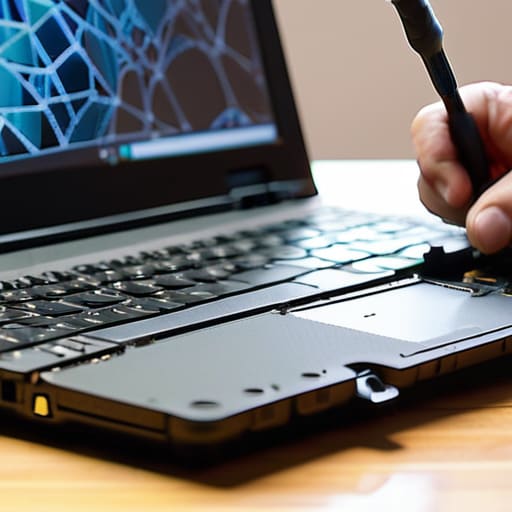
I was sitting at my workbench last Tuesday, staring at a spilled latte that had turned a perfectly good ThinkPad into a very expensive paperweight, when I realized something. Most online tutorials for how to replace a laptop keyboard act like you’re performing open-heart surgery on a saint, skipping over the part where the plastic clips feel like they’re about to snap and your heart is sinking into your stomach. I’ve spent sixteen years on service desks, and if there is one thing I know, it’s that the official manual never mentions the tiny, infuriating screw that hides under a piece of useless decorative trim.

I’m not here to give you a lecture or a list of “recommended precautions” that don’t actually help when you’re staring at a pile of tiny parts. Instead, I’m going to walk you through this process exactly how I do it when I’m restoring my old 90s rigs at home: one verified step at a time. I’ll show you the real pitfalls, the parts that actually require a gentle touch, and how to avoid the common mistakes that turn a simple repair into a total disaster. Let’s just get this done.

Table of Contents

Guide Overview

Total Time: 1-2 hours
Estimated Cost: $30-80
Difficulty: Intermediate

Tools & Supplies

  • Phillips head screwdriver (Precision set)
  • Plastic spudger or pry tool (For case separation)
  • Tweezers (For handling small cables)
  • Replacement keyboard (1 unit)
  • Isopropyl alcohol (Small amount for cleaning)

Step-by-Step Instructions

  • 1. First things first, you need to cut the power. I don’t care if you think it’s off; if that battery is still plugged in, you’re asking for a short circuit that’ll turn this repair into a funeral. Unplug the charging cable, and if your model has a removable battery, pop it out. If the battery is internal, we’ll deal with that once we get the bottom cover off, but for now, just make sure it’s dead.
  • 2. Now, grab a small Phillips head screwdriver—the kind you’d use for eyeglasses, not the heavy-duty stuff from your toolbox. You’re going to need to flip the laptop over and start removing the screws from the bottom casing. I usually keep a small magnetic tray or even an old egg carton nearby to hold these. If you lose one of these tiny screws, you’re going to have a very bad afternoon.
  • 3. Once the screws are out, you’ll need to gently pry the bottom panel away from the chassis. Use a plastic pry tool or an old guitar pick if you have one; please, don’t use a metal screwdriver for this part unless you want to gouge the plastic. Work your way around the edges until you hear a series of small clicks. That’s just the plastic tabs releasing, so don’t let it startle you.
  • 4. With the bottom cover off, your first real mission is to disconnect the battery. Even if the laptop is “off,” there’s still current running through the motherboard. Find the connector where the battery wires meet the board and gently pull it straight out. I always write this down in my notes: disconnect the battery before touching anything else.
  • 5. Now we get to the actual keyboard. Depending on your specific model, the keyboard is either held in by a few screws or it’s tucked under the entire bezel. If there are screws visible near the keyboard, remove them. If not, you’ll likely need to use your pry tool to carefully lift the edges of the keyboard frame. It’s going to feel tight, and you might feel some resistance, but just keep a steady hand.
  • 6. This is the part where most people break something. You’ll see a thin, delicate ribbon cable connecting the keyboard to the motherboard. Do not yank this. Use your fingernail or a pair of tweezers to flip up the tiny locking tab on the connector, then slide the ribbon out. It’s thinner than a piece of paper, so treat it like it’s made of glass.
  • 7. Finally, take your new keyboard and line up that ribbon cable with the connector. Slide it in until it’s seated perfectly straight—if it’s even a hair crooked, the keys won’t register. Flip the locking tab back down, and then you can start putting the laptop back together in reverse. Just take your time when you’re snapping the casing back on; there’s no prize for finishing fast.

Gather Your Laptop Disassembly Tools Before You Lose Your Cool

Gather Your Laptop Disassembly Tools Before You Lose Your Cool

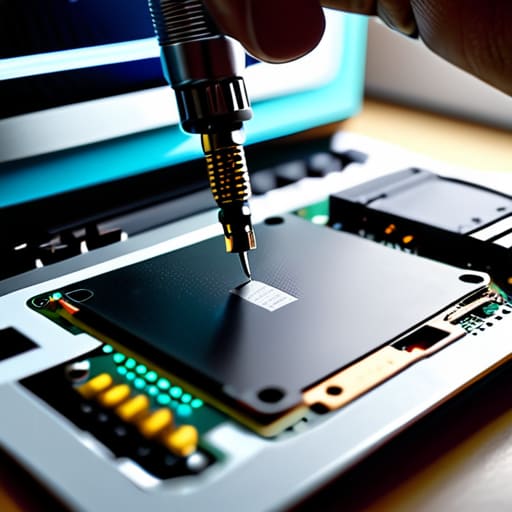
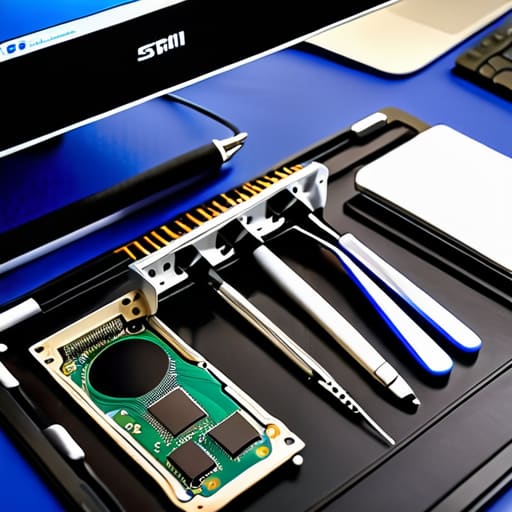
Before you even think about unscrewing a single thing, you need to clear a workspace. I’ve seen so many people start this process only to realize halfway through that they’re trying to pry delicate plastic with a butter knife. Please, don’t be that person. You really only need a decent set of precision screwdrivers and a plastic spudger—the kind that won’t mar the casing—to navigate the laptop disassembly tools phase without a meltdown. If you don’t have a magnetic tray, grab a small bowl or even an old egg carton. Trust me, losing a tiny M2 screw into the depths of your carpet is a fast track to a bad mood.

I also highly recommend getting a small tray for your screws, ideally organized by where they came from. When you’re poking around near the internal laptop components, everything starts looking the same, but those screws are definitely not interchangeable. If you try to force a long screw into a short hole, you’ll punch right through the chassis, and then we’re looking at a much bigger disaster than a sticky ‘Enter’ key. Take a breath, lay your tools out, and get organized first.

Finding Compatible Replacement Keyboards Without the Headache

Finding Compatible Replacement Keyboards Without the Headache

This is where most people trip up. You think you can just search for “Dell Inspiron keyboard” and be done with it, but that’s a one-way ticket to a headache. Laptops are finicky like that. Manufacturers often change the ribbon cable layout or the mounting bracket style mid-year without even telling anyone. Before you click “buy,” you need to find your exact model number, which is usually tucked away on a sticker on the bottom of the chassis. If you can’t find it there, I usually boot the machine up one last time and run `msinfo32` in the Windows search bar to see exactly what we’re working with.

Once you have that number, don’t just settle for the cheapest option on a random marketplace. I’ve seen too many people try to replace broken laptop keys only to realize the new part has a different backlight configuration or a slightly different connector. I always recommend looking for “OEM” or “Original Equipment Manufacturer” parts if your budget allows. It might cost a few extra bucks, but it saves you from the nightmare of realizing your new keyboard doesn’t actually fit the internal housing after you’ve already spent an hour on the laptop disassembly tools and stripped a screw.

Five Things I Wish I Knew Before I Started Screwing Around With Tiny Parts

  • Keep a magnetic tray or even just an old ice cube tray nearby. I’ve spent more time than I care to admit hunting for a single M2 screw that decided to migrate into the carpet fibers. If you don’t have a place to put the screws, you’re going to lose them.
  • Don’t trust the “click” blindly. When you’re snapping the new keyboard back into the chassis, it might feel like it’s seated, but I always give the corners a gentle, even press to make sure the plastic tabs are actually engaged. If it feels mushy, it’s not done.
  • Treat your ribbon cables like they’re made of wet tissue paper. They are incredibly fragile. When you’re reseating the keyboard connector, don’t force it; if it isn’t sliding in perfectly straight, stop, pull it back, and try again.
  • Static is your silent enemy. I know, I know, “it’s just a keyboard,” but if you’re working near the motherboard, touch a metal object or wear an anti-static wrist strap. I’ve seen too many “successful” repairs turn into dead laptops because of a single spark.
  • Take photos of every single stage. Before you unplug a cable or remove a bracket, snap a picture with your phone. Six months ago, I thought I had a photographic memory, but I quickly learned that memory fails you the moment you’re staring at a pile of identical-looking black wires.

You Actually Did It

Repaired machine: You Actually Did It.

Take a second to look at that machine. You gathered the right tools, you tracked down the exact part that wouldn’t fail you, and you didn’t let a handful of tiny, easily-lost screws ruin your entire afternoon. We went through the messy parts—the delicate disassembly, the nerve-wracking moment of unplugging that tiny ribbon cable, and the final seating of the new hardware—and you made it to the other side. It’s easy to feel like you’re just fiddling with expensive plastic, but you actually followed a logical path from a broken device to a working one. Just make sure you double-check that every screw is back in its rightful home before you snap the casing shut; I’ve seen enough loose hardware to know that the little details are usually where the trouble starts.

I know there’s a part of you that’s already wondering what the next thing to break will be, but try to hold onto this feeling instead. There is something incredibly grounding about taking a piece of tech that felt “dead” or broken and breathing life back into it with your own two hands. You aren’t just a consumer anymore; you’re someone who understands how their tools actually work. Whenever a new problem crops up, don’t let the frustration take over. Just slow down, grab your screwdriver, and remember that you’ve already proven you can handle the fix.

Frequently Asked Questions

I’ve already opened the casing, but now I’m staring at a mess of tiny ribbon cables—how do I know which one is actually for the keyboard?

I’ve been there. You open the case and suddenly it looks like a plate of spaghetti. Don’t panic. First, look for the widest, flattest ribbon cable; that’s usually your keyboard. It’ll be tucked into a locking connector near the center of the board. If you see a tiny, thin one, that’s likely your trackpad. I always write down which cable goes where before I touch them—it saves me a massive headache later.

Is there any way to tell if I actually broke the keyboard itself or if it’s just a driver issue in Windows?

Before you go tearing the whole chassis apart, let’s rule out the software. I’ve seen way too many people buy a new keyboard when they really just needed a driver update.

What happens if I drop one of those tiny proprietary screws into the carpet while I'm working?

Don’t panic. I’ve been there, usually while working on an old ThinkPad after a long shift. If it disappears into the carpet, stop moving immediately—don’t walk around or you’ll crush it. Grab a flashlight and lay it flat on the floor; the light will catch the metal and create a shadow. If that fails, a vacuum with a thin sock stretched over the nozzle works like a charm. Just don’t give up.

Disconnecting First

I remember sitting in a dimly lit server room back in ’08, the hum of the cooling fans suddenly feeling much louder than usual as I stared at a screen full of gibberish. My stomach did that slow, heavy sink—the kind you only get when you realize the nightmare is actually happening. Most of the “expert” whitepapers I see today make it sound like you just need to buy a more expensive piece of software to make the problem vanish, but that’s a lie. If you’re currently staring at a ransom note and wondering how to respond to ransomware without losing your mind, you don’t need a sales pitch; you need a sanity check.

I’m not going to give you a theoretical lecture or a list of corporate buzzwords that skip over the messy reality of a crisis. Instead, I’m going to walk you through the exact, unvarnished steps I’ve used over sixteen years on the service desk to stop the bleeding. We are going to focus on triage and containment, moving one single, verified step at a time. I promise to give you the instructions for the person who is already frustrated, ensuring you know exactly what to do before you reach for the next manual.

Table of Contents

Stop the Bleeding With Immediate Containment and Eradication Strategies

Stop the Bleeding With Immediate Containment and Eradication Strategies

First things first: I need you to take a breath, but move your hands. If you see that ransom note on your screen, the clock is already ticking. Your immediate priority is to sever the connection between that infected machine and everything else. I’m talking about pulling the Ethernet cable out of the wall or toggling that physical Wi-Fi switch if the laptop has one. Do not just shut the computer down normally through the menu—some of these nasty variants trigger a wipe if they detect a standard power-off sequence. If you can, just pull the plug from the back of the tower. We need to stop the spread before the malware starts crawling through your network to find your backups.

Once you’ve isolated the hardware, we move into the actual containment and eradication strategies. This is where most people panic and start clicking things they shouldn’t. Don’t try to run a quick scan and hope for the best; that’s how you end up with a half-baked fix that leaves a backdoor wide open. You need to identify exactly which accounts were logged in on that machine. If it was a domain account, you need to disable it immediately. We aren’t just cleaning a virus; we are performing malware infection remediation on a system that can no longer be trusted.

Stop Guessing and Activate Your Cybersecurity Incident Response Plan

Stop Guessing and Activate Your Cybersecurity Incident Response Plan

Now, take a deep breath. I know the instinct is to start clicking through folders or trying to run a quick scan to see how bad it is, but that is exactly how people make things worse. You need to stop guessing and actually pull out that cybersecurity incident response plan you (hopefully) tucked away in a drawer or a cloud drive months ago. If you don’t have one, this is the moment where you start building one on the fly, but you have to follow a sequence. Don’t skip to the end; you can’t fix a house while it’s still actively on fire.

I’ve seen so many admins lose their cool and start making “gut calls” that end up corrupting the very files they were trying to save. Instead, follow the playbook. This plan isn’t just a suggestion; it is your roadmap for malware infection remediation and keeping your sanity intact. It tells you who to call, which servers to isolate, and when to stop trying to be a hero and start calling in the professionals. Stick to the script, even if the script feels slow. Moving too fast is how you turn a bad day into a total catastrophe.

Five things to do while you're waiting for the cavalry

  • Don’t go hunting for the “source” yourself. I’ve seen too many people try to play detective by clicking through folders to see where the encryption started, and all they do is accidentally trigger a secondary payload or delete a log file that we actually need for forensics. Just leave the machine alone once it’s off the network.
  • Check your backups, but do it with your hands in your pockets. Before you go rushing to plug in an external drive or mount a cloud volume to see if your data is safe, make sure that drive isn’t already connected to the infected machine. If the ransomware is still active on the network, it will jump to your backup drive faster than you can say “restore.”
  • Document the “as-is” state. Grab a physical notebook—not a digital one on the same network—and write down exactly what you see on the screen. Is there a specific ransom note file? What is the file extension of the encrypted documents? I always write these details down before I even talk to the user, because once the panic sets in, those tiny details are the first things people forget.
  • Change your credentials from a different, clean device. If the attackers got into one machine, there is a very high chance they’ve scraped your passwords from memory. Get on your phone or a separate, uninfected laptop and start rotating your administrative and primary account passwords immediately.
  • Stop the “helpful” urge to reboot. I know the instinct is to restart the computer to see if the error goes away or to try and “clear” something, but a reboot can actually finalize the encryption process or wipe the volatile memory (RAM) where the decryption keys might be hiding. If it’s frozen, leave it frozen.

Taking a Breath and Moving Forward

Taking a Breath and Moving Forward.

We’ve covered a lot of ground, and I know your brain probably feels like it has fifty tabs open at once. Just to recap: you pulled the plug on the network to stop the spread, you stopped guessing and actually followed your incident response plan, and you’ve started the messy process of containment. It’s a lot to manage while your heart is racing, but you’ve already done the hardest part, which is refusing to panic and instead taking methodical, calculated action. Remember, the goal isn’t just to get back online; it’s to ensure that when you do, you aren’t leaving the door cracked open for them to come right back in.

Once the dust settles and the recovery is underway, I want you to do something most people forget: take a moment to breathe. You’ve just survived a digital nightmare, and while the technical cleanup might take days or even weeks, the mental fatigue is real. Don’t let this experience make you feel like you’ve failed; even the most sophisticated systems can get hit. Instead, use this as the fuel to build something stronger. You aren’t just patching a hole; you are building a more resilient foundation for everything you do next. You’ve got this.

Frequently Asked Questions

If I have a backup, can I just wipe the machine and restore it, or is there a risk the ransomware is hiding in the backup files too?

I wish it were that simple, but please don’t hit “restore” just yet. I’ve seen this play out too many times: you wipe the drive, pull from a backup, and three days later, the same ransom note pops up. That’s because the ransomware likely sat dormant in your system for weeks before it actually triggered. You have to scan those backup files in a sandbox environment first. If you don’t, you’re just inviting the intruder back in.

Do I really need to call the police or the FBI, or is that just going to make a bad situation even more complicated?

Look, I get it. The last thing you want is a federal agent breathing down your neck while you’re trying to salvage your data. But here’s the reality: if you’re being extorted, you’re a victim of a crime. Calling the FBI isn’t about getting them to “fix” the server—they aren’t your IT department—it’s about the paper trail. You need that official report for insurance claims and legal protection. Don’t skip this step.

I'm terrified of losing everything—is there any actual chance of getting my files back without paying the ransom?

Take a breath. I know that feeling in your gut, but don’t let panic make you reach for your credit card just yet. There is a real chance, but it depends on your backups. First, I’m going to write this down: check if your offsite or cloud backups are intact and untouched. If you have a clean recovery point, you’re golden. If not, we look for known decryptors. Don’t pay until we’ve exhausted every technical avenue.

Sharing a Folder Without Opening Everything

Ever feel like you’re staring at a screen that’s actively gaslighting you? I spent twenty minutes this morning on a call with a teacher who was convinced her entire server had vanished, when in reality, she just couldn’t figure out how to share a folder on a network without the computer throwing a fit. Most of the guides you’ll find online are written by people who have clearly never sat in a dusty school computer lab at 4:00 PM on a Friday. They skip the “obvious” steps—the ones that actually matter—and jump straight to settings that don’t even exist in your version of Windows. It is infuriating to follow a tutorial only to realize the author assumed you had already done three things that actually failed.

I’m not here to give you a lecture or sell you some overpriced cloud subscription. I’m going to walk you through this exactly how I do it when I’m sitting in the chair next to a frustrated user: one verifiable step at a time. We aren’t going to skip the boring stuff, because the boring stuff is usually where the error hides. By the time we’re done, you won’t just have a shared folder; you’ll actually know why it works.

Table of Contents

Local Area Network File Sharing Setup Without the Headache

Local Area Network File Sharing Setup Without the Headache

Before we start clicking through menus, let’s get one thing straight: we are doing a local area network file sharing setup the right way. I’ve spent too many afternoons staring at a screen because someone skipped the basic handshake between two computers. Most people think they’ve shared a folder, but they’ve actually just thrown it into a digital void. We aren’t going to do that. We are going to make sure your computer actually sees the other one on the network before we even touch the folder itself.

First, I need you to check your Network Profile. If your computer thinks you’re at a coffee shop, it’s going to block everything for “safety.” Go into your settings and make sure your connection is set to Private. Once that’s settled, we can move on to configuring shared folder permissions. This is where most people trip up. You don’t just want the folder “open”; you want to make sure the specific user accounts actually have the right to walk through that digital door. I’m writing this down now so I don’t forget to remind you: check the “Sharing” tab and the “Security” tab. If they don’t match, you’re just spinning your wheels.

Configuring Shared Folder Permissions So People Actually Get in

Configuring Shared Folder Permissions So People Actually Get in

Now, here is where most people hit a wall. You’ve done the setup, you’ve clicked the buttons, and yet your colleague still gets that dreaded “Access Denied” error. It’s infuriating, I know. The reason this happens is that Windows plays a double game with configuring shared folder permissions. You aren’t just dealing with one lock on the door; you’re dealing with two. You have the “Sharing” permissions, which control the door, and the “Security” permissions (what we call file sharing access control lists), which control what people can actually do once they are inside the room.

If you want to stop the headache, you have to make sure both layers match. I always tell my junior techs: if the Sharing tab says “Everyone can read,” but the Security tab only lists your own name, nobody else is getting in. Go to that Security tab, click Edit, and add the specific users or the “Everyone” group if you’re in a low-stakes environment. Check both tabs every single time. It’s a tedious extra step, but it’s the only way to ensure your work actually stays shared.

Five Things I Wish I Knew Before I Started Clicking Random Buttons

  • Check your network profile first. I’ve lost count of how many times I’ve spent an hour troubleshooting permissions only to realize the computer was set to “Public” instead of “Private.” If it’s set to Public, your computer is basically wearing a mask and hiding from everyone else on the network. Switch it to Private, or nothing is going to talk to anything.
  • Don’t forget the “Sharing” vs. “Security” tabs. This is where most people trip up. You can set the permissions in the Sharing tab all day long, but if the Security tab doesn’t also list the user or the “Everyone” group, Windows is going to slam the door in their face anyway. You have to satisfy both guards at the gate.
  • Stop using spaces in your folder names if you can help it. I know, “Marketing Files 2024” looks nice, but when you’re trying to map a network drive or use a command line, those spaces turn into `%20` nonsense that makes my eyes twitch. Use underscores or just run the words together. Your future, less-frustrated self will thank you.
  • Keep an eye on your password settings. If you’re trying to share a folder with someone and they keep getting a “Windows cannot access” error, it’s usually because “Password Protected Sharing” is turned on in your Advanced Sharing settings. If they don’t have a local account on your machine, they aren’t getting in. You can turn this off, but honestly, just making sure they have the right credentials is the safer bet.
  • Write down the path. Seriously. Once you get the folder shared, go to the address bar, click it, and copy that `\ComputerNameFolderName` string. Paste it into a notepad or an email to the person who needs it. Don’t make them play scavenger hunt through the Network tab; just give them the direct route.

One Last Thing Before You Close This Tab

One Last Thing Before You Close This Tab

We’ve covered a lot of ground here, and I know it probably feels like a lot of clicking through menus that weren’t designed with humans in mind. Just remember the basics: you need your network profile set to private so your computer isn’t hiding, your file sharing settings need to be toggled on, and most importantly, you have to actually check those permission levels so your coworkers aren’t staring at an “Access Denied” screen. If you followed the steps, you should be able to see that folder across the network without having to call me or your local IT person to bail you out. It’s all about verifying the step you just took before moving to the next one.

Technology has a funny way of making us feel small when a simple setting refuses to cooperate, but don’t let a stubborn folder get the better of you. I spent my morning elbow-deep in the guts of a 1998 ThinkPad, and if I can make ancient hardware play nice, you can certainly manage a Windows network share. Take a breath, grab a coffee, and remember that you are in control of these machines, not the other way around. You’ve got this, and if it still isn’t working, go back to the last thing that actually functioned and start there.

Frequently Asked Questions

Why can I see the folder on my computer, but my coworker says it’s not even showing up in their network list?

That is the most common “ghost folder” problem I see. If you can see it but they can’t, your computer is likely hiding behind a wall. First, I’m going to write this down: check your Network Profile. If your connection is set to “Public,” your computer is essentially wearing a mask and refusing to talk to anyone. Switch that setting to “Private” in your Network and Sharing Center. Once you do that, the network should actually see you.

I set the permissions to "Everyone," so why am I still getting an "Access Denied" error when I try to open it?

I’ve seen this a thousand times, and it’s enough to make you want to throw the whole tower out the window. Here’s the catch: you likely set the “Sharing” permissions, but you forgot the “Security” tab. Windows treats those as two separate gates. Even if you told the network “everyone” can enter, the actual file system is still locking the door. Go to Properties, hit the Security tab, and add “Everyone” there too.

Do I have to keep my computer turned on all the time for other people to be able to grab files from that shared folder?

The short answer is yes. Think of your computer like a library; if the building is locked and the lights are off, nobody is getting to the books. If your machine goes to sleep or shuts down, the connection breaks and everyone else gets an error message. If you need people accessing these files around the clock, you’ll need to adjust your power settings to prevent sleep, or better yet, look into a dedicated NAS.

Bluetooth Pairing That Keeps Failing

I was sitting at my workbench last Tuesday, mid-way through swapping a screen on an old ThinkPad, when my headphones decided to just… quit. No warning, no error message, just a silent, digital shrug. It’s that specific brand of tech rage, isn’t it? You aren’t looking for a lecture on radio frequency interference or a deep dive into the Bluetooth stack; you just want your music to play. Most of the “expert” guides out there skip right past the basics, assuming you’ve already checked the obvious stuff, which is exactly how to diagnose a bluetooth problem becomes a nightmare of circular logic.

I’m not here to waste your time with fluff or tell you to buy a new device when the fix is likely sitting right under your nose. I’ve spent sixteen years on service desks, and I’ve learned that the solution is usually much simpler than the manual makes it out to be. I’m going to walk you through this one verified step at a time, starting from the absolute ground floor. We aren’t going to jump into the deep end until we’ve made sure the basics aren’t the thing tripping you up.

Table of Contents

Why Your Bluetooth Device Not Detected Right Now

Why Your Bluetooth Device Not Detected Right Now

Before we start clicking through menus, I want you to take a breath. Most of the time, when you’re staring at a screen that says your bluetooth device not detected, it isn’t because your hardware is actually broken. It’s usually just a communication breakdown. Think of it like two people trying to talk in a crowded room; sometimes the signal just gets lost in the noise.

One of the most common culprits I see in the field is simple physical interference. If your laptop is sitting right next to a microwave or a heavy-duty Wi-Fi router, those wireless waves are fighting for the same space. This is often why people try to troubleshoot bluetooth audio stuttering only to find out their desk is just too crowded with electronics.

Other times, the problem is much more boring: it’s software. Your computer might have forgotten how to talk to the hardware entirely. This is where you might need to reset bluetooth adapter windows settings or deal with a driver that decided to quit on you after an update. It’s frustrating, I know, but it’s usually just a matter of clearing the path so the devices can see each other again.

Finding Wireless Signal Interference Solutions Fast

Finding Wireless Signal Interference Solutions Fast

If your audio is cutting in and out or your mouse is jumping across the screen like it’s possessed, you’re likely dealing with a crowded airwave situation. Most people don’t realize that Bluetooth lives in the same 2.4 GHz neighborhood as your Wi-Fi router and even your microwave. If you need to troubleshoot bluetooth audio stuttering, the first thing I do is move your wireless devices away from heavy-duty electronics. I’ve spent way too many afternoons realizing a poorly shielded router was the culprit behind a user’s “broken” headset.

Sometimes, the interference isn’t external; it’s just digital clutter. If moving your gear doesn’t help, we need to look at the software side. I often find that a quick way to clear the air is to reset bluetooth adapter windows settings or simply toggle the airplane mode on and off. It sounds like a cliché, but clearing those temporary radio states can do wonders. If you’ve tried the physical moves and the toggles, and you’re still seeing that bluetooth device not detected error, we might be looking at a driver issue next.

Five things to check before you start pulling your hair out

  • Check the “pairing mode” status again. I can’t tell you how many times I’ve sat here for twenty minutes only to realize the headphones weren’t actually in pairing mode—they were just turned on. Look for that blinking light; if it isn’t flashing the specific pattern mentioned in your manual, your computer isn’t going to see it.
  • Forget the device in your settings. If you’ve been trying to connect a device that keeps failing, don’t just keep clicking “connect.” Go into your Bluetooth settings, find the device, select “Remove Device” or “Forget This Device,” and then start the pairing process from scratch. It clears out the old, broken handshake that’s likely causing the hang-up.
  • Update that driver, even if you think it’s fine. Windows loves to decide a driver is “working” when it’s actually half-dead. Right-click your Start button, go to Device Manager, find the Bluetooth section, and see if there’s a little yellow warning triangle. If there is, or even if there isn’t, right-click it and select “Update driver.”
  • Watch out for the “one device at a time” rule. Some older Bluetooth peripherals are stubborn and can only talk to one thing at once. If your headphones are currently connected to your phone in your pocket, your laptop might not be able to grab the signal. Turn the Bluetooth off on your phone temporarily just to see if it lets the computer take over.
  • Check your battery levels. It sounds simple, but a low battery on a mouse or headset can cause the Bluetooth radio to act erratic or drop the connection entirely to save power. If it’s acting flaky, plug it in for ten minutes and try again before you assume the hardware is broken.

A little peace of mind

A little peace of mind troubleshooting tech.

We’ve covered a lot of ground here, and I know it probably feels like a lot to juggle when you just wanted to listen to a podcast or use your mouse. We looked at why your device might be invisible to your computer, checked for those pesky signal interferences from microwaves or bad Wi-Fi, and walked through the basic dance of toggling settings on and off. Just remember: if it isn’t working, it’s usually one of the simple things we discussed, not necessarily a sign that your expensive hardware has finally given up the ghost. Take a breath, check your pairing mode one more time, and don’t skip the basics just because you’re in a hurry to get moving again.

At the end of the day, technology is wonderful until it decides to be difficult, but you are more than capable of handling it. I’ve spent sixteen years staring at blue screens and broken connections, and I promise you, most things can be fixed with a little patience and a methodical approach. Don’t let a stubborn Bluetooth connection ruin your afternoon or make you feel like you’re bad with computers. You’ve got the steps, you’ve got the logic, and now you’ve got the tools to tame the tech. Go ahead and try that last reset—I have a feeling you’re about to get it working.

Frequently Asked Questions

Is it possible that my Bluetooth driver is actually broken, or is it just a setting I missed?

It could be either, and honestly, it’s usually a bit of both. I’ve seen plenty of cases where a Windows update just decides to trip over its own feet and breaks the driver. But before we go downloading anything, let’s check the Device Manager first. If there’s a little yellow exclamation mark next to your Bluetooth adapter, the driver is definitely having a meltdown. If not, we’re likely just looking at a missed setting.

Why does my Bluetooth work perfectly with my headphones but won't connect to my mouse at all?

That is a classic. If your headphones are fine, your computer’s Bluetooth radio is working, so we can stop worrying about the PC itself. The issue is likely that your mouse is still “married” to a previous device or stuck in a pairing loop. I usually write this down: check if the mouse is in actual pairing mode (usually a blinking light) rather than just being “on.” If it’s stuck, try a hard reset on the mouse.

If I've already tried restarting everything, am I just wasting my time by continuing to troubleshoot?

Not at all. Honestly, I wish a restart fixed everything, but after sixteen years on the desk, I can tell you that “turning it off and on again” only clears the surface-level glitches. If the restart didn’t work, it just means the problem is deeper—maybe a driver is acting up or a setting got toggled by mistake. Don’t give up yet; we just need to move past the basics.

Controls That Are Not Easily Bypassed

I’ve spent sixteen years sitting in the trenches of school service desks, and if there is one thing I’ve learned, it’s that most “expert” guides on how to set up parental controls are written by people who have never actually had to deal with a teenager who knows how to bypass a proxy server. They give you these massive, expensive subscription services that promise the world but end up being nothing more than a glorified digital leash that gets snapped in five minutes. It’s incredibly frustrating because most of these tutorials assume you’ve already mastered the basics, leaving you stuck in a loop of clicking buttons that don’t even exist on your screen.

I’m not here to sell you a monthly subscription or bury you in technical jargon that makes your head spin. My goal is to give you a straightforward, step-by-step roadmap that actually works on the devices your family is already using. I’m going to show you how to build digital boundaries that stick, focusing on the practical reality of your home network rather than the theoretical perfection of a software manual. We’re going to do this one verified step at a time, so you can finally stop worrying about what’s happening behind closed browser tabs.

Table of Contents

Mastering Content Filtering Settings Without the Headache

Mastering Content Filtering Settings Without the Headache

I’ve seen so many parents get stuck here because the menus look like they were designed by someone who hates people. When you finally dive into those content filtering settings, don’t feel like you have to toggle every single switch at once. That’s a recipe for a lockout that you’ll be spending your entire Saturday fixing. Start small. Pick the most obvious categories—like adult content or gambling—and turn those on first. It’s much easier to layer on more restrictions later than it is to untangle a web of accidental blocks that prevent them from even doing their homework.

Once the heavy lifting is done, I usually suggest looking into protecting children online through specific site whitelists rather than just relying on broad “block” lists. If your kid needs YouTube for a school project, a blanket ban will just lead to a fight. Instead, use the settings to restrict them to “YouTube Kids” or specific approved channels. It’s about creating a digital environment that works with them, rather than one that just constantly screams “Access Denied.”

Protecting Children Online Before the Chaos Escalates

Protecting Children Online Before the Chaos Escalates

I’ve spent years on service desks watching parents walk in with a look of pure defeat because their kid just stumbled onto something they shouldn’t have. The mistake most people make is waiting for the “big event” to happen before they actually start protecting children online. If you wait until they’ve seen something traumatic to act, you’re already playing catch-up. I always tell my clients: don’t wait for the crisis. You want to build the fences while the yard is still quiet.

Setting things up proactively isn’t about being a digital warden; it’s about creating a predictable environment. This means getting ahead of the curve by managing child digital accounts before they even have a chance to bypass your basic router settings. I usually write down the specific account permissions I’ve set for each kid on a sticky note—it helps me remember exactly what they can and can’t access when they inevitably ask, “Why can’t I download this?” It’s much easier to enforce a rule that was already in place than to try and explain a new restriction after an argument has already started.

Five Things I’ve Learned from Years of Watching Kids Break the Internet

  • Don’t rely on a single app. I’ve seen plenty of “unbreakable” parental controls get bypassed by a kid who knows how to use a VPN or a private browser window, so layer your defenses—use the device settings, the router settings, and the app settings together.
  • Check the “hidden” settings first. Most of the time, people miss the screen time limits because they’re buried three menus deep under a generic ‘Privacy’ tab; I always make sure I’ve clicked every single sub-menu before I tell a user the job is done.
  • Set up a “Guest” profile for them. Instead of letting them use your main admin account, create a standard user profile for the kids; it stops them from accidentally (or intentionally) downloading software that bypasses your filters.
  • Test the filters yourself. It sounds silly, but I always try to navigate to a blocked site on their device before I hand it back; if the filter doesn’t trigger, you’re just going to end up with a frustrated kid and a frustrated parent.
  • Keep the “Emergency Bypass” password in a physical notebook. Digital everything is great until the kid changes the passcode or the cloud sync glitches, and then you’re stuck staring at a locked screen with no way in.

Taking a Breath and Moving Forward

Taking a Breath and Moving Forward.

We’ve covered a lot of ground here, from tightening up those content filters to making sure the devices are actually locked down before a meltdown happens. I know it feels like a lot of moving parts—managing different accounts, setting time limits, and trying to remember which password goes where—but once you have these layers in place, the digital noise starts to quiet down. The goal isn’t to build a digital fortress that’s impossible to live in, but to create a predictable environment where the most obvious risks are handled by the software, not by you constantly hovering over their shoulder. Remember, if a setting doesn’t stick, check the step you just completed; usually, there’s one tiny toggle we missed in the shuffle.

At the end of the day, these tools are just there to give you a little bit of breathing room. Technology moves faster than we do, and honestly, it’s exhausting trying to keep pace with every new app or site that pops up. But by setting these boundaries now, you aren’t just managing hardware; you’re teaching them how to navigate a complex world with a bit more safety. Don’t aim for perfection on your first try. Just get the basics solid, take a deep breath, and know that you’ve done the heavy lifting to protect your peace of mind. You’ve got this.

Frequently Asked Questions

If I set these restrictions on their tablet, will they still be able to bypass them just by using a different web browser?

I’ve seen this a dozen times. The short answer? Yes, they absolutely can. If you only lock down Safari or Chrome, a kid with enough curiosity will just download Firefox or Opera and walk right around your settings. I always tell parents: don’t just filter the app, filter the device. You need to use the system-level controls—like Apple’s Screen Time or Google’s Family Link—so the restrictions follow them regardless of which browser they try to sneak in.

Is there a way to manage all of their devices from one single dashboard, or am I going to have to log into every single gadget individually?

I hear you. The thought of logging into every single tablet, phone, and laptop in the house sounds like a special kind of hell. Luckily, you don’t have to. If you use a centralized ecosystem—like Apple’s Family Sharing or Google’s Family Link—you can manage almost everything from one dashboard on your own device. It’s not perfect, but it beats chasing every single gadget around the living room. Let’s see if we can get yours synced up.

What happens if they accidentally stumble onto something bad before the filters actually kick in?

Look, I’ve seen this play out on a dozen service desk calls. If they stumble onto something before the filters catch up, take a breath. Don’t panic or make it a huge, shameful event—that usually backfires. Use it as a teaching moment. Explain that the “internet is a big, messy place” and that’s exactly why we’re setting these rules up. Then, we’ll go back and tighten those filter settings together.

Replacing a Cracked Screen

I was sitting at my workbench last Tuesday, staring at a cracked Dell that looked like it had been through a literal war zone, when I realized something: most tutorials on how to replace a laptop screen skip the part where you actually feel the plastic tabs resisting you. They tell you to “gently pry,” but they never mention that the first time you do it, you’ll swear you’ve just snapped the entire bezel in half. I’ve spent sixteen years on service desks, and I know that feeling of pure, cold dread when you realize you’re one millimeter away from making a bad situation permanently expensive.

I’m not going to give you a polished, corporate manual that assumes you have a laboratory-grade toolkit and nerves of steel. Instead, I’m going to walk you through this one verified step at a time, including the tiny, annoying details that the “experts” leave out. We are going to figure out how to replace a laptop screen without the unnecessary panic, focusing on the actual physical reality of the hardware. My goal is to get you from a shattered display to a working machine without needing to call me for an emergency recovery.

Table of Contents

Guide Overview

Total Time: 1-2 hours
Estimated Cost: $50-150
Difficulty: Intermediate

Tools & Supplies

  • Phillips head screwdriver (various sizes for small screws)
  • Plastic prying tool (to avoid damaging the bezel)
  • Tweezers (for handling small connectors)
  • Replacement LCD/LED panel (1 unit)
  • Replacement bezel or adhesive strips (if required)

Step-by-Step Instructions

  • 1. Before you even touch a screwdriver, you need to kill the power. Unplug the charging cable and, if your laptop has a removable battery, pop that thing out immediately. I’ve seen too many people fry a perfectly good motherboard because they thought “sleep mode” was the same as “off.” We aren’t doing that today.
  • 2. Now, grab a small tray or even an old egg carton to hold your screws. You’re going to look at the bezel—that plastic frame around the screen—and see if there are any tiny screws hiding in the corners or under those little rubber pads. If you see screws, carefully peel back the rubber to find them. Don’t rush this; if you lose one of these tiny silver bits in your carpet, this project just got a lot more expensive.
  • 3. Once the screws are out, you have to gently pry that bezel away from the display assembly. This is where most people panic because it makes a clicking sound. It’s not breaking; it’s just the plastic clips releasing. Use a guitar pick or a thin plastic tool—please don’t use a metal screwdriver for this part or you’ll gouge the casing—and slide it slowly around the edge until the frame comes free.
  • 4. Now that the frame is off, you’ll see the actual LCD panel held in place by a few more screws or perhaps some strong adhesive strips. Unscrew them and gently lean the screen forward toward your keyboard. Stop right there. Do not yank it back. There is a delicate ribbon cable attached to the back of the panel that is thinner than a strand of hair, and if you snap it, we’re back to square one.
  • 5. Find the connector for that ribbon cable. It’s usually tucked under a small metal flap or held down by a piece of clear tape. Flip the tab up, slide the cable out of its socket, and set the old, broken screen aside. I always make sure the cable is completely free before I even think about reaching for the new part.
  • 6. Take your replacement screen and line up the ribbon cable with the connector on the laptop. It only goes in one way, so if you feel resistance, do not force it. Once it’s seated perfectly, flip the metal retaining flap back down to lock it in place. It should feel snug and secure.
  • 7. Before you go through the headache of snapping the plastic bezel back on, I want you to do a “dry run.” Plug the power back in, turn the laptop on, and see if the new screen actually shows an image. It’s much easier to fix a loose cable now than it is after you’ve already screwed everything back together and realized it’s still black.

Identifying the Damage Real Cracked Laptop Screen Symptoms

Identifying the Damage Real Cracked Laptop Screen Symptoms

Before you start unscrewing anything, we need to be absolutely sure it’s actually the screen that’s gone. I’ve spent enough time at the service desk to know that sometimes a user thinks they need a whole new panel when they really just have a loose cable. Look closely at those cracked laptop screen symptoms—if you see bleeding ink, vertical lines, or a spiderweb pattern that stays in the same spot even when you move the lid, then yeah, the LCD is toast. But if the image flickers or changes colors only when you tilt the screen back and forth, you might just be looking at a loose connection rather than a shattered panel.

If the glass is physically cracked, there’s no way around it; you’re going to need a replacement. My biggest tip here is to check your model number on the underside of the chassis before you go shopping. Don’t just trust the brand name. You’ll need to be precise when finding compatible replacement screens because even a millimeter of difference in thickness can make the whole job a nightmare. I always write down the exact part number on a sticky note before I even touch my screwdriver—it saves me from the “oops” moment later.

Finding Compatible Replacement Screens Without Wasting Your Money

Finding Compatible Replacement Screens Without Wasting Your Money

Now, here is where most people trip up and end up with a very expensive paperweight. You can’t just Google your laptop model and click the first “Buy Now” button you see. Manufacturers change parts mid-cycle without telling anyone, so a screen that fits a “Dell Inspiron 15” might actually be a completely different revision than the one sitting on your desk. Before you spend a dime, I need you to open that laptop up and look at the sticker on the back of the actual LCD panel. You are looking for a specific manufacturer part number—something like an LP156WH7. That number is your only source of truth.

If you can’t get the laptop open yet, at least check your specific sub-model number in the BIOS or on the bottom sticker. Once you have that part number, you’re finding compatible replacement screens with actual confidence rather than just crossing your fingers. Don’t forget to double-check the pin count on your video cable too; if your old screen had 30 pins and the new one has 40, you’re going to have a very bad afternoon. Take your time with this part. It’s much better to wait two days for the right part than to spend twenty minutes realizing you bought the wrong one.

Five Things I Wish I Knew Before I Cracked My First Panel

  • Unplug the battery first. I can’t stress this enough. I’ve seen too many people swap a screen perfectly fine, only to see a tiny puff of smoke because they left the battery connected. Even if the laptop is “off,” there is still juice running through those boards, and a single stray screw landing on the wrong spot can turn a screen repair into a dead motherboard.
  • Keep your screws in a magnetic tray or an ice cube tray. Laptop screws are deceptively similar in size but wildly different in length. If you accidentally drive a long screw into a short hole, you’ll punch right through the plastic casing or, worse, hit the new LCD panel you just spent forty bucks on.
  • Don’t trust the “easy” video guides blindly. Every manufacturer hides their screws in a different place—sometimes under a rubber foot, sometimes under a sticker. If you feel like you’re forcing something, stop. You haven’t broken it yet, but if you keep pushing, you will.
  • Handle the new screen by the edges only. These panels are thinner than a credit card and incredibly fragile. I’ve seen people press their thumbs right in the center of a brand-new screen during installation and leave a permanent pressure mark that stays there forever. Treat it like a piece of fine china.
  • Check your video cable connection twice. Once you get the new screen seated, don’t just snap the bezel back on and call it a day. Make sure that tiny, delicate ribbon cable is seated perfectly straight in the connector. If it’s even a millimeter crooked, you’re going to get weird lines on your screen, and you’ll end up having to take the whole thing apart all over again.

You Actually Did It

Successful hardware repair: You Actually Did It.

I know how it feels to sit there staring at a spiderweb of cracked glass, wondering if you just turned a minor annoyance into a permanent paperweight. But you didn’t. You identified the specific part number, you sourced the right replacement instead of guessing, and you handled those tiny, finicky connectors with more care than most pros do. We went through the diagnostic phase, matched the specs, and physically swapped the hardware without losing any of those microscopic screws—which, let’s be honest, is a massive win in my book. You’ve officially moved from “frustrated user” to “someone who actually knows how their gear works,” and that is not a small feat.

Take a second to just sit with that. The laptop is back on, the image is crisp, and you didn’t have to hand over a paycheck to a repair shop that would have taken two weeks to get it back to you. There is a certain kind of quiet satisfaction that comes from fixing something with your own two hands, especially when the world keeps telling you to just go out and buy the newest model. Next time something breaks, don’t let that initial spike of panic take over. You have the tools, you have the steps, and now you have the proven experience to handle whatever else decides to glitch out on you.

Frequently Asked Questions

Do I really need to buy the exact same part number, or will a screen with the same dimensions and connector pin count work?

Look, I know it’s tempting to just go by the inches and the pin count, but please don’t do that to yourself. I’ve seen too many people order a “matching” screen only to find the mounting brackets are two millimeters off or the voltage requirements are different. If you can, find that exact part number. It’s the only way to be sure you aren’t turning a simple repair into a whole new headache.

I’ve seen people mention "matte" versus "glossy" finishes—does it actually matter which one I pick for my daily work?

It matters a lot, actually. If you’re working in a bright office or near a window, go matte; it diffuses reflections so you aren’t staring at your own face all day. If you’re a designer or do photo work, you might prefer glossy because the colors pop more, but the glare can be a nightmare. Personally, I always lean matte for daily work. It’s easier on the eyes when you’ve been staring at code for eight hours.

Is there any way to tell if the problem is actually the screen itself and not a faulty video cable or a dying graphics card?

I’ve seen this a dozen times—you buy a new panel only to realize the motherboard was the culprit. Here’s my trick: plug your laptop into an external monitor or a TV via HDMI. If the image looks perfect on the TV, your graphics card is fine and it’s likely the screen or the cable. If the TV shows the same glitchy mess, we’re looking at a deeper hardware failure.

Replacing a Swollen Battery Safely

I was sitting at my workbench last Tuesday, surrounded by the smell of old solder and dust, staring at a ThinkPad that had given up the ghost. The user had called me, sounding absolutely defeated, because every YouTube tutorial they found assumed they already had a specialized toolkit and a steady hand like a surgeon. Here is the truth: most people think they need a degree in electrical engineering to figure out how to replace a laptop battery, but that is a total lie. You don’t need a lab; you just need to know which screw actually matters and how to avoid stripping it.

I’ve spent sixteen years on service desks, and I’ve seen too many people skip the most important part of the process because a manual was written by someone who has never actually held a screwdriver. In this guide, I’m going to walk you through this process without the technical fluff or the condescending tone. I’ll show you exactly how to navigate the hardware without turning your expensive machine into a very heavy paperweight. We are going to do this one verified step at a time, so you can finally stop living your life tethered to a wall outlet.

Table of Contents

Guide Overview

Total Time: 30-60 minutes
Estimated Cost: $30-$80
Difficulty: Beginner

Tools & Supplies

  • Precision screwdriver set (to remove chassis screws)
  • Plastic spudger or pry tool (to pop casing clips)
  • Replacement laptop battery (1 unit)
  • Microfiber cloth (1 unit)

Step-by-Step Instructions

  • 1. First things first, find a flat, well-lit surface where you won’t be interrupted. I always grab a small tray or even an empty egg carton to hold the screws; if you lose one of these tiny things in your carpet, you’re going to have a very long afternoon. Once you’re settled, shut the laptop down completely—don’t just close the lid, actually hit Shut Down so there’s no residual power running through the board.
  • 2. Flip that thing over and look for the access panel. On older models, it might be a single door held by one or two screws, but on newer ones, you’re likely looking at the whole bottom chassis. Grab your screwdriver (usually a small Phillips) and start removing those screws. I like to write down which screw came from which hole on a piece of paper, because let’s be honest, they aren’t always the same length.
  • 3. Now, carefully pry the bottom cover away. This is the part where people usually get nervous because it feels like you’re going to snap something. Use a plastic pry tool or even an old credit card to gently work your way around the edges. You’ll hear some little clicks; that’s just the plastic tabs releasing, so don’t let that spook you.
  • 4. Once the cover is off, you’ll see the battery sitting there. Before you touch it, look for the connector cable that plugs the battery into the motherboard. Gently pull that connector straight out—don’t wiggle it side-to-side or you might damage the pins. I always double-check that the cable is actually disconnected before I move on to the next step.
  • 5. Now you can actually unscrew the battery itself. Depending on your laptop, it might be held in by two screws or just a few more plastic clips. Lift the old battery out of its cradle and set it aside. If the battery looks swollen or bloated, please handle it with extreme care and put it straight into a recycling bin; don’t try to force it out if it’s pushing against the casing.
  • 6. Take your new battery and line it up with the connectors in the laptop. It should drop into place with a satisfying fit, but if you have to force it, stop and re-examine the alignment. Once it’s seated, plug that connector cable back in—make sure it’s seated firmly and isn’t crooked.
  • 7. Before you screw everything back together, I always do a quick “sanity check.” Make sure nothing is loose or dangling near the fan. If everything looks good, snap the bottom cover back on, replace those screws you saved in your tray, and then plug in your charger to see if the laptop recognizes the new power source. Success is much sweeter when you don’t have to take it all apart a second time.

The Tools Needed for Battery Replacement You Actually Need

The Tools Needed for Battery Replacement You Actually Need

Before you start tearing things apart, let’s talk about what you actually need on your desk. I’ve seen too many people try to force a casing open with a kitchen knife or a dull butter knife, and trust me, that is a one-way ticket to a cracked chassis. You really just need a decent set of precision screwdrivers—usually a small Phillips head—and a plastic pry tool, or even just an old guitar pick if you’re in a pinch. When it comes to opening laptop chassis safely, the goal is to apply even, gentle pressure rather than brute force.

I also highly recommend grabbing a small tray or even just an empty egg carton. When you’re mid-way through the laptop battery installation steps, you’re going to find screws of varying lengths, and if you mix them up, you might accidentally drive a long screw through your motherboard. One more thing: if your old battery looks even slightly puffy or “pregnant,” stop what you’re doing. That’s a sign of preventing battery swelling gone wrong, and you’ll want to handle that specific unit with extra care and immediate disposal.

Identifying Compatible Laptop Batteries Before You Waste Your Money

Identifying Compatible Laptop Batteries Before You Waste Your Money

Before you go clicking “buy” on the first cheap charger you see on a random marketplace, let’s pause. I’ve seen way too many people order a battery based on their laptop model name alone, only to find out the manufacturer changed the internal connector halfway through the production year. The absolute best way to avoid this headache is identifying compatible laptop batteries by looking at the part number printed directly on the old unit. I always tell my techs: don’t trust the sticker on the bottom of the case; trust the label on the actual hardware.

If you can’t get the old battery out to check the label, you’re playing a dangerous game of guesswork. You might end up with a battery that fits the shell but doesn’t quite match the voltage requirements, which is a recipe for a very expensive paperweight. While you’re at it, take a close look at the old cell for any signs of preventing battery swelling—if it looks even slightly bloated or “pillowed,” you need to move fast. Once you’ve confirmed the exact part number, you can proceed with confidence knowing your replacement will actually do its job.

Five Things I Wish I Knew Before I Cracked Open My First Laptop

  • Shut the thing down completely. I’m not talking about “Sleep” mode or just closing the lid; I mean a full, hard shutdown. If you try to swap a battery while the motherboard still has a trickle of power running through it, you’re just asking for a short circuit that’ll turn your laptop into a very expensive paperweight.
  • Watch out for the “hidden” screws. Manufacturers love to hide one or two screws under those little rubber feet on the bottom of the case. If you feel like you’re forcing the plastic shell apart, stop. You’ve probably missed a screw, and forcing it will just snap the plastic clips.
  • Treat the old battery with respect, but don’t be sentimental. Once that old, swollen, or dead battery is out, get it into a recycling bin immediately. Don’t just toss it in your kitchen trash can—lithium batteries are a fire hazard, and I’ve seen enough smoke to know better.
  • Don’t be a hero with the cables. When you’re disconnecting the old battery, the connector is usually a tiny, fragile little plastic piece. Don’t yank on the wires; grab the plastic plug itself and pull it straight out. If you bend those pins, the new battery won’t matter because the connection will be toast.
  • Give the new battery a “warm-up” period. Once you’ve got everything screwed back together, don’t just start working. Plug it in and let it charge to 100% without interruption. It helps the laptop’s software and the new hardware get on the same page about how much capacity they actually have.

You're Actually Done

Laptop repair complete: You're Actually Done.

Look, if you’re sitting there with a handful of tiny screws and a fresh battery, you’ve already done the hardest part. We went through the headache of finding the right part number, gathered the proper tools, and navigated that delicate process of opening up the chassis without snapping any plastic clips. Just remember: if the laptop doesn’t boot immediately, don’t start sweating. Most of the time, it’s just a matter of reseating the connection or giving the new cell a proper initial charge. You’ve followed the steps, you’ve checked your work, and you didn’t break anything. That is a massive win in my book.

There is something deeply satisfying about taking a piece of “dead” hardware and breathing life back into it yourself. Most people would have just tossed that machine in a drawer or spent hundreds at a repair shop for something you just handled with your own two hands. It might feel a little intimidating when you’re staring at a motherboard for the first time, but trust your process. You aren’t just fixing a battery; you’re proving that you don’t have to be a slave to planned obsolescence. Now, go plug it in, let it charge, and enjoy that sweet, sweet mobile freedom again.

Frequently Asked Questions

Is it safe to keep the old battery in my house, or is it a fire hazard if I just toss it in the trash?

Please, do not—and I mean this from the bottom of my heart—just toss that old battery in your kitchen trash. Lithium-ion batteries are basically little chemical grenades if they get punctured or crushed in a garbage truck. As for keeping it in the house? Honestly, unless it’s in a fireproof container, I wouldn’t. Just grab a dedicated recycling bin or hit up a local tech recycler. It’s better to be safe than sorry.

I’ve already swapped the battery, but my laptop is still acting weird—did I break something during the install?

Deep breath. You probably didn’t break it, but you might have missed a tiny detail. Usually, when a new battery acts up, it’s because a ribbon cable isn’t seated quite right or a screw is slightly too tight, causing a tiny bit of pressure on the board. First, plug it in and see if it recognizes the charge. If it’s still acting wonky, I’d pop the back off one more time just to double-check those connections.

Do I need to do a full calibration on the new battery, or can I just plug it in and start working immediately?

Look, you can plug it in and start working right away—I’ve done it a thousand times and it won’t break anything. But, if you want that new battery to actually last, do a calibration cycle once it’s installed. Charge it to 100%, keep it plugged in for a bit, then let it drain down until the laptop dies. It helps the sensor learn where “empty” actually is so your percentage readings stay accurate.

Usb Devices and Power Limits

I can still smell the ozone and stale coffee from that Tuesday morning in the school media lab when a dozen identical thumb drives decided to quit all at once. I watched a teacher stare at her screen, her face reddening with that specific kind of tech-induced fury, while she searched for some high-level, magical software fix online. Most of those “expert” guides are useless because they skip the basics; they tell you to re-install drivers before they even suggest checking if the port is actually receiving power. If you are currently staring at a blank screen trying to figure out how to diagnose a USB device not working, I need you to take a breath. You don’t need a degree in electrical engineering, and you definitely don’t need to buy a new computer.

I’m not going to waste your time with theoretical nonsense or “maybe try turning it off and on again” fluff that doesn’t actually solve anything. Instead, I’m going to walk you through the exact sequence of checks I’ve used over sixteen years on the service desk to isolate the failure. We are going to rule out the easy stuff first, move to the hardware, and only then tackle the software. My goal is to get you to the actual source of the problem so you can stop fighting your hardware and get back to your life.

Table of Contents

Is It Dead or Just Disconnected Hardware vs Software Usb Issues

Is It Dead or Just Disconnected Hardware vs Software Usb Issues

Before we start digging into the deep settings, we need to figure out if we’re dealing with a physical break or a digital hiccup. I’ve spent enough time hunched over old ThinkPads to know that sometimes a device is truly toast, but more often than not, it’s just a communication breakdown. To tell the difference between hardware vs software USB issues, I always start with the “swap test.” Grab a different cable or plug that device into a completely different machine. If it doesn’t even blink or show a light on a second computer, we’re likely looking at a dead piece of hardware.

If the device works elsewhere, then we know the hardware is fine and your computer is just being difficult. This is usually where people start to lose their cool, but it’s actually good news—it means we can fix this with settings. Your first stop should be to check device manager for USB errors. Look for any yellow exclamation marks that might be screaming for attention. Often, the fix isn’t a new gadget, but simply needing to update USB controller drivers or adjusting those pesky USB power management settings that decide to put your ports to sleep right when you need them most.

Check Device Manager for Usb Errors Before You Throw It

Check Device Manager for Usb Errors Before You Throw It

If you’ve already swapped cables and tried different ports but still see that dreaded USB device not recognized error, it’s time to look under the hood. I always tell my junior techs: don’t guess, just look at the logs. Open up your Device Manager—you can find it by right-clicking the Start button—and scan that list for any yellow exclamation marks. Those little icons are the computer’s way of screaming that it sees something, but it has no idea what it is or how to talk to it.

Once you find the culprit, right-click it and select properties to see what the status actually says. If it’s a driver hiccup, you’ll likely need to update USB controller drivers to get things moving again. Sometimes, the system just gets confused by a botched installation. If you see “Unknown USB Device,” don’t panic; it usually just means the handshake failed. I usually try a quick “Uninstall device” and then scan for hardware changes to force Windows to try a fresh handshake. It’s a simple step, but it saves so much time.

Five Things I Do Before I Assume the Hardware is Fried

  • Test a different port, but not just the one right next to it. If you’re on a desktop, stop using the front case ports; they’re notorious for having weak power delivery. Plug directly into the motherboard at the back of the machine to see if it’s a power draw issue.
  • Try the “Power Cycle” trick on the device itself. If it’s an external hard drive or a specialized peripheral, unplug it, hold the power button down for ten seconds to drain any residual charge, and then plug it back in. It sounds silly, but I’ve seen it reset a frozen controller more times than I care to admit.
  • Check for the “Ghost” drivers in Device Manager. Sometimes Windows gets confused and thinks a device is still plugged in when it isn’t. Go to View, select ‘Show hidden devices,’ and if you see a faded-out version of your USB device, right-click and uninstall it completely before plugging it back in.
  • Listen for the Windows “Chime.” If you plug the device in and hear absolutely nothing—no sound, no light, no vibration—we aren’t looking at a software glitch; we are looking at a broken cable or a dead chip. If you do hear the sound but nothing happens, we know the connection is alive and the problem is deeper in the settings.
  • Rule out the “Other Device” variable. Take that USB device and plug it into a completely different computer, like a laptop or a friend’s machine. If it works there, your hardware is fine and your computer is the problem. If it doesn’t work there either, you can stop troubleshooting and start looking for a replacement.

One Last Check Before You Call It Quits

One Last Check Before You Call It Quits

We’ve covered a lot of ground, from physically verifying that your port isn’t just a piece of dead hardware to digging through the Device Manager to see if a driver is throwing a tantrum. Remember, the goal isn’t to fix everything at once; it’s to isolate the failure point. If you’ve checked the cable, swapped the port, and ruled out the software drivers, you’ve actually done more than most people do when they start clicking things at random. Most USB headaches boil down to a simple break in the chain, and by following these steps, you’ve effectively narrowed down the culprit instead of just guessing in the dark.

I know how it feels when you’re staring at a device that just won’t respond, especially when you have a deadline breathing down your neck. It’s easy to feel like the technology is personally out to get you, but I promise it’s just a series of logic gates and electrical signals that have hit a snag. Take a breath, grab a coffee, and remember that every problem has a sequence. Even if this specific device turns out to be a lost cause, you’ve sharpened your troubleshooting skills for the next one. You’ve got this, one step at a time.

Frequently Asked Questions

I’ve tried different ports and it still isn't showing up in Device Manager; could the actual cable be the problem?

It absolutely could be the cable. I’ve seen plenty of “dead” devices that were actually just victims of a frayed internal wire or a bent pin. Before you start worrying about your computer’s motherboard, grab a different cable—one you know works with your phone or another gadget—and swap it out. If the device suddenly pops up in Device Manager, you’ve found your culprit. I’m writing this down now: always test the cable first.

Is it possible that a recent Windows update broke my USB drivers, or is my hardware just dying?

It’s a valid question, and honestly, it happens more often than you’d think. Windows updates love to decide they know better than your hardware, and sometimes they push a driver that just doesn’t play nice with your specific device. Before you assume your hardware is on its deathbed, we should check if a recent update swapped your working driver for a broken one. Let’s see if we can roll it back first.

If I see a "USB Device Not Recognized" error message, does that mean I definitely need to buy a new device?

Absolutely not. I’ve seen people toss perfectly good hardware because of a single glitchy driver or a tiny bit of dust in the connector. That error message is just the computer saying, “I see something plugged in, but I can’t talk to it.” It’s a communication breakdown, not necessarily a death sentence. Before you reach for your wallet, let’s try a different port or a different cable first. Most of the time, it’s just a misunderstanding.