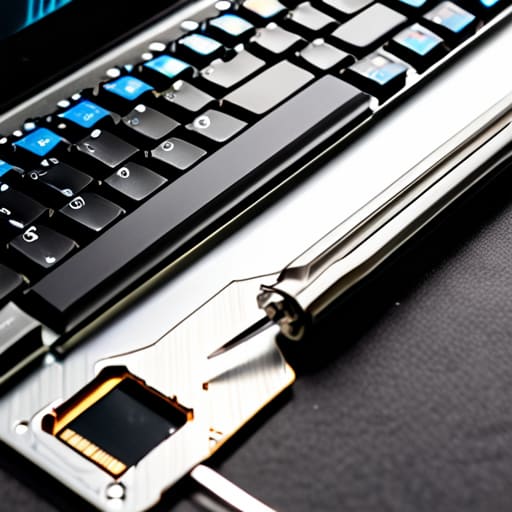
I was sitting at my workbench last Tuesday, staring at a spilled latte that had turned a perfectly good ThinkPad into a very expensive paperweight, when I realized something. Most online tutorials for how to replace a laptop keyboard act like you’re performing open-heart surgery on a saint, skipping over the part where the plastic clips feel like they’re about to snap and your heart is sinking into your stomach. I’ve spent sixteen years on service desks, and if there is one thing I know, it’s that the official manual never mentions the tiny, infuriating screw that hides under a piece of useless decorative trim.
I’m not here to give you a lecture or a list of “recommended precautions” that don’t actually help when you’re staring at a pile of tiny parts. Instead, I’m going to walk you through this process exactly how I do it when I’m restoring my old 90s rigs at home: one verified step at a time. I’ll show you the real pitfalls, the parts that actually require a gentle touch, and how to avoid the common mistakes that turn a simple repair into a total disaster. Let’s just get this done.
Table of Contents
Guide Overview
Tools & Supplies
- Phillips head screwdriver (Precision set)
- Plastic spudger or pry tool (For case separation)
- Tweezers (For handling small cables)
- Replacement keyboard (1 unit)
- Isopropyl alcohol (Small amount for cleaning)
Step-by-Step Instructions
- 1. First things first, you need to cut the power. I don’t care if you think it’s off; if that battery is still plugged in, you’re asking for a short circuit that’ll turn this repair into a funeral. Unplug the charging cable, and if your model has a removable battery, pop it out. If the battery is internal, we’ll deal with that once we get the bottom cover off, but for now, just make sure it’s dead.
- 2. Now, grab a small Phillips head screwdriver—the kind you’d use for eyeglasses, not the heavy-duty stuff from your toolbox. You’re going to need to flip the laptop over and start removing the screws from the bottom casing. I usually keep a small magnetic tray or even an old egg carton nearby to hold these. If you lose one of these tiny screws, you’re going to have a very bad afternoon.
- 3. Once the screws are out, you’ll need to gently pry the bottom panel away from the chassis. Use a plastic pry tool or an old guitar pick if you have one; please, don’t use a metal screwdriver for this part unless you want to gouge the plastic. Work your way around the edges until you hear a series of small clicks. That’s just the plastic tabs releasing, so don’t let it startle you.
- 4. With the bottom cover off, your first real mission is to disconnect the battery. Even if the laptop is “off,” there’s still current running through the motherboard. Find the connector where the battery wires meet the board and gently pull it straight out. I always write this down in my notes: disconnect the battery before touching anything else.
- 5. Now we get to the actual keyboard. Depending on your specific model, the keyboard is either held in by a few screws or it’s tucked under the entire bezel. If there are screws visible near the keyboard, remove them. If not, you’ll likely need to use your pry tool to carefully lift the edges of the keyboard frame. It’s going to feel tight, and you might feel some resistance, but just keep a steady hand.
- 6. This is the part where most people break something. You’ll see a thin, delicate ribbon cable connecting the keyboard to the motherboard. Do not yank this. Use your fingernail or a pair of tweezers to flip up the tiny locking tab on the connector, then slide the ribbon out. It’s thinner than a piece of paper, so treat it like it’s made of glass.
- 7. Finally, take your new keyboard and line up that ribbon cable with the connector. Slide it in until it’s seated perfectly straight—if it’s even a hair crooked, the keys won’t register. Flip the locking tab back down, and then you can start putting the laptop back together in reverse. Just take your time when you’re snapping the casing back on; there’s no prize for finishing fast.
Gather Your Laptop Disassembly Tools Before You Lose Your Cool
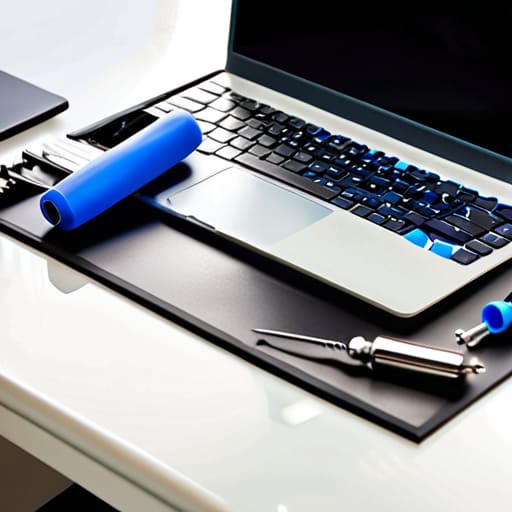
Before you even think about unscrewing a single thing, you need to clear a workspace. I’ve seen so many people start this process only to realize halfway through that they’re trying to pry delicate plastic with a butter knife. Please, don’t be that person. You really only need a decent set of precision screwdrivers and a plastic spudger—the kind that won’t mar the casing—to navigate the laptop disassembly tools phase without a meltdown. If you don’t have a magnetic tray, grab a small bowl or even an old egg carton. Trust me, losing a tiny M2 screw into the depths of your carpet is a fast track to a bad mood.
I also highly recommend getting a small tray for your screws, ideally organized by where they came from. When you’re poking around near the internal laptop components, everything starts looking the same, but those screws are definitely not interchangeable. If you try to force a long screw into a short hole, you’ll punch right through the chassis, and then we’re looking at a much bigger disaster than a sticky ‘Enter’ key. Take a breath, lay your tools out, and get organized first.
Finding Compatible Replacement Keyboards Without the Headache

This is where most people trip up. You think you can just search for “Dell Inspiron keyboard” and be done with it, but that’s a one-way ticket to a headache. Laptops are finicky like that. Manufacturers often change the ribbon cable layout or the mounting bracket style mid-year without even telling anyone. Before you click “buy,” you need to find your exact model number, which is usually tucked away on a sticker on the bottom of the chassis. If you can’t find it there, I usually boot the machine up one last time and run `msinfo32` in the Windows search bar to see exactly what we’re working with.
Once you have that number, don’t just settle for the cheapest option on a random marketplace. I’ve seen too many people try to replace broken laptop keys only to realize the new part has a different backlight configuration or a slightly different connector. I always recommend looking for “OEM” or “Original Equipment Manufacturer” parts if your budget allows. It might cost a few extra bucks, but it saves you from the nightmare of realizing your new keyboard doesn’t actually fit the internal housing after you’ve already spent an hour on the laptop disassembly tools and stripped a screw.
Five Things I Wish I Knew Before I Started Screwing Around With Tiny Parts
- Keep a magnetic tray or even just an old ice cube tray nearby. I’ve spent more time than I care to admit hunting for a single M2 screw that decided to migrate into the carpet fibers. If you don’t have a place to put the screws, you’re going to lose them.
- Don’t trust the “click” blindly. When you’re snapping the new keyboard back into the chassis, it might feel like it’s seated, but I always give the corners a gentle, even press to make sure the plastic tabs are actually engaged. If it feels mushy, it’s not done.
- Treat your ribbon cables like they’re made of wet tissue paper. They are incredibly fragile. When you’re reseating the keyboard connector, don’t force it; if it isn’t sliding in perfectly straight, stop, pull it back, and try again.
- Static is your silent enemy. I know, I know, “it’s just a keyboard,” but if you’re working near the motherboard, touch a metal object or wear an anti-static wrist strap. I’ve seen too many “successful” repairs turn into dead laptops because of a single spark.
- Take photos of every single stage. Before you unplug a cable or remove a bracket, snap a picture with your phone. Six months ago, I thought I had a photographic memory, but I quickly learned that memory fails you the moment you’re staring at a pile of identical-looking black wires.
You Actually Did It
Take a second to look at that machine. You gathered the right tools, you tracked down the exact part that wouldn’t fail you, and you didn’t let a handful of tiny, easily-lost screws ruin your entire afternoon. We went through the messy parts—the delicate disassembly, the nerve-wracking moment of unplugging that tiny ribbon cable, and the final seating of the new hardware—and you made it to the other side. It’s easy to feel like you’re just fiddling with expensive plastic, but you actually followed a logical path from a broken device to a working one. Just make sure you double-check that every screw is back in its rightful home before you snap the casing shut; I’ve seen enough loose hardware to know that the little details are usually where the trouble starts.
I know there’s a part of you that’s already wondering what the next thing to break will be, but try to hold onto this feeling instead. There is something incredibly grounding about taking a piece of tech that felt “dead” or broken and breathing life back into it with your own two hands. You aren’t just a consumer anymore; you’re someone who understands how their tools actually work. Whenever a new problem crops up, don’t let the frustration take over. Just slow down, grab your screwdriver, and remember that you’ve already proven you can handle the fix.
Frequently Asked Questions
I’ve already opened the casing, but now I’m staring at a mess of tiny ribbon cables—how do I know which one is actually for the keyboard?
I’ve been there. You open the case and suddenly it looks like a plate of spaghetti. Don’t panic. First, look for the widest, flattest ribbon cable; that’s usually your keyboard. It’ll be tucked into a locking connector near the center of the board. If you see a tiny, thin one, that’s likely your trackpad. I always write down which cable goes where before I touch them—it saves me a massive headache later.
Is there any way to tell if I actually broke the keyboard itself or if it’s just a driver issue in Windows?
Before you go tearing the whole chassis apart, let’s rule out the software. I’ve seen way too many people buy a new keyboard when they really just needed a driver update.
What happens if I drop one of those tiny proprietary screws into the carpet while I'm working?
Don’t panic. I’ve been there, usually while working on an old ThinkPad after a long shift. If it disappears into the carpet, stop moving immediately—don’t walk around or you’ll crush it. Grab a flashlight and lay it flat on the floor; the light will catch the metal and create a shadow. If that fails, a vacuum with a thin sock stretched over the nozzle works like a charm. Just don’t give up.
