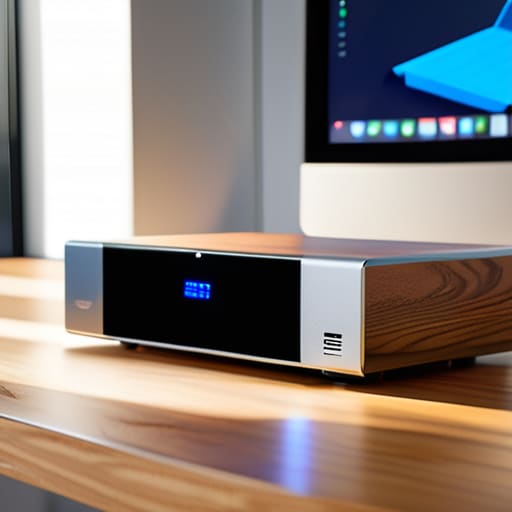
A Nas for a Small Office

I was sitting at my workbench last Tuesday, elbow-deep in the guts of a 1998 ThinkPad, when I realized I’d spent the last hour staring at a dozen open tabs of spec sheets. It hit me: most of the guides out there on how to choose a NAS are written by people who clearly love nothing more than a good, expensive, unnecessary feature. They’ll try to sell you on enterprise-grade redundancy and high-speed throughput when, in reality, you probably just want a place to dump your family photos so they don’t die with your laptop. Stop letting the marketing jargon bully you into buying a server that’s going to sit in your closet collecting dust.

I’m not here to give you a sales pitch or a lecture on theoretical bandwidth. My goal is to walk you through this process like I’m sitting right there next to you, because I know exactly how frustrating it is when every tutorial assumes you’ve already mastered the basics. I’m going to show you how to figure out your actual storage needs and what hardware actually matters, so you can buy something that works without losing your mind or your savings.

Table of Contents

Hard Drive vs Ssd for Nas Picking Your Storage Speed
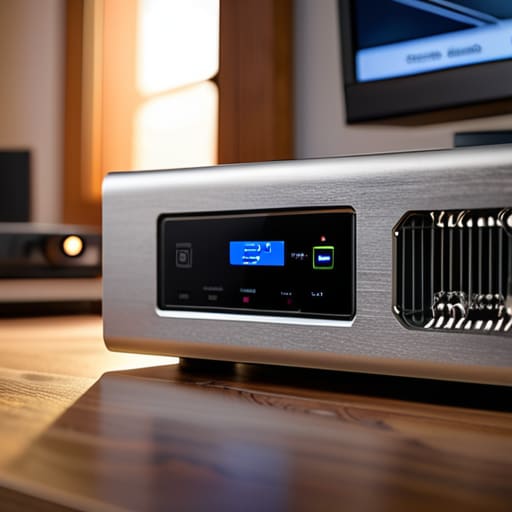
Hard Drive vs Ssd for Nas Picking Your Storage Speed

Here is where most people get stuck, and frankly, where most people overspend. If you’re building a NAS for home media server use—meaning you just want to stream movies to your TV or back up some family photos—you really don’t need to go breaking the bank on high-end SSDs. Traditional mechanical hard drives are still the king of “bang for your buck” when it comes to raw capacity. They’re slower, sure, but for most household tasks, you won’t even notice the difference.

However, if you’re running a heavy workload—like editing video directly off the server or hosting several users at once—that’s when you start feeling the lag. In those cases, the hard drive vs SSD for NAS debate shifts heavily toward flash storage. SSDs handle small, random read/write tasks much better, which keeps the system feeling snappy. Just keep an eye on your network bandwidth requirements; there’s no point in having lightning-fast SSDs if your home router is a bottleneck that slows everything down to a crawl anyway.

Nas Drive Bays Configuration Dont Buy Too Little Too Soon
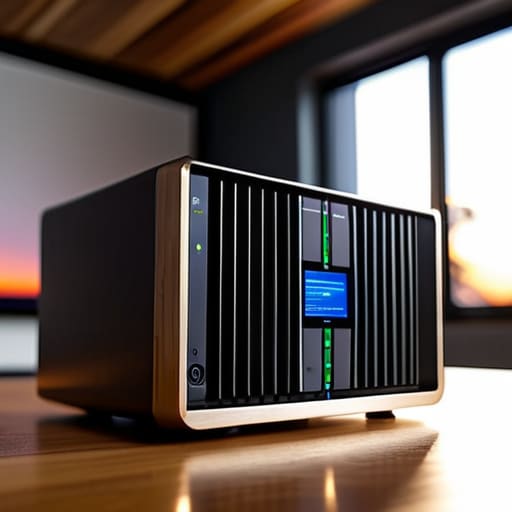
Nas Drive Bays Configuration Dont Buy Too Little Too Soon

This is where I see people trip up the most. You’re looking at a sleek, two-bay unit because it’s cheap and fits on a tiny shelf, but then six months later, you’ve filled it up with high-res movies and family photos, and suddenly you’re staring at a “Disk Full” error. I’ve seen it a dozen times. If you’re setting up a NAS for home media server use, please, just buy one extra bay than you think you need. That extra slot is your breathing room for when your digital hoarding inevitably gets out of hand.

It isn’t just about the physical space, though; it’s about how you protect what’s inside. When you look at your NAS drive bays configuration, remember that you’ll likely want to run some form of RAID levels for data redundancy. If you buy a two-bay unit, you’re basically stuck with a mirror setup where one drive is just a copy of the other. You get safety, sure, but you lose half your capacity immediately. A four-bay unit gives you much more flexibility to balance your actual storage space against the safety net you need.

5 Things I Wish People Asked Me Before They Hit 'Buy'

  • Don’t ignore the CPU if you plan on doing more than just storing files. If you want to run Plex, back up your phone photos automatically, or host a little media server, you need a decent processor. If you buy the cheapest little box available, it’ll choke the second you try to stream a movie, and you’ll be back in my queue complaining that it’s “broken.”
  • Think about your connection, not just the box. There is no point in buying a high-end NAS if you’re plugging it into an old, dusty router that can barely handle basic web browsing. If you want actual speed, make sure your network switches and cables can actually keep up with the data you’re throwing at them.
  • RAID isn’t a magic “save my data” button. I see this all the time. RAID protects you from a hardware failure—like a single drive dying—but it doesn’t protect you from a house fire, a spilled coffee, or accidental deletion. You still need a secondary backup plan. RAID is for uptime; a backup is for survival.
  • Check the software ecosystem before you commit to the hardware. The physical box is just a shell; the operating system is what you actually live in. Some brands have incredibly polished apps that make managing files easy, while others feel like they were coded in 1998 and require a PhD to navigate. Read the reviews on the software, not just the specs on the metal.
  • Account for the “noise factor.” If you’re planning to tuck this thing under your desk or in your bedroom, be warned: hard drives hum, and cooling fans whir. A high-capacity NAS can sound like a small jet engine taking off if it’s working hard. If you value your peace and quiet, look for models known for being relatively silent, or plan to hide it in a closet.

Don't Let the Specs Paralyze You

Don't Let the Specs Paralyze You.

Look, we’ve covered a lot of ground here, and I know it feels like a lot to juggle. Just remember the core of it: don’t get so caught up in the speed wars between SSDs and HDDs that you forget what you’re actually using the box for. Make sure you’ve sized your drive bays correctly so you aren’t staring at a “disk full” error six months from now, and for the love of everything holy, don’t buy a drive that’s too small just to save a few bucks today. If you get the capacity and the drive type right, you’ve already won half the battle. It’s all about building a foundation that won’t crumble the moment you start actually uploading your files.

At the end of the day, a NAS isn’t some high-tech trophy for your desk; it’s a tool meant to make your digital life easier and safer. I’ve spent sixteen years watching people panic because they didn’t have a backup plan, and I don’t want that to be you. Take a breath, trust the steps we just walked through, and just get it set up. Once that first drive is spinning and your data is finally sitting somewhere secure, you’re going to feel a massive weight lift off your shoulders. You’ve got this.

Frequently Asked Questions

Do I really need a high-end NAS, or can I just use an old desktop I have lying around?

Look, I’ve seen plenty of people try to turn an old Dell Optiplex into a makeshift server, and it’s tempting. If you just want to tinker, go for it. But if you actually want this to work without you babysitting it every weekend, buy the dedicated NAS. An old desktop is a power hog and a headache waiting to happen. Don’t turn your hobby into a second full-time job.

How much do I need to worry about RAID settings if I'm just backing up my family photos?

Look, if it’s just family photos, you’re probably thinking about “data protection,” but you need to distinguish between uptime and backups. RAID isn’t a backup; it just keeps the lights on if a drive dies. For a home setup, I’d suggest RAID 1 or 5 so you don’t lose access immediately, but please—don’t let that stop you from following the 3-2-1 rule. RAID keeps you working; a real backup keeps your memories safe.

Is it worth paying extra for a brand name, or can I just build my own with off-the-shelf parts?

Look, I’ve seen both sides of this, and the “correct” answer depends entirely on how much you enjoy troubleshooting on a Saturday night. A pre-built unit is a polished, single-purpose tool—it just works, and that peace of mind has a price tag. Building your own is cheaper and more flexible, but you become the tech support. If you want to tinker, build. If you just want your files to show up, buy the brand name.


A Profile That Will Not Load

I was sitting in a cramped school IT office back in 2008, surrounded by the smell of ozone and stale coffee, watching a teacher stare blankly at a screen that refused to let her in. She wasn’t a tech novice; she was just exhausted. Most help desk guides act like you’re a complete stranger to your own machine, skipping over the obvious and jumping straight to “reinstall the operating system” when you’re really just stuck on a simple error. If you are currently staring at a spinning wheel or a cryptic error message, I know you aren’t looking for a lecture on network architecture; you just need to know how to diagnose a login problem without losing your mind in the process.

I’m not going to give you a list of theoretical possibilities that assume you’ve already checked everything else. Instead, I’m going to walk you through this one step at a time, starting with the tiny, annoying things that most manuals skip over. My goal is to help you find the actual root cause—whether it’s a hardware hiccup or a simple setting error—so you can stop fighting your computer and get back to your actual life.

Table of Contents

Dealing With the Invalid Username or Password Error

Dealing With the Invalid Username or Password Error

First, let’s address that dreaded “invalid username or password error” popping up on your screen. I’ve spent far too many afternoons staring at this exact message while a user breathes heavily into the phone. Before you assume your account has been hacked or deleted, I want you to do something incredibly simple: check your Caps Lock. I know, it sounds patronizing, but I’ve seen more “security breaches” caused by a stray finger than by actual bad actors. While you’re at it, take a second to make sure you aren’t accidentally typing your email address in a field that only wants your username.

If you’ve checked the basics and you’re still stuck, we might be looking at a deeper authentication error troubleshooting situation. Sometimes, your browser gets a little too “helpful” and tries to use old, saved credentials that aren’t valid anymore. If you’re working through a web portal, try clearing your browser cookies and cache to force the system to ask you for fresh information. It’s a small step, but it clears out the digital cobwebs that often cause these login loops.

Solving Those Annoying Two Factor Authentication Errors

Solving Those Annoying Two Factor Authentication Errors

Now, if you’ve already confirmed your password is correct but you’re still hitting a wall, we’re likely looking at two-factor authentication errors. I’ve spent many afternoons staring at a screen while a user waits on the phone, feeling that specific sting of frustration when the code just won’t arrive. Usually, it’s not a massive security breach; it’s just a communication breakdown between your device and the server. If you’re using an app like Microsoft Authenticator or Google Authenticator, the first thing I do is check the time settings on your phone. If your phone’s clock is even a minute off from the actual time, the security tokens won’t match, and the whole system fails.

If the time is correct and you’re still stuck, try clearing browser cookies and cache on your computer. Sometimes, your browser holds onto an old, “stale” session that conflicts with the new authentication request. It feels like a hassle, but it’s often the quickest way to clear the digital cobwebs. If you’re using a physical security key or a SMS code that never arrives, don’t panic—it’s often just a delay in the network. Just give it a moment before you start clicking “resend” repeatedly, which can actually trigger an account lockout recovery process you’d rather avoid.

Five things I check before I even touch the keyboard

  • Check your Caps Lock key—and I mean actually look at the little light on the keyboard. I’ve spent more hours than I’d like to admit helping people who were typing their passwords in all caps because that light was on and they didn’t notice.
  • Verify your keyboard layout hasn’t swapped on you. If you see symbols like @ or ” appearing in the wrong spots, your computer might think you’re typing in a different language, which makes every password you enter technically “wrong.”
  • Look at your internet connection status. If your Wi-Fi icon has a little yellow triangle or an exclamation point, your computer isn’t actually talking to the server to verify who you are, so it’s going to reject your login every single time.
  • Watch out for “ghost” characters in the username field. Sometimes, if you copy and paste your username from an email, you accidentally grab a hidden space at the end. I always tell people to manually type it out just to be safe.
  • Check the system clock. It sounds crazy, but if your computer’s date or time is off by even a few minutes, the security certificates will fail, and the login screen will treat you like a stranger.

Taking a Breath Before You Try Again

Taking a Breath Before You Try Again.

We’ve covered a lot of ground here, from the basic “did I hit the Caps Lock key?” checks to the much more modern headache of a two-factor authentication code that refuses to arrive. If you’ve followed along, you’ve likely already ruled out the easy stuff—checking your internet connection, verifying your credentials, and making sure your authentication app isn’t just stuck in a loop. Remember, most login issues aren’t actually “broken” computers; they are usually just tiny communication breakdowns between your device and the server. If you’ve checked the username, the password, and the secondary security layer, and you’re still staring at that same error message, it’s time to stop and step away for a few minutes.

I know how it feels when you have a deadline looming and the technology feels like it is actively working against you. I’ve spent sixteen years sitting across from people who felt like they were about to throw their laptops out the window, and I promise you, it gets better. Technology is finicky, but it isn’t magic, and it isn’t personal. Once you learn to approach the problem methodically rather than emotionally, you’ll find that even the most stubborn login errors eventually give way. Take a breath, grab a coffee, and when you come back, you’ll be ready to tackle it with a clear head.

Frequently Asked Questions

What if I’m absolutely sure my password is correct, but it still keeps saying it's wrong?

I’ve been on the other side of this a thousand times, and I promise you aren’t losing your mind. If you’re certain the password is right, it’s usually a “hidden” input error. First, type your password into a Notepad document where you can actually see the characters. This lets you spot if your Caps Lock is on or if a key is sticking. Once you’ve verified it there, copy and paste it into the login box.

Is there a way to tell if the problem is actually my computer and not the website I'm trying to log into?

That is the million-dollar question, isn’t it? I’ve lost count of how many times I’ve spent an hour troubleshooting a “broken” laptop only to realize the website was down for maintenance.

If I get locked out of my account after too many failed attempts, how long do I actually have to wait before I can try again?

I’ve seen so many people try to “brute force” their way back in by hammering the keyboard every thirty seconds, but that usually just resets the timer. Most systems I manage use a lockout period of 15 to 30 minutes. Some high-security setups might even hold you for an hour. Honestly, the best thing you can do is step away, grab a coffee, and let the timer expire. I’m writing this down: walk away first, type later.

Scanning Paper So You Can Find It

I was sitting in a tiny medical clinic last Tuesday, watching a frantic receptionist try to scan a single stack of intake forms while the waiting room filled up. She was clicking through every menu in the software, getting more agitated by the second, because the manual told her to “initialize the peripheral interface”—which is just a fancy, useless way of saying plug it in. Most people think that learning how to set up a scanner workflow requires a degree in computer science or a massive budget for enterprise software, but that is a complete lie. The truth is, most of these setups fail because the documentation skips the three most basic steps that actually matter.

I’m not going to waste your time with technical jargon or “best practices” that only work in a perfect vacuum. Instead, I’m going to show you how to build a system that actually works the first time you hit the scan button. We are going to walk through the physical connections, the driver handshake, and the folder destination settings one step at a time. My goal is to get you from frustrated clicking to a finished PDF without you having to call IT once.

Table of Contents

Guide Overview

Total Time: 1-3 hours
Estimated Cost: $0-50
Difficulty: Beginner

Tools & Supplies

  • Scanner (flatbed or ADF-enabled printer)
  • Computer (PC or Mac with driver installation)
  • OCR Software (Optical Character Recognition for text searchability)
  • Document Scanner App (Free or subscription-based)
  • Cloud Storage Account (1 account for syncing)
  • Naming Convention Template (1 digital document)

Step-by-Step Instructions

  • 1. First, I need you to stop and check the physical connection. I’ve seen too many people try to troubleshoot software when the USB cable is actually loose or the Wi-Fi signal is dropping because the scanner is tucked behind a metal filing cabinet. Plug it directly into the computer if you can, or make sure your network connection is solid before we even touch a single setting.
  • 2. Next, let’s deal with the drivers. This is where most people get stuck because they assume Windows or macOS will just “know” what to do. Go to the manufacturer’s website—not the generic Windows Update—and download the specific driver package for your exact model number. If you try to use the generic one, you’ll likely find that half your buttons don’t work when you actually need them.
  • 3. Now, we need to create a “destination.” I don’t want you scanning a document only to have it disappear into a digital void. Create a dedicated folder on your desktop or in your documents named “Scans” or something similar. Having a single, predictable home for your files prevents that frantic searching ten minutes after you’ve finished a task.
  • 4. Open your scanning software and look for the “Scan to Folder” or “Scan to PC” setting. This is the most important part of the workflow. Instead of clicking “Scan” and then manually saving the file, we are going to automate the destination. Point that software directly to the folder we just created in the previous step.
  • 5. Let’s talk about file formats, because choosing the wrong one is a recipe for a headache later. If you are scanning text for an email, set it to PDF. If you are scanning a photo for a project, go with a high-quality JPEG. I always tell my users to pick a default format now so they aren’t making that decision every single time they hit the button.
  • 6. Before you walk away, run a test scan. Don’t just scan a blank piece of paper; use something with actual text or a bit of color. Check the file in your new folder to make sure it’s actually there, the resolution looks decent, and—most importantly—that it’s the right file type.
  • 7. Finally, I’m going to write this down: if it works, don’t change a thing. Once you have that path set from the scanner to your specific folder, leave it alone. The moment you start “tweaking” settings or moving folders around, you’ll break the link and find yourself right back here where we started.

Mastering Your Document Digitization Process Without the Headache

Mastering Your Document Digitization Process Without the Headache

Once you’ve got the hardware talking to the software, the real work begins. I’ve seen so many people set up a scanner only to end up with a desktop cluttered with files named “SCAN_001” and “SCAN_002.” That is a recipe for a meltdown. To actually succeed with your document digitization process, you need to decide on automated file naming conventions right from the jump. If you don’t tell the computer exactly how to name a file—like using the date or the client’s name—you’ll spend more time searching for documents than you ever spent printing them.

I also highly recommend looking into optical character recognition software (OCR) if you haven’t already. There is nothing more frustrating than scanning a twenty-page contract only to realize you can’t actually search the text for a specific keyword. It’s a waste of your time. Think of it this way: a scan without OCR is just a picture of a document; a scan with OCR is a searchable asset. Take the extra thirty seconds to ensure your settings include text recognition. Your future, less-frustrated self will thank you.

Automated File Naming Conventions for People Who Hate Searching

Automated File Naming Conventions for People Who Hate Searching

Look, I’ve seen it a thousand times on the help desk: someone spends three hours scanning a stack of invoices, only to realize they’ve saved them all as “SCAN_001,” “SCAN_002,” and so on. That isn’t a digital archive; it’s a digital graveyard. If you want a real paperless office setup, you have to stop naming files based on when you scanned them and start naming them based on what they actually are. I always tell my users to use a standard format like `YYYY-MM-DD_ClientName_InvoiceNumber`. It feels like extra work for ten seconds, but it saves you ten hours of searching later.

The real trick to making this painless is leaning on your optical character recognition software to do the heavy lifting. Most modern scanners can be configured to read the text on a page and automatically pull out dates or vendor names to populate the filename. If you set up these automated file naming conventions correctly during your initial scan, you won’t have to manually rename a single PDF. Trust me, once you stop playing detective with your own files, you’ll wonder how you ever lived without it.

Five Little Things That Save You From a Digital Paperwork Nightmare

  • Clean your scanner glass every single Monday. I know, it sounds like extra work, but a tiny smudge of dust or a fingerprint from a coffee mug will turn your “clean” digital file into a blurry mess that you’ll have to re-scan anyway.
  • Don’t let your “Scans” folder become a graveyard. If you don’t move files into their actual project folders or archives within 24 hours, you aren’t building a workflow; you’re just building a pile of digital junk.
  • Check your resolution settings before you hit ‘Start.’ If you’re just scanning text documents, 300 DPI is plenty. If you try to scan everything at 600 or 1200 DPI, you’re going to choke your network and wonder why your computer is suddenly acting like it’s stuck in molasses.
  • Use the ‘Searchable PDF’ (OCR) setting every single time. It takes a few extra seconds for the machine to process, but being able to actually find a word inside a document later is the difference between a five-second search and a twenty-minute headache.
  • Test your wireless connection if you’re using a Wi-Fi scanner. I’ve seen so many people think their hardware is broken when, in reality, the signal just dropped halfway through the batch. If it’s a heavy-duty job, just use a physical cable and save yourself the stress.

Getting Over the Finish Line

Getting Over the Finish Line with workflows.

At the end of the day, setting up a scanner workflow isn’t about having the most expensive hardware on the market; it’s about creating a system that doesn’t require a PhD to operate. We’ve covered the basics of getting your hardware connected, the importance of a logical folder structure, and how to use those automated naming conventions so you aren’t playing a guessing game every time you need a file. If you take even just two of these steps—like setting up a consistent naming pattern or automating your scan-to-folder path—you are already ahead of 90% of the people I see struggling on the help desk. It’s all about removing the friction so the technology actually works for you, rather than becoming another item on your to-do list.

I know that when you first sat down to tackle this, it probably felt like just one more thing that was going to break or complicate your afternoon. But look at where you are now. You’ve moved from a pile of unorganized paper to a predictable, digital system that actually behaves the way it’s supposed to. Don’t worry if it takes a few days to get the rhythm down perfectly; even after sixteen years in IT, I still have to remind myself to follow my own documentation. Just keep it simple, keep it consistent, and most importantly, stop letting your hardware dictate how much stress you feel. You’ve got this.

Frequently Asked Questions

My scanner is connected to the network, but my computer still says "device not found"—what am I missing?

I’ve seen this exact thing a hundred times, and it’s usually because the computer is looking for the scanner in the wrong place. Even if that little green light is on, your PC might not “see” it on the network. First, let’s check if they’re on the same Wi-Fi band—sometimes one is on 2.4GHz and the other is on 5GHz, and they won’t talk. If that’s fine, we’ll check your firewall settings next.

Is there a way to scan directly to a specific folder on my server without having to save it to my desktop first?

Yes, there is, and honestly, you shouldn’t be wasting time moving files from your desktop manually. You’re looking for “Scan to SMB” or “Scan to Network Folder.” Most modern scanners have this in their web interface settings. You basically just give the scanner the network path to your server—something like `\ServerNameScannedDocs`—and set up a user account with permission to write there. Once that’s mapped, it’ll go straight to the server.

How do I stop my scanner from creating massive, unmanageable PDF files every time I scan a stack of papers?

I’ve seen this a dozen times. You scan twenty pages and suddenly you’re staring at a 50MB file that won’t even open. First, check your scanner’s software settings for “Resolution” or “DPI.” If it’s set to 600 or higher, drop it down to 300; that’s the sweet spot for reading without the bloat. Also, look for a “Compression” setting—switching from “Lossless” to “Standard” usually does the trick.

Where the Licence Actually Lives

I can still smell the stale coffee and ozone from that cramped server closet back in 2008, sitting on a milk crate while a frantic principal hovered over my shoulder. He had just wiped a drive, and suddenly, the entire school’s administrative workflow ground to a halt because nobody knew how to find your product key. Most tech blogs will tell you to go hunting through dusty sticker residue on the bottom of a laptop or to scour your email archives for a receipt from three years ago, but they always skip the most important part: the actual reality of where that data lives now.

I’m not going to waste your time with expensive third-party “key finder” software that’s probably just going to bloat your registry. I’ve spent sixteen years on the service desk, and I’ve learned that the truth is usually buried in a command prompt or a specific registry hive. I promise to give you the exact, no-nonsense steps to track that code down without the technical jargon or the fluff. We’re going to find it together, one verified step at a time, so you can finally get back to your actual life.

Table of Contents

The Fast Way to Retrieve Microsoft Product Key Data

The Fast Way to Retrieve Microsoft Product Key Data

If you aren’t looking to dig through old emails or physical sticker labels, the fastest way to handle this is to let the system tell you what it knows. I’ve spent way too many afternoons staring at a blank screen because a user couldn’t remember if they had a retail or OEM license. Instead of guessing, we’re going to use a quick command to retrieve microsoft product key data directly from the BIOS. This is usually the most reliable method for modern machines because the key is often embedded in the hardware itself.

Open up your Command Prompt—just type ‘cmd’ in your search bar and hit enter—and I want you to paste in this specific string: `wmic path softwarelicensingservice get OA3xOriginalProductKey`. Once you hit enter, it should spit out that 25-character code right there in the window. If it comes back blank, don’t panic; it just means your machine is using a different type of digital entitlement check. If that happens, we’ll move on to the registry, but let’s try this quick win first so you can get back to your actual work.

A Digital Entitlement Check to End the Guesswork

A Digital Entitlement Check to End the Guesswork

Sometimes, you don’t actually need the string of twenty-five characters to get back to work. If you’ve upgraded from an older version of Windows or bought a machine with the license pre-installed, your computer likely isn’t looking for a physical sticker anymore. It’s using what we call a digital entitlement check. This means Microsoft has tied your hardware to their servers, and the “key” is essentially invisible because it’s baked into your motherboard’s identity.

I always tell my users to check windows activation status before they go down the rabbit hole of hunting through old emails or dusty sticker labels. Go ahead and pull up your Settings, head to Update & Security, and click on Activation. If it says “Windows is activated with a digital license,” you can stop the frantic searching right now. You don’t need to retrieve a physical code because the system already knows who you are. It saves a lot of heartache when you realize the “missing” key isn’t actually missing—it’s just living in the cloud.

A Few Things I’ve Learned While Cleaning Up Other People's Messes

  • Check the physical hardware first—if you’re working on an older machine, that key is likely hiding on a sticker on the bottom or under the battery, and no amount of software digging will find it if it was never digitally registered.
  • Don’t trust those “Product Key Finder” tools you see in sketchy pop-up ads; I’ve seen enough malware in my sixteen years to know that if a tool promises to find your key for free, it’s probably trying to find your bank login instead.
  • If you’re on a modern Windows 10 or 11 machine, stop hunting for a string of characters; your “key” is actually a digital license tied to your Microsoft account, so just make sure you’re logged in correctly.
  • Keep a physical notebook or a secure, offline file for these things; I always write my fixes down before I even tell the user it’s solved, and the same goes for keys—don’t let a hardware failure wipe your only copy.
  • If you bought your software through a subscription like Microsoft 365, you don’t actually have a product key to find, so stop wasting your afternoon looking for a code that doesn’t exist and just check your email receipt.

One Last Check Before You Close the Lid

One Last Check Before You Close the Lid

At this point, you should hopefully have that key tucked away safely. Whether we found it by digging through the command prompt or by verifying your digital entitlement through your Microsoft account, the goal was to stop the guessing game. I always tell my team that a product key is only useful if you actually write it down before you start the next part of your project. Don’t rely on your memory or assume the computer will just remember it for you next time you reinstall. Grab a physical notebook or a secure password manager and log that string of characters right now so you aren’t standing in this same frustrating spot three months from today.

I know it feels like a lot of extra hoops to jump through just to get a piece of software running, but getting these technical details sorted is how you stay ahead of the chaos. Technology is supposed to work for us, not the other way around, and taking these few extra minutes is how you reclaim your time. You’ve done the hard part, you’ve navigated the menus, and you’ve solved the puzzle. Now, take a breath, close those extra browser tabs, and get back to the actual work you were meant to be doing. You’ve got this.

Frequently Asked Questions

I found a key on a sticker on my old laptop, but it isn't working when I try to activate the software—what did I do wrong?

I’ve seen this a hundred times, and I know how much it sucks to feel like you’re doing everything right only to get an error. Most likely, that sticker is for the version of Windows that came pre-installed on the hardware, not the specific Office or Windows version you’re trying to activate now. They aren’t always interchangeable. Let’s try to pull the actual digital key from the system registry instead of relying on that old sticker.

If I upgrade my Windows version, am I going to lose this key or do I need to write it down again?

I’ve seen this panic a dozen times, usually right before a big upgrade. Take a breath—you aren’t going to lose it. If you’re moving from Windows 10 to 11, or just doing a clean install on the same hardware, Microsoft uses a “digital license” tied to your motherboard. It recognizes your machine and activates itself automatically. I always write mine down anyway, just for my own peace of mind, but you shouldn’t need it.

What happens if I can't find the key anywhere and I'm staring at an "Activate Windows" watermark right now?

Look, I’ve sat in that exact chair, staring at that same watermark, feeling like the computer is mocking me. If the key isn’t in your email or stuck to a sticker on the chassis, don’t panic. First, I’d check if you’re signed into a Microsoft account; often, the license is tied to your identity, not a string of characters. If that fails, we might be looking at a hardware change issue that needs a quick troubleshooter run.

Accessibility Settings Worth Knowing

I remember sitting in a cramped school IT office back in 2008, staring at a teacher who was absolutely exhausted because they couldn’t find a single clear way to make their screen readable. Most of the official manuals I was handed back then—and even some of the fancy software sold today—seem to assume you’re a robot who enjoys navigating through twenty layers of confusing menus. It’s infuriating because most guides on how to set up accessibility features skip the most important part: actually making the computer usable for a human being who is already having a bad day.

I’m not here to give you a lecture or a list of “optimized user experience” buzzwords that mean nothing when you’re struggling to see a cursor. Instead, I’m going to walk you through this exactly how I do it on the service desk: one logical, verified step at a time. I promise to show you the direct paths to the settings you actually need, without all the unnecessary fluff that makes you want to throw your mouse across the room. Let’s just get this working so you can get back to your life.

Table of Contents

Mastering Your Screen Reader Settings Without the Headache

Mastering Your Screen Reader Settings Without the Headache

I’ve spent more hours than I care to admit sitting in front of a flickering monitor, trying to make sense of why a computer won’t talk back to me. If you’re diving into screen reader settings for the first time, it feels like you’re trying to learn a new language while someone is shouting at you. The trick is to not try and do everything at once. I always tell my junior techs: start with the voice speed. If the narration is racing like a runaway train, you aren’t going to catch a single word. Slow it down until it feels natural, then move on.

Once you can actually understand what the computer is saying, we need to talk about getting around. You can’t rely on a mouse if you’re navigating via audio, so you have to get comfortable with keyboard navigation shortcuts. It’s going to feel clunky for the first twenty minutes—I promise—but once those muscle memory patterns kick in, the frustration starts to fade. I usually keep a physical notepad next to my keyboard to jot down the most important commands, because let’s face it, trying to memorize them all while you’re already stressed is a recipe for a headache.

Quick High Contrast Mode Setup for Immediate Relief

Quick High Contrast Mode Setup for Immediate Relief

If your eyes are starting to strain because the white background of your screen feels like looking directly into a lightbulb, we need to skip the deep menus and go straight to the solution. I’ve seen so many people get lost in the labyrinth of sub-menus when all they really need is a bit of relief. For a quick high contrast mode setup, you don’t even need to hunt through your settings. If you’re on Windows, just hit the Left Alt + Left Shift + Print Screen keys all at once. You’ll get a little pop-up asking if you want to turn it on; click yes, and suddenly, that blinding glare is replaced by a much more manageable dark palette.

I always tell my users: don’t feel like you have to master every single piece of assistive technology configuration in one sitting. Sometimes, you just need the screen to be readable right now. Once the mode is active, you’ll notice how much easier it is to distinguish text from the background. It’s a simple way to get some immediate visual impairment assistance without needing a degree in computer science.

Five Things I Wish I Knew Before Diving Into These Settings

  • Don’t try to turn everything on at once. I’ve seen so many people go into the settings menu, flip every single toggle for vision and hearing, and then wonder why their computer suddenly feels like it’s possessed. Pick one feature, test it, and make sure it actually helps before you move to the next.
  • Use the keyboard shortcuts as your safety net. If you get lost in a menu or a screen reader starts reading things too fast, knowing the quick keys—like Windows Key + Plus (+) for Magnifier—is a lifesaver. It’s much easier than hunting through a menu when you’re already feeling overwhelmed.
  • Check your “Text Size” before you touch the “Display Scale.” Most people jump straight to scaling the whole screen, which can make icons look blurry or weirdly stretched. I usually suggest starting with just increasing the text size; it’s a much gentler way to make things readable without breaking your layout.
  • Test your settings with a real task, not just a menu. It’s easy to think “Yeah, that looks better” while looking at a settings page, but it’s a different story when you’re trying to actually read an email or navigate a website. Open a browser and see if the changes actually hold up in the real world.
  • Write down what worked. This sounds silly, but I do it every time. If you find the perfect combination of high contrast and font size, jot it down. Windows updates have a funny way of resetting things to default, and you don’t want to have to rediscover your “perfect setup” from scratch all over again.

One Last Thing Before You Get Back to Work

One Last Thing Before You Get Back to Work

We’ve covered a lot of ground here, from fine-tuning your screen reader so it actually makes sense to your ears, to flipping that high contrast switch to stop the eye strain. I know it feels like a lot of clicking through menus just to get back to a baseline of “functional,” but once these settings are locked in, they stay locked in. You don’t have to go hunting through the Control Panel every single morning. The goal was to move from fighting your hardware to actually using it, and if you’ve followed these steps, you should be well on your way to a setup that finally feels like it was built for you, not against you.

I’ve spent sixteen years watching people wrestle with machines that seem determined to be difficult, but I promise you, the technology is supposed to serve you, not the other way around. Don’t feel like you have to master every single toggle and slider in the accessibility menu tonight. Just get the ones that matter working first. If something still feels off, give it time and keep tweaking. You’ve already done the hardest part by refusing to just accept a broken workflow. Now, take a breath, save your work, and go enjoy a computer that actually listens to you for a change.

Frequently Asked Questions

If I turn on these settings, will they stay on every time I restart my computer, or do I have to do this all over again tomorrow?

Don’t worry, I’m not going to make you do this dance every single morning. Once you toggle these settings on, Windows (or macOS, depending on what you’re running) saves them to your user profile. They’ll stay put through restarts and even updates. I always write the steps down first just to be sure, but I’ve verified this many times: once it’s set, it stays set. You can finally breathe easy.

I've tried turning on the screen magnifier, but everything looks blurry and distorted—is there a way to make it actually readable?

I’ve seen this a dozen times. You turn it on, and suddenly the screen looks like you’re looking through a greasy window. Usually, it’s because the zoom level is fighting with your display scaling. Go to your Magnifier settings and look for “View.” Switch it from “Full Screen” to “Lens.” It creates a small, sharp window that follows your mouse instead of stretching everything. It’s much easier on the eyes and stays crisp.

Can I turn off just one specific feature, like the voice narration, without having to disable the entire accessibility menu?

Yes, you absolutely can. I see this all the time—someone turns on a feature for a quick task and then feels trapped because they think it’s an “all or nothing” deal. You don’t have to disable the whole menu. Just head back into that specific setting you toggled, like Narrator or Magnifier, and flip that individual switch back to “Off.” It’s just one toggle, not a system-wide overhaul. We’ll get it sorted.

Access Denied and Why

I was sitting in a cramped server closet back in 2008, the smell of ozone and old dust filling my lungs, listening to a frantic teacher explain that she “just couldn’t open her lesson plans.” I remember looking at the screen and seeing that dreaded little padlock icon—the universal symbol for a digital door being slammed in your face. Most troubleshooting guides act like you’ve already mastered the command line, but they always skip the most important part: figuring out why the system thinks you’re a stranger in your own house. If you’re currently staring at an “Access Denied” error and feeling like you’re hitting a brick wall, I want you to know that learning how to diagnose a permissions problem isn’t about memorizing complex code; it’s about tracing the breadcrumbs the system left behind.

I’m not going to waste your time with high-level theory or expensive enterprise software fluff that won’t actually help you get your files back. Instead, I’m going to walk you through this one verified step at a time, just like I do when I’m painstakingly reviving a dusty 1995 ThinkPad. My promise to you is simple: we are going to strip away the technical jargon and look at the actual layers of ownership and inheritance that are causing this headache. By the time we’re done, you’ll have a clear, repeatable process to find exactly where the blockage is happening so you can stop fighting the system and get back to your actual work.

Table of Contents

Decoding the File System Access Denied Error Without Losing Your Mind

Decoding the File System Access Denied Error Without Losing Your Mind

When that little “Access Denied” box pops up, it feels like the computer is personally insulting your intelligence. I’ve spent enough time on a service desk to know that the error message itself is usually the least helpful part of the whole ordeal. Most people see a file system access denied error and assume their account is broken, but more often than not, it’s just a messy collision of rules. You aren’t actually “locked out”; you’re just caught in a logic loop where the system can’t decide if you’re allowed to be there or not.

Before you start clicking through every folder on your drive, we need to focus on understanding user and group permissions as they actually exist in your specific setup. It’s rarely a single “on/off” switch. Instead, it’s a stack of layers—your user account, the groups you belong to, and the specific rules set on that folder. I always tell my team to stop guessing and start checking effective permissions first. This tells you what the system actually thinks you can do, rather than what you think you should be able to do. It cuts through the noise immediately.

Debugging File Security Settings Before You Throw Your Laptop

Debugging File Security Settings Before You Throw Your Laptop

Before you reach for the hammer, let’s look at the actual gatekeeper. Most of the time, when you’re staring at a file system access denied error, the problem isn’t that you don’t have permission—it’s that you don’t realize which specific rule is tripping you up. I always tell my techs to stop guessing and start looking at the “Effective Access” tab. It’s a lifesaver because it stops the guesswork and shows you exactly what the computer thinks you’re allowed to do, regardless of how many messy group policies are layered on top of each other.

I usually grab my notebook here, because debugging file security settings requires a bit of patience. You’ll want to right-click that stubborn folder, hit Properties, and dive into the Security tab. Don’t just look at the list of names; you need to be checking effective permissions to see if a “Deny” rule is overriding your “Allow” rule. In Windows, a single “Deny” checkbox tucked away in a sub-group will override everything else you’ve done, and it’s usually the culprit behind your frustration.

Five Things I Do Before I Call It a Day

  • Stop looking at the file and start looking at the folder. I’ve lost count of how many times I’ve spent an hour troubleshooting a single document only to realize the parent folder was set to ‘Read Only’ for the entire department. If the folder is locked, the file doesn’t stand a chance.
  • Check if you’re actually the person you think you are. It sounds silly, but I’ve seen users try to fix permissions while logged into a guest profile or a secondary local account. Run a quick command check to make sure your current session actually has the credentials you’re trying to use.
  • Look for the “Inheritance” trap. This is the one that trips up even the pros. Sometimes you give a user permission directly, but the folder above it has a “Deny” rule that overrides everything. In Windows, a ‘Deny’ always wins the argument, no matter how many ‘Allow’ boxes you check.
  • Watch out for the “Ghost in the Machine”—active processes. I once spent twenty minutes fighting a permission error on a spreadsheet, only to realize the file was still “in use” by a background instance of Excel that had crashed. If the system thinks the file is open, it won’t let you change the permissions.
  • Verify the Group Policy hasn’t moved the goalposts. If you’re on a school or office network, your IT department might have a policy that resets permissions every time you reboot or sync with the server. If your fix works for ten minutes and then disappears, you aren’t fighting a setting; you’re fighting a policy.

Taking a Breath Before You Close the Ticket

Taking a Breath Before You Close the Ticket

We’ve covered a lot of ground, from untangling the mess of inherited permissions to actually verifying your user identity against the security tab. If you followed along, you hopefully realized that a “Permission Denied” error isn’t a personal attack from your computer; it’s just a very rigid gatekeeper doing exactly what it was programmed to do. Remember to always check the effective access before you start changing ownership settings, because once you start toggling those checkboxes, it’s easy to accidentally lock yourself out of everything else. I’ve spent enough years on the service desk to know that the most important tool you have isn’t a command line, but a methodical approach that stops you from making one small fix into a massive system-wide headache.

I know how it feels when you’re staring at that error message, feeling like you’re hitting a brick wall while your workload just keeps piling up. It’s exhausting, and it’s okay to feel frustrated. But once you learn to read these errors as breadcrumbs rather than dead ends, the whole machine starts to feel a little less intimidating. You don’t need to be a systems administrator to master this; you just need the patience to take it one step at a time. Go ahead and grab a coffee, write down what you just did, and give yourself some credit. You’re not just fixing a file; you’re mastering the logic of the system, and that makes all the difference.

Frequently Asked Questions

I've checked the security tab and everything looks right, so why am I still getting an "Access Denied" message?

I’ve been there—staring at a security tab that looks absolutely perfect while the computer keeps screaming “Access Denied” in my face. It’s maddening. Usually, this means you’re fighting an inherited permission or a “hidden” owner issue. Before you assume the hardware is dying, let’s check the Effective Access tab. It’ll show us exactly which specific rule is overriding your settings. I’m writing this down now: check the owner first.

If I change the permissions to fix this one folder, am I going to accidentally break access for everyone else on the network?

I’ve seen this happen more times than I care to admit. If you’re just tweaking the permissions on that specific folder, you’re fine. But if you start “taking ownership” of a parent directory or checking that “Replace all child object permission entries” box, then yes, you’re asking for a network-wide headache. I always write down exactly which checkbox I’m hitting before I click it, just in case I need to undo the mess.

How can I tell if this is actually a problem with my user account or if the server itself is just being stubborn?

The easiest way to tell is to find a “control” group. If you have a colleague sitting nearby, ask them to try opening that exact same file. If it works for them but not for you, your account is the culprit. If they’re getting the same error, the server is being stubborn. I always write this down first: if the error follows the person, it’s permissions; if it follows the file, it’s the server.

A Clean Install Step by Step

I was sitting there at 4:45 PM on a Friday, staring at a student’s laptop that had been “running slow” for three months, when I finally realized that no amount of clearing cache or deleting temp files was ever going to save it. We spend so much time trying to patch up the holes in a sinking ship, but the truth is that sometimes the only way to actually fix the mess is to learn how to do a clean install. Most people treat a fresh OS installation like it’s some terrifying, high-stakes surgery that’s going to brick their hardware, but I’ve spent sixteen years on service desks seeing people panic over nothing. It isn’t magic, and it isn’t a death sentence for your data; it’s just hitting the reset button on all that digital junk you didn’t even know was dragging you down.

I’m not going to give you a lecture on the theoretical benefits of system optimization or use any of that corporate jargon that makes my eyes roll. Instead, I’m going to walk you through the actual, messy reality of the process. I’ll show you how to prep your drives, how to avoid the common pitfalls that lead to “no bootable device” errors, and how to ensure you don’t lose your precious files in the process. We are going to do this one verified step at a time so you can finally stop fighting your computer and start actually using it.

Table of Contents

Guide Overview

Total Time: 1-2 hours
Estimated Cost: $0
Difficulty: Beginner

Tools & Supplies

  • USB Flash Drive (minimum 8GB for bootable media)
  • Computer with internet access (to download ISO/Media Creation Tool)
  • External Hard Drive or Cloud Storage (for data backup)
  • Internet Connection (for driver and update downloads)

Step-by-Step Instructions

  • 1. Before we touch a single setting, you need to grab an external drive and copy over every single thing you care about. I’m talking photos, tax documents, that one folder of “miscellaneous” files you haven’t opened in three years—everything. A clean install doesn’t just “clean” your files; it obliterates them. I always make a list of my most important folders on a notepad first, just so I don’t realize I missed something once the screen goes black.
  • 2. Next, you need to create your installation media. You can’t just download a file and click “run”; you need a bootable USB drive, which means you’ll need a thumb drive with at least 8GB of space. Go to the official Microsoft website and download their Media Creation Tool. It’s much safer than hunting down a random ISO file on a third-party site, and it does the heavy lifting of making the drive actually bootable for you.
  • 3. Now comes the part that makes most people sweat: getting the computer to actually listen to that USB drive instead of its own broken operating system. You have to restart your machine and mash a specific key on your keyboard—usually F12, F2, or Esc, depending on your hardware—to enter the Boot Menu. It’s a bit of a guessing game if you don’t know your brand, but keep tapping it the second the screen lights up. You’re looking for the option that says “USB Device” or the name of your flash drive.
  • 4. Once you’ve successfully booted from the USB, you’ll see the Windows setup screen. Click through the prompts until you hit a question asking what type of installation you want. This is where people trip up. Do not choose “Upgrade.” You need to select “Custom: Install Windows only (advanced).” If you pick upgrade, you’re just inviting all your old, buggy software and registry errors to come along for the ride.
  • 5. You are now looking at a list of all the partitions on your hard drive. This part looks intimidating, like a math exam, but here is the trick: if you want a truly fresh start, you need to delete every single partition listed there until you only see one entry called “Unallocated Space.” I know, it feels violent to click ‘delete’ on those little blocks, but that is the only way to ensure no leftover junk from your old installation stays behind to haunt you.
  • 6. With that single block of unallocated space selected, just click “Next.” Windows will take over from here and start laying down the new files. This part can take anywhere from fifteen minutes to an hour depending on your hardware, so don’t panic if the screen stays on a loading circle for a while. Just let it do its thing and don’t pull the plug.
  • 7. Finally, the computer will restart, and you’ll be greeted by the “Out of Box Experience”—those bright, colorful screens asking for your region and Wi-Fi password. Follow the prompts to set up your user account. Once you hit the desktop, the first thing I do is run Windows Update immediately. It’s tedious, but it’s the only way to make sure your drivers are actually talking to your hardware correctly before you start installing your apps.

The Emergency Backup Data Before Reinstalling Protocol

The Emergency Backup Data Before Reinstalling Protocol.

Before you even touch that bootable USB creation tool, we need to talk about the one thing that’s going to make you regret everything: losing your files. I’ve seen too many people rush into the format hard drive process only to realize halfway through that their tax returns or family photos were sitting in a folder they “thought” was synced to the cloud. Don’t be that person. I always make it a rule to manually verify my external drive contents before I even think about hitting ‘Delete.’

If you’re feeling overwhelmed, just follow my protocol. Grab an external drive or use a service like OneDrive, and don’t just grab the big stuff. Check your “Downloads” folder, your “Desktop,” and those obscure application data folders that hide things like browser bookmarks or game saves. It’s tedious, I know, but backing up your data before reinstalling is the only way to ensure that once we finish the operating system installation steps, you aren’t sitting there staring at a blank screen wondering where your life went. Take your time. I’ll be here when you’re ready.

Mastering Windows Installation Media and Bootable Usb Creation

Mastering Windows Installation Media and Bootable Usb Creation

Before you even think about touching that “Format” button, we need to talk about your toolkit. You can’t just download a file and hope for the best; you need actual Windows installation media that a computer can recognize before the main software even loads. I’ve seen too many people try to run an installer from a standard thumb drive like it’s a regular document, only to stare at a blank screen wondering where it all went wrong. You need to use the official Media Creation Tool from Microsoft. It’s the only way to ensure the bootable USB creation process actually works the first time.

One thing I always tell my junior techs—and I’ll tell you too—is to use a high-quality USB drive. Don’t grab that dusty, generic stick you found in a junk drawer from 2012. If the drive is slow or corrupted, the entire process will hang halfway through, leaving you with a very expensive paperweight. Test the drive on another machine first if you can. It’s a small bit of extra work that saves you from a massive headache later when you’re staring at an error code in a dark room.

Five Things I Wish People Would Do Before They Hit 'Install'

  • Grab your drivers before you wipe the drive. I’ve seen too many people get halfway through a clean install only to realize they have no internet access because Windows doesn’t recognize their new Wi-Fi card. Download that network driver onto a separate thumb drive first.
  • Double-check your BIOS/UEFI settings. If you’re trying to boot from that USB you just made and the computer keeps skipping straight to the old, broken Windows, you probably need to go into your BIOS and change the boot order. It’s a five-minute fix that saves an hour of swearing.
  • Unplug everything that isn’t essential. I’m talking about extra hard drives, printers, webcams, and even that secondary SSD if you can. Sometimes the Windows installer gets confused and tries to put the boot partition on the wrong drive, and trust me, you do not want to deal with that mess later.
  • Don’t trust the “Cloud Download” option if your internet is spotty. If you’re using the built-in Windows reset feature instead of a USB, and your connection drops, you’re looking at a half-baked OS that’s going to crash constantly. Stick to the USB media we talked about earlier; it’s much more reliable.
  • Remember your product keys and software logins. A clean install is a fresh start, but it’s also a blank slate. If you don’t have your Microsoft account info or those specific license keys written down somewhere physical, you’re going to be staring at an “Activate Windows” watermark for a long time.

The Finish Line

Crossing The Finish Line of computer installation.

We’ve covered a lot of ground here, and I know your brain is probably feeling a little fried. We went from the high-stakes ritual of the emergency backup to the technical weeds of building that bootable USB, and finally through the actual installation itself. It’s a lot of moving parts, but if you followed the steps, you didn’t just “fix” a computer; you essentially rebuilt the foundation of your digital life. You’ve cleared out the bloatware, the registry errors, and the ghost files that have been dragging your system down for months. Now, instead of fighting your hardware, you’re actually working with it.

I know that feeling of sitting there, staring at a fresh desktop, wondering if you missed a single driver or if something is going to break by tomorrow morning. I’ve been there more times than I care to admit. But take a breath and look at that clean interface. You took control of a machine that was failing you, and you brought it back to life through your own persistence. That’s the real win here. Don’t let the fear of the next little glitch stop you; you’ve already proven that you can handle the heavy lifting when things go sideways. Enjoy that speed—you earned it.

Frequently Asked Questions

Do I need to worry about my Windows license key disappearing once I wipe the drive?

Take a breath; you aren’t going to lose your license. Most modern machines have the key baked right into the motherboard’s BIOS, so Windows will find it automatically once you reconnect to the internet. If you’re on an older rig with a sticker on the case, just snap a photo of it first. I always write my key down in a notebook before I touch a drive—it’s just one less thing to stress about.

What happens if I realize halfway through that I forgot to back up one specific folder?

Oh, I’ve been there. That sinking feeling in your stomach when you realize that one folder is still sitting on the drive you’re about to wipe? It’s the worst.

Will my custom hardware drivers automatically install once I reach the desktop, or am I going to be stuck with generic resolution settings?

Here’s the honest truth: Windows will try its best, but don’t hold your breath. You’ll likely land on a desktop that looks like it’s stuck in 1995 because of those generic resolution settings. Windows Update might grab some basics, but it rarely gets the specialized stuff right. I always keep a folder of my specific chipset and GPU drivers on a separate thumb drive. Don’t wait for the “magic” auto-install; go get them yourself.

Browser Settings Worth Changing

I spent twenty minutes yesterday listening to a teacher explain how she’d bought a “premium privacy suite” that promised to fix everything, only to realize it had actually just turned her computer into a glorified ad-delivery machine. It’s the same old story: companies try to sell you a magic wand when all you really need is a bit of common sense and a few actual settings toggled correctly. Most of the “expert” guides on how to secure a browser are written by people who have clearly never had to troubleshoot a broken machine while a line of frustrated users waits behind them. They skip the basics and dive straight into expensive subscriptions that don’t actually solve the problem.

I’m not here to sell you a subscription or walk you through a twenty-step process that assumes you’re a computer scientist. I’m going to show you exactly how to lock down your settings using the tools you already have sitting right in front of you. My goal is to give you a verified, step-by-step roadmap that actually works, so you can stop worrying about trackers and get back to your real life. No fluff, no jargon, and absolutely no nonsense.

Table of Contents

Mastering Privacy Protection Settings Without the Headache

Mastering Privacy Protection Settings Without the Headache

I’ve spent enough time on service desks to know that when you open your browser settings, it feels like you’ve walked into a cockpit of a jet you aren’t trained to fly. There are too many toggles, and half of them seem to change every time there’s an update. Let’s simplify this. Start by finding your privacy protection settings—usually tucked under a “Privacy and Security” tab. My first rule of thumb is to move your “Enhanced Tracking Protection” from standard to strict. It might break a site here or there, but it stops the most aggressive scripts from following you around.

Next, we need to talk about managing cookie permissions. You don’t need to block every single cookie, or you’ll find yourself re-logging into your email every twenty minutes, which is its own kind of headache. Instead, set your browser to delete third-party cookies whenever you close the window. This keeps the sites you actually use happy while cutting off the data trail that advertisers use to build a profile on you. It’s a small tweak, but it makes a massive difference in how much of your digital footprint you’re leaving behind.

Malware Prevention Techniques That Actually Work

Malware Prevention Techniques That Actually Work.

Now, let’s talk about the stuff that actually keeps the bad actors out. I’ve seen too many people think a single “security” button is a magic shield, but real malware prevention techniques require a bit more intentionality. First things first: look at your extensions. I can’t tell you how many times I’ve had to clean up a machine because someone installed a “free PDF converter” that was actually a Trojan in disguise. You need to commit to safe extension management—if you don’t recognize the developer or haven’t used it in a month, delete it. Period.

Next, we need to address how websites try to sneak under your skin. Even if you’ve tweaked your privacy protection settings, some sites use clever tricks to identify you. This is where browser fingerprinting protection comes into play. It’s not just about blocking cookies; it’s about making sure your browser doesn’t broadcast a unique digital ID that follows you from site to site. I usually recommend using a reputable ad-blocker that also handles script blocking. It feels a bit aggressive at first, but it’s much better than dealing with a hijacked session later.

Five Quick Wins to Stop the Bleeding

  • Stop the “Cookie Creep” by clearing your cache and cookies every week, or better yet, set your browser to do it automatically when you close the window. It keeps those tracking scripts from following you from site to site like a lost puppy.
  • Audit your extensions like you’re auditing a messy server room. If you haven’t used that “Free PDF Converter” in three months, delete it. Every single extension is just another doorway for a script to slip through.
  • Turn on “Strict” tracking protection in your settings. Most browsers default to “Standard” because they don’t want to break a website, but “Standard” is basically just a polite way of saying “let them watch you.”
  • Use a dedicated password manager instead of letting your browser save everything in its built-in vault. Browser-saved passwords are a single point of failure; if someone gets into your profile, they have the keys to your entire life.
  • Enable “Always use secure connections” (HTTPS). I know, it sounds technical, but it’s just a toggle in your privacy settings that forces the browser to reject any site trying to talk to you over an unencrypted connection. It’s a non-negotiable.

One Last Thing Before You Close the Tabs

One Last Thing Before You Close the Tabs

Look, we’ve covered a lot of ground here, and I know it feels like a lot to manage when you just want to check your email or finish a report. We went through tightening those privacy settings so you aren’t being followed around the web, and we talked about the actual malware prevention steps that don’t involve downloading a hundred different “cleaner” apps that just end up being bloatware themselves. If you do nothing else, just remember to keep your browser updated and don’t be afraid to tell a site “no” when it asks for your location or contacts. It’s about building a solid layer of defense so you aren’t constantly playing catch-up with every new tracking script that pops up.

I know it feels like the internet is constantly trying to find a way in, but you really do have more control than the big tech companies want you to believe. You don’t need to be a network engineer to have a clean, safe browsing experience; you just need to be a little bit intentional about the tools you use. Take these steps one at a time, and don’t let the technical jargon get in your head. Once you have these basics locked down, you can finally stop worrying about the “what ifs” and just get back to using your computer for what it was actually meant for.

Frequently Asked Questions

If I turn on all these privacy settings, is my browser going to break half the websites I actually need for work?

Look, I’ve been there. I once spent an hour troubleshooting a “broken” banking site only to realize I’d tightened my settings so much the site couldn’t even see my login button. It happens. If you go full lockdown, yes, some sites will act up. The trick is to start with the basics and only tighten things when you actually see a problem. If a work site breaks, just whitelist it and move on.

Do I really need a separate VPN, or is just tightening up my browser settings enough to keep me safe?

Look, I’ve seen this question a dozen times on the help desk. If you’re just browsing at home on your own Wi-Fi, tightening your browser settings handles most of the heavy lifting. But the moment you take that laptop to a coffee shop or an airport? That’s when you need a VPN. Think of your browser settings as locking your front door, and a VPN as an armored car for when you’re out on the street.

I've heard people talking about "extensions" for security—are those actually helpful, or are they just more bloatware slowing me down?

Look, I get the skepticism. Most of what you see in the extension store is just junk designed to sell you something or track your data. But a few well-chosen ones are worth their weight in gold. I always tell my users: think of them like specialized tools in a kit. You don’t need a whole toolbox for every job, but a good ad-blocker or a password manager? Those are non-negotiable if you want to stay sane.

External Drives for Backup

I was sitting at my workbench last Tuesday, surrounded by the smell of old solder and the hum of a refurbished ThinkPad, when I realized I’d made the same mistake I see my users make every single day. Most people go online to figure out how to choose an external drive, and within five minutes, they’re drowning in a sea of “revolutionary” speeds and proprietary marketing jargon that doesn’t actually matter for their daily backup. Honestly, it’s exhausting. You don’t need a high-performance enterprise SSD just to store your kid’s school photos or a few thousand spreadsheets, yet companies will happily charge you triple for features you’ll never even touch.

I’m not here to sell you on the latest shiny gadget or push some overpriced brand name. My goal is to strip away the nonsense and give you a realistic roadmap based on sixteen years of seeing what actually breaks and what actually lasts. I’m going to walk you through the specific, practical things you need to look for so you can buy something that works the first time. We are going to focus on real-world reliability—the kind of stuff that keeps you from staring at a “disk error” message at 11:00 PM on a Sunday.
Table of Contents

Ssd vs Hdd Comparison Dont Get Stuck With Slow Tech

Ssd vs Hdd Comparison Dont Get Stuck With Slow Tech

Look, I’ve seen too many people buy a massive, cheap hard drive only to sit there staring at a progress bar for forty minutes while a file transfers. When you’re looking at an SSD vs HDD comparison, you have to decide what you’re actually doing with the drive. If you’re just backing up old family photos that you don’t touch unless you’re organizing a scrapbook, a traditional HDD is fine. They’re cheaper, and you get way more room for your buck.

But, if you’re running programs directly off the drive or moving large video files, get an SSD. Period. An HDD relies on a physical spinning platter—it’s old tech, and it’s fragile. If you drop a spinning drive while it’s active, you’re looking at a very bad day and potentially lost data. An SSD has no moving parts, which means much better portable hard drive durability. It’s faster, it’s tougher, and it won’t make you want to throw your laptop out a window every time you try to open a folder.

An External Storage Capacity Guide for People Who Hate Deleting Files

An External Storage Capacity Guide for People Who Hate Deleting Files

I’ve spent too many years watching people stare at a “Disk Space Low” warning, frantically deciding which family photos to sacrifice just so they can install a single software update. If you’re like me and you refuse to play the “delete or die” game, you need to stop thinking in small increments. Most people buy a 500GB drive thinking it’s plenty, only to realize three months later that they’ve already hit the ceiling. This external storage capacity guide isn’t about being a minimalist; it’s about buying enough headroom so you don’t have to think about this again for a long time.

For basic document backups and a few thousand photos, 1TB is usually your baseline. But if you’re dealing with 4K video or large game libraries, you need to jump straight to 4TB or even 8TB. I always tell my users: buy the larger capacity than you think you need. It’s much cheaper to pay a little more upfront than to realize your drive is full and you have to go through the headache of migrating everything to a new one.

Five Things to Check Before You Hit 'Buy'

  • Check your ports first. I’ve seen too many people buy a lightning-fast USB-C drive only to realize their laptop is still stuck in the prehistoric USB-A era. If you don’t match the plug to the hole, you’re just buying a very expensive paperweight.
  • Don’t ignore the “Rugged” label. If this drive is going in your backpack or a desk drawer where things get knocked around, get something with a rubberized casing. A little extra bulk is worth it to avoid the heartbreak of a mechanical failure because of one bad bump.
  • Look for the transfer speed, not just the capacity. It doesn’t matter if you have 4TB of space if it takes three hours to move a single video folder. Check if it’s USB 3.0, 3.1, or 3.2; if the description is vague, walk away.
  • Think about your “handshake” with the drive. If you’re jumping between a Mac at home and a PC at work, make sure you know how you’re going to format it. I usually recommend exFAT so you aren’t fighting with “read-only” errors every time you switch machines.
  • Read the actual reviews, not just the star rating. Look for the ones that mention “connection dropping” or “overheating.” If five people in the last month say the drive disconnects when it gets warm, believe them—I’ve spent enough hours on service desks to know that those patterns don’t lie.

Don't Let the Specs Paralyze You

Don't Let the Specs Paralyze You.

Look, I know it feels like a lot. You’ve got SSDs screaming about speed, HDDs offering massive amounts of space for pennies, and capacity numbers that feel like they belong in a different decade. But if you take a second to breathe, it’s actually pretty simple: decide if you need a drive that acts like a fast extension of your computer for working on files directly, or if you just need a digital warehouse to tuck your old photos away where they won’t clutter your desktop. Don’t let the marketing jargon trick you into buying a high-speed NVMe drive when all you really need is a reliable, high-capacity HDD to act as a safety net for your archives.

At the end of the day, the best drive isn’t the one with the most impressive spec sheet; it’s the one that actually shows up when you need it. I’ve spent sixteen years watching people lose data because they bought the cheapest possible option or, conversely, spent a fortune on tech they never actually utilized. Take your time, pick the one that fits your specific workflow, and once you plug it in, set up a backup routine immediately. You’ve done the hard part of the research—now just go get your files organized and enjoy the peace of mind that comes with knowing they’re actually safe.

Frequently Asked Questions

Do I really need to worry about the connection type, or will any USB cable work?

Look, don’t just grab the first cord you find in your junk drawer. If you plug a high-speed SSD into an old, cheap USB 2.0 cable, you’re essentially putting a Ferrari engine inside a lawnmower. It’ll work, but it’ll be painfully slow. Check your ports—if it’s USB-C, use a rated cable. I always write this down: match the cable to the drive’s speed, or you’ll be waiting forever for files to copy.

If I buy a drive for my Mac, is it going to be a headache to use on my Windows laptop later?

It’s a massive headache if you don’t check the format first. Most drives come set to “APFS” or “Mac OS Extended,” which means your Windows laptop won’t even see it. If you want to move files back and forth without a fight, look for a drive pre-formatted to exFAT. It’s the universal language that both systems actually speak. Don’t get caught with a drive that only works on half your desk.

Is there actually a difference between a "portable" drive and one that needs its own power plug?

Yes, there is a massive difference, and it usually comes down to where you’re actually going to use it. Portable drives pull their power straight from your laptop’s USB port—they’re great for throwing in a bag, but they can drain your battery faster. The ones with power plugs are “desktop” drives. They’re usually faster and bigger, but you’re tethered to a wall. Don’t buy a desktop drive if you plan on working from a coffee shop.

Usb Naming Explained

I was hunched over my workbench last Tuesday, trying to revive a chunky 1998 ThinkPad, when I realized just how much the industry loves to lie to us. I had this perfectly good high-speed drive, but the transfer speeds were crawling like a snail in molasses, and I could practically feel the frustration radiating off the screen. It’s the same headache I see every single day on the service desk: people buying expensive gear only to realize they don’t actually understand how USB standards differ in the real world. Most tech blogs will give you a massive, confusing chart of acronyms that makes your eyes glaze over, but they never tell you why that specific cable in your drawer is actually slowing you down.

I’m not here to drown you in a sea of technical jargon or sell you a $50 cable that does the exact same thing as the $5 one. My goal is to give you the straight talk you need so you can stop guessing and start plugging things in with confidence. I’m going to break down the actual differences between these standards based on years of troubleshooting broken setups, ensuring you know exactly what you’re getting before you spend a dime.

Table of Contents

Usb C vs Usb a Comparison Why Your Cables Never Match

Usb C vs Usb a Comparison Why Your Cables Never Match

I’ve spent more time than I’d like to admit staring at a tangled mess of cables, trying to figure out why a perfectly good cord won’t plug into a brand-new laptop. It usually comes down to this basic USB-C vs USB-A comparison. You’ve got your USB-A, that classic rectangular plug that we’ve all been using since the Clinton administration—it only goes in one way, and if you try a third time, you’ve probably scratched the port. Then there’s USB-C, the little oval one that actually works regardless of which way you flip it.

The real headache isn’t just the shape, though; it’s what’s happening inside the wire. Just because a cable fits doesn’t mean it’s doing its job. I see people using a cheap charging cable for a high-speed external drive and wondering why their file transfers are crawling. You have to account for the USB power delivery capabilities of the specific cord you’re holding. One cable might be great for juice, while another is meant for speed. It’s a mess, but once you stop treating all cables as “just wires,” things get a lot easier.

Usb Connector Types Guide Ending the Plug in Struggle

Usb Connector Types Guide Ending the Plug in Struggle

I’ve spent enough time hunched over a service desk to know that nothing ruins a productive morning quite like trying to force a cable into a port that clearly isn’t meant for it. We’ve all been there, flipping a plug three times only to realize we’re fighting physics. This USB connector types guide is meant to save you that specific kind of headache. Essentially, you’re looking at the physical shape of the plug itself. You have the classic, rectangular USB-A that we’ve all lived with for decades, and the newer, much more polite USB-C which is oval and—thankfully—reversible.

The real frustration starts when you realize that just because the plug fits doesn’t mean the tech inside is doing what you need it to do. You might be using a high-end USB-C cable to charge your phone, only to find it takes an eternity because the cable lacks proper USB power delivery capabilities. It’s a common trap. I always tell my users to look closely at the symbols near the port; sometimes, the shape of the connector is the only thing that stays the same while the actual speed underneath is changing.

Five Things I Wish Users Knew Before They Start Plugging Things In

  • Don’t trust the shape alone. Just because a cable fits into a port doesn’t mean it’s actually going to do what you need it to do. I’ve seen people try to run a high-speed external drive through a cheap, slow charging cable, and then they call me wondering why their files are taking an hour to move.
  • Check the symbols, not just the colors. If you look closely at the plastic near the connector, there’s often a tiny lightning bolt or a little “SS” (for SuperSpeed). If those aren’t there, you’re likely looking at a basic data connection that won’t handle heavy lifting.
  • Power is its own headache. A USB-C port can provide a tiny bit of juice for a mouse, or it can power a whole laptop, depending on the standard behind it. If your device isn’t charging, stop blaming the cable and start looking at whether that port was actually designed for Power Delivery.
  • Length matters more than you think. I see this all the time with people buying ten-foot cables for high-speed data. Physics is a pain; the longer the cable, the more likely you are to see a drop in speed or stability. If you need speed, keep the cable short.
  • Buy the brand, or at least a name you recognize. I know, I know—it’s tempting to grab that $2 mystery cable from the gas station. But those things are hit-or-miss on their actual specs. You might think you bought a USB 3.2 cable, but you actually just bought a very expensive piece of plastic that only runs at USB 2.0 speeds.

Don't Let the Cables Win

Don't Let the Cables Win.

At the end of the day, it really just comes down to knowing what you’re holding in your hand before you try to force it into a port. We’ve looked at how the shape of the plug—whether it’s that classic rectangular USB-A or the reversible USB-C—is only half the battle. The real headache is the invisible stuff: the data speeds and the power delivery hidden inside those wires. If you plug a high-speed external drive into a cheap, old charging cable, you aren’t going to get those lightning-fast transfers you were promised. It’s a common trap, but once you start looking for those tiny symbols on the plastic or checking the specs on the box, you won’t feel so helpless when a device refuses to cooperate.

I know it feels like the tech industry is just making things complicated for the sake of it, and honestly, sometimes it feels that way to me too. But please, don’t let a mismatched cable ruin your workflow or your afternoon. Technology is supposed to serve us, not become another source of daily friction. Take a breath, check your connections, and remember that you don’t need to be an engineer to master your setup. You just need to know which tool fits the job. Once you stop guessing and start verifying, you’ll find that most of these “broken” devices are actually working just fine—they just needed the right path to talk to each other.

Frequently Asked Questions

If I use a high-speed USB-C cable with a slow charging brick, is my phone actually going to charge any faster?

Short answer: No. You’re basically trying to push a fire hose’s worth of water through a tiny kitchen faucet.

Why does my external hard drive work perfectly on one port but barely stay connected when I plug it into another?

I’ve seen this a dozen times, and it’s usually not a broken drive. It’s a power issue. Those ports on the front of your case or a cheap hub often don’t put out enough juice to keep a spinning disk happy. I always tell people to try the ports directly on the back of the computer—the ones soldered to the motherboard. They’re much more reliable for anything that needs a steady meal.

I see "USB 3.2" and "USB 4" written on these boxes—do I actually need to care about the difference, or is it just marketing fluff?

Look, I get it. The marketing teams love making this a headache. Here is the short version: it isn’t just fluff, but you don’t need to overthink it unless you’re moving massive files. USB 3.2 is your standard workhorse—perfect for mice, keyboards, or thumb drives. USB4 is the heavy lifter for high-speed docking stations and external drives. If you’re just plugging in a printer, save your money and stick with 3.2.