
I was sitting in a cramped school IT office back in 2008, surrounded by the smell of ozone and stale coffee, watching a teacher stare blankly at a screen that refused to let her in. She wasn’t a tech novice; she was just exhausted. Most help desk guides act like you’re a complete stranger to your own machine, skipping over the obvious and jumping straight to “reinstall the operating system” when you’re really just stuck on a simple error. If you are currently staring at a spinning wheel or a cryptic error message, I know you aren’t looking for a lecture on network architecture; you just need to know how to diagnose a login problem without losing your mind in the process.
I’m not going to give you a list of theoretical possibilities that assume you’ve already checked everything else. Instead, I’m going to walk you through this one step at a time, starting with the tiny, annoying things that most manuals skip over. My goal is to help you find the actual root cause—whether it’s a hardware hiccup or a simple setting error—so you can stop fighting your computer and get back to your actual life.
Table of Contents
Dealing With the Invalid Username or Password Error

First, let’s address that dreaded “invalid username or password error” popping up on your screen. I’ve spent far too many afternoons staring at this exact message while a user breathes heavily into the phone. Before you assume your account has been hacked or deleted, I want you to do something incredibly simple: check your Caps Lock. I know, it sounds patronizing, but I’ve seen more “security breaches” caused by a stray finger than by actual bad actors. While you’re at it, take a second to make sure you aren’t accidentally typing your email address in a field that only wants your username.
If you’ve checked the basics and you’re still stuck, we might be looking at a deeper authentication error troubleshooting situation. Sometimes, your browser gets a little too “helpful” and tries to use old, saved credentials that aren’t valid anymore. If you’re working through a web portal, try clearing your browser cookies and cache to force the system to ask you for fresh information. It’s a small step, but it clears out the digital cobwebs that often cause these login loops.
Solving Those Annoying Two Factor Authentication Errors
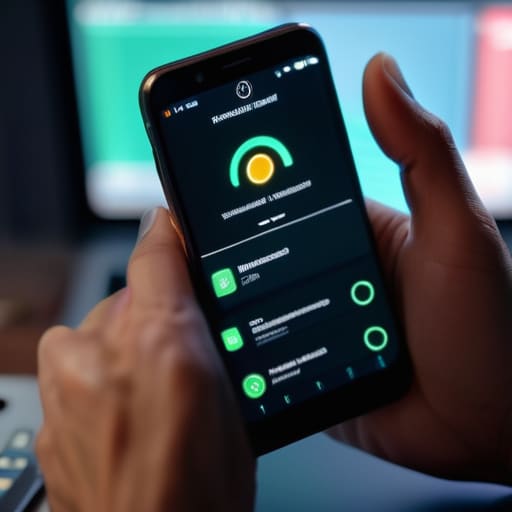
Now, if you’ve already confirmed your password is correct but you’re still hitting a wall, we’re likely looking at two-factor authentication errors. I’ve spent many afternoons staring at a screen while a user waits on the phone, feeling that specific sting of frustration when the code just won’t arrive. Usually, it’s not a massive security breach; it’s just a communication breakdown between your device and the server. If you’re using an app like Microsoft Authenticator or Google Authenticator, the first thing I do is check the time settings on your phone. If your phone’s clock is even a minute off from the actual time, the security tokens won’t match, and the whole system fails.
If the time is correct and you’re still stuck, try clearing browser cookies and cache on your computer. Sometimes, your browser holds onto an old, “stale” session that conflicts with the new authentication request. It feels like a hassle, but it’s often the quickest way to clear the digital cobwebs. If you’re using a physical security key or a SMS code that never arrives, don’t panic—it’s often just a delay in the network. Just give it a moment before you start clicking “resend” repeatedly, which can actually trigger an account lockout recovery process you’d rather avoid.
Five things I check before I even touch the keyboard
- Check your Caps Lock key—and I mean actually look at the little light on the keyboard. I’ve spent more hours than I’d like to admit helping people who were typing their passwords in all caps because that light was on and they didn’t notice.
- Verify your keyboard layout hasn’t swapped on you. If you see symbols like @ or ” appearing in the wrong spots, your computer might think you’re typing in a different language, which makes every password you enter technically “wrong.”
- Look at your internet connection status. If your Wi-Fi icon has a little yellow triangle or an exclamation point, your computer isn’t actually talking to the server to verify who you are, so it’s going to reject your login every single time.
- Watch out for “ghost” characters in the username field. Sometimes, if you copy and paste your username from an email, you accidentally grab a hidden space at the end. I always tell people to manually type it out just to be safe.
- Check the system clock. It sounds crazy, but if your computer’s date or time is off by even a few minutes, the security certificates will fail, and the login screen will treat you like a stranger.
Taking a Breath Before You Try Again

We’ve covered a lot of ground here, from the basic “did I hit the Caps Lock key?” checks to the much more modern headache of a two-factor authentication code that refuses to arrive. If you’ve followed along, you’ve likely already ruled out the easy stuff—checking your internet connection, verifying your credentials, and making sure your authentication app isn’t just stuck in a loop. Remember, most login issues aren’t actually “broken” computers; they are usually just tiny communication breakdowns between your device and the server. If you’ve checked the username, the password, and the secondary security layer, and you’re still staring at that same error message, it’s time to stop and step away for a few minutes.
I know how it feels when you have a deadline looming and the technology feels like it is actively working against you. I’ve spent sixteen years sitting across from people who felt like they were about to throw their laptops out the window, and I promise you, it gets better. Technology is finicky, but it isn’t magic, and it isn’t personal. Once you learn to approach the problem methodically rather than emotionally, you’ll find that even the most stubborn login errors eventually give way. Take a breath, grab a coffee, and when you come back, you’ll be ready to tackle it with a clear head.
Frequently Asked Questions
What if I’m absolutely sure my password is correct, but it still keeps saying it's wrong?
I’ve been on the other side of this a thousand times, and I promise you aren’t losing your mind. If you’re certain the password is right, it’s usually a “hidden” input error. First, type your password into a Notepad document where you can actually see the characters. This lets you spot if your Caps Lock is on or if a key is sticking. Once you’ve verified it there, copy and paste it into the login box.
Is there a way to tell if the problem is actually my computer and not the website I'm trying to log into?
That is the million-dollar question, isn’t it? I’ve lost count of how many times I’ve spent an hour troubleshooting a “broken” laptop only to realize the website was down for maintenance.
If I get locked out of my account after too many failed attempts, how long do I actually have to wait before I can try again?
I’ve seen so many people try to “brute force” their way back in by hammering the keyboard every thirty seconds, but that usually just resets the timer. Most systems I manage use a lockout period of 15 to 30 minutes. Some high-security setups might even hold you for an hour. Honestly, the best thing you can do is step away, grab a coffee, and let the timer expire. I’m writing this down: walk away first, type later.
