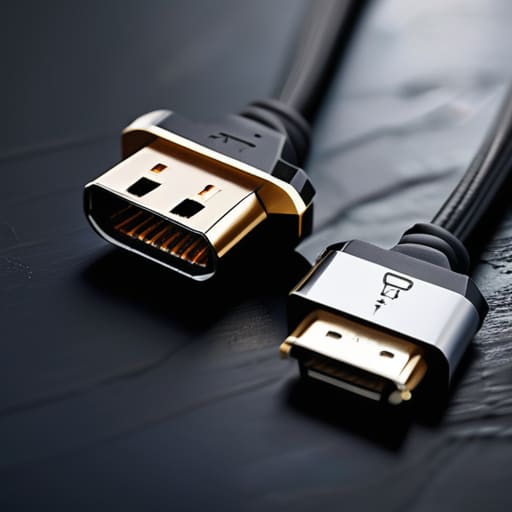
I was hunched over my workbench last Tuesday, trying to revive a chunky 1998 ThinkPad, when I realized just how much the industry loves to lie to us. I had this perfectly good high-speed drive, but the transfer speeds were crawling like a snail in molasses, and I could practically feel the frustration radiating off the screen. It’s the same headache I see every single day on the service desk: people buying expensive gear only to realize they don’t actually understand how USB standards differ in the real world. Most tech blogs will give you a massive, confusing chart of acronyms that makes your eyes glaze over, but they never tell you why that specific cable in your drawer is actually slowing you down.
I’m not here to drown you in a sea of technical jargon or sell you a $50 cable that does the exact same thing as the $5 one. My goal is to give you the straight talk you need so you can stop guessing and start plugging things in with confidence. I’m going to break down the actual differences between these standards based on years of troubleshooting broken setups, ensuring you know exactly what you’re getting before you spend a dime.
Table of Contents
Usb C vs Usb a Comparison Why Your Cables Never Match
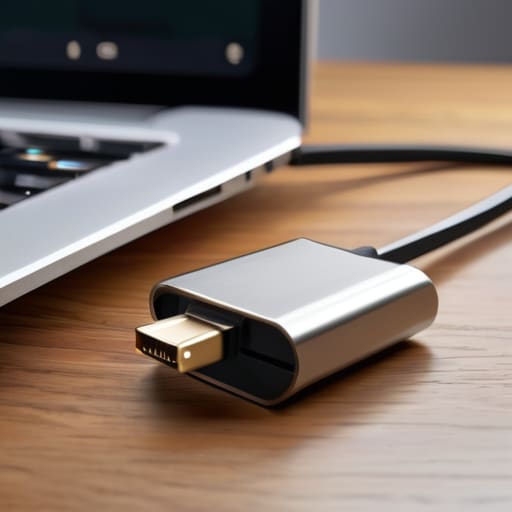
I’ve spent more time than I’d like to admit staring at a tangled mess of cables, trying to figure out why a perfectly good cord won’t plug into a brand-new laptop. It usually comes down to this basic USB-C vs USB-A comparison. You’ve got your USB-A, that classic rectangular plug that we’ve all been using since the Clinton administration—it only goes in one way, and if you try a third time, you’ve probably scratched the port. Then there’s USB-C, the little oval one that actually works regardless of which way you flip it.
The real headache isn’t just the shape, though; it’s what’s happening inside the wire. Just because a cable fits doesn’t mean it’s doing its job. I see people using a cheap charging cable for a high-speed external drive and wondering why their file transfers are crawling. You have to account for the USB power delivery capabilities of the specific cord you’re holding. One cable might be great for juice, while another is meant for speed. It’s a mess, but once you stop treating all cables as “just wires,” things get a lot easier.
Usb Connector Types Guide Ending the Plug in Struggle
I’ve spent enough time hunched over a service desk to know that nothing ruins a productive morning quite like trying to force a cable into a port that clearly isn’t meant for it. We’ve all been there, flipping a plug three times only to realize we’re fighting physics. This USB connector types guide is meant to save you that specific kind of headache. Essentially, you’re looking at the physical shape of the plug itself. You have the classic, rectangular USB-A that we’ve all lived with for decades, and the newer, much more polite USB-C which is oval and—thankfully—reversible.
The real frustration starts when you realize that just because the plug fits doesn’t mean the tech inside is doing what you need it to do. You might be using a high-end USB-C cable to charge your phone, only to find it takes an eternity because the cable lacks proper USB power delivery capabilities. It’s a common trap. I always tell my users to look closely at the symbols near the port; sometimes, the shape of the connector is the only thing that stays the same while the actual speed underneath is changing.
Five Things I Wish Users Knew Before They Start Plugging Things In
- Don’t trust the shape alone. Just because a cable fits into a port doesn’t mean it’s actually going to do what you need it to do. I’ve seen people try to run a high-speed external drive through a cheap, slow charging cable, and then they call me wondering why their files are taking an hour to move.
- Check the symbols, not just the colors. If you look closely at the plastic near the connector, there’s often a tiny lightning bolt or a little “SS” (for SuperSpeed). If those aren’t there, you’re likely looking at a basic data connection that won’t handle heavy lifting.
- Power is its own headache. A USB-C port can provide a tiny bit of juice for a mouse, or it can power a whole laptop, depending on the standard behind it. If your device isn’t charging, stop blaming the cable and start looking at whether that port was actually designed for Power Delivery.
- Length matters more than you think. I see this all the time with people buying ten-foot cables for high-speed data. Physics is a pain; the longer the cable, the more likely you are to see a drop in speed or stability. If you need speed, keep the cable short.
- Buy the brand, or at least a name you recognize. I know, I know—it’s tempting to grab that $2 mystery cable from the gas station. But those things are hit-or-miss on their actual specs. You might think you bought a USB 3.2 cable, but you actually just bought a very expensive piece of plastic that only runs at USB 2.0 speeds.
Don't Let the Cables Win
At the end of the day, it really just comes down to knowing what you’re holding in your hand before you try to force it into a port. We’ve looked at how the shape of the plug—whether it’s that classic rectangular USB-A or the reversible USB-C—is only half the battle. The real headache is the invisible stuff: the data speeds and the power delivery hidden inside those wires. If you plug a high-speed external drive into a cheap, old charging cable, you aren’t going to get those lightning-fast transfers you were promised. It’s a common trap, but once you start looking for those tiny symbols on the plastic or checking the specs on the box, you won’t feel so helpless when a device refuses to cooperate.
I know it feels like the tech industry is just making things complicated for the sake of it, and honestly, sometimes it feels that way to me too. But please, don’t let a mismatched cable ruin your workflow or your afternoon. Technology is supposed to serve us, not become another source of daily friction. Take a breath, check your connections, and remember that you don’t need to be an engineer to master your setup. You just need to know which tool fits the job. Once you stop guessing and start verifying, you’ll find that most of these “broken” devices are actually working just fine—they just needed the right path to talk to each other.
Frequently Asked Questions
If I use a high-speed USB-C cable with a slow charging brick, is my phone actually going to charge any faster?
Short answer: No. You’re basically trying to push a fire hose’s worth of water through a tiny kitchen faucet.
Why does my external hard drive work perfectly on one port but barely stay connected when I plug it into another?
I’ve seen this a dozen times, and it’s usually not a broken drive. It’s a power issue. Those ports on the front of your case or a cheap hub often don’t put out enough juice to keep a spinning disk happy. I always tell people to try the ports directly on the back of the computer—the ones soldered to the motherboard. They’re much more reliable for anything that needs a steady meal.
I see "USB 3.2" and "USB 4" written on these boxes—do I actually need to care about the difference, or is it just marketing fluff?
Look, I get it. The marketing teams love making this a headache. Here is the short version: it isn’t just fluff, but you don’t need to overthink it unless you’re moving massive files. USB 3.2 is your standard workhorse—perfect for mice, keyboards, or thumb drives. USB4 is the heavy lifter for high-speed docking stations and external drives. If you’re just plugging in a printer, save your money and stick with 3.2.
