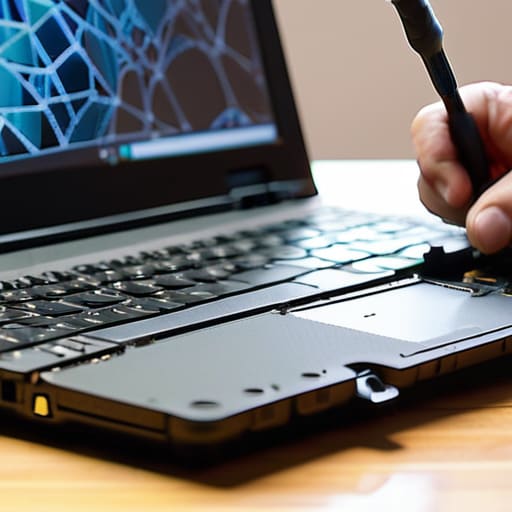
I was sitting at my workbench last Tuesday, staring at a cracked Dell that looked like it had been through a literal war zone, when I realized something: most tutorials on how to replace a laptop screen skip the part where you actually feel the plastic tabs resisting you. They tell you to “gently pry,” but they never mention that the first time you do it, you’ll swear you’ve just snapped the entire bezel in half. I’ve spent sixteen years on service desks, and I know that feeling of pure, cold dread when you realize you’re one millimeter away from making a bad situation permanently expensive.
I’m not going to give you a polished, corporate manual that assumes you have a laboratory-grade toolkit and nerves of steel. Instead, I’m going to walk you through this one verified step at a time, including the tiny, annoying details that the “experts” leave out. We are going to figure out how to replace a laptop screen without the unnecessary panic, focusing on the actual physical reality of the hardware. My goal is to get you from a shattered display to a working machine without needing to call me for an emergency recovery.
Table of Contents
Guide Overview
Tools & Supplies
- Phillips head screwdriver (various sizes for small screws)
- Plastic prying tool (to avoid damaging the bezel)
- Tweezers (for handling small connectors)
- Replacement LCD/LED panel (1 unit)
- Replacement bezel or adhesive strips (if required)
Step-by-Step Instructions
- 1. Before you even touch a screwdriver, you need to kill the power. Unplug the charging cable and, if your laptop has a removable battery, pop that thing out immediately. I’ve seen too many people fry a perfectly good motherboard because they thought “sleep mode” was the same as “off.” We aren’t doing that today.
- 2. Now, grab a small tray or even an old egg carton to hold your screws. You’re going to look at the bezel—that plastic frame around the screen—and see if there are any tiny screws hiding in the corners or under those little rubber pads. If you see screws, carefully peel back the rubber to find them. Don’t rush this; if you lose one of these tiny silver bits in your carpet, this project just got a lot more expensive.
- 3. Once the screws are out, you have to gently pry that bezel away from the display assembly. This is where most people panic because it makes a clicking sound. It’s not breaking; it’s just the plastic clips releasing. Use a guitar pick or a thin plastic tool—please don’t use a metal screwdriver for this part or you’ll gouge the casing—and slide it slowly around the edge until the frame comes free.
- 4. Now that the frame is off, you’ll see the actual LCD panel held in place by a few more screws or perhaps some strong adhesive strips. Unscrew them and gently lean the screen forward toward your keyboard. Stop right there. Do not yank it back. There is a delicate ribbon cable attached to the back of the panel that is thinner than a strand of hair, and if you snap it, we’re back to square one.
- 5. Find the connector for that ribbon cable. It’s usually tucked under a small metal flap or held down by a piece of clear tape. Flip the tab up, slide the cable out of its socket, and set the old, broken screen aside. I always make sure the cable is completely free before I even think about reaching for the new part.
- 6. Take your replacement screen and line up the ribbon cable with the connector on the laptop. It only goes in one way, so if you feel resistance, do not force it. Once it’s seated perfectly, flip the metal retaining flap back down to lock it in place. It should feel snug and secure.
- 7. Before you go through the headache of snapping the plastic bezel back on, I want you to do a “dry run.” Plug the power back in, turn the laptop on, and see if the new screen actually shows an image. It’s much easier to fix a loose cable now than it is after you’ve already screwed everything back together and realized it’s still black.
Identifying the Damage Real Cracked Laptop Screen Symptoms

Before you start unscrewing anything, we need to be absolutely sure it’s actually the screen that’s gone. I’ve spent enough time at the service desk to know that sometimes a user thinks they need a whole new panel when they really just have a loose cable. Look closely at those cracked laptop screen symptoms—if you see bleeding ink, vertical lines, or a spiderweb pattern that stays in the same spot even when you move the lid, then yeah, the LCD is toast. But if the image flickers or changes colors only when you tilt the screen back and forth, you might just be looking at a loose connection rather than a shattered panel.
If the glass is physically cracked, there’s no way around it; you’re going to need a replacement. My biggest tip here is to check your model number on the underside of the chassis before you go shopping. Don’t just trust the brand name. You’ll need to be precise when finding compatible replacement screens because even a millimeter of difference in thickness can make the whole job a nightmare. I always write down the exact part number on a sticky note before I even touch my screwdriver—it saves me from the “oops” moment later.
Finding Compatible Replacement Screens Without Wasting Your Money
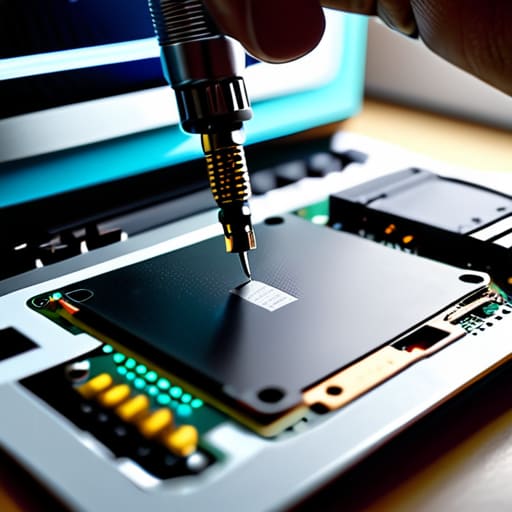
Now, here is where most people trip up and end up with a very expensive paperweight. You can’t just Google your laptop model and click the first “Buy Now” button you see. Manufacturers change parts mid-cycle without telling anyone, so a screen that fits a “Dell Inspiron 15” might actually be a completely different revision than the one sitting on your desk. Before you spend a dime, I need you to open that laptop up and look at the sticker on the back of the actual LCD panel. You are looking for a specific manufacturer part number—something like an LP156WH7. That number is your only source of truth.
If you can’t get the laptop open yet, at least check your specific sub-model number in the BIOS or on the bottom sticker. Once you have that part number, you’re finding compatible replacement screens with actual confidence rather than just crossing your fingers. Don’t forget to double-check the pin count on your video cable too; if your old screen had 30 pins and the new one has 40, you’re going to have a very bad afternoon. Take your time with this part. It’s much better to wait two days for the right part than to spend twenty minutes realizing you bought the wrong one.
Five Things I Wish I Knew Before I Cracked My First Panel
- Unplug the battery first. I can’t stress this enough. I’ve seen too many people swap a screen perfectly fine, only to see a tiny puff of smoke because they left the battery connected. Even if the laptop is “off,” there is still juice running through those boards, and a single stray screw landing on the wrong spot can turn a screen repair into a dead motherboard.
- Keep your screws in a magnetic tray or an ice cube tray. Laptop screws are deceptively similar in size but wildly different in length. If you accidentally drive a long screw into a short hole, you’ll punch right through the plastic casing or, worse, hit the new LCD panel you just spent forty bucks on.
- Don’t trust the “easy” video guides blindly. Every manufacturer hides their screws in a different place—sometimes under a rubber foot, sometimes under a sticker. If you feel like you’re forcing something, stop. You haven’t broken it yet, but if you keep pushing, you will.
- Handle the new screen by the edges only. These panels are thinner than a credit card and incredibly fragile. I’ve seen people press their thumbs right in the center of a brand-new screen during installation and leave a permanent pressure mark that stays there forever. Treat it like a piece of fine china.
- Check your video cable connection twice. Once you get the new screen seated, don’t just snap the bezel back on and call it a day. Make sure that tiny, delicate ribbon cable is seated perfectly straight in the connector. If it’s even a millimeter crooked, you’re going to get weird lines on your screen, and you’ll end up having to take the whole thing apart all over again.
You Actually Did It
I know how it feels to sit there staring at a spiderweb of cracked glass, wondering if you just turned a minor annoyance into a permanent paperweight. But you didn’t. You identified the specific part number, you sourced the right replacement instead of guessing, and you handled those tiny, finicky connectors with more care than most pros do. We went through the diagnostic phase, matched the specs, and physically swapped the hardware without losing any of those microscopic screws—which, let’s be honest, is a massive win in my book. You’ve officially moved from “frustrated user” to “someone who actually knows how their gear works,” and that is not a small feat.
Take a second to just sit with that. The laptop is back on, the image is crisp, and you didn’t have to hand over a paycheck to a repair shop that would have taken two weeks to get it back to you. There is a certain kind of quiet satisfaction that comes from fixing something with your own two hands, especially when the world keeps telling you to just go out and buy the newest model. Next time something breaks, don’t let that initial spike of panic take over. You have the tools, you have the steps, and now you have the proven experience to handle whatever else decides to glitch out on you.
Frequently Asked Questions
Do I really need to buy the exact same part number, or will a screen with the same dimensions and connector pin count work?
Look, I know it’s tempting to just go by the inches and the pin count, but please don’t do that to yourself. I’ve seen too many people order a “matching” screen only to find the mounting brackets are two millimeters off or the voltage requirements are different. If you can, find that exact part number. It’s the only way to be sure you aren’t turning a simple repair into a whole new headache.
I’ve seen people mention "matte" versus "glossy" finishes—does it actually matter which one I pick for my daily work?
It matters a lot, actually. If you’re working in a bright office or near a window, go matte; it diffuses reflections so you aren’t staring at your own face all day. If you’re a designer or do photo work, you might prefer glossy because the colors pop more, but the glare can be a nightmare. Personally, I always lean matte for daily work. It’s easier on the eyes when you’ve been staring at code for eight hours.
Is there any way to tell if the problem is actually the screen itself and not a faulty video cable or a dying graphics card?
I’ve seen this a dozen times—you buy a new panel only to realize the motherboard was the culprit. Here’s my trick: plug your laptop into an external monitor or a TV via HDMI. If the image looks perfect on the TV, your graphics card is fine and it’s likely the screen or the cable. If the TV shows the same glitchy mess, we’re looking at a deeper hardware failure.
