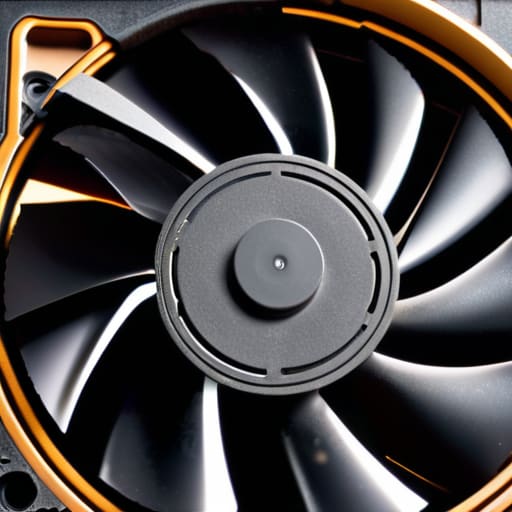
I was sitting at my workbench last night, working on a stubborn ThinkPad from 1998, when I heard that familiar, high-pitched whine coming from a student’s laptop brought in for repair. Most people think they need to buy a specialized vacuum or take the entire motherboard out just to learn how to clean a laptop fan, but honestly? That’s usually a recipe for a broken laptop and a very frustrated user. I’ve spent sixteen years on service desks watching people panic because their machine is running hot, and nine times out of ten, it isn’t a hardware failure—it’s just a literal wall of dust choking the life out of the cooling system.
I’m not going to give you any of those “optimal thermal performance” lectures that sound like they were written by a textbook. Instead, I’m going to show you exactly how I do it in my own shop, using tools you probably already have in your junk drawer. We are going to walk through this one step at a time, from the simplest compressed air trick to the slightly more involved disassembly, so you can stop the overheating without feeling like you’re performing open-heart surgery.
Table of Contents
Guide Overview
Tools & Supplies
- Precision screwdriver set for opening the chassis
- Plastic spudger or pry tool for case removal
- Compressed air canister for blowing out dust
- Small soft brush or anti-static brush for manual cleaning
- Microfiber cloth (1)
- 70% or higher Isopropyl alcohol (small amount)
Step-by-Step Instructions
- 1. First things first, you need to shut the thing down completely. Don’t just close the lid and put it in sleep mode; I’ve seen too many people accidentally trigger a component while the machine is still technically “awake.” Unplug the power cable, and if you’re working on an older model that actually has a removable battery, pop that out too. We want zero electricity flowing through this machine while we’re poking around inside.
- 2. Grab a small Phillips head screwdriver—the kind you’d use for eyeglasses or small electronics—and find the service panel on the bottom of your laptop. Most modern machines are a pain and require you to take the whole bottom plate off, but look closely for any dedicated vent openings first. I usually write down exactly which screw goes where because, let’s be honest, they’re all going to look identical once they’re on the table.
- 3. Once you’ve got the casing open, find the fan. It’s usually a small, circular plastic component tucked near one of the heat pipes. If you see a thick layer of grey fuzz matted against the blades, that’s your culprit. Before you touch anything, grab a can of compressed air, but do not just blast it blindly into the vents. If you spray too hard without control, you can actually spin the fan fast enough to generate a small electrical charge that fries the motherboard.
- 4. Here is the trick I learned after a decade on the service desk: use a toothpick or a non-conductive plastic tool to hold the fan blades steady while you spray. You want to blow the dust out of the fins, but you don’t want that fan spinning like a propeller. Aim for short, controlled bursts of air. If you see a “dust bunny” fly out, you’re doing it right.
- 5. If the dust is really caked on—and if you’re reading this, it probably is—you might need to be a bit more surgical. Use a soft brush, like a clean makeup brush or a dedicated anti-static brush, to gently whisk the debris away from the delicate fins. Avoid using anything metal or anything that leaves lint behind, like a standard cotton swab, because those tiny fibers can actually make the overheating worse in the long run.
- 6. Take a quick look at the copper heat pipe leading away from the fan. If it feels incredibly hot to the touch even when the laptop isn’t doing much, the dust might be blocking the airflow through the entire heatsink assembly. Give that area a few more targeted puffs of air to ensure the pathway is completely clear from the fan to the exhaust vent.
- 7. Now, we put it all back together. Line up your screws and replace the bottom panel, making sure no cables are getting pinched under the edges. Once everything is tightened down, plug it back in and boot it up. If you don’t hear that terrifying jet engine roar within the first five minutes, you’ve successfully saved your laptop from a very expensive meltdown.
Using Compressed Air for Electronics Without Breaking Anything

Now, I need to talk about the actual tool you’re likely holding: that can of compressed air. It’s easy to think you can just blast away at those vents, but if you aren’t careful, you’ll do more harm than good. The biggest mistake I see—and I’ve had to fix this more times than I can count—is letting the can tilt or turn upside down. If you do that, you aren’t just blowing air; you’re spraying liquid propellant directly onto your motherboard. That’s a one-way ticket to a dead machine. Always keep the can upright and use short, controlled bursts rather than one long, continuous spray.
Another thing to keep in mind is the physics of the fan itself. When you’re removing dust from laptop vents, the air pressure can actually spin the fan much faster than it was ever designed to go. This can create a tiny electrical current that travels back into the system, or worse, snap a bearing. If you can, use a toothpick or a non-conductive tool to gently hold the fan blades in place while you work. It’s a little extra effort, but it’s the best way to ensure you’re actually helping your laptop thermal management rather than accidentally killing the hardware.
Removing Dust From Laptop Vents to Finally End the Noise
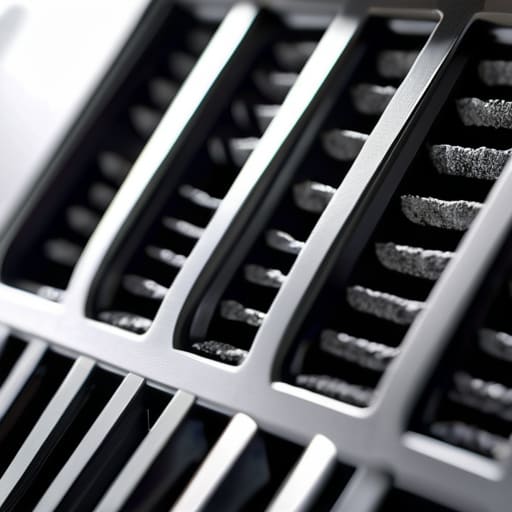
Even if you’ve already used your can of air on the fan itself, you’ll likely find that the vents are still acting like a filter for every bit of lint and pet hair in your house. I’ve seen so many machines where the internal fan is spinning perfectly fine, but the air simply can’t get through the “felt” that has built up over the intake grilles. If you aren’t removing dust from laptop vents specifically, you’re just swirling the dirt around inside the chassis. Take a moment to look closely at those little slits on the bottom or sides; if you see a gray line of fuzz, that’s your culprit.
I usually recommend using a soft-bristled brush—like a clean makeup brush or a dedicated anti-static one—to gently tease that gunk out of the slats before you hit it with the air again. This is a vital part of preventing laptop overheating because it ensures the path for fresh air remains completely unobstructed. If you just blast the vents without brushing them first, you might actually end up packing the dust deeper into the heat sink, which is the last thing we want.
A Few Things I Wish My Users Knew Before They Grabbed the Can of Air
- Don’t just blast the air into the vents blindly. If you don’t hold the fan blades still with a toothpick or a non-conductive tool, the air pressure can spin them faster than they were designed to go, which can actually fry the motor or create a tiny bit of electricity that messes with your motherboard.
- If you’re using compressed air, remember that the can is a pressurized liquid dispenser in disguise. Always keep it upright. If you tilt it or shake it while spraying, you’ll spray freezing liquid onto your components, and that’s a much bigger headache than a little bit of dust.
- I’ve seen people try to use a vacuum cleaner on their laptop ports, and honestly, it makes me wince. Vacuums build up massive amounts of static electricity, and one tiny spark is all it takes to turn your expensive machine into a very heavy paperweight. Stick to the air or a soft brush.
- If you see a “clump” of dust sitting in the vent, don’t try to poke it out with a metal paperclip. I’ve spent too many afternoons fixing bent pins and shorted circuits because someone thought metal was the best tool for the job. Use a wooden toothpick or a specialized electronics brush.
- Clean it before you actually hear the screaming, not after. If your laptop is already thermal throttling and shutting itself down, you’re already playing defense. A quick five-minute blast of air once a month keeps you from having to do the deep, surgical cleaning that involves taking the whole chassis apart.
Don't Let the Dust Win

We’ve covered a lot of ground here, from the gentle use of compressed air to actually getting those vents clear of the lint buildup that’s been choking your processor. I know it feels like a chore, especially when you just want to get back to your actual work, but remember that preventative maintenance is the only way to keep that fan from turning into a permanent jet engine. If you’ve followed these steps, you haven’t just cleaned a piece of plastic; you’ve actually extended the life of your hardware and saved yourself from a much more expensive repair bill down the road.
At the end of the day, I treat my machines like I treat my vintage 90s ThinkPads—with a little bit of respect and a lot of patience. Your laptop isn’t trying to fail you; it’s just struggling to breathe in a world full of dust and pet hair. Take a second to appreciate the quiet that comes after a good cleaning. You’ve done the work, you’ve checked the steps, and now you can finally sit back and work in peace without that constant, grinding anxiety humming in the background. You’ve got this.
Frequently Asked Questions
Is it actually safe to use a vacuum cleaner if I don't have any compressed air on hand?
Look, I’ve seen people try this, and honestly? Please don’t. I know it feels like the logical backup, but vacuum cleaners build up massive amounts of static electricity at the nozzle. One tiny spark you can’t even see, and you’ve just fried a component on your motherboard. If you don’t have canned air, just leave it for a day until you can get to the store. It’s better to have a dusty laptop than a dead one.
How do I know if my fan is actually dying or if it's just a bit of dust buildup?
I’ve seen this a thousand times. If the noise is a steady, high-pitched whir, it’s probably just dust choking the airflow. But if you hear a grinding, rattling, or a clicking sound—like something is physically hitting a blade—that’s your fan’s bearing failing. If the laptop shuts itself off suddenly even after you’ve cleaned the vents, the motor is likely toast. Clean it first; if the rattling stays, it’s time for a replacement.
If I open the casing to get to the fan, am I going to accidentally void my warranty?
Look, I get the hesitation. You don’t want to fix a noise only to find out you’ve killed your coverage. Generally, just opening the bottom panel to clean dust won’t void your warranty—most manufacturers expect you to maintain the hardware. However, if you snap a plastic clip or strip a screw while you’re in there, that’s on you. If you’re nervous, check your specific manual first, but usually, a little dust removal is fine.
