
I was sitting in a cramped middle school computer lab three years ago, surrounded by the smell of ozone and stale coffee, watching a teacher nearly weep because her lesson plan was stuck in a loading loop. It’s that specific kind of quiet desperation that hits when technology fails right when you need it most. Most people think you need a degree in electrical engineering or a brand-new $400 router to figure out how to diagnose wifi problems, but that is a complete load of rubbish. Usually, the culprit isn’t some invisible ghost in the airwaves; it’s something much more stubborn and physical that you can actually fix with your own two hands.
I’m not going to give you a lecture on signal frequencies or throw a bunch of jargon at you that makes your eyes glaze over. Instead, I’m going to walk you through this one step at a time, starting with the stuff that actually matters. My promise to you is simple: we are going to skip the “reboot everything and pray” nonsense and focus on verified, logical steps that actually isolate the failure. I’ve spent sixteen years in the trenches of service desks, and I’m going to show you how to find the real break in the chain so you can finally get back to work.
Table of Contents
Stop the Lag Real Network Latency Troubleshooting

If your connection is technically “on” but everything feels like it’s moving through molasses, you aren’t dealing with a total outage; you’re dealing with latency. I’ve seen this a thousand times where a user insists their internet is broken, but really, they’re just fighting wireless network congestion. If you live in an apartment complex or have a dozen smart devices all fighting for attention at once, your data packets are essentially stuck in a traffic jam. Before you call your ISP and wait on hold for an hour, try a quick ping test from your command prompt to see if the delay is consistent or just spiking.
Sometimes the lag isn’t about the speed, but about the path the signal has to take. I always tell my team to look at frequency band selection 2.4GHz vs 5GHz first. That 2.4GHz band is great for range, but it’s incredibly crowded and prone to interference from microwaves or even your neighbor’s baby monitor. If you’re sitting close to the router, switch over to the 5GHz band immediately. It’s much faster and handles the heavy lifting for video calls much better, even if the range isn’t quite as long.
Finding Your Weak Spots With Wifi Signal Strength Testing
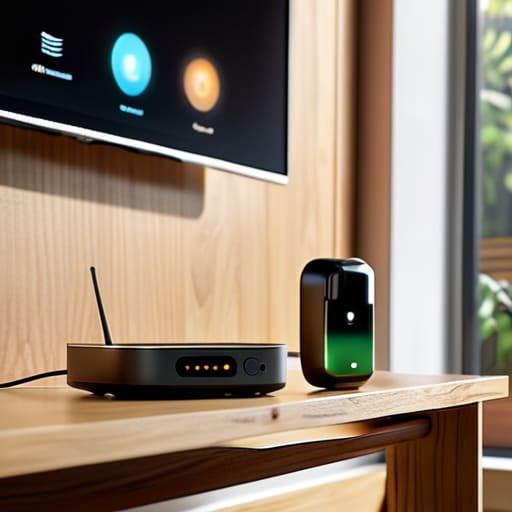
Now, we need to talk about where your signal actually lives. You can have the most expensive router on the market, but if it’s tucked inside a metal cabinet or sitting behind a heavy oak desk, you’re fighting a losing battle. I always tell my team that router placement optimization is about eighty percent of the battle. I like to walk through my house with my phone, watching the signal bars fluctuate, specifically looking for those frustrating “dead zones” where the connection just flatlines.
If you find a spot where the signal drops to nothing, don’t just assume the router is broken. Instead, try a little bit of manual wifi signal strength testing. Grab your smartphone, open a browser, and walk slowly from the router toward the room where you usually work. If you notice a massive dip in speed near a certain wall or appliance, you’ve found your culprit. Sometimes, the fix isn’t a new device; it’s just moving the current one a few feet to the left to clear a clearer line of sight.
Five Things to Check Before You Call Me for Help
- Check the physical basics first. I’ve seen people spend an hour troubleshooting software when the actual problem was that a vacuum cleaner had bumped the Ethernet cable loose from the back of the router. Make sure everything is actually plugged in and the lights are blinking like they’re supposed to.
- The “Old Reliable” reboot. I know, I know—it sounds like a cliché. But power cycling your router isn’t just a way to waste your time; it actually clears out the cache and resets the connection to your ISP. Unplug it, count to thirty slowly, and plug it back in. It works more often than it should.
- Watch out for the “Kitchen Microwave Effect.” High-frequency appliances and even some baby monitors can chew up your WiFi signal if they’re on the same frequency. If your connection drops every time someone heats up a burrito, you’ve found your culprit.
- Separate your 2.4GHz and 5GHz bands. Most modern routers try to be “smart” by combining these into one name, but sometimes your device gets confused and clings to the slower 2.4GHz band when it should be on the fast lane. If you can, give them different names in your settings so you can force your laptop onto the 5GHz band.
- Check for “Bandwidth Vampires.” If your WiFi feels slow, it might not be the signal at all; it might be that your smart TV is downloading a massive update in the background while your phone is backing up photos to the cloud. If everything is fighting for the same lane, nobody moves fast.
One Step at a Time

We’ve covered a lot of ground here, from hunting down those invisible latency spikes to mapping out the dead zones in your living room. If you’ve followed along, you should hopefully have a much clearer picture of whether your problem is a dying router, a bad piece of interference, or just a signal that can’t penetrate your thick apartment walls. Remember, there is no “magic button” that fixes everything instantly; it’s really just about eliminating the variables one by one. Whether you’re checking your signal strength or digging into your network latency, the goal is to stop guessing and start verifying the actual cause so you don’t waste your afternoon resetting things that aren’t even broken.
I know how it feels when the technology just refuses to cooperate, especially when you have a deadline looming or you’re just trying to relax. It’s easy to feel like the machine is winning, but I promise you, it isn’t. Troubleshooting is just a series of small, logical wins, and once you find that one culprit, the frustration starts to melt away. Don’t let a spotty connection get under your skin. Take a breath, grab a notebook, and keep testing those steps until it works. You’ve got this, and once it’s fixed, you’ll feel a whole lot more in control of your space.
Frequently Asked Questions
I’ve tried restarting everything but the connection still drops every ten minutes; what am I missing?
If you’ve already done the “unplug it and plug it back in” dance and it’s still dropping every ten minutes, we need to look at interference. It’s rarely a broken router; it’s usually something else shouting over your signal. Check if you’ve recently moved a microwave, a cordless phone, or even a baby monitor near the setup. I’ll write this down: check your frequency channels next. Let’s see if a neighbor’s WiFi is stepping on yours.
Is it actually my router acting up, or is my laptop just getting too old to handle modern speeds?
It’s the age-old question, isn’t it? Honestly, it’s usually a bit of both. If your phone flies through a 4K video but your laptop chugs, your wireless card is likely the culprit—it’s probably struggling with newer protocols. But, if every device in the house feels sluggish, your router is the one throwing the tantrum. I always check the phone first; if it’s fast, your laptop’s hardware is likely just out of its league.
My neighbor just got a new mesh system and now my signal is even worse—how do I stop their tech from messing with mine?
It sounds like your neighbor’s new mesh system is basically shouting over your much quieter conversation. This is classic channel interference. I’m going to write this down: first, log into your router’s settings and look for the “Wireless” or “Advanced” tab. You need to manually change your channel from “Auto” to a specific number. If they’re on channel 6, you move to 1 or 11. It’s like moving to a different seat in a noisy cafe.