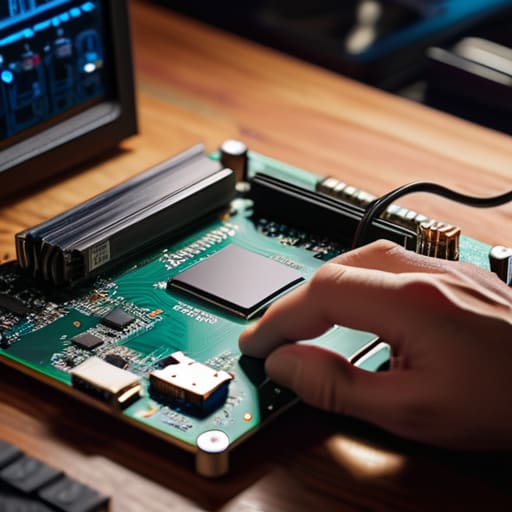
I was sitting on my living room floor last Tuesday, surrounded by the guts of a 1998 ThinkPad, when I realized why most people dread upgrading their hardware. You’ve probably been told that learning how to install an SSD requires a degree in electrical engineering or a specialized toolkit that costs more than the drive itself. That is a total lie. Most of the “pro” guides out there skip the part where you actually touch the hardware and jump straight to a step that assumes you already know where the SATA cable goes. I’ve spent sixteen years on service desks watching people freeze up because a tutorial skipped the one tiny detail that actually matters.
I’m not here to give you a lecture or a list of expensive tools you don’t need. In this guide, I’m going to walk you through the process exactly how I do it in my own workshop—one verified, physical step at a time. We are going to cover everything from the moment you crack that case open to the second you see your OS loading. No fluff, no jargon-heavy nonsense, just a straightforward path to making that sluggish machine feel brand new again. Let’s get to work.
Table of Contents
Guide Overview
Tools & Supplies
- Phillips head screwdriver (for case and mounting)
- Anti-static wrist strap (optional, to prevent ESD)
- SSD (1 unit)
- M.2 screw or SATA cables (depending on drive type)
Step-by-Step Instructions
- 1. Before you even touch a screwdriver, grab a small tray or even an old egg carton to hold your screws. I’ve spent way too many afternoons hunting for a tiny M.2 screw that rolled under a desk, and trust me, you don’t want to do that when you’re already feeling impatient.
- 2. Once you’ve got your workspace cleared, shut the machine down completely and pull the power cable. If you’re working on a laptop, find that battery connector and pop it out if you can. We are doing this by the book because I have no interest in seeing a spark jump from your motherboard to your finger.
- 3. Open up the case or the bottom panel of your laptop. If you’re looking at a desktop, find the drive bay where the old mechanical hard drive is sitting. If you’re upgrading a laptop, look for the small slot labeled M.2. Take a breath; we aren’t in a race, and making sure you have a clear view of the components is half the battle.
- 4. This is the part where most people trip up: if you’re replacing an old drive, disconnect the SATA or power cables first. If you’re installing a new M.2 stick, slide it into the slot at a slight angle—about a 30-degree tilt—until it feels firmly seated. Don’t force it; if it’s not going in, it’s not aligned.
- 5. Now, take that tiny screw you saved in your tray and secure the drive down. If it’s an M.2, you’ll be screwing it into the standoff on the motherboard. I always make sure to tighten it just enough to stay put, but I never crank it down like I’m changing a tire. Over-tightening is a quick way to crack a circuit board.
- 6. Close everything back up, plug the power back in, and fire the machine up. Don’t panic if it doesn’t immediately show your old files; the computer is looking at a brand-new, empty piece of hardware. You’ll need to go into your BIOS or use a bootable USB to initialize the drive, but that’s a victory lap for a different time.
The Bare Minimum Ssd Installation Tools Needed
Before you go tearing into your chassis, let’s make sure you aren’t going to be halfway through the job and realize you’re missing a vital piece of hardware. I’ve spent enough years on a service desk to know that nothing kills a mood faster than a stripped screw or a missing tiny fastener. At the very least, you’ll need a set of precision screwdrivers—I’m talking the small, jeweler-style ones, not the heavy-duty stuff you use for furniture. If you are mounting an M.2 drive, that tiny M2 screw is your best friend and your worst enemy; if you lose it, you’re in for a long afternoon of searching under the desk.
I also highly recommend grabbing a small anti-static wrist strap or, if you’re being frugal, just find a metal part of the case to touch frequently to discharge any static buildup. We want to move data, not kill the controller. Also, if you’re planning on transferring data to a new SSD rather than starting from scratch, make sure you have an external enclosure or a spare SATA cable handy. It’s much easier to prep everything now than to realize you’re stuck staring at an empty drive later.
Sata vs Nvme Installation Without the Headache
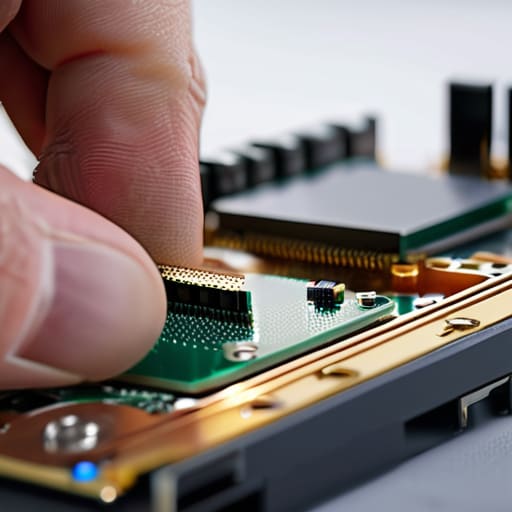
Before you go diving into your case, we need to clear up the confusion between SATA and NVMe. If you’re looking at a chunky brick that plugs in with a cable, that’s your SATA drive. It’s reliable and great for bulk storage, but it’s the “slow and steady” option. If you’ve got a tiny little stick that looks more like a piece of gum, you’re dealing with an M.2 drive. This is where the real speed lives. When you’re mounting an M.2 drive, please, for the love of all things holy, don’t over-tighten that tiny screw. I’ve seen enough stripped heads in my sixteen years to last a lifetime.
The biggest headache usually comes from people assuming they can just swap the hardware and everything will magically be there. It won’t. If you want your desktop and files to stay exactly as they are, you aren’t just installing hardware; you’re performing a Windows OS migration. You’ll need to clone your old drive to the new one before you physically pull the old one out. If you skip the cloning step and just install the drive fresh, you’re going to be staring at a “No Boot Device Found” screen, and we both know how much that sucks.
Five Things I Wish I Knew Before I Started Screwing Around With Hardware
- Don’t trust the static. Even if you aren’t a walking lightning bolt, grab an anti-static wrist strap or at least touch a metal part of the case before you touch that drive. I’ve seen too many “dead on arrival” SSDs that were actually just victims of a tiny spark.
- Check your screw sizes twice. There is nothing quite as soul-crushing as realizing you’re using a slightly too long screw and you’re about to puncture the casing or, worse, the drive itself. If it feels like it’s fighting you, stop. It shouldn’t be a wrestling match.
- Back up your data before you even open the box. I know, I know—you’re installing a new drive because the old one is dying. But if you’re cloning the old drive to the new one, one wrong click in the cloning software and your entire digital life is gone. Do it now so you don’t regret it later.
- Label your cables. If you’re working on a desktop, those SATA power and data cables look identical after five minutes of staring at them. I keep a small roll of masking tape nearby to mark which cable goes where. It saves me from the “why isn’t it showing up in BIOS?” panic later.
- Give yourself permission to walk away. If you’re staring at a pile of tiny screws and feeling your blood pressure rise, just close the laptop or the case and go grab a coffee. Hardware is patient; your sanity isn’t. I always write down exactly where I left off before I step away, just so I don’t lose my place.
You’re Done. Now, Breathe.
We’ve covered a lot of ground, from making sure you didn’t grab the wrong drive type to ensuring you actually had a screwdriver that wouldn’t strip your tiny chassis screws. If you followed along, you’ve successfully navigated the difference between SATA and NVMe, gathered your tools, and—most importantly—you didn’t accidentally short anything out by leaving the power connected. Just remember: if the drive isn’t showing up in your OS immediately, it’s usually not because you broke it, but because you likely just need to initialize the disk in your management settings. Take a second to double-check those connections one last time before you snap the case back together.
I know that feeling of staring at a piece of hardware and thinking, “I’m going to mess this up.” I’ve been doing this for sixteen years, and I still get that little knot in my stomach before I open a laptop. But look at you—you actually did it. You took a machine that was dragging its feet and you gave it a new pair of lungs. Don’t let the technical jargon intimidate you next time; you’ve proven that you can take control of your own gear. Now, go boot it up, run that speed test, and enjoy the silence of a machine that actually works.
Frequently Asked Questions
I've got the new drive in, but why isn't it showing up in my File Explorer?
Don’t panic. This is the part where everyone thinks they broke something, but you didn’t. The drive is physically there; Windows just hasn’t been told how to use it yet. It’s like buying a new filing cabinet but forgetting to label the drawers. We need to go into “Disk Management,” find that unallocated space, and give it a name and a letter. Let’s get it initialized so you can actually use it.
Do I need to wipe my old hard drive before I move everything over to the SSD?
Short answer: No, you don’t have to, but you should probably think about it. If you’re just using the old drive for extra storage, leave it be. But if you’re planning to reinstall Windows on the new SSD, I’d wipe the old drive once you’re sure your files are safe. It prevents any “which drive am I booting from?” confusion later. I always write down my backup checklist before I even touch a screwdriver.
Can I actually use my old laptop's spinning hard drive as extra storage once the SSD is installed?
You absolutely can, and honestly, I hate to see a perfectly good drive go to waste. Once you’ve moved your OS to the new SSD, don’t just toss that old spinning drive in a drawer. You can pop it into a cheap external USB enclosure—they cost about the price of a decent lunch—and suddenly you’ve got a portable backup drive. It’s slower, sure, but for storing old photos or documents, it’s perfect.
