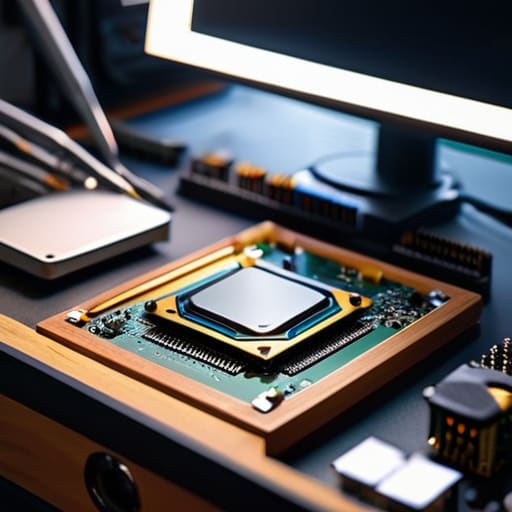
I remember sitting on my floor five years ago, staring at a motherboard that wouldn’t post, wondering if I’d just turned five hundred dollars of silicon into a very expensive paperweight. Most guides make you feel like you need a clean room and a laboratory to avoid a disaster, but that’s just not the reality of it. The truth is, learning how to build a PC safely isn’t about following some high-tech ritual; it’s about avoiding the tiny, stupid mistakes that most manuals skip over because they assume you already know the basics. I’ve spent sixteen years on service desks seeing people panic because they missed one simple grounding step, and honestly, I’m tired of seeing good hardware go to waste.
I’m not going to give you a lecture on theoretical physics or tell you to buy a thousand dollars in specialized equipment. Instead, I’m going to walk you through the actual, hands-on reality of assembly. I’ll show you how to handle your components without the anxiety, which tools actually matter, and how to keep your workspace from becoming a hazard. My goal is to make sure that when you finally hit that power button, you feel completely confident that everything is going to work exactly the way it should.
Table of Contents
Guide Overview
Tools & Supplies
- Phillips #2 Screwdriver (Magnetic tip highly recommended)
- Anti-static wrist strap (To prevent electrostatic discharge)
- Flashlight (To see small connectors in dark corners)
- Thermal paste (Small tube, if not pre-applied)
- Cable ties (Small pack for cable management)
Step-by-Step Instructions
- 1. First, clear off a big, flat surface—ideally a wooden table, not a carpeted floor. I’ve seen too many people try to build a rig while sitting on a rug, and that is a one-way ticket to a static discharge that kills your motherboard before you even plug it in. Grab a screwdriver, maybe a couple of small containers for your screws, and make sure you have plenty of light so you aren’t squinting at tiny labels.
- 2. Before you even touch a single component, you need to ground yourself. You don’t necessarily need one of those fancy anti-static wrist straps if you’re on a hard floor, but you should touch the metal chassis of your computer case every few minutes. It’s a simple habit, but it keeps that built-up electricity from jumping into your expensive CPU. I always write this down in my notes because it’s the step people skip right before they start panicking.
- 3. Now, let’s handle the “brain” of the operation: the CPU. Open the socket on your motherboard, but please, for the love of all things holy, do not touch the pins. Those little gold needles are incredibly fragile; if you bend even one, you’re looking at a very expensive paperweight. Just align the little triangle on the corner of the chip with the triangle on the socket, let it drop into place naturally, and then lock the lever down.
- 4. Next up is the RAM. This is where most people get frustrated because it feels like you have to use brute force, but you actually don’t. Line up the notch in the stick with the ridge in the slot—it only goes in one way, so if it’s not fitting, don’t force it. Press down firmly on both ends until you hear a satisfying click; if you didn’t hear a click, it probably isn’t seated all the way.
- 5. When you’re ready to install the motherboard into the case, make sure you’ve installed the I/O shield first. It’s that little metal rectangle that goes in the back, and if you forget it, you’ll have to take the entire build apart just to snap it in. Screw the motherboard into the standoffs—those little brass spacers—making sure you don’t over-tighten the screws, or you might crack the board.
- 6. Now we get to the power supply (PSU). Slide it into its bay and make sure the fan is facing the right direction—usually, you want it facing the ventilation holes in your case so it can actually breathe. Plug in your main cables, like the 24-pin motherboard power and the CPU power, and make sure they are pushed in all the way. If there’s a gap between the cable and the socket, it’s not done.
- 7. Finally, let’s get that GPU in. Find the long PCIe slot, pop the little plastic tab at the end, and slide the card in until it clicks into place. It’s a heavy piece of hardware, so I usually recommend supporting it with your hand while you screw it into the case frame. Once it’s secure, plug in its dedicated power cables from the PSU, and then you’re ready for the first boot.
Mastering Electrostatic Discharge Prevention Without the Fluff
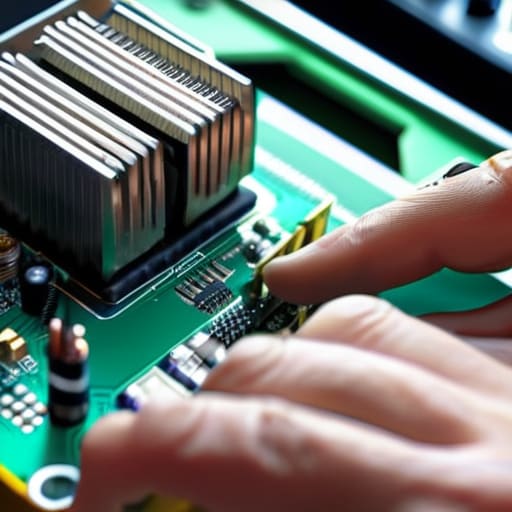
I’ve seen too many people treat an anti-static wrist strap like it’s an optional accessory, but if you’re serious about preventing motherboard damage, it’s your best friend. I always make sure to clip mine to the unpainted metal part of the case before I even think about touching the RAM. If you don’t have one, don’t panic, but please stop working on your carpet. Grab a hard floor, maybe a kitchen chair, and keep touching the metal chassis of your case every few minutes. It sounds tedious, I know, but it’s a lot less tedious than realizing your $400 CPU is a paperweight because of a tiny spark you couldn’t even feel.
When it comes to actual component handling precautions, the golden rule is simple: never touch the gold pins or the green circuitry directly. I always grab my parts by the edges of the PCB. It feels a bit awkward at first, but it keeps the oils from your skin and any stray static away from the sensitive bits. I usually write a little note to myself on my scratchpad: “Edges only, no fingers on pins,” just to remind myself when I’m deep in the zone.
Crucial Component Handling Precautions to Avoid Total Failure
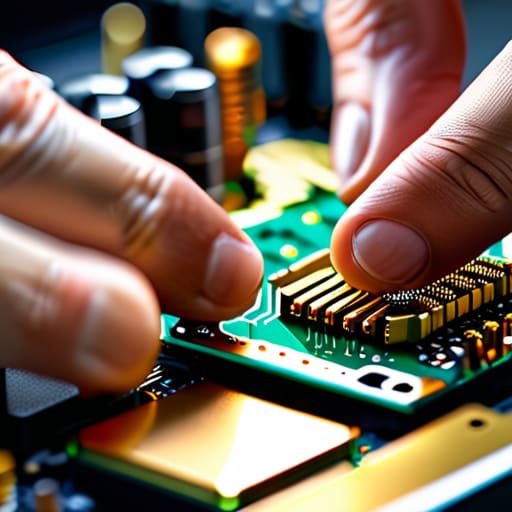
Now that you’ve got your workspace set up and you aren’t accidentally nuking your parts with static, let’s talk about the actual pieces of hardware. When it comes to component handling precautions, the golden rule is simple: never touch the gold contacts. I’ve seen too many beginners grab a RAM stick or a GPU by the little gold teeth at the bottom, thinking they’re being helpful. Those pins are incredibly delicate. Always hold your components by the edges of the PCB (the green or black circuit board itself). If you treat them like fragile pieces of glass rather than heavy-duty metal, you’ll avoid a lot of heartache.
I also want to touch on preventing motherboard damage during the seating process. It is very tempting to just push harder when a CPU or a RAM module doesn’t seem to be clicking into place. Please, don’t do that. If it isn’t going in, something is misaligned. I once spent an hour troubleshooting a “dead” board for a school district, only to realize a tiny bit of dust was sitting in the socket. Take a breath, check your alignment, and let the hardware do the work.
Five Things I Wish Someone Had Told Me Before I Opened My First Case
- Clear your workspace of any old junk or loose cables before you start; you don’t want to be hunting for a dropped screw in a pile of junk while you’re halfway through seating a CPU.
- Keep your component boxes around as makeshift stands, but don’t go using them as a workbench for the actual parts—cardboard can be surprisingly abrasive and messy.
- If a part isn’t sliding in with smooth, even pressure, stop immediately and check your alignment; forcing something is the fastest way to turn a new motherboard into a very expensive paperweight.
- Don’t go building your PC on a shag carpet or a fleece blanket, because you’re basically building a giant static electricity generator right under your hands.
- Double-check your manual for the RAM slots before you click anything into place, because if you put them in the wrong spots, you’re going to spend three hours wondering why your system won’t post.
You've Got This
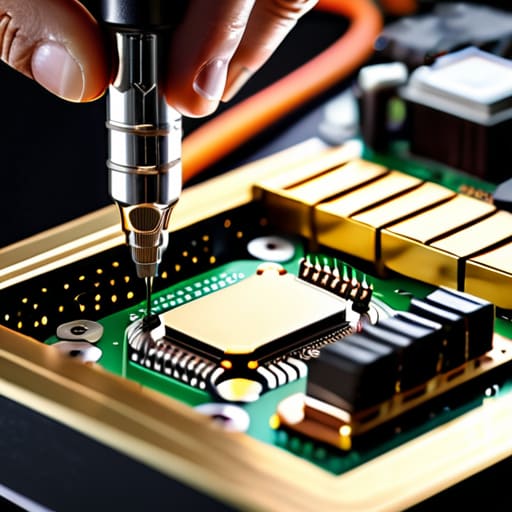
At the end of the day, building a PC isn’t about being a genius; it’s about being disciplined. We’ve covered the heavy hitters: managing your static so you don’t zap a motherboard, handling those delicate pins like they’re made of glass, and making sure you aren’t forcing a component that clearly doesn’t want to go in. If you followed the steps, you didn’t skip the “boring” parts, and that is exactly why your machine is actually going to boot up when you finally hit that power button. Just remember, if something feels like it requires a sledgehammer, stop and re-evaluate before you push any harder.
I know that feeling of staring at a pile of expensive silicon and wondering if you’ve just made a massive, costly mistake. I’ve been there, usually with a stubborn old ThinkPad on my desk and a mounting sense of dread. But once that first fan spin happens and the BIOS screen pops up, all that tension just evaporates. You didn’t just assemble a machine; you conquered the learning curve. So, take a breath, grab a coffee, and enjoy the victory of knowing exactly what’s happening inside that case because you put it there.
Frequently Asked Questions
I've got a carpeted room and no grounding strap; am I basically asking for a dead motherboard?
Look, I’m not going to lie to you: it’s not a guaranteed death sentence, but you’re definitely playing with fire. If you’re on carpet, you’re basically a walking lightning bolt for static. If you can’t get a strap, at least get off the rug. Stand on a hard floor, touch the metal of your case frequently, and for heaven’s sake, don’t build this while wearing those fuzzy socks. Let’s try to keep that motherboard alive.
Is it actually okay to touch the edges of the components, or am I going to leave oils that ruin everything?
Stick to the edges. I’ve spent way too many years cleaning residue off old motherboards to tell you otherwise. Your skin has natural oils that, over time, can actually trap moisture or cause corrosion on those tiny, delicate traces. It’s not like you’re going to kill the PC instantly by touching a capacitor, but if you can grab the heat sink or the edge of the PCB, do it. It’s just better practice.
If I accidentally bump a part while I'm installing it, how do I know if I actually broke something or if it's just a loose connection?
First, take a breath. I’ve been there, and usually, it’s just a seated connection that got nudged. Don’t panic and start poking around blindly. Check your POST (Power-On Self-Test) codes or motherboard debug LEDs first—they’ll tell you exactly where the breakdown is. If it won’t boot, reseat the part you bumped. If it works after a quick re-installation, you’re fine. If the LED stays stuck on that component? Then we’re looking at real damage.
