
You’re staring at that black screen, pressing the power button over and over, and you’re already convinced the motherboard is fried. Most tech guides will tell you to start with complex BIOS settings or software resets, but let me tell you something: most of the time, it’s much simpler than that. I’ve spent sixteen years on service desks, and I’ve learned that knowing how to diagnose a dead PC isn’t about being a genius; it’s about not skipping the obvious stuff because you’re too annoyed to look for it. I once spent forty minutes troubleshooting a “dead” workstation for a teacher, only to realize the power strip had been bumped under the desk.
I’m not going to give you a lecture or assume you already know the basics. Instead, I’m going to walk you through a logical, step-by-step process to find the actual culprit. We are going to start with the power source and work our way inward, piece by piece, until we find the break in the chain. My goal is to help you figure out if this is a five-minute fix or if it’s actually time to start looking for a replacement.
Table of Contents
Guide Overview
Tools & Supplies
- Phillips head screwdriver for opening the case
- CMOS battery tester or multimeter to check voltage
- Flashlight to inspect internal components
- Compressed air can (1) for cleaning dust
- Thermal paste (1 tube) for CPU troubleshooting
- Spare PSU (1) for component testing
Step-by-Step Instructions
- 1. First, we need to rule out the most obvious culprit: the power source. I’ve seen people spend an hour troubleshooting a motherboard when the wall outlet was actually dead. Unplug the power cable from the back of the PC, plug something else into that same outlet—like a lamp or a phone charger—to make sure it actually has juice. If the lamp turns on, plug your PC back in, but check the connection at both ends. Sometimes that cable feels snug but isn’t actually seated all the way.
- 2. Next, let’s look at the back of your computer case. Most modern power supplies have a tiny little rocker switch right next to where the cord plugs in. It’s easy to bump this with your foot or accidentally flip it to the “O” position while cleaning. Make sure that switch is flipped to the “I” position. If it’s already on, try a different power cable if you have a spare lying around; cables fail more often than you’d think.
- 3. If you’re getting zero signs of life—no lights, no fans, nothing—we need to check the internal connections. I’m going to suggest you open the side panel of your case, but please be careful not to touch anything with greasy hands. Look for the thickest bundle of wires coming from the power supply; these plug into the motherboard. Give them a gentle push to ensure they are fully seated. If they’ve wiggled loose due to vibration or being moved, the PC won’t even try to start.
- 4. Now, let’s talk about the “half-dead” scenario, where the lights come on but the screen stays black. This is usually a memory issue. I want you to find your RAM sticks—those long, thin rectangles standing upright. Pop them out of their slots, wipe the gold contacts with a clean, dry microfiber cloth (or even a soft pencil eraser if you’re careful), and click them back in firmly. You should hear a distinct “click” when they lock. Often, a single bit of dust in a slot is all it takes to halt the boot process.
- 5. If you can get the computer to turn on but it keeps restarting or making weird clicking noises, we need to look at your peripherals. Unplug everything except for your power cord, monitor, and keyboard. I mean everything—webcams, USB hubs, printers, even your wireless mouse dongle. Sometimes a faulty USB device creates a short circuit that triggers the power supply’s safety mechanism, causing the system to shut itself down immediately to prevent a fire.
- 6. If you finally get some life out of it but it’s incredibly slow or freezing, we need to check the temperature. If your fans are screaming like a jet engine, your computer is likely thermal throttling. This happens when dust builds up in the heatsink and prevents the processor from staying cool. Grab a can of compressed air and give those fans a good cleaning. Just a quick blast can be the difference between a functional machine and a paperweight.
Listen for the Beeping Motherboard Error Codes

If your machine stays dark but you hear a series of rhythmic beeps, don’t panic. That sound is actually your computer trying to talk to you. These beeping motherboard error codes are essentially a built-in diagnostic tool designed to tell you exactly what went wrong during the initial boot sequence. I’ve spent many late nights in school server rooms listening to these patterns, and I can tell you that a single long beep followed by two short ones usually means something very specific is broken.
Before you start buying new parts, I need you to grab your phone and look up your specific motherboard or PC model alongside those beep patterns. Not every manufacturer uses the same “language.” While you’re listening, keep in mind that these sounds often point toward common pc won’t turn on symptoms like a failing memory module or a processor issue. Sometimes, the easiest fix is simply checking ram seating—opening the case and making sure those sticks are clicked firmly into their slots. It’s a small step, but it solves more “dead” PCs than you might think.
Stop Guessing and Start Checking Ram Seating
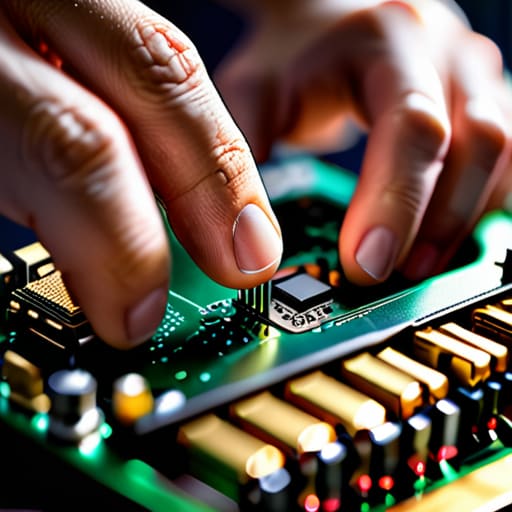
If you’ve already listened to those beeping motherboard error codes and they didn’t give you a clear answer, it’s time to get your hands a little dirty. One of the most common reasons a PC won’t turn on symptoms manifest as a black screen or a single loop of power is simply that a stick of memory has wiggled loose. Even if you haven’t bumped the tower, thermal expansion and contraction over a few years can actually cause a module to shift just enough to lose a solid connection. I’ve lost count of how many times I’ve “fixed” a machine just by re-seating the sticks.
When you’re checking ram seating, don’t just push them back in. I want you to pull them completely out of the slots. Take a look at the gold contacts for any dust or debris, and if you have some canned air, give the slots a quick blast. When you go to put them back in, listen for that distinct click from the plastic tabs at the ends. If you don’t hear that click, it isn’t seated, and you’re just wasting your time. It’s a simple step, but it’s often the bridge between a dead machine and a working one.
A few things I’ve learned the hard way (so you don't have to)
- Don’t ignore the smell. If you open that case and it smells like burnt toast or ozone, stop right there. That’s not a software glitch; that’s hardware giving up the ghost, and forcing it to stay on can cause more damage.
- Check your CMOS battery if the PC is older than a few years. If the time and date are constantly resetting or the BIOS feels “lost,” that little coin cell on the motherboard might just be dead, making the system act like it’s broken when it’s just forgetful.
- Test the power supply with something other than your eyes. Just because the little green light is on doesn’t mean the PSU is actually delivering steady voltage to the rest of the components. If you have a spare, swap it in to rule it out.
- Look for “bulging capacitors.” I’ve seen it a thousand times in older machines—little canisters on the board that look swollen or have crusty stuff leaking out. If you see that, no amount of software troubleshooting is going to save you.
- Keep your workspace clean while you’re poking around. I know it’s tempting to just dive in, but if you’re moving parts around, make sure you aren’t working on a carpet or near a pile of metal shavings. Static is the silent killer of everything we try to fix.
One Step Closer to a Fix

We’ve covered a lot of ground, and I know your head might be spinning a little. We started with the basics—making sure the power cable isn’t just lying loose on the floor—and moved through the more technical stuff like listening for those motherboard beeps and physically reseating your RAM. If you’ve checked the power supply, verified your connections, and ensured your memory sticks are actually seated in their slots, you’ve already done more than most people would. Most “dead” computers aren’t actually dead; they are just suffering from a communication breakdown between a component and the motherboard. By following these steps, you aren’t just guessing anymore; you are performing a systematic diagnostic that actually narrows down the culprit.
If you’ve gone through every single one of these steps and the screen is still stubbornly black, please don’t take it personally. Sometimes, a component has truly reached the end of its life, and no amount of troubleshooting will bring it back. But even then, there is a certain peace in knowing you didn’t just throw money at a replacement without trying to understand the problem first. Take a breath, step away from the desk for a minute, and remember that every hardware failure is just a puzzle waiting for the right piece. You’ve got the skills now, so even if this specific machine is a lost cause, you’re better prepared for the next one.
Frequently Asked Questions
If I hear those beeps but nothing shows up on my screen, is my monitor actually the problem?
It’s a fair question, and honestly, it’s usually not the monitor. If you’re hearing those beeps, your motherboard is actually doing its job—it’s trying to tell you something is wrong internally. The beeps are the computer’s way of screaming for help before it even attempts to send a signal to the screen. Before you go out and buy a new monitor, let’s focus on what those specific beep patterns are actually saying.
I tried reseating the RAM like you said, but the computer is still acting dead—what's the next most likely culprit?
If the RAM is seated and you’re still getting nothing, we need to look at the power supply unit (PSU). I’ve seen too many people assume a dead motherboard when it’s actually just a failed brick. Before you go buying expensive parts, try a different power cable or, if you have one, a spare PSU. Let’s see if we can actually get some life into that power rail first.
Is there a way to tell if my power supply died without having to buy a specialized tester?
You don’t need a fancy little gadget to get a hint. If you’re comfortable opening the case, try the “paperclip test.” It’s a bit old-school, but it works. You just bridge the green wire and a black wire on the 24-pin connector with a paperclip to see if the fan spins up. Just be careful—if you aren’t comfortable poking around live wires, don’t risk it. If the fan stays dead, your PSU is likely toast.
