I was sitting on my workshop floor last Tuesday, surrounded by the guts of a 1998 ThinkPad, when I realized I’d spent twenty minutes chasing a ghost. I was convinced the motherboard was shot, but it turned out to be a single, microscopic speck of dust in a fan housing. It’s that exact kind of madness that makes people give up entirely when they’re trying to figure out how to diagnose a faulty component. Most tech guides online act like you’re performing open-heart surgery with a million-dollar scanner, skipping right over the obvious physical stuff and jumping straight into complex software logs that don’t even apply to your situation.
I’m not here to sell you a diagnostic suite or tell you to just “replace the whole unit.” My goal is to walk you through this the way I do when I’m sitting at a service desk: one verified, logical step at a time. I’m going to show you how to isolate the problem without wasting your afternoon or your sanity. We are going to find the actual culprit by process of elimination, ensuring we don’t skip the step that actually fixes the mess.
Table of Contents
Systematic Fault Finding for the Exhausted Technician

When you’ve been staring at a dead machine for three hours, your brain starts to play tricks on you. You start wanting to swap parts just to see if something changes, but that’s how you end up with a pile of expensive junk and no answers. Instead of playing whack-a-mole, we need to lean into some actual systematic fault finding. I always tell my junior techs: stop guessing and start isolating. If you can’t prove a part is bad, don’t assume it is. You’ll just waste your afternoon chasing ghosts.
I usually start by stripping the problem down to the bare essentials. If it’s a power issue, I’m not looking at the motherboard yet; I’m looking at the source. This is where most people skip a beat, but performing basic component testing procedures—like checking a power supply with a multimeter—saves you from replacing a perfectly good CPU when the real culprit was a blown capacitor. It’s about finding the root cause rather than just treating the symptoms. Take a breath, grab your notebook, and let’s go through this logically.
Mastering Multimeter Diagnostic Techniques to End the Confusion
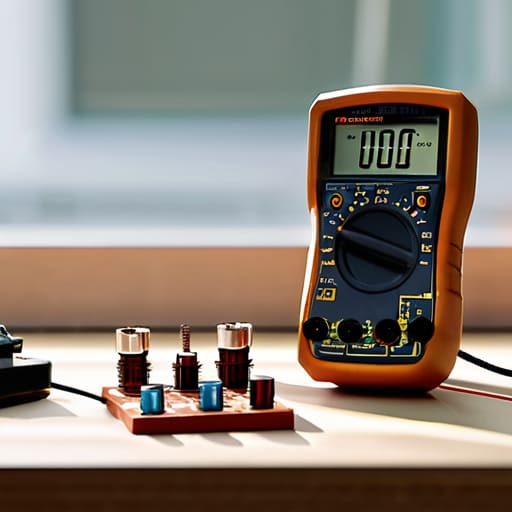
Now, I know seeing a multimeter can feel a bit intimidating if you’ve spent your whole career just swapping out parts, but this is where we stop guessing and actually start seeing what’s happening. When I’m working on one of my old 90s ThinkPads, I don’t just assume the power brick is dead; I verify it. You need to get comfortable with basic multimeter diagnostic techniques because they take the mystery out of the “black box” feeling. Before you go tearing a whole chassis apart, you should be checking for continuity and voltage drops. It’s much more satisfying to know for a fact that a trace is broken than to just pray a new motherboard fixes it.
When you’re deep into troubleshooting electrical circuits, the most important thing is to slow down. I usually grab my notepad and jot down the expected voltage versus what I’m actually seeing on the screen. If you’re testing a capacitor or a power rail, don’t rush the probe placement. If you’re sloppy with your leads, you’ll end up chasing ghosts that aren’t even there. Take your time with the settings—nothing ruins a diagnostic afternoon faster than realizing you were on the wrong scale for twenty minutes.
Five Things I’ve Learned the Hard Way So You Don't Have To
- Trust your nose before your eyes. I’ve walked into more server rooms than I can count, and half the time, I didn’t even need to open the chassis; I just smelled that distinct, acrid scent of a blown capacitor. If something smells like ozone or burnt toast, stop testing voltages and start looking for the physical damage.
- Stop skipping the “obvious” stuff. I see it every single week—a technician spends two hours debugging a driver issue only to realize the component wasn’t seated properly in the slot. Before you dive into the deep software weeds, physically unseat it and plug it back in. It sounds patronizing, but it saves your sanity.
- Isolate the variables, one by one. If you swap three parts at once and the system suddenly works, you have no idea which one was actually broken. Replace one thing, test, and document it. I always write down the specific part I swapped before I even tell the user the machine is back up; it’s the only way to keep the truth straight when the troubleshooting gets messy.
- Use the “known good” rule. Don’t guess if a power supply is failing based on a flickering light; grab a power supply you know works from your bench and swap it in. If the problem persists, you’ve successfully ruled out the power, and you can stop wasting time chasing ghosts in the PSU.
- Watch the logs, but don’t marry them. Event Viewer and system logs are great, but they can lie to you, or worse, they can point to a symptom rather than the cause. A “disk error” might actually be a failing SATA cable or a loose connection. Use the logs as a hint, not a final verdict.
One Last Thing Before You Close the Case

At the end of the day, diagnosing a faulty component isn’t about having some magical intuition; it’s about having the patience to follow the breadcrumbs. We’ve talked about moving through your system logically, isolating variables so you aren’t chasing ghosts, and actually trusting your multimeter instead of just guessing based on a feeling. If you’ve done the systematic work and verified your readings, you aren’t just throwing parts at a wall to see what sticks anymore. You are actually performing disciplined troubleshooting, and that is the difference between a technician who is constantly overwhelmed and one who actually knows their way around a motherboard.
I know how it feels when you’ve been staring at the same dead machine for three hours and you start to wonder if you’re even cut out for this. I’ve been there—usually with a 1995 ThinkPad spread across my desk and a headache brewing. But remember, every failed test is just a way of narrowing down the truth. Don’t let a stubborn piece of silicon get the better of you. Take a breath, grab a coffee, and trust the process you just learned. You’ve got the tools, you’ve got the method, and honestly, you’ve got this.
Frequently Asked Questions
What if I’ve tested everything and the component still looks fine, but the system won't boot?
That is the absolute worst feeling—when the hardware looks perfect but the screen stays black. I’ve been there more times than I care to admit. If your components pass the multimeter test, we need to stop looking at the parts and start looking at the communication between them. It’s usually a “silent killer” like a corrupted BIOS, a bad CMOS battery, or even a tiny short in the power rail that’s tripping a safety.
Is there a way to tell if a component is failing intermittently without having it plugged in and running?
That’s the million-dollar question, isn’t it? The “ghost in the machine” that disappears the moment you start testing. Honestly, it’s a nightmare. Without power, you’re mostly looking for physical tells: bulging capacitors on a motherboard, a faint smell of ozone, or even just looking for discoloration from heat soak. If it looks pristine, you’re stuck playing detective with a multimeter to check for shorts or continuity issues, but you won’t see the “intermittent” part until it’s live.
At what point do I stop troubleshooting and just admit the part is dead and needs replacing?
Knowing when to throw in the towel is a skill they don’t teach in the cert exams. I usually tell myself: if I’ve ruled out the power supply, checked the connections, and I’m still seeing zero signs of life or, worse, a component that’s physically scorched, it’s over. If you’re spending more time chasing ghosts than actually fixing things, stop. Admit the part is dead, write down the failure, and just swap it.
