I was sitting at my desk last Tuesday, staring at a half-disassembled ThinkPad from 1998, when a frantic email popped up from a teacher who had just been locked out of her entire grading system. She had finally bought one of those little USB dongles to “stay safe,” but now she couldn’t figure out how to use a hardware security key without feeling like she was performing surgery on a spaceship. It’s the same old story I’ve seen for sixteen years: the tech companies make these devices look like high-tech magic wands, but they completely skip over the actual human experience of trying to make them work when you’re already running late for a meeting.
I’m not here to give you a lecture on advanced cryptography or sell you on some expensive enterprise suite you don’t need. My promise to you is simple: I am going to walk you through this step-by-step, starting with the things the official manuals conveniently forget to mention. We’re going to get your setup finished without the headache, and I won’t move on to the next step until I’m sure the one we just did actually stuck.
Table of Contents
Hardware vs Software Mfa Why Your Current Setup Is Failing
Look, I get it. You’ve probably been using those SMS codes or those annoying “tap to approve” notifications on your phone for years. You think you’re safe because you have two-factor authentication setup, but here’s the truth from sixteen years on a service desk: those methods are surprisingly easy to trick. If a hacker manages to intercept your text or trick you into approving a rogue notification, your account is wide open. That’s the fundamental difference in the hardware vs software MFA debate. Software-based methods rely on your device being “unhackable,” which is a lie we tell ourselves to sleep better at night.
A physical key changes the game because it requires something you actually possess to be physically present. When we talk about protecting accounts from phishing attacks, a piece of plastic and metal is infinitely more reliable than a digital code that can be intercepted or social-engineered out of you. It’s not about making things harder for you; it’s about making it impossible for someone sitting halfway across the world to pretend they are you just because they swiped a code from your phone.
The Fido2 Protocol Explained Without the Technical Headache

Look, I know “FIDO2” sounds like some obscure piece of jargon from a manual you’d find in a dusty server room, but it’s actually the reason your life is about to get a lot easier. When we talk about the FIDO2 protocol explained in plain English, we’re really just talking about a digital handshake that can’t be faked. Most traditional two-factor authentication setup methods rely on you typing in a code from a text or an app—which, let’s be honest, is just one more thing to copy-paste and one more thing for a hacker to intercept.
FIDO2 changes the game because it moves the “proof” from something you know (like a password) to something you actually have in your hand. Instead of sending a code over the air where it can be sniffed out, your security key performs a local cryptographic dance right there on your device. This is the gold standard for protecting accounts from phishing attacks because the key won’t talk to a fake website, no matter how convincing the scam looks. It’s not magic; it’s just a much smarter way of proving it’s really you.
Five Things I Wish I Knew Before My First Security Key
- Get a backup key immediately. I know, it feels like extra money out of pocket, but if you lose your only key and you’ve locked yourself out of your primary email, you’re going to have a very long, very bad afternoon. I always keep a second one in a desk drawer, not on my keychain.
- Test the physical connection before you panic. If the prompt isn’t popping up, don’t assume the key is broken. Sometimes it’s just a finicky USB port or a bit of lint in the connector. Give it a quick wipe and try a different port—I’ve lost more time to dusty ports than actual hardware failure.
- Check your browser compatibility early. Most modern browsers play nice with FIDO2, but if you’re working on an old machine or a niche browser, the key might just sit there doing nothing. If it isn’t working, try switching to Chrome or Firefox just to see if the browser is the culprit.
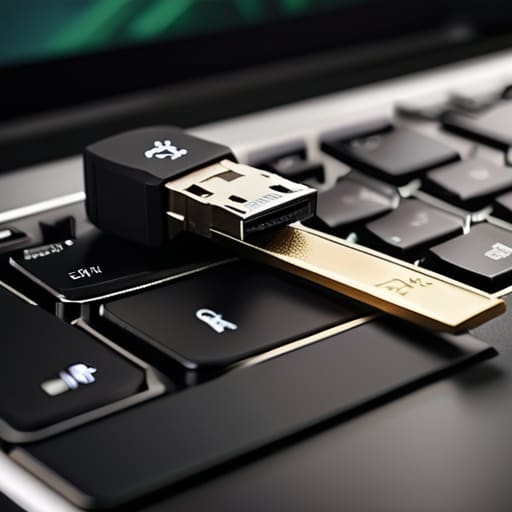
- Don’t forget the “Touch” part. Most of these keys require a physical tap on the gold sensor to prove you’re actually there. If you’re just staring at the screen waiting for it to work, it won’t. Give it a firm, quick tap when the light starts blinking.
- Write down your recovery codes. When you set up the key, the website is going to give you a list of one-time use recovery codes. Do not just close that window. Print them out or write them in a physical notebook. If the tech fails, these codes are your only lifeline back into your accounts.
Getting Over the Finish Line
Look, I know setting this up feels like one more chore on an already overflowing to-do list, but we’ve covered the essentials. We talked about why relying on those annoying SMS codes is basically leaving your front door unlocked, and we demystified how FIDO2 actually does the heavy lifting for you. Once you move past the initial “where do I plug this thing in?” phase, you’ll realize that a hardware key isn’t just another gadget to lose; it is the single most effective way to ensure that your data stays yours. It’s about moving away from those flimsy software prompts and finally putting a physical barrier between your accounts and the people trying to get into them.
I’ve spent sixteen years watching people struggle with “secure” systems that aren’t actually secure, and it’s exhausting. But taking these few minutes to transition to a hardware key is an investment in your own peace of mind. You won’t have to deal with that sinking feeling in your stomach when you get a random login notification at 2:00 AM. You’re taking control of your digital life, one tap at a time. So, go ahead, plug it in, register your accounts, and stop worrying about the “what ifs.” You’ve done the hard part; now you can finally just breathe easy.
Frequently Asked Questions
What happens if I lose the key or leave it at home when I'm trying to log in?
First, let me write this down: if you don’t have a backup plan, you’re going to have a very bad Tuesday. If you lose that key, you’re locked out unless you set up a second “spare” key ahead of time. Please, don’t wait until you’re staring at a login screen to realize you left it on your nightstand. Register a backup method—like a phone app or a second key—before you think you’re “all set.”
Will this work with my phone, or do I need a specific adapter to plug it in?
It depends on what’s in your hand right now. If you’ve got an iPhone with a Lightning port, you’ll likely need that little adapter to bridge the gap. If you’re on a newer Android or an iPhone 15, the USB-C key should slide right in. I always tell people to check their ports before they get frustrated—if the key doesn’t physically fit, it isn’t going to work, no matter how many settings you toggle.
Do I have to register this key for every single account one by one, or is there a faster way?
I wish I had better news, but yes—you’re going to have to do this manually for every account. There isn’t a “magic sync” button that pushes the key to your entire digital life. I know, it feels like a massive chore, but think of it as a one-time setup tax. Once you’ve gone through the security settings for your main accounts, you’re done. Just take it one login at a time.
