
I remember sitting at my kitchen table last Tuesday, staring at my mother’s brand-new iPad while she watched me with that specific kind of quiet anxiety that only comes when you’re about to face a piece of technology that feels like a foreign language. Most tech blogs will tell you that you just need to “walk them through the interface,” but they completely ignore the fact that most manuals assume you’ve already mastered the ten steps that came before the one you’re actually stuck on. If you are looking for a guide on how to set up a tablet for someone older, you don’t need a lecture on cloud synchronization or high-speed data transfers; you need to know how to make the device actually usable without causing a total meltdown.
I’m not going to give you a list of features to show off or suggest buying a $50 “senior-friendly” case that’s just plastic junk. Instead, I’m going to give you the exact, verified sequence I use when I’m troubleshooting for my own family. We are going to strip away the digital noise and focus on the only settings that actually matter, making sure the device is intuitive enough that they can actually enjoy it instead of fighting it.
Table of Contents
Mastering the Easy to Use Tablet Interface
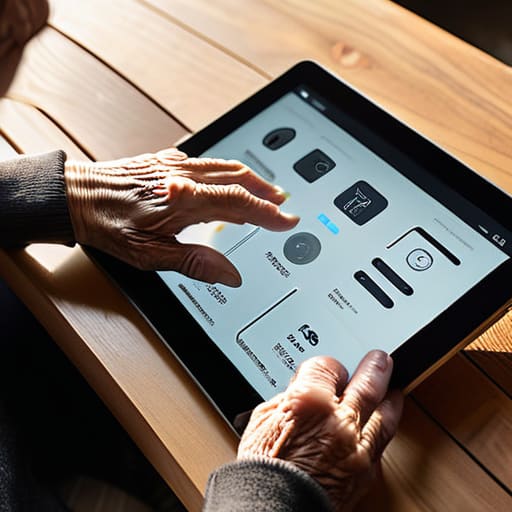
Once the device is powered on, the first thing I do is dive into the display settings. Most people skip this, but it’s where the real battle is won or lost. I always start by enabling large text and high contrast mode right away. If they can’t see the icons clearly, they aren’t going to use the device, and we’ll both end up frustrated. It’s not about making it look “pretty”—it’s about making it functional.
Next, we need to focus on simplifying touchscreen navigation. I like to go into the home screen settings and strip away the clutter. If there are five different widgets and three rows of apps they’ll never touch, I delete them. I find that leaving only the essentials—like Photos, Weather, or a Video Call app—on the main screen prevents that “where did my button go?” panic. I usually write down a quick cheat sheet of what each icon does before I hand it over, just in case. It’s much better to have a clean, predictable interface than a high-tech mess they can’t navigate.
Configuring Large Text and High Contrast Mode
Once we have the interface feeling intuitive, we need to address the actual visibility of the screen. I’ve lost count of how many times I’ve sat with a user who was squinting at a perfectly functional device just because the default font was too thin or too small. To fix this, head straight into the Settings menu and look for “Display” or “Accessibility.” From there, you’ll want to find the option for large text. I always recommend cranking this up one or two notches higher than you think is necessary; it’s much easier to scale back if it looks silly than it is to struggle with tiny letters all day.
Next, let’s talk about the colors. If the person you’re helping struggles with glare or has trouble distinguishing between similar shades, enabling large text and high contrast mode is a total game-changer. This setting sharpens the edges of text and buttons, making them pop against the background. It’s one of those essential senior friendly tablet settings that turns a frustrating, blurry screen into something actually readable. I usually write this step down in my notebook first, because once we toggle it on, the difference is so immediate it feels like magic.
The "Don't Make Me Hunt for It" Checklist
- First, we need to talk about the clutter. Most tablets come pre-loaded with a dozen apps that nobody is ever going to touch, like random games or news feeds. I like to go through and move everything important—the Camera, the Photos, and the Phone/Video call app—right onto the main home screen. If they have to swipe three times to find the button to call their grandkids, they’re going to give up.
- Next, let’s look at the notification settings. This is a big one. I usually go into the settings and turn off everything that isn’t essential. We don’t need a buzzing tablet every time a random app has a “special offer” or a news update. A constant stream of pop-ups is just a fast track to frustration and accidental clicks.
- I always make sure to set up a very simple, easy-to-remember passcode or, better yet, use biometric login like a fingerprint if the device supports it. I’ve seen too many people get locked out of their own devices because they tried to create a complex password that they immediately forgot. Let’s keep the barrier to entry low so they actually feel in control.
- We need to talk about the “Auto-Lock” timer. Most tablets are set to go dark after a minute or two of inactivity to save battery, but for someone who reads a bit slower or takes a moment to find their place, that’s infuriating. I usually bump that timer up to five or ten minutes. It’s better to charge the battery a little more often than to have the screen go black right when they were about to click something.
- Finally, let’s set up the “Find My Device” feature and write the login credentials down in a physical notebook for them. I know, it feels old-school, but if the tablet goes missing or gets locked, they aren’t going to remember a twenty-character recovery email. I always write the fix down before I tell them it’s working, and in this case, the “fix” is having a physical backup for their digital life.
One Last Thing Before You Walk Away
We’ve covered a lot of ground here, from simplifying that cluttered interface to making sure the text is actually readable without a magnifying glass. It’s easy to feel like you’re just “fiddling with settings,” but remember that every adjustment you made—increasing the contrast, enlarging the icons, and stripping away those annoying, useless notifications—is a step toward removing the barriers between your loved one and the digital world. I always tell my junior techs that we aren’t just fixing hardware; we are building a bridge so someone doesn’t feel left behind just because the software designers didn’t think about them.
At the end of the day, technology should serve us, not the other way around. If you find yourself getting frustrated because a setting didn’t stick or a menu looks different than you expected, just take a breath and remember why you’re doing this. You aren’t just setting up a piece of glass and silicon; you are giving someone a way to see photos of their grandkids, join a video call, or read the news with dignity. It might feel like a lot of small, tedious chores right now, but seeing that moment of connection when they finally “get it” makes every single click worth your time.
Frequently Asked Questions
What if they accidentally swipe too much and keep closing their apps?
I’ve seen this a thousand times—the “accidental swipe” is the number one cause of frustration. First, I’m going to jot this down: disable gesture navigation if the tablet allows it. Go into Settings, look for System or Gestures, and switch from “Swipe Gestures” to “Three-Button Navigation.” It puts those familiar Home, Back, and Recent buttons at the bottom. It’s much harder to accidentally close an app when they have a physical-feeling button to tap.
Is it better to get an iPad or an Android tablet for someone who isn't tech-savvy?
Honestly? Go with the iPad. I’ve spent sixteen years troubleshooting, and I can tell you that “consistency” is what saves us both a headache later. Android tablets are great, but they vary so much between brands that the buttons move around every time you get a new one. With an iPad, once you learn where the “Home” gesture is, it stays there. It’s more predictable, and for someone who isn’t tech-savvy, predictability is everything.
How do I make sure they don't accidentally buy things or click on those annoying pop-up ads?
Setting up guardrails is a must. First, I’m going to write this down: disable “In-App Purchases” in the settings immediately. It’s the only way to stop a stray tap from costing fifty bucks. Next, I’d go into the browser settings and turn on “Block Pop-ups.” It’s not a perfect shield, but it stops the most aggressive junk. If they’re really struggling, setting up a “Standard” user account instead of an “Admin” one is your best bet.
