Stop wasting your money on those “signal boosting” gadgets that promise the moon but deliver nothing but extra clutter on your desk. I’ve spent sixteen years on service desks, and if I had a nickel for every time a frustrated user bought a cheap, unbranded repeater thinking it was the magic fix for how to improve wifi coverage, I’d be retired on a beach somewhere. Most of these expensive “solutions” are just band-aids on a broken leg; they don’t fix your signal, they just create a second, slower network that makes your devices even more confused.
I’m not here to sell you a $400 mesh system or some proprietary nonsense you’ll need a PhD to configure. My goal is to give you the actual, verified steps that work—the kind I’d write down for myself before I even tell a user the problem is solved. We are going to look at the physical reality of your home, from where your router sits to the literal walls in your way, to find out how to improve wifi coverage using what you already have. No hype, no jargon, just real fixes for real people.
Table of Contents
Optimizing Router Position Before You Throw It Out the Window
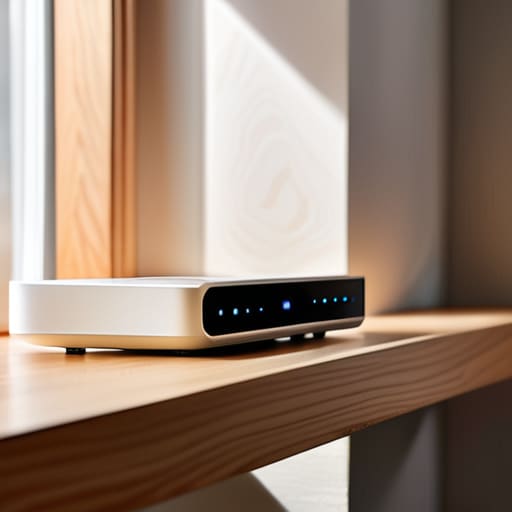
Before you start spending money on expensive wifi signal boosters, let’s look at where that little plastic box is actually sitting. I’ve seen it a thousand times in school labs: a router shoved into a metal cabinet or tucked behind a heavy filing cabinet in the corner of the room. That’s basically a signal coffin. If you want to actually see an improvement in your connection, you need to start optimizing router position by getting it out into the open. Ideally, it should be elevated on a shelf or a desk, not sitting on the floor where the signal has to fight through every piece of furniture in your house just to reach your laptop.
You also need to be mindful of what’s surrounding the device. I’m talking about reducing wireless interference from things that shouldn’t be near your tech, like microwaves or even large mirrors. If your router is buried under a pile of mail or sitting right next to a cordless phone base, you’re sabotaging yourself. Think of your signal like sound; if you put a speaker inside a closet, nobody in the living room is going to hear the music clearly. Move it to a central, elevated spot, and you might find that half your problems disappear without spending a dime.
The Truth About Dual Band vs Single Band Wifi

Most people see two different network names when they look at their settings—one labeled “2.4GHz” and another “5GHz”—and they just pick one at random. I’ve spent way too many afternoons on the help desk explaining that they aren’t just different names; they are fundamentally different ways of moving data. The 2.4GHz band is like an old, heavy truck. It’s slow, but it can carry a load through thick walls and around corners without breaking a sweat. On the other hand, the 5GHz band is a sports car. It’s incredibly fast, but if you move two rooms away, that signal is going to hit a wall and just stop.
If you are struggling with reducing wireless interference from your neighbor’s microwave or even your own Bluetooth speakers, you might be on the wrong band. I usually tell people to put their smart bulbs and printers on the 2.4GHz side to clear up the “fast lane” for their laptops and gaming consoles. Understanding dual-band vs single-band wifi isn’t about which one is “better,” it’s about knowing which one actually reaches your desk.
Five More Ways to Stop the Buffering Nightmare
- Change your channel. Most routers come set to “Auto,” which is basically the router guessing what everyone else in your neighborhood is doing. If your neighbor’s WiFi is screaming on the same frequency as yours, your signal is going to drop like a stone. I usually go into the admin settings and manually pick a less crowded channel—usually 1, 6, or 11 for the 2.4GHz band—to give my connection some breathing room.
- Check your firmware. I know, I know, it sounds like a chore, but ignoring updates is how you end up with a router that acts possessed. Manufacturers release these patches to fix bugs that cause signal drops. Log into your router’s dashboard once every few months and see if there’s an update waiting. It’s much easier than troubleshooting a dead connection later.
- Stop using those cheap “plug-in” extenders. You’ve seen them—the little white boxes that plug directly into the wall. Most of them just grab a weak, crappy signal and rebroadcast it, which doesn’t actually give you more speed; it just gives you a stronger signal of something that’s already broken. If your house is large, you’re better off investing in a Mesh system that actually talks to itself properly.
- Scan for interference from things that aren’t computers. Your microwave, your baby monitor, and even some old cordless phones operate on the same frequency as your WiFi. If your connection dies every time someone starts making popcorn, you’ve found your culprit. Keep the router away from large metal objects and anything that plugs into a wall and hums.
- Update your device drivers. Sometimes the problem isn’t the WiFi at all; it’s the laptop or phone you’re using to catch it. If your computer is struggling to stay connected while everything else in the house is fine, go to the manufacturer’s website and grab the latest network adapter driver. It sounds technical, but it’s usually just a matter of clicking “install” and restarting.
The Last Bit of Troubleshooting
Look, we’ve covered a lot of ground here, and I know it feels like a lot of chores when you just want to stream a movie without the dreaded buffering wheel. To recap: stop burying your router under a pile of mail or inside a wooden cabinet, and stop ignoring the difference between your 2.4GHz and 5GHz bands. If you’ve moved the hardware and managed your frequencies, you’ve already done more than most people I see on the service desk. It isn’t about buying a thousand-dollar mesh system every time a signal drops in the hallway; it’s about understanding the physical reality of how those radio waves actually travel through your walls. Small adjustments usually yield the biggest wins.
I know it’s incredibly draining to fight with technology that’s supposed to make our lives easier, not harder. I’ve spent sixteen years watching people get ready to toss their laptops out the window because of a “broken” connection that was really just a poorly placed router. Don’t let the frustration win. Take a breath, try these steps one by one, and remember that you are in control of your setup. You don’t need to be a network engineer to have a house that actually stays connected; you just need to be a little bit more intentional about where your gear lives. Now, go grab a coffee and see if that signal finally behaves.
Frequently Asked Questions
I've tried moving the router, but my bedroom is still a dead zone; do I actually need one of those expensive mesh systems?
Before you drop a few hundred bucks on a mesh system, let’s try one thing. If your bedroom is a dead zone, it might not be the router’s fault; it might be your walls. If you have thick plaster or brick, even a mesh system will struggle. Try a simple powerline adapter first. It uses your home’s electrical wiring to carry the signal. It’s cheaper, and frankly, it often works better for single-room gaps.
Is it worth my time to change the WiFi channel in the settings, or is that just more tech-babble that won't actually help?
It’s not just tech-babble, but it’s also not a magic wand. Think of it like trying to have a conversation in a crowded bar; if everyone is shouting on the same frequency, you can’t hear a thing. If you live in an apartment complex, your neighbors’ routers are likely trampling yours. Grab a free analyzer app, see which channels are crowded, and pick a quiet one. It’s worth ten minutes of your time.
My neighbor's WiFi shows up on my list and it's driving me crazy—can they actually slow down my connection?
It’s driving me crazy too, but here is the reality: they aren’t “stealing” your speed, but they are definitely crowding your airwaves. Think of it like trying to have a conversation in a crowded bar; even if they aren’t talking to you, the sheer noise makes it harder for you to hear. If you’re both on the same channel, your router has to wait for a gap in the “noise” to send data. It’s annoying, but fixable.
