Moving Email Without Losing Messages

I remember sitting in a cramped, overheated server closet at a middle school back in 2008, staring at a progress bar that hadn’t moved in three hours. The air smelled like ozone and stale coffee, and all I could think was that the “expert” guide I was following had completely skipped the part where the local firewall decides to kill the connection halfway through. Most of the tutorials you find online about how to migrate email between providers are written by people who have never actually had to explain a failed sync to a frantic small business owner. They assume you have a pristine network and all the time in the world, but they never account for the messy reality of missing folders or broken IMAP settings.

I’m not here to sell you on some expensive, “magic” migration software that promises a one-click fix. Instead, I’m going to walk you through the actual, gritty steps I’ve used for sixteen years to get the job done without losing a single contact or old thread. We are going to do this one verified step at a time, focusing on the stuff the manuals leave out. My goal is to get your data moved so you can finally stop worrying about it and get back to your actual life.

Table of Contents

Choosing the Right Email Migration Tools and Services

Choosing the Right Email Migration Tools and Services

Now, before you go clicking “import” on anything you find in a search result, we need to talk about your options. I’ve seen too many people try to DIY this with a basic IMAP sync only to realize halfway through that they’ve lost half their calendar entries. When you’re looking at different email migration tools and services, you have to decide if you want a “set it and forget it” paid service or if you’re prepared to roll up your sleeves for a manual move. If you have a massive archive, I strongly suggest using a dedicated tool that handles migrating email attachments and folders automatically; doing that manually is a one-way ticket to a headache you don’t need.

If you’re working with a small setup, you might get away with a manual transfer, but you’ll need to be meticulous about your email server configuration settings to ensure everything actually lands where it belongs. My rule of thumb? If your business depends on these messages, pay for the professional migration service. It’s much cheaper than the time you’ll spend hunting for “lost” client threads later.

Transferring Email Messages and Contacts Without Missing Anything

Transferring Email Messages and Contacts Without Missing Anything

This is where the actual heavy lifting happens, and it’s usually where I see people start to sweat. When you’re finally transferring email messages and contacts, the biggest mistake is assuming everything will just “flow” from one place to the other. If you’re doing this manually via IMAP, you might find that your nested folders or those massive, life-saving attachments don’t quite make the jump. I’ve spent too many afternoons staring at a progress bar only to realize a subfolder full of client invoices didn’t migrate. To avoid that, I always recommend running a test sync with a single, unimportant folder first. It’s better to find out your settings are wonky now rather than three hours into a full migration.

Once you’ve verified the data is moving, you have to think about the handoff. You aren’t just moving files; you’re moving a live stream. This is the part where we focus on minimizing downtime during the email switch so you don’t spend your Monday morning playing catch-up with missed inquiries. I always tell my team to double-check the source data integrity before we even touch the new server. If the old mailbox is messy, the new one will be too. Take your time with the verification; it’s much easier to fix a sync error now than to hunt for a missing contact three weeks from now.

Five Things I Wish I Knew Before I Hit "Sync"

  • Do a trial run with a junk account first. I’ve seen too many people try to move a decade of professional history all at once, only to have the connection time out halfway through. Move a small, unimportant folder first to see how your chosen tool handles the handshake.
  • Map out your folders before you start the actual move. If you have a complex nesting system in Outlook, some migration tools will flatten everything into one giant, messy pile. I always take a screenshot of my current folder structure so I have a map to follow when the migration finishes.
  • Don’t forget your “hidden” stuff like signatures and rules. Most migration tools are great at moving the actual body of an email, but they often leave your custom signatures and automated sorting rules behind. You’ll want to copy those manually so your workflow doesn’t break on day one.
  • Check your storage limits on the new provider before you even begin. There is nothing more soul-crushing than getting 90% through a migration only to have the new server reject the remaining data because you hit a mailbox cap you didn’t know existed.
  • Keep your old account active for at least a week after the move. I know it’s tempting to delete the old credentials the second the progress bar hits 100%, but you’ll almost certainly realize you missed a specific contact or a niche calendar invite. Give yourself a grace period.

One Last Thing Before You Close the Laptop

One Last Thing Before You Close the Laptop

I know, looking back at the whole process—picking the right tool, mapping out your contacts, and actually running the transfer—it feels like you’ve just finished a marathon you never signed up for. We covered how to avoid the trap of missing those tiny, crucial folders and how to make sure your data actually lands where it’s supposed to. The most important thing I can tell you is to double-check your IMAP settings one last time before you pull the plug on the old account. If you’ve followed the steps we talked about, you shouldn’t be staring at a blank inbox, but a little bit of patient verification goes a long way in making sure nothing slipped through the cracks during the move.

At the end of the day, technology is supposed to work for us, not the other way around. It’s incredibly easy to feel like the machine is winning when a migration goes sideways, but you’ve already done the hardest part by facing the problem head-on. Once those emails are settled in their new home and your settings are dialed in, you can finally stop worrying about “what if” and just get back to your actual life. Take a breath, grab a coffee, and enjoy the peace of mind that comes with a clean, working system. You’ve earned it.

Frequently Asked Questions

What happens if my internet cuts out halfway through the migration process?

Take a deep breath. I’ve been there, usually right when I’m halfway through a critical update. If your internet drops, the migration won’t just “break” your data, but it will pause. Most modern tools are smart enough to pick up where they left off once you’re back online. Don’t panic and start clicking everything; just wait for the connection to stabilize, then restart the sync. It’s a hiccup, not a catastrophe.

Will I lose any of my old folders or labels if I use a third-party migration tool?

I’ve seen this panic before, and I’ll tell you straight: if you use a decent third-party tool, your folders and labels should stay right where they belong. Most of these tools are designed to mirror your current structure exactly. However, I always make it a rule to run a manual backup of your data first. I’d rather spend ten minutes verifying a backup than ten hours mourning a lost folder.

Do I need to tell my contacts that I'm switching, or will my old email address still work for a while?

Here’s the thing: your old address won’t just magically vanish, but it won’t work forever either. If you’ve set up email forwarding, they can still reach you, but that’s a temporary band-aid. I always tell people to start sending a “moving notice” a week before the switch. It’s better to over-communicate now than to spend your next month playing detective, trying to figure out why a client’s important message went into a black hole.
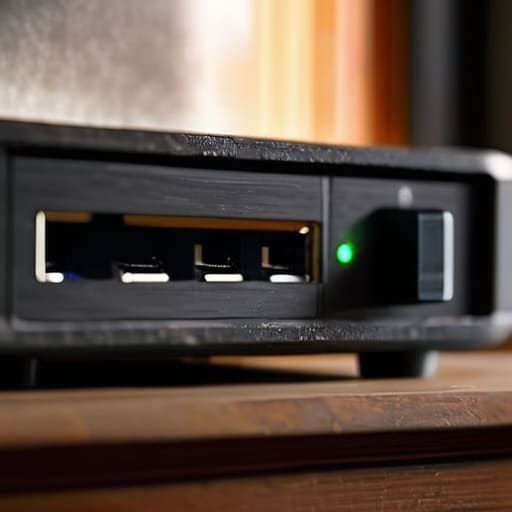

The Router Nobody Has Updated

I was sitting at my workbench last Tuesday, mid-way through cleaning the fan out of a dusty old ThinkPad, when my neighbor knocked on the door looking like she’d just lost a fight with a printer. She was convinced her internet was dying and that she needed to buy a brand-new $200 router. I had to stop her right there; she didn’t need new hardware, she just needed to learn how to update router firmware without the fear of bricking the whole thing. Most people treat firmware updates like they’re performing open-heart surgery, but the truth is, if you follow the right sequence, it’s actually just a routine maintenance task that keeps your connection from dropping out during your mid-day Zoom calls.

I’m not going to give you a manual filled with technical jargon that assumes you already know what an IP address is. Instead, I’m going to walk you through this step-by-step, exactly how I’d explain it to a frustrated user on my own service desk. We are going to find your login, grab the right file, and get that update finished without any unnecessary drama. I’ve written these steps down for myself first, so I know they actually work for someone who just wants their Wi-Fi to stay connected.

Table of Contents

Guide Overview

Total Time: 15-30 minutes
Estimated Cost: $0
Difficulty: Beginner

Tools & Supplies

  • Web browser to access the router's admin panel
  • Ethernet cable for a stable wired connection
  • Router with internet access 1 unit
  • Computer or laptop 1 unit

Step-by-Step Instructions

  • 1. First, I need you to find your router’s IP address. I know, it sounds technical, but it’s usually just a string of numbers like 192.168.1.1 or 192.168.0.1. If you can’t remember it, grab a laptop that’s already connected, open your command prompt, type `ipconfig`, and look for the “Default Gateway.” That number is your golden ticket to the settings page.
  • 2. Once you have that number, open up a web browser—doesn’t matter if it’s Chrome, Firefox, or Safari—and type those numbers right into the address bar where you’d normally put google.com. Hit enter, and you should see a login screen. If it asks for a username and password and you’ve never changed them, check the sticker on the bottom of the router itself; most manufacturers print the defaults right there.
  • 3. Now that you’re actually inside the router’s dashboard, take a breath and look for a menu labeled something like “Advanced,” “Administration,” or “Management.” You’re looking for a sub-menu called “Firmware Update” or “Router Upgrade.” Don’t click anything else just yet; we want to make sure we’re in the right place before we start tinkering with the guts of the machine.
  • 4. Most modern routers have a button that says “Check for Updates,” which is the easiest way to go. If yours doesn’t, or if it says you’re already up to date but your internet still feels like sludge, you’ll need to do this the old-fashioned way. Go to the manufacturer’s website on a different device, search for your exact model number, and download the latest firmware file to your computer. Double-check that model number twice, because installing the wrong file can turn your router into a very expensive paperweight.
  • 5. If you had to download the file manually, go back to that Firmware Update page in your browser and look for an “Upload” or “Browse” button. Select the file you just downloaded and hit “Start Update.” This is the part where I usually grab my notepad and write down the steps just in case. Do not, under any circumstances, unplug the router or turn off your computer while the progress bar is moving. If the power cuts out mid-update, you’re going to have a very bad afternoon.
  • 6. Once the progress bar finishes, the router is going to do its thing and reboot itself. This might take a few minutes, and the lights on the front will probably blink around like crazy. Just sit tight and let it finish its business. Don’t start poking at the reset button just because it looks like it’s taking forever; it’s just reorganizing its internal files.
  • 7. Finally, once the lights settle down and look normal again, log back into the dashboard one last time to verify the version number. Compare it to the one you downloaded to make sure everything actually took. If the dashboard shows the new version, you’re officially done, and you can finally get back to whatever you were doing before this interruption happened.

Hunting Down Files on the Router Manufacturer Website

Hunting Down Files on the Router Manufacturer Website

Now, this is where most people lose their patience. You’ve finally managed to get into the settings, but finding the actual file feels like searching for a needle in a haystack. When you head over to the router manufacturer website, don’t just type your model name into a generic search engine. Google loves to show you third-party “driver update” sites that are basically just glorified ad traps. Instead, go directly to the official brand site—Linksys, Netgear, TP-Link, whatever you’ve got—and look for their “Support” or “Downloads” section.

Once you’re there, you’ll need your exact model number. I’ve seen so many people try to install a version meant for a slightly different hardware revision, and that is a recipe for a very expensive paperweight. Check the sticker on the bottom of the device to be sure. While you’re at it, keep an eye out for any “readme” files or release notes. They usually explain if the update is just for improving network security or if it fixes specific bugs you might be dealing with. If the site asks you to choose between different versions, always pick the most recent one unless the notes specifically tell you to stay on an older build.

Mastering Router Admin Panel Access for Real Results

Mastering Router Admin Panel Access for Real Results

Now that you’ve hopefully found that file on the manufacturer’s site, we need to actually get into the guts of the machine. Getting your router admin panel access sorted is usually where people hit a wall because they’re staring at a login screen and realize they have no idea what the password is. If you haven’t changed it from the factory default, check the sticker on the bottom of the unit. If you’ve tried everything and it still won’t let you in, you might have to do a hard reset, but please read the manual first—you don’t want to wipe your settings if you don’t have to.

Once you are actually logged in, don’t just go clicking buttons at random. I’ve seen too many people accidentally trigger a factory reset when they were just looking for the update tab. Look for a section labeled “Advanced,” “System Tools,” or “Administration.” This is where the real wireless router maintenance happens. Take a second to note down your current settings before you hit that upload button. I always write my current IP range and security settings on a sticky note before I start; it saves me a massive headache if the update goes sideways and I have to rebuild everything from scratch.

Five Things I Wish I Knew Before I Hit 'Update'

  • For the love of everything holy, plug your router into a wall outlet with a physical cable. Do not, under any circumstances, try to run a firmware update over Wi-Fi. If your connection blips halfway through the upload, you’re looking at a very expensive paperweight.
  • Write down your current settings—specifically your Wi-Fi passwords and any static IP assignments—on a piece of paper before you start. Sometimes a firmware update resets everything to factory defaults, and nobody wants to spend an hour re-configuring their entire home network.
  • Check the “Release Notes” on the manufacturer’s site before you download the file. If the update says it’s a “Beta” version, walk away. You only want the stable, official releases unless you enjoy troubleshooting broken connections for the next three days.
  • Don’t panic if the lights on the router start flashing wildly or if the internet cuts out for ten minutes. That’s actually a good sign; it means the router is busy rewriting its own brain. Just leave it alone and let it finish its work.
  • Keep a backup of the old firmware file on your computer if the manufacturer allows it. It’s my little safety net—if the new version turns out to be a buggy mess, I can usually roll back to the version that actually worked.

You’re Officially Done With This

You’re Officially Done With This update.

So, there you have it. We’ve hunted down the right file from the manufacturer, dodged the headache of navigating those clunky admin panels, and actually pushed the update through without the whole thing bricking. It’s a lot of steps, I know, and it’s easy to feel like you’re doing something wrong when the progress bar looks like it’s stuck, but you actually did it. Just remember: always double-check that you’re using the exact model number before you hit that final upload button, because reverting a failed update is a whole different kind of nightmare I’d rather not walk you through today.

If your internet feels a little snappier now, or if that annoying connection drop has finally vanished, take a second to appreciate the win. Most people just stare at a blinking red light and assume the hardware is dying, but you took the time to actually understand the process. Technology is frustrating by design, but once you stop treating your router like a black box and start treating it like a tool you can actually maintain, the fear goes away. Now, go grab a coffee and enjoy a connection that actually behaves itself for once.

Frequently Asked Questions

What happens if my power goes out right in the middle of the update?

Oh, man. That is the absolute nightmare scenario. If the power cuts while the router is rewriting its own brain, you’re looking at a “bricked” device—basically an expensive, plastic paperweight. The software is half-finished, and the router doesn’t know how to boot up anymore. If this happens, you can’t just plug it back in and hope for the best; you’ll likely need a specialized recovery mode or, more likely, a replacement.

Do I really need to do this if my internet seems to be working fine most of the time?

Look, I get it. If it isn’t broken, why touch it? But here’s the thing: firmware updates aren’t just about fixing what’s currently broken; they’re about patching the holes that haven’t been exploited yet. Think of it like maintenance on one of my old ThinkPads. You don’t wait for the motherboard to fry to clean out the dust. If you skip these, you’re just leaving the door unlocked for security bugs and stability issues down the road.

Is it safe to update the firmware if my router is a few years old, or am I going to brick it?

Look, I get it. The word “firmware” sounds like something that could turn your router into a very expensive paperweight. If your router is a few years old, it’s actually more important to update it for security. Just don’t do it during a thunderstorm or if your power is flickering. As long as you don’t pull the plug halfway through the upload, you’ll be fine. I’ve seen it happen, but it’s rare.

Page File Settings and Myths

I was sitting in a cramped school IT closet last Tuesday, listening to the frantic, rhythmic clicking of a dying hard drive, when a teacher burst in complaining that her workstation was “basically a paperweight.” She’d just spent three hundred dollars on a “RAM upgrade” from some flashy website, thinking more memory would solve everything, but her system was still choking on its own breath. The truth is, most people ignore the most basic part of memory management because the tutorials online are either written by robots or assume you’re already a sysadmin. They skip right past the basics of how to manage the page file and jump straight into settings that’ll actually break your OS if you aren’t careful.

I’m not here to sell you more hardware or walk you through a twenty-step enterprise manual that ignores the reality of your hardware. I’m going to show you exactly how to tweak these settings so your computer stops stuttering like a scratched CD every time you open more than three tabs. We are going to do this one verified step at a time, focusing on what actually works for a standard user, so you can stop the lag and get back to your actual life.

Table of Contents

Page File vs Ram Why Your Computer Is Still Struggling

Page File vs Ram Why Your Computer Is Still Struggling

Think of your RAM like your actual physical desk. It’s where you keep the folders, the notepad, and the coffee mug you’re using right this second. It’s fast, it’s right in front of you, and it has a limited amount of surface area. When that desk gets cluttered with too many open projects, you run out of room to work. This is where the page file comes in. It’s essentially a digital overflow drawer located on your hard drive. When your RAM is maxed out, Windows starts moving less important data into this “drawer” to make room for what you’re doing immediately.

The problem is that even the fastest SSD is still significantly slower than your actual memory sticks. When your computer spends all its energy constantly shuffling data back and forth between the desk and the drawer, you get that stuttering, freezing mess we all hate. Understanding the page file vs ram relationship is the first step to preventing out of memory errors that crash your browser or freeze your spreadsheet mid-sentence. It isn’t about replacing your RAM, but rather making sure the hand-off between the two doesn’t turn into a total bottleneck.

Preventing Out of Memory Errors Without Tearing Your Hair Out

Preventing Out of Memory Errors Without Tearing Your Hair Out

Look, if you’re constantly seeing that dreaded “out of memory” pop-up right when you’re in the middle of something important, you don’t need a lecture on computer architecture. You just need a way to stop the bleeding. Most of the time, these errors happen because your system is trying to juggle too many heavy applications at once, and your current windows virtual memory settings simply aren’t keeping up with the demand. It’s like trying to pour a gallon of water into a pint glass; eventually, something is going to spill, and in this case, it’s your workflow.

The trick to preventing out of memory errors isn’t just about throwing more hardware at the problem—though more RAM certainly helps. It’s about making sure your drive has enough breathing room to act as a safety net. If you’re running on an older mechanical hard drive, you’re going to feel every bit of that lag, but even with an SSD impact on virtual memory being much more forgiving, you still need a properly configured space to swap data. We’re going to aim for a setup that keeps your system stable without letting the background processes hijack your entire machine.

Five Rules of Thumb for Not Making Your Page File Worse

  • Stop trying to be a hero with “System Managed” settings if you’re on a drive with almost no space left. If your SSD is hovering at 95% capacity, Windows can’t expand that page file when it needs to, and that’s when you get the dreaded “Out of Memory” crash. Clear some room first.
  • If you’re manually setting the size, don’t just pick a random number. I always recommend setting the “Initial size” and the “Maximum size” to the exact same value. It sounds counterintuitive, but it prevents Windows from constantly resizing the file, which is a lot of unnecessary disk activity that can stutter your system.
  • Never, and I mean never, disable the page file entirely just because you bought 64GB of RAM. I’ve seen it happen on service desks more times than I care to admit. Some older software and even certain Windows processes expect a page file to exist; if it’s gone, they’ll just throw a tantrum and crash.
  • Keep the page file on your fastest drive. If you have an old-school mechanical HDD and a modern NVMe SSD, make sure the page file is sitting on the SSD. Moving that virtual memory to a spinning disk is like trying to run a marathon in heavy boots—it’s just going to drag everything down.
  • Don’t go overboard with the “Maximum size” setting. Setting it to something ridiculous like 100GB won’t magically give you more RAM, it’ll just eat your storage and potentially slow down your file indexing. Find a middle ground—usually 1.5x your physical RAM is a safe starting point for most of my users.

One Last Check Before You Walk Away

One Last Check Before You Walk Away

At the end of the day, managing your page file isn’t about being a computer scientist; it’s just about giving your hardware a little breathing room. We’ve covered how to distinguish between your actual RAM and that virtual safety net, how to stop those dreaded “out of memory” pop-ups, and how to set a size that doesn’t leave your hard drive gasping for air. Just remember: don’t go overboard by setting a massive, static size unless you actually have the disk space to spare, and never disable the page file entirely just because you think you have enough RAM. If you follow these steps, you’ll find that your system stops acting like it’s constantly on the verge of a total meltdown.

I know how it feels when the spinning wheel of death becomes your most frequent visitor. It’s exhausting, and it makes you feel like the machine is working against you rather than for you. But once you take these small, deliberate steps to tune your settings, you’ll realize that most of these “hardware failures” are actually just simple configuration hiccups waiting to be smoothed out. Take a breath, let the settings settle, and trust the process. You’ve got this handled, and your PC is going to be a whole lot happier for it.

Frequently Asked Questions

If I manually set a specific size for my page file, will it slow down my computer when I try to open too many browser tabs at once?

Honestly? It’s a bit of a double-edged sword. If you set the size too small, your browser is going to hit a wall the second you open that twentieth tab, and things will start crashing. But if you set it manually and give it enough breathing room, you actually prevent the system from constantly resizing it, which can stop those micro-stutters. Just don’t starve it; give it a decent ceiling so it doesn’t choke.

Is it actually safe to disable the page file entirely if I just bought a massive amount of new RAM?

Look, I get the temptation. You just dropped a fortune on 64GB of high-speed RAM and you want to let it run free. But honestly? Don’t do it. Even with a massive amount of memory, some older or poorly written applications still expect a page file to exist. If they go looking for it and find nothing, they’ll just crash. Keep a small, automated page file running in the background. It’s cheap insurance against a system tantrum.

I noticed my C: drive is almost full; can I move the page file to a different hard drive without breaking Windows?

You can absolutely move it, and honestly, if your C: drive is gasping for air, you should. It won’t break Windows, provided you don’t just delete it entirely. I usually do this when a user’s boot drive is choking on a massive page file. Just disable it on C:, set it to “System Managed” on your secondary drive, and hit Apply. It’s a lifesaver for a cramped SSD.

A Machine With No Signs of Life

You’re staring at that black screen, pressing the power button over and over, and you’re already convinced the motherboard is fried. Most tech guides will tell you to start with complex BIOS settings or software resets, but let me tell you something: most of the time, it’s much simpler than that. I’ve spent sixteen years on service desks, and I’ve learned that knowing how to diagnose a dead PC isn’t about being a genius; it’s about not skipping the obvious stuff because you’re too annoyed to look for it. I once spent forty minutes troubleshooting a “dead” workstation for a teacher, only to realize the power strip had been bumped under the desk.

I’m not going to give you a lecture or assume you already know the basics. Instead, I’m going to walk you through a logical, step-by-step process to find the actual culprit. We are going to start with the power source and work our way inward, piece by piece, until we find the break in the chain. My goal is to help you figure out if this is a five-minute fix or if it’s actually time to start looking for a replacement.

Table of Contents

Guide Overview

Total Time: 1-3 hours
Estimated Cost: $0-50
Difficulty: Beginner

Tools & Supplies

  • Phillips head screwdriver for opening the case
  • CMOS battery tester or multimeter to check voltage
  • Flashlight to inspect internal components
  • Compressed air can (1) for cleaning dust
  • Thermal paste (1 tube) for CPU troubleshooting
  • Spare PSU (1) for component testing

Step-by-Step Instructions

  • 1. First, we need to rule out the most obvious culprit: the power source. I’ve seen people spend an hour troubleshooting a motherboard when the wall outlet was actually dead. Unplug the power cable from the back of the PC, plug something else into that same outlet—like a lamp or a phone charger—to make sure it actually has juice. If the lamp turns on, plug your PC back in, but check the connection at both ends. Sometimes that cable feels snug but isn’t actually seated all the way.
  • 2. Next, let’s look at the back of your computer case. Most modern power supplies have a tiny little rocker switch right next to where the cord plugs in. It’s easy to bump this with your foot or accidentally flip it to the “O” position while cleaning. Make sure that switch is flipped to the “I” position. If it’s already on, try a different power cable if you have a spare lying around; cables fail more often than you’d think.
  • 3. If you’re getting zero signs of life—no lights, no fans, nothing—we need to check the internal connections. I’m going to suggest you open the side panel of your case, but please be careful not to touch anything with greasy hands. Look for the thickest bundle of wires coming from the power supply; these plug into the motherboard. Give them a gentle push to ensure they are fully seated. If they’ve wiggled loose due to vibration or being moved, the PC won’t even try to start.
  • 4. Now, let’s talk about the “half-dead” scenario, where the lights come on but the screen stays black. This is usually a memory issue. I want you to find your RAM sticks—those long, thin rectangles standing upright. Pop them out of their slots, wipe the gold contacts with a clean, dry microfiber cloth (or even a soft pencil eraser if you’re careful), and click them back in firmly. You should hear a distinct “click” when they lock. Often, a single bit of dust in a slot is all it takes to halt the boot process.
  • 5. If you can get the computer to turn on but it keeps restarting or making weird clicking noises, we need to look at your peripherals. Unplug everything except for your power cord, monitor, and keyboard. I mean everything—webcams, USB hubs, printers, even your wireless mouse dongle. Sometimes a faulty USB device creates a short circuit that triggers the power supply’s safety mechanism, causing the system to shut itself down immediately to prevent a fire.
  • 6. If you finally get some life out of it but it’s incredibly slow or freezing, we need to check the temperature. If your fans are screaming like a jet engine, your computer is likely thermal throttling. This happens when dust builds up in the heatsink and prevents the processor from staying cool. Grab a can of compressed air and give those fans a good cleaning. Just a quick blast can be the difference between a functional machine and a paperweight.

Listen for the Beeping Motherboard Error Codes

Listen for the beeping motherboard error codes.

If your machine stays dark but you hear a series of rhythmic beeps, don’t panic. That sound is actually your computer trying to talk to you. These beeping motherboard error codes are essentially a built-in diagnostic tool designed to tell you exactly what went wrong during the initial boot sequence. I’ve spent many late nights in school server rooms listening to these patterns, and I can tell you that a single long beep followed by two short ones usually means something very specific is broken.

Before you start buying new parts, I need you to grab your phone and look up your specific motherboard or PC model alongside those beep patterns. Not every manufacturer uses the same “language.” While you’re listening, keep in mind that these sounds often point toward common pc won’t turn on symptoms like a failing memory module or a processor issue. Sometimes, the easiest fix is simply checking ram seating—opening the case and making sure those sticks are clicked firmly into their slots. It’s a small step, but it solves more “dead” PCs than you might think.

Stop Guessing and Start Checking Ram Seating

Stop Guessing and Start Checking Ram Seating.

If you’ve already listened to those beeping motherboard error codes and they didn’t give you a clear answer, it’s time to get your hands a little dirty. One of the most common reasons a PC won’t turn on symptoms manifest as a black screen or a single loop of power is simply that a stick of memory has wiggled loose. Even if you haven’t bumped the tower, thermal expansion and contraction over a few years can actually cause a module to shift just enough to lose a solid connection. I’ve lost count of how many times I’ve “fixed” a machine just by re-seating the sticks.

When you’re checking ram seating, don’t just push them back in. I want you to pull them completely out of the slots. Take a look at the gold contacts for any dust or debris, and if you have some canned air, give the slots a quick blast. When you go to put them back in, listen for that distinct click from the plastic tabs at the ends. If you don’t hear that click, it isn’t seated, and you’re just wasting your time. It’s a simple step, but it’s often the bridge between a dead machine and a working one.

A few things I’ve learned the hard way (so you don't have to)

  • Don’t ignore the smell. If you open that case and it smells like burnt toast or ozone, stop right there. That’s not a software glitch; that’s hardware giving up the ghost, and forcing it to stay on can cause more damage.
  • Check your CMOS battery if the PC is older than a few years. If the time and date are constantly resetting or the BIOS feels “lost,” that little coin cell on the motherboard might just be dead, making the system act like it’s broken when it’s just forgetful.
  • Test the power supply with something other than your eyes. Just because the little green light is on doesn’t mean the PSU is actually delivering steady voltage to the rest of the components. If you have a spare, swap it in to rule it out.
  • Look for “bulging capacitors.” I’ve seen it a thousand times in older machines—little canisters on the board that look swollen or have crusty stuff leaking out. If you see that, no amount of software troubleshooting is going to save you.
  • Keep your workspace clean while you’re poking around. I know it’s tempting to just dive in, but if you’re moving parts around, make sure you aren’t working on a carpet or near a pile of metal shavings. Static is the silent killer of everything we try to fix.

One Step Closer to a Fix

One Step Closer to a Fix.

We’ve covered a lot of ground, and I know your head might be spinning a little. We started with the basics—making sure the power cable isn’t just lying loose on the floor—and moved through the more technical stuff like listening for those motherboard beeps and physically reseating your RAM. If you’ve checked the power supply, verified your connections, and ensured your memory sticks are actually seated in their slots, you’ve already done more than most people would. Most “dead” computers aren’t actually dead; they are just suffering from a communication breakdown between a component and the motherboard. By following these steps, you aren’t just guessing anymore; you are performing a systematic diagnostic that actually narrows down the culprit.

If you’ve gone through every single one of these steps and the screen is still stubbornly black, please don’t take it personally. Sometimes, a component has truly reached the end of its life, and no amount of troubleshooting will bring it back. But even then, there is a certain peace in knowing you didn’t just throw money at a replacement without trying to understand the problem first. Take a breath, step away from the desk for a minute, and remember that every hardware failure is just a puzzle waiting for the right piece. You’ve got the skills now, so even if this specific machine is a lost cause, you’re better prepared for the next one.

Frequently Asked Questions

If I hear those beeps but nothing shows up on my screen, is my monitor actually the problem?

It’s a fair question, and honestly, it’s usually not the monitor. If you’re hearing those beeps, your motherboard is actually doing its job—it’s trying to tell you something is wrong internally. The beeps are the computer’s way of screaming for help before it even attempts to send a signal to the screen. Before you go out and buy a new monitor, let’s focus on what those specific beep patterns are actually saying.

I tried reseating the RAM like you said, but the computer is still acting dead—what's the next most likely culprit?

If the RAM is seated and you’re still getting nothing, we need to look at the power supply unit (PSU). I’ve seen too many people assume a dead motherboard when it’s actually just a failed brick. Before you go buying expensive parts, try a different power cable or, if you have one, a spare PSU. Let’s see if we can actually get some life into that power rail first.

Is there a way to tell if my power supply died without having to buy a specialized tester?

You don’t need a fancy little gadget to get a hint. If you’re comfortable opening the case, try the “paperclip test.” It’s a bit old-school, but it works. You just bridge the green wire and a black wire on the 24-pin connector with a paperclip to see if the fan spins up. Just be careful—if you aren’t comfortable poking around live wires, don’t risk it. If the fan stays dead, your PSU is likely toast.

Safe Mode as a Diagnostic Tool

I was sitting in a cramped, windowless server closet last Tuesday—the kind that smells like stale ozone and old dust—staring at a laptop that refused to even acknowledge the power button. It’s that exact moment of pure, quiet desperation when you realize you aren’t just dealing with a glitch, but a total system meltdown. Most of the fancy tech blogs will tell you that you need to run a dozen different diagnostic suites or call an expensive technician, but they always skip the most important part: actually knowing how to use safe mode when the computer is being actively uncooperative. I’ve spent sixteen years on service desks, and I can tell you that half the battle is just getting the machine to cooperate long enough to see what’s actually broken.

I’m not going to waste your time with theoretical nonsense or “recommended” steps that assume your computer is behaving itself. I’m going to show you exactly how to bypass the junk that’s crashing your system so we can actually get to the root of the problem. My goal is to give you the no-nonsense reality of troubleshooting, one verified step at a time, so you can stop staring at a frozen screen and start fixing it.

Table of Contents

Boot Into Safe Mode Windows 10 Before You Lose It

Boot Into Safe Mode Windows 10 Before You Lose It

If your computer is stuck in a loop or keeps hitting you with those dreaded blue screens, we can’t rely on the normal login screen to help us. Since you can’t get into Windows normally, we have to use the “hard way.” Turn your machine on, and the second you see the manufacturer logo, hold down the power button until it dies. I know, it feels wrong to force a shutdown, but it’s the only way to trigger the automatic repair screen. Do this two or three times in a row, and eventually, Windows will realize it’s struggling and present you with the system recovery options menu.

Once you’re staring at that blue “Choose an option” screen, don’t panic. Navigate to Troubleshoot, then Advanced options, and finally Startup Settings. Click Restart, and you’ll see a list of numbered choices. If you need to get online to download a driver or a patch, pick the option for safe mode with networking. If you just need to get in to remove malware in safe mode or clean up some junk, the standard safe mode is plenty. Just pick your number, wait for the desktop to load, and take a deep breath. We’re actually getting somewhere now.

Troubleshoot Blue Screen Errors Without Losing Your Mind

Troubleshoot Blue Screen Errors Without Losing Your Mind

So, you’re staring at that dreaded Blue Screen of Death, and it feels like your computer is personally mocking you. I’ve been there more times than I care to admit, usually right when I have a deadline looming. When you need to troubleshoot blue screen errors, the goal isn’t to fix everything at once; it’s just to get the system stable enough to breathe. Once you’ve managed to boot into safe mode windows 10, stop trying to run your usual apps. Instead, focus on the recent changes. Most of the time, a driver update or a buggy piece of software is the culprit behind that sudden crash.

My first move is almost always to disable startup programs that might be fighting for control the second the OS loads. If the crashes persist, I’ll use safe mode with networking to check for updates or, more importantly, to scan for something nastier. Sometimes, you just need to remove malware in safe mode to stop it from loading its defenses. It’s tedious, I know, but it’s much better than guessing and hoping for the best.

Five Things I Wish People Knew Before They Tried Safe Mode

  • Don’t panic when the internet stops working. Safe Mode is designed to strip away the fluff, which usually means your Wi-Fi and drivers won’t load. If you’re trying to download a fix, you might need to use a different machine to grab the file on a USB stick first.
  • Check your “Network” option specifically. If you’re in Safe Mode and absolutely need to get online to troubleshoot a driver, you have to select “Safe Mode with Networking” during the boot process. If you just pick the standard one, you’ll be stuck in a digital desert.
  • Use this time to play detective with your Startup programs. Since Safe Mode only runs the bare essentials, it’s the perfect place to open Task Manager and disable those annoying third-party apps that are likely causing your system to choke during a normal boot.
  • This is your golden window for an uninstallation. If a specific piece of software or a buggy driver caused the crash, Safe Mode is the safest place to rip it out. It prevents the software from “fighting back” or running in the background while you’re trying to delete it.
  • Always keep a backup plan. Safe Mode is a diagnostic tool, not a magic wand. If you get into Safe Mode and everything still looks broken, stop poking at it and start thinking about a System Restore or a fresh OS install. Don’t waste three hours trying to fix something that’s physically dying.

One Last Thing Before You Close the Lid

One Last Thing Before You Close the Lid

We’ve covered a lot of ground here, from forcing your way into Safe Mode when the desktop won’t even load, to hunting down those nasty blue screen errors that make you want to walk away from the desk entirely. Remember, the goal isn’t just to get the machine running again; it’s to use this limited environment to isolate the culprit, whether that’s a rogue driver or a piece of software that’s decided to act up. If you followed the steps, you’ve already done the hardest part, which is refusing to let a glitchy OS dictate your entire afternoon. Just make sure you restart normally once you’ve uninstalled that problematic update or driver, otherwise, you’ll just be stuck in a loop.

I know how it feels when the screen stays black or the error messages start flying—I’ve spent sixteen years staring at those exact same pixels, and I promise it gets better. Technology is supposed to serve us, not the other way around, and sometimes you just have to take the wheel and force it to behave. Don’t let a stubborn boot cycle make you feel like you’re tech-illiterate; you’re just in the middle of a troubleshooting process. Take a breath, grab a coffee, and remember that even the most broken system can be brought back to life if you just take it one verified step at a time.

Frequently Asked Questions

If I fix the problem in Safe Mode, will my computer automatically go back to normal when I restart?

Yes, it will. Once you’ve finished your repairs and you hit that restart button, Windows should boot back into its normal state like nothing happened.

I’m stuck in a loop—what do I do if my computer keeps booting into Safe Mode even after I try to restart it?

That loop is the absolute worst. It’s like your computer is stuck in a stubborn mood. Usually, this happens because a setting got toggled in your System Configuration.

Will running my antivirus scans while in Safe Mode actually find the virus, or do I need to be in the regular Windows mode for that?

Actually, running your scans in Safe Mode is often better. In regular Windows, a nasty piece of malware can sometimes hide itself or even block your antivirus from working properly. Safe Mode strips away all those extra background processes, meaning the virus has nowhere to hide and can’t fight back while you’re cleaning it up. I always prefer scanning this way when things feel “off.” It’s much more thorough.

What Temperature Is Too Hot

I still remember the smell of ozone and scorched plastic from a 1995 ThinkPad I was trying to revive last summer. I had followed every “expert” forum thread to the letter, but none of them actually explained how to monitor temperatures before the hardware reached the point of no return. Most of the advice out there is either way too expensive or assumes you’re running a high-end server farm in a climate-controlled basement. If you’re just trying to keep your rig from melting into a puddle on your desk, you don’t need a degree in thermodynamics or a thousand-dollar sensor array.

I’m not going to waste your time with bloated software suites or theoretical nonsense that assumes you’ve already mastered the basics. Instead, I’m going to show you exactly how to monitor temperatures using tools that actually work and won’t crash your system. I’ve spent sixteen years in the trenches of IT support, and I know that the best solution is usually the simplest one. We’re going to walk through this step-by-step, ensuring you have the right data before your hardware decides to quit on you.

Table of Contents

Why Your Current Industrial Temperature Monitoring Systems Are Failing You

Why Your Current Industrial Temperature Monitoring Systems Are Failing You

I’ve seen this a dozen times in server rooms and small labs: someone installs a high-end setup, feels great about it, and then three months later, a rack of equipment is cooked because the system missed a spike. The problem usually isn’t the hardware itself; it’s that most industrial temperature monitoring systems are designed for a perfect world that doesn’t exist. They assume the sensors are always in the right spot, or they assume the person reading the dashboard is staring at it 24/7.

Most of these systems fail because they lack true real-time thermal alerts that actually reach you when it matters. You get a notification at 3:00 AM, but by the time you’ve processed the email, the hardware has already reached critical failure. It’s not just about seeing a number on a screen; it’s about having a system that understands the difference between a minor fluctuation and a disaster. If your current setup requires you to manually check a log just to feel safe, then it isn’t actually monitoring anything—it’s just documenting your eventual downtime.

The Truth About Reliable Data Logging for Temperature Control

The Truth About Reliable Data Logging for Temperature Control

The thing about data logging for temperature control is that most people treat it like a “set it and forget it” task. They install a sensor, see a green light, and assume everything is fine. But I’ve spent enough time in server rooms to know that a sensor is only as good as its last check. If you aren’t accounting for temperature sensor calibration every once in a while, you aren’t actually monitoring anything; you’re just watching a number that might be lying to you. I always tell my junior techs: trust the data, but verify the hardware.

You also can’t rely on a system that only tells you something went wrong after the damage is done. If your setup doesn’t include real-time thermal alerts, you’re essentially flying blind. I’ve seen too many small practices lose an entire week of work because a cooling unit failed at 2:00 AM and nobody knew until the morning shift walked in. You need a system that pushes a notification to your phone the second things drift outside your set parameters, not one that just leaves a cryptic error code in a log file for you to find three days later.

  • Stop trusting the “average.” If you’re only looking at the daily mean temperature, you’re missing the spikes that actually kill hardware. I need to see the peaks and the valleys, not a smoothed-out lie that makes everything look fine when a server room is actually cooking.
  • Check your sensor placement twice. I’ve seen so many people stick a probe right next to an AC vent and then wonder why their equipment is overheating five feet away. Put the sensor where the heat actually settles, not where the cold air is blowing.
  • Don’t skip the “sanity check” step. Every few months, I physically go to the unit with a handheld thermometer to see if the digital readout actually matches reality. If your logging system says it’s 70 degrees but you can feel the heat on your skin, your sensor is lying to you.
  • Automate your alerts, but don’t set them to “hair-trigger” mode. If you get a text every time the temp moves half a degree, you’re going to start ignoring them by Tuesday. Set your thresholds high enough to be meaningful, but low enough to give you time to actually walk to the machine before it shuts down.
  • Keep a physical logbook of your maintenance. I know, I know—it’s old school. But when the digital logs go wonky or the network goes down, having a handwritten note of when you last cleaned the dust out of those intake fans is a lifesaver.

Getting It Right the First Time

Getting It Right the First Time.

Look, we’ve covered a lot of ground, and I know it feels like a lot to digest when you just want things to work. We talked about why those flashy, overpriced industrial systems often miss the mark because they aren’t built for the reality of your actual environment. We looked at why reliable data logging isn’t just a luxury—it is the only way to stop playing a guessing game with your equipment. If you don’t have a paper trail of accurate, consistent numbers, you aren’t actually monitoring anything; you’re just hoping for the best. And in my sixteen years of seeing things break, hope is never a solid technical strategy.

I know it’s tempting to just ignore the warning lights and keep moving, especially when you’re already buried in other tasks. But I promise you, taking the time to set up a proper monitoring workflow now is going to save you from a much bigger, much louder headache down the road. Don’t let a preventable temperature spike turn into a total system meltdown. Take a breath, trust the data, and build a system that actually works for you instead of against you. You’ve got this, and once it’s set up correctly, you can finally stop worrying about it and get back to your actual job.

Frequently Asked Questions

I've got the sensors, but how do I actually know if the data they're spitting out is accurate or just junk?

You can’t trust a sensor just because it’s plugged in. I always tell people: grab a calibrated thermometer—something you actually know is accurate—and hold it right next to your sensor. If your digital readout says it’s 72 degrees but your handheld says 78, you’ve got a problem. I usually jot the discrepancy down immediately. If the gap is consistent, you might just need an offset; if it’s jumping around, the sensor is junk.

Do I really need a dedicated monitoring system, or can I just get by with a few smart thermometers for now?

Look, I get it. You’re staring at a pile of smart thermometers on your screen and thinking, “This is cheaper and easier.” But here’s the thing: those consumer gadgets are built for your living room, not a server closet or a lab. They drop connections, the logs are a mess, and they won’t alert you the second things go south. If you can’t trust the data, you’re just waiting for a disaster.

What happens if the network goes down—will I lose all my temperature logs right when I need them most?

I’ve been there—staring at a dead router while a server room starts sweating. If your system relies entirely on a live connection to save data, then yes, you’re in trouble. You’ll lose those critical logs right when you need to prove compliance. That’s why I always look for “local buffering.” You want a device that writes to its own internal memory when the network drops, then pushes everything to the cloud once the lights come back on.

Finding the Folder That Grew

I was sitting in a cramped school IT office last Tuesday, staring at a spinning loading icon that felt like it was mocking me, when I realized how much most “expert” advice on this topic actually sucks. You’ve probably seen the ads for those bloated, expensive “system cleaners” that promise to magically optimize your drive, but let’s be real: they’re usually just more junk taking up the very room you’re trying to save. Most tutorials skip the most obvious culprits and jump straight into complex command lines that leave you more confused than when you started. If you are currently staring at a “Disk Full” warning and wondering how to find what is using disk space without downloading a mountain of malware, I promise you, it doesn’t have to be this exhausting.

I’m not going to waste your time with fluff or theoretical nonsense that assumes you have a degree in computer science. Instead, I’m going to walk you through the exact, manual steps I use when I’m cleaning out a client’s machine or a dusty old ThinkPad from my workbench. We are going to hunt down those massive, hidden files and actually delete them so you can get back to your life.

Table of Contents

Visualizing Disk Usage Patterns Without the Headache

Visualizing Disk Usage Patterns Without the Headache

If you’re staring at a progress bar that says you have zero bytes left, don’t bother clicking through every single folder in your file explorer. That’s a recipe for a headache, and I’ve spent enough years on the service desk to know that nobody has the patience for it. Instead, I always suggest visualizing disk usage patterns using a dedicated tool. There are these great little apps that turn your messy directories into a map of colored blocks. The bigger the block, the more space that folder is hogging. It turns a guessing game into something you can actually see, which makes the whole process of cleaning up system junk files feel a lot less like searching for a needle in a haystack.

I’ve used everything from lightweight open-source tools to more polished paid versions, but the goal is always the same: find the “heavy” folders fast. Whether you are running a Mac or a PC, you want something that gives you a bird’s-eye view so you aren’t manually checking every single subfolder. Once you see those massive, unexpected clusters of data, you can finally stop guessing and start deleting.

The Fast Way to Locate Large File Finder Software

The Fast Way to Locate Large File Finder Software.

Now, you could spend your entire afternoon clicking through every single folder in your directory, but I’ve been doing this long enough to know that’s a losing battle. If you want to actually get results, you need to use a dedicated large file finder software. These tools don’t just list files; they map them out so you can see exactly which massive video file or forgotten installer is hogging the drive. For my Windows users, I usually point them toward something like WizTree or WinDirStat. They are fast, they are reliable, and they do the heavy lifting for you.

If you’re on a Mac, you might already be familiar with the built-in macOS disk utility analysis, but honestly, sometimes the native tools feel a bit too vague when you’re in a rush. I prefer using a third-party tool like GrandPerspective because it gives you that immediate visual hit of what’s actually happening. My rule of thumb is simple: don’t go hunting manually. Let the software show you the culprits, pick the biggest ones, and clear them out. It saves your sanity and your afternoon.

Five Things I Check When My Drive Hits the Red Line

  • Stop ignoring your Downloads folder. It’s usually a graveyard for massive installers and zip files you used once three months ago and never thought about again. Go in there, sort by file size, and delete the junk.
  • Check your hidden “AppData” folder if you’re on Windows. I’ve spent way too many afternoons finding out that a single app—usually something like Spotify or a rogue messaging tool—has been hoarding gigabytes of temporary cache files like they own the place.
  • Look at your cloud storage sync settings. If you use OneDrive or Dropbox, they might be downloading every single file you have in the cloud onto your local hard drive. You don’t need your entire five-year photo archive sitting on your laptop’s SSD just to look at one picture.
  • Don’t forget about your system’s built-in cleanup tools. I know, I know, they feel basic, but running “Disk Cleanup” (or “Storage Sense” on newer Windows builds) can clear out old Windows Update files that are just sitting there taking up space for no reason.
  • Scan for duplicate files. It sounds tedious, but I’ve seen people accidentally save the same 4GB video file in three different project folders. Use a dedicated duplicate finder to hunt those down so you aren’t paying for storage you’re effectively wasting.

Taking Back Your Drive

Taking Back Your Drive by deleting files.

So, there you have it. We’ve gone from staring at a “Disk Full” warning in total frustration to actually seeing the culprit. Whether you decided to go the visual route with a disk mapper or just grabbed a dedicated tool to hunt down those massive, forgotten downloads, you’ve done the heavy lifting. Remember, the goal isn’t just to delete things blindly; it’s about finding those specific, bloated files that don’t belong there. I always tell my team: don’t just clear the cache and call it a day. Find the root cause, delete the junk, and actually understand where that space went so you aren’t sitting here doing this all over again next month.

I know how it feels when your machine starts acting sluggish because it’s suffocating for air, but you’ve got the upper hand now. Technology is supposed to work for us, not the other way around, and taking ten minutes to tidy up your digital house makes a massive difference in your daily sanity. Don’t let a cluttered hard drive dictate your workflow or your mood. Once you’ve cleared that space, take a breath, enjoy the extra speed, and get back to what you actually wanted to do in the first place. You’ve got this.

Frequently Asked Questions

I found a massive folder called "Windows.old"—can I just delete that to get my space back?

Don’t just right-click and hit delete. I’ve seen too many people break their recovery options by doing that. That folder is basically a backup of your old Windows installation from a recent update. If your computer is running fine now, you don’t need it, but you should let Windows clean it up properly. Open your Storage Sense settings or use the “Disk Cleanup” tool. Let the system handle the heavy lifting so you don’t leave any broken bits behind.

Is it actually safe to delete these "temp" files, or am I going to break something?

Look, I’ve seen more panicked calls about this than I care to count. The short answer? Yes, it’s safe. Those temp files are basically digital scrap paper—leftovers from installs or browser sessions that the system forgot to throw away. If a program actually needed them, it wouldn’t have labeled them “temp.” Just stick to the official Windows Disk Cleanup tool or the Settings menu. Don’t go hunting in deep system folders manually, though. Let’s keep it simple.

Why does my disk space keep disappearing even after I've cleaned out my big files?

It’s maddening, I know. You delete a few movies, feel productive, and then—poof—the bar is red again. Usually, it’s not you; it’s the system. Windows and macOS are constantly churning out temp files, update caches, and “shadow copies” that act like digital termites. I’ve seen it a thousand times. Before you lose your mind, we need to look at the hidden stuff that’s growing in the background while you aren’t looking.

Securing a Router in Twenty Minutes

I was sitting at my workbench last night, mid-way through swapping a backlight on a dusty 1998 ThinkPad, when I realized how much of the “expert” advice out there is just expensive noise. You’ll see tech blogs telling you that you need a thousand-dollar enterprise-grade firewall just to keep your smart fridge from being hijacked, but honestly? That’s a load of junk. Most people aren’t being targeted by state-sponsored hackers; they’re just leaving the digital front door wide open because they’re too overwhelmed by jargon to figure out how to secure a home network without a degree in computer science.

I’m not here to sell you a subscription or tell you to buy hardware you don’t need. I’ve spent sixteen years on service desks watching people get tripped up by the same three basic mistakes, and I’m tired of seeing frustrated users follow guides that skip the most important steps. My promise to you is simple: I’m going to give you the actual checklist I’d give a friend. We’re going to fix your settings, lock down your access, and do it all in a way that actually makes sense the first time you try it.

Table of Contents

Ditch the Defaults Changing Default Ssid and Passwords Now

Ditch the Defaults Changing Default Ssid and Passwords Now

Ditch the Defaults: Changing Default SSID and Passwords Now

I’ve seen this a thousand times on the help desk: someone buys a shiny new router, plugs it in, and leaves the settings exactly how they came out of the box. It’s a massive mistake. Most manufacturers use predictable naming conventions, which makes changing default SSID settings your very first priority. If your Wi-Fi name is still “Linksys_5G” or “Netgear_Home,” you’re basically putting a neon sign over your house telling every script kiddie in the neighborhood exactly what hardware you’re running. Pick something unique, but for heaven’s sake, don’t use your last name or your street address.

Once you’ve renamed the network, we need to talk about the actual keys to the castle. If your router supports it, I want you to jump straight into the settings and enable WPA3 encryption standards. It’s the newest, toughest way to scramble your data, and if your devices are too old to recognize it, WPA2 will have to do. While you’re in there, stop using “password123” or your dog’s name. If you don’t have a long, complex passphrase ready, now is the time to sit down and write one out before you lock yourself out.

Lock the Front Door With Wpa3 Encryption Standards

Lock the Front Door With Wpa3 Encryption Standards

Now, let’s talk about the actual lock on your digital door. If you’re still running on WPA2, you aren’t necessarily doomed, but you’re definitely leaving a window unlatched. Most modern routers support the newer WPA3 encryption standards, and if your hardware allows it, I want you to switch over immediately. WPA2 was the gold standard for years, but it has known vulnerabilities that hackers have spent a lot of time learning how to exploit. Moving to WPA3 adds a much more robust layer of protection against those “brute-force” attacks where someone tries to guess your password a million times a second.

I’ve seen so many people get frustrated because they update their passwords but forget to update the way those passwords are handled by the router. It’s like buying a heavy-duty deadbolt but installing it on a screen door. Once you’re in your router settings, look for the wireless security section. If you see WPA3 listed, select it. If you have older devices that can’t handle the new standard, look for a “WPA2/WPA3 Mixed Mode.” It isn’t quite as airtight, but it’s a solid compromise to keep your newer gear safe without breaking your old printer.

Five More Ways to Stop Feeling Like Your Data Is Up For Grabs

  • Turn off WPS (Wi-Fi Protected Setup) immediately. I know, the little button on the router is supposed to make things “easy,” but it’s actually a massive backdoor that hackers love to exploit. Just disable it in your settings and use a proper password instead.
  • Set up a Guest Network for your visitors and your smart home junk. Your smart fridge or that cheap Wi-Fi lightbulb shouldn’t be sitting on the same network as your laptop where you do your banking. Keep the “smart” stuff in its own little sandbox.
  • Update your router’s firmware—and actually check it. Most people think once the router is plugged in, it’s done. It isn’t. Log in once a month to see if there’s a security patch waiting. If your router is so old it hasn’t had an update in three years, it’s time to retire it.
  • Disable Remote Management. Unless you have a very specific, professional reason to be tweaking your router settings from a coffee shop halfway across town, turn this feature off. You don’t want the login page for your home network accessible from the open internet.
  • Check your DNS settings. If you’re feeling a bit more adventurous, switch from your ISP’s default DNS to something like Cloudflare or Quad9. It’s a small change, but it adds a layer of protection against malicious sites trying to redirect you.

One Less Thing to Worry About

One Less Thing to Worry About security.

Look, I know this feels like a lot of chores you didn’t ask for. Between renaming your SSID so neighbors aren’t snooping, swapping out those factory-default passwords, and making sure your encryption is actually set to WPA3, it feels like you’re running a mini data center instead of just trying to watch Netflix. But if you do these things, you’ve already done more than 90% of the people on your block. You’ve closed the biggest gaps that hackers look for when they’re scanning for easy wins. It’s about closing the doors before someone decides to see if they’re unlocked, rather than trying to clean up the mess after they’ve already been inside.

At the end of the day, cybersecurity isn’t about being a paranoid expert; it’s just about basic digital hygiene. You wouldn’t leave your front door wide open while you go to sleep, so don’t do it with your Wi-Fi. Take these twenty minutes to get your settings right, write down your new credentials in a safe spot, and then get back to your life. You don’t need to be a networking pro to have a safe home; you just need to be a little bit more intentional than the next person. You’ve got this.

Frequently Asked Questions

I updated my password, but now none of my smart lightbulbs or my printer will connect—did I break something?

No, you didn’t break anything. You actually did exactly what you were supposed to do. The problem is that your printer and lightbulbs are still trying to knock on the old door with the old key. Since you changed the lock, they’re stuck outside. You’ll need to go into each device’s settings and manually update them with your new password. It’s a pain, I know, but it’s the only way they’ll get back in.

Do I really need to worry about my guest network, or is that just extra work for no reason?

Look, I get it. Setting up a separate network feels like busywork when you just want to watch Netflix. But here’s the reality: when your cousin visits and connects their malware-ridden phone to your main Wi-Fi, they aren’t just browsing; they’re sitting on the same digital highway as your laptop and your bank logins. Use the guest network. It keeps the “untrusted” stuff in a sandbox so it can’t wander into your private files.

My router is pretty old; if I can't find the WPA3 setting, is there a way to make it "good enough" without buying a new one?

Look, if your router is an older model, WPA3 probably isn’t an option. Don’t panic; you don’t need to sprint to the electronics store just yet. At the very least, make sure you’re using WPA2-AES. If it offers “WPA2/WPA3 Mixed Mode,” take it. Also, double-check that you’ve disabled WPS—that little button feature is a massive security hole. It’s not perfect, but it’s a hell of a lot better than leaving the door wide open.

Setting Up Email Without the Wizard

I was sitting at my desk last Tuesday, surrounded by the smell of ozone and old solder from a 1998 ThinkPad I was tinkering with, when a frantic call came in from a teacher who just couldn’t get her inbox to sync. It’s the same story every single time: you buy this shiny new piece of hardware, feeling all productive, only to hit a brick wall the second you try to figure out how to set up email on a new device. Most of the guides you find online act like you’ve never seen a computer before, jumping straight to “click the blue button” without explaining why the server rejected your password in the first place. It’s infuriating when the instructions skip the very step that’s actually causing your headache.

I’m not here to give you a glossy manual written by someone who has never actually sat in a service desk chair. I’m going to walk you through this process using the same logic I use when I’m troubleshooting a school’s entire network—one verified step at a time. We aren’t going to skip the “why” or ignore the little errors that pop up, because I know that’s exactly where things usually go sideways. Let’s just get this done so you can stop staring at that loading screen and actually get back to your life.

Table of Contents

A No Nonsense Email Client Installation Guide

A No Nonsense Email Client Installation Guide

First things first, we need to pick your tool. Whether you’re using Outlook, Apple Mail, or just the basic Gmail app, this is your official email client installation guide. Don’t overthink it; pick the one you’re already used to so you don’t have to learn a whole new interface while you’re already annoyed. Download the app from the official store—never a third-party link—and open it up. You’ll likely see a screen asking for your address; type it in slowly. I’ve lost count of how many times I’ve had to fix a setup because of a single misplaced period in a domain name.

Once the app is open, it’s going to ask for your password. This is usually where people hit a wall because of two-factor authentication for email. If your phone starts buzzing with a code or a prompt asking “Is this you?”, don’t panic. That’s actually a good sign; it means the security is working. If you get stuck in a loop of error messages, take a breath. Most of the time, it’s just a matter of verifying that identity through your secondary device before the software lets you through the front door.

Solving Those Annoying Troubleshooting Email Login Errors

Solving Those Annoying Troubleshooting Email Login Errors

So, you’ve done the installation, you’ve typed in your password three times, and you’re still staring at that “Invalid Credentials” error. I’ve been there, usually on a Friday afternoon when I just want to go home. Most of the time, when you’re troubleshooting email login errors, the culprit isn’t actually a wrong password. It’s usually a security wall you didn’t know was there. If you have two-factor authentication for email turned on—which, honestly, you should—your standard password won’t work on a new device. You actually need to generate an “App Password” from your provider’s security settings. It feels like an extra, annoying step, but it’s the only way to get past that digital bouncer.

If that doesn’t do it, we need to look at the plumbing. I’m talking about your SMTP server configuration. If the incoming settings are fine but the outgoing ones are wonky, you’ll receive mail but never be able to send a single thing. Double-check that your port numbers and SSL settings match exactly what your provider requires. It’s tedious, I know, but getting these tiny details right is the difference between a working inbox and a spinning loading icon.

Five Things I Wish People Knew Before They Hit 'Send'

  • Double-check your IMAP/SMTP settings before you lose your mind. Most people just type in their email and hope for the best, but if the server settings are even one digit off, you’re just staring at a spinning loading icon. Grab a notepad and write down those port numbers first.
  • Don’t forget your App Passwords. If you’ve got two-factor authentication turned on—and you really should—your regular password probably won’t work on a new device. You’ll need to generate a specific one-time code from your provider’s security settings.
  • Give it a minute to actually sync. When you first log in, it looks like nothing is happening. I’ve seen so many people assume it’s broken and start clicking everything, but it’s usually just sitting there in the background downloading years of attachments. Let it breathe.
  • Check your storage capacity before you start the migration. There is nothing more frustrating than getting 90% through a setup only to realize your new device or your mailbox is already hitting its ceiling.
  • Verify your “Sent” folder once you’re done. After you think everything is configured, send a test email to yourself or a friend. If it shows up in your Sent folder and arrives on the other end, you’re actually in the clear.

You're Actually Done

Success! You're Actually Done.

So, there we go. We’ve walked through the installation, double-checked those pesky server settings, and stared down those login errors until they finally gave up. If you followed the steps, your inbox should be syncing up right about now. Just remember: if it feels stuck, it’s usually just a matter of verifying that one tiny setting we skipped or re-typing a password that didn’t take the first time. I’ve spent sixteen years watching people fight with these same screens, and I can tell you that most of the time, the fix is simpler than the error message makes it sound. Take a second to make sure your outgoing mail server is actually talking to the world, and then you can finally close those browser tabs.

I know it feels like a mountain of nonsense when you just want to get to work, but you’ve handled it. You didn’t let the spinning loading icons or the “invalid credentials” pop-ups win. That’s the real skill here—not just knowing which buttons to click, but having the patience to see it through when the technology decides to be difficult. Now that your email is finally behaving, go grab a coffee or step away from the desk for a minute. You’ve earned a break from the screen, and the digital world can wait for ten minutes while you reset.

Frequently Asked Questions

I've set everything up, but why are all my old folders and sent messages missing?

Don’t panic; your data isn’t gone, it’s just not “talking” to your new device yet. Most likely, your settings are set to POP3 instead of IMAP. POP3 downloads mail and pulls it off the server, leaving your new machine looking empty. I’m going to write this down: check your account type. If it says POP, we need to delete that account and re-add it as IMAP. Once that syncs, your folders will reappear.

Do I really need to keep my old phone just to verify my identity during this setup?

Look, I get it. The last thing you want to do is juggle two devices when you’re just trying to get through your setup. But honestly? Yes, keep it close. Most services use those “two-factor” codes to make sure it’s actually you and not some random bot halfway across the world. It’s a massive headache for ten minutes, but it beats the nightmare of being locked out of your account permanently.

Is there a way to do this without having to manually type in all those complicated server settings?

I hear you. Typing in those long strings of server addresses feels like a recipe for a typo that breaks everything.

A Machine That Will Not Boot

I was sitting at my desk last Tuesday, mid-way through trying to coax a stubborn 1996 ThinkPad back to life, when I realized just how much most “expert” guides lie to you. They tell you to dive straight into the BIOS or start swapping out expensive RAM sticks, completely ignoring the fact that you probably just have a loose power cable or a dead CMOS battery. Most of these tutorials are written by people who have never had a teacher screaming in their ear because a classroom’s entire computer lab won’t turn on. If you are currently staring at a black screen and wondering how to diagnose a boot failure without throwing your monitor out the window, I want you to know that I’ve been in those exact trenches for sixteen years.

I’m not going to give you a lecture on theoretical computing or suggest you buy a specialized toolkit you’ll never use again. Instead, I’m going to walk you through this one step at a time, starting with the absolute basics that most manuals conveniently skip. My goal is to help you find the actual culprit—whether it’s a hardware hiccup or a software glitch—so you can stop guessing and start working. We are going to do this the right way, without the fluff and without the headache.

Table of Contents

Deciphering Those Cryptic Post Error Codes Meaning

Deciphering Those Cryptic Post Error Codes Meaning.

Now, if you’re lucky, your computer will actually try to talk to you before it goes dark. You might see a string of letters and numbers flash on the screen, or hear a series of rhythmic beeps from the tower. This is the Power-On Self-Test, or POST, and understanding the POST error codes meaning is usually the difference between a quick fix and a long afternoon of guesswork. I always keep a notebook by my desk for this; I find that once I write down the specific beep pattern, I stop panicking and start thinking.

Don’t let those codes intimidate you. They aren’t meant to be a secret language; they’re just the hardware’s way of saying, “Hey, I can’t find the memory” or “The video card isn’t talking to me.” When you’re troubleshooting startup errors, your best friend is the manufacturer’s manual. If you’re staring at a Dell or an HP, a quick search for “[Model Number] beep codes” will tell you exactly which component is throwing a tantrum. It’s much better to identify a faulty RAM stick now than to spend three hours rebuilding the master boot record only to realize the problem was hardware all along.

Checking Hard Drive Health Before You Lose Hope

Checking Hard Drive Health Before You Lose Hope

If those POST codes didn’t give us a smoking gun, we need to look at the actual storage. Most of the time, when I’m troubleshooting startup errors, the culprit isn’t a magical software glitch; it’s a physical drive that’s finally decided to retire. If you can actually get into your BIOS or UEFI settings, look for a section labeled “Storage” or “S.M.A.R.T. status.” If it says “Bad” or “Caution,” stop what you’re doing. Don’t try to run any more intensive repairs. At that point, you aren’t fixing a computer; you’re racing against a ticking clock to rescue your files.

If the BIOS thinks the drive is okay, but you’re stuck in a nasty operating system boot loop, we might be looking at file system corruption rather than a hardware death rattle. This is where I usually start checking hard drive health using the command prompt. If you can manage to trigger the Windows Recovery Environment, you can run a `chkdsk` command. It’s a slow process, but it’s much better than guessing. I always keep a notepad handy for this; I write down the specific error numbers the scan spits out before I even try to tell the user we’ve found the problem.

Five things I check before I start taking things apart

  • First, I always check the simplest physical connection. It sounds silly, but I’ve spent way too many afternoons troubleshooting a “dead” desktop only to realize the power cable was slightly loose or the surge protector was tripped. If you’re on a laptop, try a different charger entirely; sometimes the brick is dead even if the little light on it says it’s fine.
  • Listen to the fans and the silence. When I press the power button, I’m listening for anything. Do the fans spin up for a second and then die? That usually points to a power supply or a short. Is there a rhythmic clicking sound? That’s a mechanical hard drive screaming for help. If it’s dead silent, we’re likely looking at a motherboard or power delivery issue.
  • Clear out your peripherals. I once spent an hour chasing a boot loop because a faulty USB hub was drawing too much power during the initial handshake. Unplug everything—printers, webcams, even your mouse—and try to boot with just the power cord. If it starts up, one of those gadgets is your culprit.
  • Try to catch a glimpse of the BIOS/UEFI screen. If you can get into the BIOS (usually by tapping F2, F10, or Del right when you hit the button), you’ve already cleared the first major hurdle. If you can see that screen, your CPU and RAM are likely doing their jobs, which means the problem is almost certainly further down the line, like your operating system or your storage drive.
  • Watch the “blink” patterns. If your laptop won’t show anything on the screen, look at the Caps Lock key or the power LED. Many manufacturers, especially Dell and HP, use those lights as a secret language. They’ll blink in a specific pattern—like two amber, three white—to tell you exactly which component failed. I always keep a little notebook of these patterns because they save so much time.

Take a Breath, You've Got This

Take a Breath, You've Got This.

We’ve covered a lot of ground today, and I know your head might be spinning a bit. We started by listening to what those annoying POST beeps were trying to tell us, then we moved into making sure your hard drive wasn’t just a paperweight. If you’ve followed these steps, you’ve already done more than most people would. You haven’t just blindly guessed; you’ve performed a systematic investigation to isolate the hardware from the software. Even if you haven’t found the “smoking gun” just yet, you’ve narrowed the field significantly. Remember, the goal isn’t to fix everything at once, but to eliminate the impossible until only the truth remains.

I know it feels like the machine is winning right now, but I promise you, it isn’t. Computers are just logic gates and electricity, and they follow rules—even when they seem to be acting completely irrational. If you’re still stuck, don’t let the frustration drive you to start clicking things randomly or, heaven forbid, hitting the tower. Take a break, grab a coffee, and come back to it with fresh eyes. Most of the time, the solution is just one more patient step away. You’ve got the tools, you’ve got the method, and you are smarter than the silicon.

Frequently Asked Questions

If I hear a series of beeps but don't see any error code on the screen, how do I know what they actually mean?

Those beeps are actually your computer’s way of screaming for help when it can’t even get enough power to show you text on the screen. Since there’s no display, the motherboard uses “beep codes” as a Morse code for hardware failure. To figure it out, I need you to count them. Is it one long beep followed by two short ones? That’s different from three rapid chirps. Grab your laptop model number; we’ll look up that specific pattern together.

My hard drive sounds like it's clicking or grinding; is that a sign of physical failure or just a software glitch?

If you’re hearing clicking or grinding, stop everything. I’m writing this down right now: back up your most important files immediately if you can, because that sound is almost certainly physical. Software glitches don’t make noise; they make error messages. A clicking sound is usually the drive’s mechanical arm struggling to find its place, often called the “click of death.” It’s a hardware failure, plain and simple. Don’t keep running it.

I've checked the drive health and it looks fine, so why is my computer still stuck on the loading screen?

If the drive is healthy but you’re still staring at that spinning circle, we’re likely looking at a software hang rather than a hardware death rattle. Usually, it’s a corrupted driver or a Windows update that tripped over its own feet. I’ve seen it a thousand times. Let’s try booting into Safe Mode. If it loads there, we know the hardware is fine and we just need to hunt down whatever driver is causing the traffic jam.