Building a Pc in the Right Order

I remember sitting on my floor five years ago, staring at a motherboard that wouldn’t post, wondering if I’d just turned five hundred dollars of silicon into a very expensive paperweight. Most guides make you feel like you need a clean room and a laboratory to avoid a disaster, but that’s just not the reality of it. The truth is, learning how to build a PC safely isn’t about following some high-tech ritual; it’s about avoiding the tiny, stupid mistakes that most manuals skip over because they assume you already know the basics. I’ve spent sixteen years on service desks seeing people panic because they missed one simple grounding step, and honestly, I’m tired of seeing good hardware go to waste.

I’m not going to give you a lecture on theoretical physics or tell you to buy a thousand dollars in specialized equipment. Instead, I’m going to walk you through the actual, hands-on reality of assembly. I’ll show you how to handle your components without the anxiety, which tools actually matter, and how to keep your workspace from becoming a hazard. My goal is to make sure that when you finally hit that power button, you feel completely confident that everything is going to work exactly the way it should.

Table of Contents

Guide Overview

Total Time: 3-5 hours
Estimated Cost: $0 (assuming components are already purchased)
Difficulty: Beginner

Tools & Supplies

  • Phillips #2 Screwdriver (Magnetic tip highly recommended)
  • Anti-static wrist strap (To prevent electrostatic discharge)
  • Flashlight (To see small connectors in dark corners)
  • Thermal paste (Small tube, if not pre-applied)
  • Cable ties (Small pack for cable management)

Step-by-Step Instructions

  • 1. First, clear off a big, flat surface—ideally a wooden table, not a carpeted floor. I’ve seen too many people try to build a rig while sitting on a rug, and that is a one-way ticket to a static discharge that kills your motherboard before you even plug it in. Grab a screwdriver, maybe a couple of small containers for your screws, and make sure you have plenty of light so you aren’t squinting at tiny labels.
  • 2. Before you even touch a single component, you need to ground yourself. You don’t necessarily need one of those fancy anti-static wrist straps if you’re on a hard floor, but you should touch the metal chassis of your computer case every few minutes. It’s a simple habit, but it keeps that built-up electricity from jumping into your expensive CPU. I always write this down in my notes because it’s the step people skip right before they start panicking.
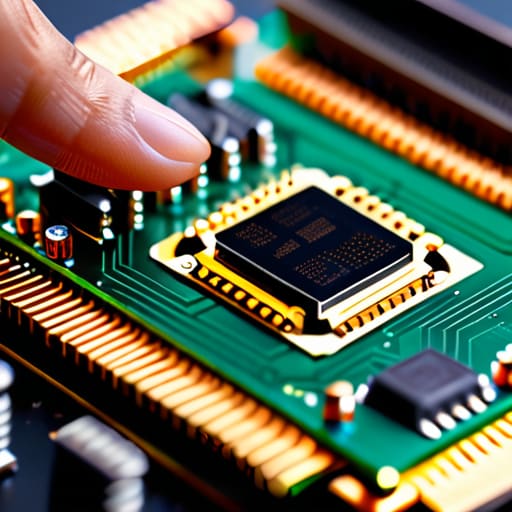
  • 3. Now, let’s handle the “brain” of the operation: the CPU. Open the socket on your motherboard, but please, for the love of all things holy, do not touch the pins. Those little gold needles are incredibly fragile; if you bend even one, you’re looking at a very expensive paperweight. Just align the little triangle on the corner of the chip with the triangle on the socket, let it drop into place naturally, and then lock the lever down.
  • 4. Next up is the RAM. This is where most people get frustrated because it feels like you have to use brute force, but you actually don’t. Line up the notch in the stick with the ridge in the slot—it only goes in one way, so if it’s not fitting, don’t force it. Press down firmly on both ends until you hear a satisfying click; if you didn’t hear a click, it probably isn’t seated all the way.
  • 5. When you’re ready to install the motherboard into the case, make sure you’ve installed the I/O shield first. It’s that little metal rectangle that goes in the back, and if you forget it, you’ll have to take the entire build apart just to snap it in. Screw the motherboard into the standoffs—those little brass spacers—making sure you don’t over-tighten the screws, or you might crack the board.
  • 6. Now we get to the power supply (PSU). Slide it into its bay and make sure the fan is facing the right direction—usually, you want it facing the ventilation holes in your case so it can actually breathe. Plug in your main cables, like the 24-pin motherboard power and the CPU power, and make sure they are pushed in all the way. If there’s a gap between the cable and the socket, it’s not done.
  • 7. Finally, let’s get that GPU in. Find the long PCIe slot, pop the little plastic tab at the end, and slide the card in until it clicks into place. It’s a heavy piece of hardware, so I usually recommend supporting it with your hand while you screw it into the case frame. Once it’s secure, plug in its dedicated power cables from the PSU, and then you’re ready for the first boot.

Mastering Electrostatic Discharge Prevention Without the Fluff
Mastering Electrostatic Discharge Prevention Without the Fluff.

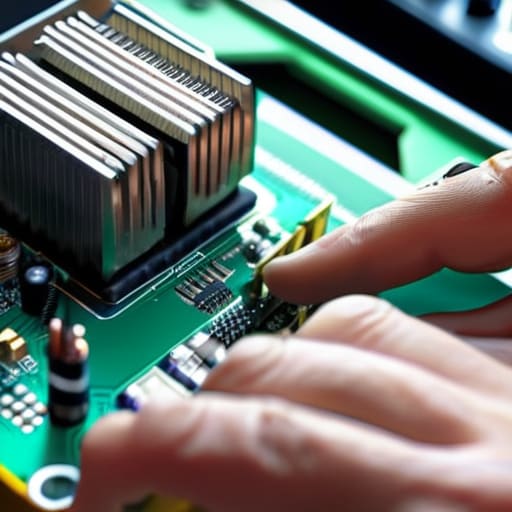
I’ve seen too many people treat an anti-static wrist strap like it’s an optional accessory, but if you’re serious about preventing motherboard damage, it’s your best friend. I always make sure to clip mine to the unpainted metal part of the case before I even think about touching the RAM. If you don’t have one, don’t panic, but please stop working on your carpet. Grab a hard floor, maybe a kitchen chair, and keep touching the metal chassis of your case every few minutes. It sounds tedious, I know, but it’s a lot less tedious than realizing your $400 CPU is a paperweight because of a tiny spark you couldn’t even feel.

When it comes to actual component handling precautions, the golden rule is simple: never touch the gold pins or the green circuitry directly. I always grab my parts by the edges of the PCB. It feels a bit awkward at first, but it keeps the oils from your skin and any stray static away from the sensitive bits. I usually write a little note to myself on my scratchpad: “Edges only, no fingers on pins,” just to remind myself when I’m deep in the zone.

Crucial Component Handling Precautions to Avoid Total Failure
Crucial Component Handling Precautions to Avoid Total Failure

Now that you’ve got your workspace set up and you aren’t accidentally nuking your parts with static, let’s talk about the actual pieces of hardware. When it comes to component handling precautions, the golden rule is simple: never touch the gold contacts. I’ve seen too many beginners grab a RAM stick or a GPU by the little gold teeth at the bottom, thinking they’re being helpful. Those pins are incredibly delicate. Always hold your components by the edges of the PCB (the green or black circuit board itself). If you treat them like fragile pieces of glass rather than heavy-duty metal, you’ll avoid a lot of heartache.

I also want to touch on preventing motherboard damage during the seating process. It is very tempting to just push harder when a CPU or a RAM module doesn’t seem to be clicking into place. Please, don’t do that. If it isn’t going in, something is misaligned. I once spent an hour troubleshooting a “dead” board for a school district, only to realize a tiny bit of dust was sitting in the socket. Take a breath, check your alignment, and let the hardware do the work.

Five Things I Wish Someone Had Told Me Before I Opened My First Case

  • Clear your workspace of any old junk or loose cables before you start; you don’t want to be hunting for a dropped screw in a pile of junk while you’re halfway through seating a CPU.
  • Keep your component boxes around as makeshift stands, but don’t go using them as a workbench for the actual parts—cardboard can be surprisingly abrasive and messy.
  • If a part isn’t sliding in with smooth, even pressure, stop immediately and check your alignment; forcing something is the fastest way to turn a new motherboard into a very expensive paperweight.
  • Don’t go building your PC on a shag carpet or a fleece blanket, because you’re basically building a giant static electricity generator right under your hands.
  • Double-check your manual for the RAM slots before you click anything into place, because if you put them in the wrong spots, you’re going to spend three hours wondering why your system won’t post.

You've Got This
Building your PC? You've Got This.

At the end of the day, building a PC isn’t about being a genius; it’s about being disciplined. We’ve covered the heavy hitters: managing your static so you don’t zap a motherboard, handling those delicate pins like they’re made of glass, and making sure you aren’t forcing a component that clearly doesn’t want to go in. If you followed the steps, you didn’t skip the “boring” parts, and that is exactly why your machine is actually going to boot up when you finally hit that power button. Just remember, if something feels like it requires a sledgehammer, stop and re-evaluate before you push any harder.

I know that feeling of staring at a pile of expensive silicon and wondering if you’ve just made a massive, costly mistake. I’ve been there, usually with a stubborn old ThinkPad on my desk and a mounting sense of dread. But once that first fan spin happens and the BIOS screen pops up, all that tension just evaporates. You didn’t just assemble a machine; you conquered the learning curve. So, take a breath, grab a coffee, and enjoy the victory of knowing exactly what’s happening inside that case because you put it there.

Frequently Asked Questions

I've got a carpeted room and no grounding strap; am I basically asking for a dead motherboard?

Look, I’m not going to lie to you: it’s not a guaranteed death sentence, but you’re definitely playing with fire. If you’re on carpet, you’re basically a walking lightning bolt for static. If you can’t get a strap, at least get off the rug. Stand on a hard floor, touch the metal of your case frequently, and for heaven’s sake, don’t build this while wearing those fuzzy socks. Let’s try to keep that motherboard alive.

Is it actually okay to touch the edges of the components, or am I going to leave oils that ruin everything?

Stick to the edges. I’ve spent way too many years cleaning residue off old motherboards to tell you otherwise. Your skin has natural oils that, over time, can actually trap moisture or cause corrosion on those tiny, delicate traces. It’s not like you’re going to kill the PC instantly by touching a capacitor, but if you can grab the heat sink or the edge of the PCB, do it. It’s just better practice.

If I accidentally bump a part while I'm installing it, how do I know if I actually broke something or if it's just a loose connection?

First, take a breath. I’ve been there, and usually, it’s just a seated connection that got nudged. Don’t panic and start poking around blindly. Check your POST (Power-On Self-Test) codes or motherboard debug LEDs first—they’ll tell you exactly where the breakdown is. If it won’t boot, reseat the part you bumped. If it works after a quick re-installation, you’re fine. If the LED stays stuck on that component? Then we’re looking at real damage.

Smart Warnings and What to Do Immediately

I was hunched over a dusty ThinkPad 700C last Tuesday—one of my weekend projects—when I heard it: that rhythmic, rhythmic click-click-click that sounds less like a machine and more like a death rattle. It’s a sound I’ve heard a thousand times over sixteen years on the service desk, usually right before a teacher or a small business owner starts panicking because their files are vanishing. Most of the “expert” guides online will tell you to run a dozen different proprietary software suites that cost fifty bucks a pop, but they always skip the most important part: knowing when the hardware is simply done. If you’re staring at a spinning wheel or hearing those strange noises, you don’t need a sales pitch; you need to know how to diagnose a failing drive before the silence becomes permanent.

I’m not going to waste your time with theoretical nonsense or “maybe” scenarios. I’ve spent my career in the trenches of school IT departments, and I’ve learned that when a drive starts acting up, you need a clear, verified path forward. In this guide, I’m going to walk you through the exact steps I use to determine if your data is salvageable or if you should stop everything immediately and pull the plug. No fluff, no expensive software traps—just the honest truth about what your hardware is trying to tell you.

Table of Contents

Spotting the Hard Drive Warning Signs Before Everything Breaks

Spotting the Hard Drive Warning Signs Before Everything Breaks.

The first thing I tell my techs is that drives rarely just die in total silence; they usually spend a few weeks screaming at you if you know how to listen. You’ll likely notice the system hanging for a few seconds whenever you try to open a folder or save a file. If you start hearing a rhythmic clicking or a grinding sound coming from the chassis, stop what you’re doing. Those are classic hard drive warning signs that the physical components are struggling to read the platters. It’s the digital equivalent of a car engine knocking, and ignoring it is a recipe for disaster.

I also see a lot of people mistake a slow computer for “just needing an upgrade,” when really, they’re dealing with bad sector detection issues. If your OS is suddenly throwing “file not found” errors for things you know are there, or if your blue screens are becoming a daily occurrence, the drive is likely failing to write data to specific spots on the disk. Whether you are dealing with an old-school spinning platter or modern flash storage, knowing the difference in HDD vs SSD failure symptoms can save your files.

Hdd vs Ssd Failure Symptoms Know What Youre Dealing With

Hdd vs Ssd Failure Symptoms Know What Youre Dealing With

If you’re hearing a rhythmic clicking or a grinding sound coming from your laptop, stop what you’re doing. That is a mechanical heart attack. Traditional spinning platters are physical things, and when they fail, they make noise. You might also notice the system freezing up whenever it tries to access a specific file—that’s usually a sign of bad sector detection kicking in as the drive struggles to read a physical spot on the disk.

Solid State Drives (SSDs) are a different beast entirely because they have no moving parts. They won’t click or grind; instead, they tend to just… vanish. One day you’re saving a document, and the next, the drive is suddenly “read-only” or completely invisible to the BIOS. Because there’s no mechanical warning, I always tell people that S.M.A.R.T. attribute monitoring is their best friend here. Since you can’t hear an SSD dying, you have to watch the software logs to see if the drive’s lifespan is plummeting before it hits that final, silent wall.

Five Ways to Stop Guessing and Start Testing

  • Run a S.M.A.R.T. check immediately. Most modern drives have a built-in self-monitoring system that tracks its own health; I usually pull up a tool like CrystalDiskInfo to see if the “reallocated sectors count” is climbing. If that number isn’t zero, your drive is actively gasping for air.
  • Listen to the physical symptoms. If you’re using an older mechanical HDD and you hear rhythmic clicking, grinding, or a high-pitched whining, that’s the sound of a physical head crash. Don’t try to “fix” it with software; that sound is the drive telling you it’s physically dying.
  • Check your file system integrity with CHKDSK. Open your command prompt as an administrator and type `chkdsk /f`. It’s going to ask to run on the next restart, and it might take a while, but it’ll tell you if the file structure is collapsing or if there are bad sectors it can’t bypass.
  • Look for the “frozen” moment. If your OS suddenly hangs for thirty seconds every time you try to open a folder or save a file, that’s often the drive struggling to read a specific, corrupted sector. It’s not a software glitch; it’s the hardware retrying a failed read command over and over.
  • Verify your error logs. I always tell my techs to check the Windows Event Viewer under “System” logs. If you see a flood of “Disk” or “ntfs” error entries, you don’t need to troubleshoot your drivers or your RAM—you need to buy a new drive and start copying your data right now.

Before You Close That Laptop Lid

Before You Close That Laptop Lid.

Look, if you’ve spent the last hour reading through these symptoms and your gut is telling you something is wrong, listen to it. Whether you’re hearing that rhythmic clicking from an old mechanical drive or noticing your SSD suddenly refusing to boot, the takeaway is the same: don’t wait for the blue screen of death. We’ve covered how to tell the difference between a simple software glitch and a physical hardware failure, and we’ve looked at the specific warning signs for both types of storage. The most important thing I can tell you is to stop running heavy diagnostic tests if you suspect the drive is physically failing. Every minute that drive is spinning is a minute closer to it being gone for good. Get your most important files onto a cloud drive or an external thumb drive right now, while you still have a chance.

I know it feels overwhelming when your digital life feels like it’s hanging by a thread, but I promise you, this is manageable. I’ve spent sixteen years watching people panic when their machines act up, and more often than not, the ones who stay calm and follow a logical sequence are the ones who save their data. Technology is fickle, and hardware eventually wears out—it’s just the nature of the beast. But by catching these signs early, you aren’t just fixing a computer; you’re protecting your peace of mind. Take a breath, grab your backup drive, and let’s get those files safe. You’ve got this.

Frequently Asked Questions

I’ve already backed up my most important files, but do I need to grab everything else before I start running these diagnostic tests?

Look, I’m glad the essentials are safe, but honestly? Grab the rest. I’ve seen too many people run a heavy diagnostic scan only to have the drive give up the ghost halfway through the process. Stressing a failing drive is like poking a bruised rib; it just doesn’t help. If you have the time and the external drive space, grab your photos and documents now. It’s better to be bored by a full backup than heartbroken by a dead one.

If the scan comes back clean but my computer is still acting like a total brick, does that mean my drive is actually fine?

Not necessarily. I’ve seen this a hundred times: the scan says the drive is healthy, but the machine still feels like it’s wading through molasses. If the scan is clean, your drive might be physically fine, but your OS could be a mess. We’re talking corrupted system files, a bloated registry, or even a failing RAM stick mimicking drive sluggishness. Don’t panic yet; let’s look at your resource monitor before we declare the hardware dead.

Once I confirm the drive is failing, is it even worth trying to repair the software, or should I just stop everything and buy a new one immediately?

Stop right there. If the hardware is physically failing, no amount of software reinstallation or “disk repair” tools is going to fix it. You’d just be spinning your wheels while the drive gets closer to total collapse. My rule of thumb? If it’s failing, stop using it immediately. Don’t try to “fix” it; try to save your data first. Once your files are safe, buy the new drive. Don’t gamble with your data.

What to Do in the First Five Minutes

I can still hear the frantic clicking of a mouse from a desk three rows over in the school library—that specific, rhythmic sound of someone realizing they just nuked their entire final thesis. Most of the “experts” you’ll find online will try to sell you a $99 subscription to some shiny, bloated software suite the second you start panicking about how to recover deleted files. They make it sound like you need a PhD in data forensics or a massive bank account to fix a simple mistake. Honestly, it’s exhausting. Most of those high-priced tools are just glorified wrappers for things you can do yourself if you actually know where the computer is hiding the data.

I’m not here to upsell you on anything or walk you through a dozen steps that assume you’ve already done the basics. I’ve spent sixteen years on service desks, and I know that when you’re staring at an empty folder, you don’t need a lecture; you need a clear path forward. I am going to walk you through the actual, verified ways to get your data back, starting from the easiest “oops” fixes and moving into the more serious stuff. We are going to take this one step at a time, and I promise we won’t make it any more complicated than it needs to be.

Table of Contents

Finding the Right Data Recovery Software for Windows Fast

Finding the Right Data Recovery Software for Windows Fast.

Now, I know what you’re thinking: “Just give me a link to something that works.” I wish it were that simple, but the market is flooded with “miracle” tools that are really just expensive wrappers for basic commands. When you’re looking for reliable data recovery software for Windows, you need to look past the flashy advertisements. I always tell my junior techs to check if the tool can handle file system corruption recovery specifically. If your drive is acting up because of a bad partition or a sudden crash, a basic “undelete” tool won’t cut it; you need something that can actually reconstruct the directory tree.

Before you hit ‘download’ on any random site, check the reviews for one specific thing: how it handles different media. If you’re trying to undelete photos from an SD card after a camera mishap, you need a program that recognizes flash memory structures, not just a standard desktop hard drive. I usually keep a list of vetted tools on my desk because I’ve seen too many people waste three hours installing junk only to realize the software can’t even see their drive. Take a breath, do a quick search for the tool’s compatibility list, and make sure it actually supports your specific hardware before you commit.

Undelete Photos From Sd Card Before It Is Too Late

Undelete Photos From Sd Card Before It Is Too Late

If you just realized those vacation photos are gone because you accidentally hit “format” or “delete” on your camera’s memory card, please—stop. Do not take that card out of the camera and then immediately start snapping new pictures. Every new photo you take is like writing over the very data you’re trying to save. I’ve seen too many people make this mistake, thinking they can just “find” the files later, only to realize they’ve permanently overwritten them. To undelete photos from SD card successfully, you need to treat that card like it’s made of thin glass.

First, pull the card out and plug it into your computer using a card reader. Once it shows up in File Explorer, don’t go clicking through folders looking for the files; that’s just adding unnecessary stress to the card’s controller. Instead, open up your chosen data recovery software for Windows and point it directly at the SD card drive letter. I usually let the scan run in the background while I grab a coffee. It might take a few minutes, but rushing the process won’t make the bits reappear any faster.

Five Things I Wish Every Frustrated User Knew Before They Hit 'Enter'

  • Stop everything. I mean it. If you just realized you deleted something important, stop clicking, stop downloading, and stop browsing that same drive. Every second your computer stays active, it’s potentially writing new data over the very files you’re trying to rescue. I’ve seen too many people “try to fix it” only to overwrite their wedding photos in the process.
  • Don’t install your recovery software on the same drive you’re scanning. If you’re trying to save files from your C: drive, plug in a USB stick and install the software there. If you install it on the target drive, you’re essentially digging a hole while trying to climb out of it.
  • Check your “hidden” backups before you go nuclear. Most people jump straight to deep-scan software, but I always check if Windows Shadow Copies or File History were running in the background. Sometimes the “deleted” file is just sitting in a system snapshot you didn’t even know existed.
  • Treat your hardware with some respect. If your files disappeared because the drive is making a clicking sound or a grinding noise, software won’t help you—it’ll actually make it worse. In those cases, you need a professional lab, not a download link. I’ve learned that the hard way on a few old ThinkPads.
  • Always, always save your recovered files to a different device. If you’re recovering data from your laptop’s internal drive, send those files straight to an external hard drive or a thumb drive. If you try to “recover” them back onto the same drive they were lost from, you’re playing a dangerous game of digital roulette.

One Last Thing Before You Breathe Easy

One Last Thing Before You Breathe Easy

We’ve covered a lot of ground here, from picking the right Windows recovery software to the specific, high-stakes dance of rescuing photos from an SD card. If you followed the steps, you hopefully realized that the most important part of this whole process wasn’t actually the software itself, but rather the discipline to stop using the device the second you realized something was wrong. Whether you were hunting for a lost spreadsheet or trying to save a decade of family photos, the logic remains the same: stop writing new data, pick a reliable tool, and work through the recovery steps one by one without skipping ahead. I’ve seen too many people accidentally overwrite their own files by trying to “fix” things with the wrong programs, so please, stay patient and stick to the plan.

I know how heavy that pit in your stomach feels when you see an empty folder where your hard work used to be. I’ve sat in that same chair, staring at a screen, feeling like I’d just lost something irreplaceable. But technology is fickle, and while it can be incredibly cruel, it isn’t always permanent. Most of the time, your data is still there, just waiting for the right handshake to bring it back to life. Take a moment to celebrate the win if you got your files back, and if you didn’t, don’t beat yourself up. We learn, we back up more aggressively next time, and we keep moving forward.

Frequently Asked Questions

I just emptied my Recycle Bin—is there still a chance my files aren't gone for good?

Deep breath. Yes, there is still a chance. When you empty the Recycle Bin, Windows doesn’t actually scrub the data off your drive; it just marks that space as “available” for new stuff. It’s like erasing a chapter in a notebook but leaving the ink visible until you write something else over it. Stop downloading anything or saving new files immediately. If you keep using that drive, you’ll overwrite the very thing we’re trying to save.

Will running a recovery program actually overwrite the very files I'm trying to save?

That is a fantastic question, and honestly, it’s the one that keeps me up at night when I’m helping someone. The short answer is: yes, it can. If you install the recovery software onto the same drive where the files were lost, you’re essentially driving a bulldozer over the very things you’re trying to dig up. Always download and run your tools from a USB stick or a different drive. Don’t touch the target drive until we’re ready.

Can I recover files from a drive that's making a clicking or grinding noise, or is that a hardware death sentence?

Stop. Unplug that drive immediately. I’m going to be blunt: if you hear clicking or grinding, that’s not a software glitch; that’s the physical sound of your data dying. Every second it stays powered on, those mechanical parts are likely scraping the actual platters where your files live. You can’t “software” your way out of a hardware failure. If the data is critical, stop everything and call a professional lab. Don’t try to DIY this.

Finding Out Your Email Was in a Breach

I was sitting at my desk last Tuesday, nursing a lukewarm coffee and staring at a flickering monitor, when a frantic teacher called me because her email was “acting weird.” It’s that same sinking feeling in your gut when you realize you might be the next target. Most people think you need some expensive, high-end cybersecurity suite or a degree in computer science to figure out how to check for account breaches, but honestly? That’s just marketing fluff designed to separate you from your paycheck. You don’t need a dashboard with flashing red lights; you just need to know where to look before the damage is already done.

I’m not going to give you a lecture or a list of fifty different tools you’ll never use. Instead, I’m going to walk you through the actual, manual steps I use when I’m cleaning up a mess on the service desk. We are going to go through this one verified step at a time, checking your login history, your connected apps, and your password health without any of the technical jargon. I promise to give you the straight truth so you can stop worrying and actually secure your digital life once and for all.

Table of Contents

Stop Searching and Use a Compromised Password Checker Now

Stop Searching and Use a Compromised Password Checker Now

Look, I’ve spent too many years sitting on the other side of a support ticket to watch someone spiral into a panic loop. You could spend hours scouring every corner of the internet, but you’re just going to end up more exhausted. Instead of playing detective, just use a compromised password checker. I always tell my team: don’t guess when you can verify. There are plenty of reliable services out there that do the heavy lifting for you by cross-referencing your credentials against known leaks.

If you find something flagged, don’t freak out—just move into action. This is where most people stall, but the goal is simply securing online accounts after a breach by changing that specific password immediately. If you want to be proactive, I highly recommend setting up some basic dark web monitoring tools as well. It’s a bit like setting a silent alarm for your digital life. It won’t stop a hacker from trying, but it’ll give us the heads-up we need to lock the door before they actually walk in.

Let Data Breach Notification Services Do the Heavy Lifting

Let Data Breach Notification Services Do the Heavy Lifting

Now, if you’re feeling like you’re playing a losing game of whack-a-mole with your passwords, let me tell you: you don’t have to do this manually. I’ve spent enough time on service desks to know that trying to hunt down every single leak yourself is a recipe for burnout. This is exactly why data breach notification services exist. Instead of you constantly refreshing search engines, these services act like a digital sentry, sitting in the background and watching the dark web for your specific email address or phone number.

I usually recommend looking into dedicated dark web monitoring tools because they do more than just tell you that you were breached; they often show you exactly what kind of info—like a physical address or a credit card fragment—is floating around. It’s a lot less stressful than the alternative. Once you get those alerts, you aren’t just guessing anymore; you’re reacting to real data. It turns a massive, overwhelming problem into a manageable checklist of things you actually need to fix.

Five Things I Do When I Suspect Someone's Inside My Accounts

  • Check your “Recent Activity” or “Login History” immediately. Most big players like Google, Microsoft, or Facebook have a page that shows exactly where and when your account was accessed; if you see a login from a city you’ve never visited, that’s your smoking gun.
  • Scour your inbox for “unauthorized login” or “password changed” alerts that you didn’t trigger. I always tell people to look for the emails they didn’t expect, because hackers often try to change your recovery email first to lock you out.
  • Look for weirdness in your sent folder or your “outbox.” If you see emails you didn’t write—especially those weird “click this link” or “invoice attached” messages—it’s a sign your account is being used as a bot to spam others.
  • Verify your recovery information is still actually yours. Once a breach happens, the first thing a bad actor does is swap your backup phone number or secondary email for theirs so they can keep the keys to the kingdom.
  • Audit your connected third-party apps. Go into your account settings and look for “Apps with access to your account”; if you see some random game or sketchy utility you haven’t used in three years, revoke that access right now.

Take a Breath, You've Got This

Take a Breath, You've Got This.

Look, I know it feels like you’re chasing ghosts, but we’ve actually covered the ground we need to. We started by running those compromised password checkers to see if your credentials are floating around the dark web, and then we let the notification services do the tedious work of monitoring for you. If you’ve followed these steps, you aren’t just guessing anymore; you’re actually taking control of your digital footprint. It isn’t about being a security expert; it’s just about not leaving the front door unlocked while you’re busy living your life.

I’ve spent sixteen years watching people panic over things that could have been fixed with ten minutes of proactive checking. If you found something suspicious today, don’t let it ruin your entire week. Change the passwords, turn on that multi-factor authentication (yes, even if it feels like a chore), and then close the laptop. You’ve done the hard part, and you’ve done it right. Technology is messy and people are careless, but you aren’t going to be an easy target. Now, go grab a coffee and stop worrying about your inbox for a while.

Frequently Asked Questions

If I find out my password was leaked, do I need to change every single password I own or just that one?

I’m going to write this down before I even finish my coffee: if you’ve been hit, you can’t just play whack-a-mole with one password. If you use that same password anywhere else—and let’s be honest, most of us do—you’re leaving the door wide open. Change the leaked one immediately, then hunt down every other account that shares it. It’s a pain, I know, but it’s better than a total wipeout.

Are these breach checker websites actually safe to use, or am I just handing my data over to another hacker?

I get it. It feels like you’re being asked to hand the keys to the thief just to see if they’ve already broken in. I’ve seen enough sketchy sites to be wary, too. Stick to the big names—sites like Have I Been Pwned are the industry standard for a reason. They don’t want your password; they just check if the hash of it has been leaked. If a site asks for your actual password instead of just your email? Close the tab immediately.

How often am I supposed to be checking this stuff so I don't get caught off guard again?

Look, I’m not going to tell you to check every single morning—you’ll burn out and stop doing it altogether. Honestly, just set a calendar reminder for once a month. It’s enough to catch things before they turn into a full-blown crisis. If you get a notification from a breach service, though? Stop everything and deal with it immediately. Don’t wait for your monthly check. Just handle it.

Local Group Policy for One Machine

I remember sitting in a cramped, overheated server closet back in 2008, staring at a flickering monitor while a frustrated teacher yelled through the door because a single setting wouldn’t stick. Most tech blogs will tell you that you need a massive Windows Server domain or some expensive enterprise management suite just to control your machine, but that is a total load of nonsense. If you just want to tweak a single restriction or automate a setting on your own workstation, you don’t need a whole department of admins; you just need to learn how to use group policy locally.

I’m not going to waste your time with high-level theory or “industry best practices” that assume you have a PhD in systems administration. I’ve spent sixteen years in the trenches, and I know that by the time you’re searching for this, you’re likely already annoyed that the standard settings menu isn’t doing what you need. My promise to you is simple: I will walk you through the exact, verified steps to open the editor and apply your changes without any of the fluff. We are going to get this sorted, one click at a time.

Table of Contents

The Gpeditmsc Command Finding Your Way Out of the Chaos

The Gpeditmsc Command Finding Your Way Out of the Chaos.

Alright, let’s get into the actual mechanics of this. Before we start clicking around, we need to get you into the right window. Most people try to hunt through the Start Menu like they’re looking for a lost set of keys, but that’s a waste of your time. Instead, just hit that Win+R key on your keyboard to pull up the Run dialog box. Once that little window pops up, type in the `gpedit.msc command` and hit Enter. If you’re on a Pro or Enterprise version of Windows, this should snap the editor right open, and we can finally stop guessing.

Now, I need to give you a quick heads-up because I’ve seen too many people spiral into a panic here. If you type that in and get an error saying Windows can’t find it, don’t throw your mouse across the room. It usually means you’re running a Home edition. There is a specific workaround to enable group policy on Windows Home, but we won’t get into that headache just yet. For now, if that window opens, you’ve cleared the first hurdle. Just take a breath; we’re moving in the right direction.

Windows Edition Compatibility for Gpedit Why It Might Be Missing

Windows Edition Compatibility for Gpedit Why It Might Be Missing

Now, here is where I usually see people start to lose their cool. You follow my previous step, you type the command, and… nothing. Windows just stares back at you with a “Windows cannot find ‘gpedit.msc'” error. If that’s happening, don’t go smashing your keyboard just yet; it’s likely not a broken system, it’s just a matter of windows edition compatibility for gpedit.

Microsoft plays a bit of a gatekeeper game here. The Local Group Policy Editor is baked into the Pro, Enterprise, and Education editions, but they intentionally leave it out of the Home editions. I’ve spent way too many afternoons on service desk calls explaining to frustrated users that their hardware isn’t broken, they just don’t have the right software license to manage windows settings via gpedit out of the box.

If you’ve realized you’re sitting on a Home edition, you aren’t stuck, but you do have to work a little harder. You won’t find a simple toggle to enable group policy on windows home, but there are workarounds involving batch files that can force the installer to run. We’ll get to those, but first, let’s make sure we actually know what we’re working with.

A Few Things I Wish I Knew Before I Started Clicking Around

  • Don’t just change things and hope for the best. I always make it a habit to right-click the folder you’re working in and select ‘Export’ before I touch a single setting. If you accidentally break the login process or something similar, you’ll want that backup file to restore the original state.
  • Remember that Group Policy isn’t magic; it doesn’t happen instantly. If you apply a change and nothing happens, don’t panic and start clicking more buttons. Open your command prompt and type ‘gpupdate /force’ to tell Windows to actually look at the changes you just made.
  • Be careful with the “Computer Configuration” versus “User Configuration” folders. I’ve seen so many people try to apply a setting to the whole machine, only to realize they were in the User section, which means it only applies to the person currently logged in. It’s a frustrating distinction to learn the hard way.
  • If you find yourself in a deep subfolder and realize you’ve gone down a rabbit hole, use the ‘Tree View’ on the left pane. It’s much easier to navigate the hierarchy that way than trying to click through twenty different nested folders manually.
  • Always read the description in the right-hand pane before you hit ‘OK’. It sounds obvious, but when you’re tired and just want the error message to go away, it’s easy to misinterpret a setting. Take the extra ten seconds to read what that specific policy actually does to the registry.

One Last Thing Before You Close the Window

One Last Thing Before You Close the Window

So, we’ve covered the ground. We know that getting into the Local Group Policy Editor starts with that simple ‘gpedit.msc’ command, but we also know that if you’re running Windows Home, you might find yourself staring at a “not found” error. If you hit that wall, it isn’t because you did something wrong; it’s just because Microsoft tucked that feature behind a Pro or Enterprise paywall. Just remember to double-check your Windows edition before you spend an hour chasing your tail trying to find a menu that isn’t actually there. Once you do find it, take your time navigating those folders—slow and steady wins the race when you’re messing with system settings.

I know it feels overwhelming when you’re staring at a screen full of technical jargon and nested folders, but you’re doing fine. Most people give up the moment they see a setting they don’t recognize, but you’re actually taking the time to understand the mechanics under the hood. Every time you successfully tweak a policy and see that change take effect, you’re becoming a little more in control of your own machine. Don’t let the complexity intimidate you. Just keep moving through the steps, and remember: if it breaks, we can always fix it.

Frequently Asked Questions

If I change a setting in the Local Group Policy Editor and everything breaks, how do I actually undo it?

Don’t panic. I’ve been there, staring at a screen that suddenly won’t behave. If you’ve tweaked a policy and everything went sideways, the easiest way back is to find that specific setting again. Navigate to the same folder where you made the change, double-click the policy, and switch it back to “Not Configured.” That’s the magic reset button. If you can’t remember what you touched, we might need to look at System Restore.

Can I use these same settings to control computers on my network, or is this strictly for the machine I'm sitting at?

That’s a fair question, and it’s exactly where things get a bit tricky. The short answer is no—the Local Group Policy Editor only talks to the machine you’re actually sitting in front of. It’s a “local” tool for a reason. If you want to push those same settings out to every computer in your school or office, you’re going to need a Domain Controller and Active Directory. Local GP is just for one seat at a time.

I'm looking at a setting that says "Not Configured"—does that mean the setting is off, or just that I haven't touched it yet?

I’ve seen this trip people up more times than I care to count. Here’s the deal: “Not Configured” doesn’t mean the setting is “off.” It just means the Group Policy hasn’t explicitly told the computer what to do. In most cases, Windows will just fall back to its default behavior. It’s like a blank instruction manual—the computer is just doing what it always does because you haven’t given it a specific order yet.

Exporting a Key Before Changing It

I can still hear the frantic clicking of a mouse from across the room—that specific, desperate rhythm of someone who just realized they’ve gone too far. I was working a desk for a small medical practice back in 2008 when a junior tech tried to “optimize” a workstation and ended up deleting a critical system key. The room went dead silent, save for the hum of the server rack and the heavy realization that the machine was now a very expensive paperweight. Most tutorials online make learning how to back up the registry sound like some high-level wizardry involving third-party software you definitely don’t need to buy. They skip the part where you’re actually terrified of making things worse.

I’m not going to feed you any of that fluff or tell you to download some “Registry Cleaner” that’s actually just malware in a shiny wrapper. Instead, I’m going to show you exactly how to do this using the tools already sitting on your computer. My goal is to give you a safety net that actually works, so when you inevitably decide to poke around where you shouldn’t, you can hit undo without losing your mind. We’re going to do this one verified step at a time.

Table of Contents

The Essential Windows Registry Editor Tutorial for Panicked Users

The Essential Windows Registry Editor Tutorial for Panicked Users

Alright, let’s get into it. First, I need you to find the tool we’re actually working with. Tap that Windows key on your keyboard and just type “regedit.” You’ll see the Windows Registry Editor pop up. Go ahead and click it, and when that little box asks if you’re sure you want to make changes, click Yes. Don’t hesitate; it’s just asking for permission to let you see the guts of your operating system.

Now, before you start clicking through folders like a madman, we need to create a safety net. This is my favorite part of any Windows Registry Editor tutorial because it’s where we stop the bleeding before it starts. Look at the top menu and click on File, then select Export. A window will pop up asking where you want to save this. Pick your Desktop so you don’t lose it in some random folder, and give it a name you’ll actually recognize, like “Registry_Backup_Before_Fix.”

When you hit save, you are going to export registry keys to a .reg file. This is your golden ticket. If things go sideways in the next ten minutes, you aren’t looking at a blue screen of death; you’re just looking at a file you can double-click to undo the chaos. Take a breath. You’ve done the hard part.

Registry Backup Safety Tips to Prevent Total System Meltdown

Registry Backup Safety Tips to Prevent Total System Meltdown

First things first: please don’t go diving into deep subfolders unless you have a clear plan. My biggest rule for anyone following this Windows Registry Editor tutorial is to never, ever make a change without a safety net. Before you even click a single value, I want you to create a system restore point. It’s not the most surgical way to fix a mistake, but if you accidentally delete a critical hive and your computer refuses to boot, it’s the only thing that will save your sanity.

If you’re feeling a bit more surgical, I always suggest you export registry keys to a .reg file specifically for the folder you are about to touch. Don’t just back up the whole thing and call it a day; if you know you’re messing with network settings, just grab that specific branch. It makes it much easier to restore registry settings in Windows 10 later without undoing every other update you’ve installed since last Tuesday. Just take it slow. One wrong click can turn a simple fix into a total system meltdown, and I’ve spent enough Saturday nights fixing that exact mess for other people.

Five Things I Wish People Knew Before They Started Clicking

  • Don’t just back up the whole thing if you don’t have to. If you know you’re only messing with a specific key—like something in HKEY_CURRENT_USER—just export that specific folder. It makes finding the right “undo” button a lot easier later.
  • Give your backup files actual names. If you save five files all named “backup.reg,” you’re going to be staring at your screen in tears trying to figure out which one worked. Use something like “Before_Changing_Sound_Drivers_Oct_12.”
  • Double-check your file extension. When you export, make sure it’s saving as a .reg file. If it ends up as a .txt or something weird, you won’t be able to just double-click it to fix your mess when things go sideways.
  • Keep your backup on a different drive if you can. If you’re messing with registry settings that affect how your system boots or reads your main hard drive, having that backup on a USB stick is the only thing that’s going to save you.
  • Test the backup file itself. It sounds extra, but I always try to open the .reg file I just made just to make sure it isn’t a 0kb empty file. There is nothing worse than realizing your “safety net” is actually just an empty piece of digital nothing.

One Last Check Before You Dive In

One Last Check Before You Dive In

So, let’s recap what we’ve done here so you don’t have to scroll back up while your heart is racing. We opened the Registry Editor, we identified the specific keys or the entire hive you’re worried about, and most importantly, we exported that file to a safe, recognizable spot. If you followed my steps, you now have a digital “undo” button sitting on your desktop or a thumb drive. Just remember: never go deleting things just because a random forum told you to do it. Always verify that your backup file actually exists and isn’t just a zero-byte ghost of a file before you make your first change. A backup is only as good as your ability to actually use it when things go sideways.

I know how it feels when you’re staring at a screen that isn’t doing what it’s supposed to do. It’s easy to feel like the computer is winning, but I promise you, it isn’t. You’ve taken the most important step by preparing for the worst-case scenario, and that alone puts you ahead of ninety percent of the people I deal with on the help desk. Take a breath, grab a coffee, and move through these registry edits one single step at a time. You’ve got the safety net in place now; you’re ready to fix this.

Frequently Asked Questions

If I mess up and the computer won't even boot into Windows, how am I supposed to actually use that backup file I just made?

That is the million-dollar question, isn’t it? I’ve seen so many people realize too late that a backup on a dead machine is just useless data. If Windows won’t boot, you’re going to need a Windows Installation USB—the kind you make on a working computer. You’ll boot from that, select “Repair your computer,” and use the Command Prompt to manually point the system toward your backup file. It’s a bit of a headache, but it works.

Do I really need to back up the entire registry, or can I just save the specific folder for the one program that's giving me grief?

Look, I get it. You want to be surgical about this. But honestly? Don’t try to play surgeon with individual keys unless you’re absolutely certain where they live. One wrong move or a missed sub-key and you’ve still got a broken program. For me, it’s always safer to just back up the whole thing. It takes an extra thirty seconds, but it’s the only way I can sleep knowing I can actually undo the mess.

How often should I be doing this—is once a month enough, or am I setting myself up for trouble?

Honestly? If you’re just browsing the web and running Word, once a month is fine. But if you’re about to go poking around in settings or installing sketchy software, do it right then. I always tell my team: don’t rely on a schedule for a manual task. If you’re about to change something, back it up. I’ve seen too many “monthly backups” fail to save a system because the user forgot they’d changed a key yesterday.

Motherboard Features That Matter

I was sitting at my workbench last Tuesday, elbow-deep in the guts of a salvaged 1998 ThinkPad, when I realized just how much the industry loves to lie to you. I spent twenty minutes scrolling through some enthusiast forum, and it was nothing but hype about “extreme overclocking capabilities” and “RGB lighting synchronization” for boards that cost more than my first car. Honestly, most of those marketing wizards make it sound like you need a NASA budget just to get a PC to boot. If you’re currently staring at a dozen different spec sheets wondering how to choose a motherboard without getting scammed by shiny lights and unnecessary features, I promise you, you aren’t crazy.

I’m not here to sell you on the latest overpriced chipset or tell you that you need ten extra fan headers for a machine that’s just going to run Chrome. My goal is to give you the actual, unvarnished truth based on sixteen years of seeing people break their builds because they missed one tiny, stupid detail. I’m going to walk you through this one verified step at a time, focusing on what actually matters—like socket compatibility and VRM quality—so you can finish your build and actually enjoy using it.

Table of Contents

Dont Get Stuck Solving Cpu Socket Compatibility First

Dont Get Stuck Solving Cpu Socket Compatibility First

Before you even look at the price tag or the fancy RGB lighting, we need to talk about the one thing that will actually stop your build dead in its tracks: cpu socket compatibility. I’ve seen so many people get halfway through a build, only to realize their expensive new processor physically won’t fit into the board they just bought. It’s a gut-wrenching feeling, and honestly, it’s a waste of your time and money. You can’t just “make it work” with a screwdriver and some luck; if the pins don’t match, you’re headed back to the store.

I always tell my junior techs to check the CPU model first, then verify the specific socket type on the board’s spec sheet. Don’t just assume that because a chip is “recent” it will work with a “recent” board. Manufacturers change these layouts constantly. Once you’ve confirmed that the brain of your computer actually fits the house you’re building, then—and only then—can we start worrying about the more interesting stuff like how many drives you can plug in.

Fitting It All in Navigating Pc Motherboard Form Factors

Fitting It All in Navigating Pc Motherboard Form Factors

Now that you’ve actually matched your CPU to the right socket—and thank god you did, because I’ve seen too many people skip that—we have to talk about physical space. This is where most people run into a wall. You might have picked out the most beautiful, high-end board, but if you’re trying to cram an ATX motherboard into a tiny, compact case, you’re going to have a very bad afternoon. You need to understand pc motherboard form factors before you click “buy,” or you’ll end up with a pile of expensive parts that literally won’t fit in the box.

I usually tell my juniors to start with the case they already own. If you’re working with a Micro-ATX or a Mini-ITX setup, you’re making a trade-off. Smaller boards usually mean less ram slot availability and fewer expansion slots for extra cards. I’ve spent way too many late nights trying to troubleshoot why a build is overheating just because someone tried to pack too many high-draw components into a cramped, small-form-factor chassis. Measure twice, buy once.

Five Things I Wish People Checked Before They Hit 'Buy'

  • Count your ports, seriously. I’ve seen so many people build a powerhouse rig only to realize they have zero USB ports left for their mouse, keyboard, and external drive. If you’re a tinkerer like me, you’re going to need more than the bare minimum.
  • Check your RAM slots. It’s tempting to go for the cheapest board with only two slots to save a few bucks, but trust me, you’ll regret it when you want to upgrade later and realize you have to throw your old sticks in the trash to make room.
  • Don’t ignore the VRMs. You don’t need to be an electrical engineer, but if you’re putting a high-end chip on a bottom-shelf board with tiny, cheap heatsinks, that board is going to throttle your performance. It’s like putting economy tires on a Ferrari.
  • Look at the M.2 slots. Everyone talks about SSD speeds, but if the motherboard only has one slot, or if the second one shares bandwidth with your GPU, you’re setting yourself up for a headache. Make sure you have enough lanes to actually use what you’re buying.
  • Read the manual (or the spec sheet) for the I/O. I know, I know—nobody wants to read manuals. But if you need a specific type of audio jack or a certain number of SATA ports for your old hard drives, you need to verify it’s actually there before the box arrives at your door.

Don't Let the Specs Win

Don't Let the Specs Win: Verify basics.

Look, I know your head is probably spinning from all the socket types, chipsets, and form factor measurements we just went over. It feels like a lot because, frankly, it is. Just remember the order of operations I’ve lived by for sixteen years: check that your CPU actually fits the socket, make sure the board isn’t too big for your case, and then—and only then—start worrying about the fancy extra stuff like RGB lighting or extra M.2 slots. If you get the foundational compatibility right, you won’t be staring at a pile of expensive, incompatible parts on your desk at midnight. Verify the basics first, and the rest of the decision becomes a whole lot easier.

At the end of the day, a motherboard is just the nervous system of your build. It doesn’t need to be the most expensive piece of silicon on the market to do its job well. You aren’t building a supercomputer for NASA; you’re building a machine that works for you. Don’t let “feature creep” trick you into overspending on things you’ll never actually use. Take a breath, double-check your list one last time, and trust the process. You’ve done the legwork, you know what you need, and you’ve got this handled.

Frequently Asked Questions

I’ve got a bunch of old RAM sticks lying around; can I actually use them with a new board, or am I forced to buy all new stuff?

Look, I get it. You’ve got a drawer full of old RAM and you don’t want to throw money down the drain. But before you go digging through that junk, check the generation. If your old sticks are DDR3 and your new board is DDR4 or DDR5, they won’t even fit in the slot—literally. Even if they do fit, mixing speeds usually just leads to a headache and a system that won’t boot.

Do I really need to spend the extra money on one of those fancy gaming boards with all the lights, or is a basic one going to work just fine?

Look, unless you’re planning on overclocking your processor or you genuinely love the look of a disco in your case, you can skip the “gamer” tax. Those fancy boards with the RGB lights and extra heatsinks are mostly just marketing. A basic, reliable board will handle your daily tasks just fine. Save that extra cash for a better SSD or more RAM—you’ll actually feel the difference there.

How many USB ports and M.2 slots do I actually need so I don't run out of room for my gear three months from now?

Counting Your Ports: Don’t Get Cornered by Your Own Gear

Getting Back Yesterday’s Version

I can still smell the ozone and stale coffee from that Tuesday morning back in 2008 when a frantic teacher called my desk, certain her entire semester’s worth of lesson plans had vanished into the digital ether. She wasn’t looking for a lecture on cloud redundancy or a massive system rollback; she just needed to know how to restore a single file before the bell rang. I remember the way her hands shook as she hovered over the mouse, that specific kind of tech-induced panic that makes your stomach drop. Most people think losing a document means the whole computer is broken, but usually, it’s just one misplaced bit of data sitting somewhere in the shadows, waiting to be coaxed back into the light.

I’m not going to give you a thirty-step manual that assumes you already know how to navigate a command prompt. I’ve spent sixteen years sitting in the trenches of service desks, and I’ve learned that when you’re staring at an empty folder, you don’t need jargon—you need a straightforward path forward. I am going to walk you through the actual, verified ways to grab that one specific document and get it back where it belongs, one step at a time, so you can finally stop worrying about it.

Table of Contents

Undelete Accidental Changes Before You Spiral

Undelete Accidental Changes Before You Spiral

Undelete Accidental Changes Before You Spiral

Before we start talking about deep-system scans, let’s look at the “oops” moments that happen every single day. I’ve seen it a thousand times: you spend three hours on a report, hit save, and realize you just deleted the most important paragraph or overwrote a whole page with junk. Most people think they’ve lost the data forever, but usually, you just need to work on restoring previous versions of documents. If you are working in a modern office environment, your first stop shouldn’t be a panic attack; it should be checking your cloud storage version history.

If you aren’t living in the cloud, don’t worry. Windows and Mac actually have built-in safety nets that most people forget exist. For my Windows users, you’re looking for the “Previous Versions” tab in the file properties. If you’re on a Mac, you’ll want to lean on macOS Time Machine file recovery to roll that specific folder back a few hours. I always tell my team: stop clicking things the second you realize the mistake. The more you move files around, the harder it is to undo the damage.

The Quick Fix for Recover Deleted Files Windows

The Quick Fix for Recover Deleted Files Windows.

Before we start pulling out the heavy-duty tools, let’s check the obvious stuff. I’ve spent too many years watching people panic over a file that is sitting right there in the Recycle Bin. It sounds patronizing, I know, but I’ve seen it happen to the best of us when we’re in a rush. Open that bin, search for the filename, right-click, and hit restore. If it’s not there, don’t start hyperventilating just yet.

If the bin is empty, your next best bet is checking for restoring previous versions of documents through a feature called File History. If you had this turned on, Windows keeps snapshots of your folders. Just right-click the folder where the file used to live, select “Properties,” and click the “Previous Versions” tab. It’s a lifesaver because it lets you recover deleted files Windows users often think are gone forever. It’s much less stressful than running a full-scale scan with specialized data recovery software for single files, which can sometimes feel like trying to perform surgery with a sledgehammer. Let’s try the easy way first.

Five Things I Wish People Knew Before They Panic-Clicked Everything

  • Stop saving new files immediately. I know you want to keep working, but every time you save a new document or download a picture, you’re potentially writing that data right over the top of the file you just lost. If you can, just step away from the computer for a second.
  • Check your cloud version history. If you use OneDrive, Dropbox, or Google Drive, they actually keep a “time machine” of sorts. You can usually right-click the folder where the file used to live and look for “Version History.” It’s much easier than trying to run recovery software.
  • Look for the “temp” files. Sometimes, when a program crashes or a file disappears, a ghost of it lives on in your Temp folder. It’s messy and the filenames look like gibberish, but it’s worth a five-minute hunt before you give up.
  • Don’t trust every “Free Recovery Tool” you find on a search engine. I’ve seen too many people download malware thinking they’re fixing a file error. Stick to names you recognize, or better yet, use the built-in tools like Windows File Recovery if you’re feeling brave.
  • Verify the fix before you celebrate. This is my little habit, but it’s important: once you think you’ve restored the file, open it immediately. Make sure it isn’t just a corrupted shell of the original. Check the contents, save a new copy to a different drive, and then—and only then—can you actually breathe.

Take a Breath, You're Done

Take a Breath, You're Done recovery guide.

We’ve covered a lot of ground, and I know your heart might still be racing a little bit. Whether we were hunting through the Recycle Bin, checking for those elusive Shadow Copies, or digging into your cloud provider’s version history, the goal was always the same: stop the panic and start the recovery. Remember, if the quick fixes didn’t work, it doesn’t mean the file is gone forever; it just means we haven’t found the right pathway back yet. I always tell my junior techs that the most important step is the one you didn’t skip—the one where you stopped clicking things randomly and actually looked at where the data might be hiding.

At the end of the day, technology is incredibly fragile, and even after sixteen years on a service desk, I still get that little pit in my stomach when I see a “File Not Found” error. But you handled this. You didn’t let the frustration win, and you followed the steps instead of throwing the whole machine out the window. Once you get this file back, please, do yourself a favor and set up an automated backup. I’m not telling you this to be a nag; I’m telling you this so that the next time this happens, you can smile knowing you’ve already won the battle.

Frequently Asked Questions

I just emptied my Recycle Bin—is that file gone forever, or is there still a chance?

Take a breath. It’s not gone forever, but we need to stop using that computer right this second. When you empty the Recycle Bin, Windows doesn’t actually scrub the data; it just marks that space as “available” for new stuff. If you keep browsing or downloading, you might accidentally overwrite the very file you’re looking for. Let’s get some recovery software ready before anything else happens. We can still do this.

What if I accidentally saved over an old version of a document with new, incorrect info?

Don’t panic. I’ve seen this a dozen times, usually right before a deadline. If you’re on Windows, right-click the file and select “Restore previous versions.” If you’re using Office, look for “Version History” under the File menu. It’s essentially a time machine for your mistakes. I’m writing this down now: check those version histories before you close the program. It might just save your afternoon.

Can I get a single file back if it was stored on a USB drive or an external hard drive instead of my computer?

The short answer is yes, but we need to move a little faster here. When you delete something off a USB or external drive, the computer just marks that space as “available,” but the data is usually still sitting there. My first rule: stop using that drive immediately. Don’t save anything new to it. If you keep writing new files, you’ll overwrite the very thing we’re trying to rescue. Let’s try some recovery software next.

The First Hour After a Compromise

I remember sitting in a cramped, overheated server closet at a middle school back in 2008, listening to the frantic, rhythmic clicking of a failing hard drive while a teacher paced outside the door, convinced the entire district was about to go dark. That feeling—that cold, sinking knot in your stomach when you realize something is just not right with your machine—is exactly what we’re dealing with today. Most people think you need a six-figure security firm on speed dial the second things look weird, but honestly, knowing how to handle a suspected compromise is more about steady hands and logical steps than it is about expensive software.

I’m not going to give you a lecture on high-level cybersecurity theory or throw a bunch of jargon at you that assumes you’ve already cleared your cache three times. Instead, I’m going to walk you through the actual sequence of events you need to follow to stop the bleeding. I’ve spent sixteen years on service desks, and I’ve learned that the best way to fix a mess is to move one step at a time. Here is my no-nonsense, verified checklist for taking control of your system before the situation gets any worse.

Table of Contents

Immediate Cybersecurity Breach Containment Steps to Stop the Bleeding

Immediate Cybersecurity Breach Containment Steps to Stop the Bleeding

First things first: if you think your machine is actively talking to a hacker right now, unplug the ethernet cable or kill the Wi-Fi immediately. Don’t bother with a graceful shutdown or clicking through those “Are you sure?” prompts. I’ve spent too many years watching people try to run a virus scan while the malware is actively uploading their tax returns to a server in another country. You need to physically sever the connection to stop the bleeding. This is the most critical part of your cybersecurity breach containment steps; if they can’t reach the device, they can’t steal more data.

Once the machine is isolated, leave it exactly as it is. I know you want to start poking around to see what happened, but you might accidentally wipe the very logs needed for a digital forensics investigation later. Instead, grab a different, known-clean device—like your phone or a tablet—to start your account takeover prevention. Log into your most sensitive accounts (email, banking, primary work logins) and look for any unauthorized sessions or recent password changes. If you see something fishy, change those credentials immediately from the clean device, not the infected one.

Credential Theft Mitigation Before They Lock You Out

Credential Theft Mitigation Before They Lock You Out

Now, here is where things usually go south. If you think someone has their hands on your passwords, you aren’t just dealing with a glitch; you’re looking at a potential account takeover prevention nightmare. I’ve seen it a dozen times: a user notices a weird login notification, panics, and then waits three hours to act. By then, the bad actor has already changed the recovery email and locked the door behind them. Don’t let that be you.

First, I want you to get to a device you know is clean—not the one you think is compromised—and start resetting your most critical passwords. Start with your primary email and your workstation login. If you use the same password for your banking or personal accounts, change those immediately too. This is a core part of credential theft mitigation, and it’s much easier to do while you still have access than after you’ve been kicked out.

Once you’ve swapped the passwords, force a logout on all active sessions. Most modern services have a button that says “Sign out of all other locations.” Click it. It’s the digital equivalent of changing the locks on your front door after realizing you lost your keys.

Five things to do before you lose your mind (and your data)

  • Stop the bleeding by pulling the plug—literally. If you see files disappearing or your mouse moving on its own, don’t bother with a graceful shutdown. Just hold that power button down until the screen goes black. It feels aggressive, but it’s better to lose unsaved work than to let a script finish encrypting your entire drive.
  • Get your phone out and stay off the local Wi-Fi. If your machine is compromised, your network might be too. Use your cellular data to look up instructions or call your IT lead. Do not, under any circumstances, log into your bank or your work email from the same Wi-Fi network you’re currently using.
  • Document the weirdness while it’s fresh. I always keep a physical notepad next to my desk for this reason. Write down exactly what you saw: a specific error message, a strange pop-up, or the exact time the system started acting up. When you finally talk to a pro, “it just felt slow” won’t help them nearly as much as “a window titled ‘System Update’ popped up at 2:14 PM.”
  • Check your “Sent” folder in your email. If you have access to a different, clean device, look at your sent messages. If you see emails you didn’t write—especially to your contacts or boss—you know the attacker is already using your identity to spread the infection. This tells you exactly how deep the hole goes.
  • Don’t try to be a hero and “clean” it yourself. I know you’ve seen those “one-click” malware removal tools advertised online, but most of them are just more junk that makes the recovery process a nightmare for whoever has to fix it later. Once you’ve contained the device, leave it alone and wait for a professional to take a look.

The Aftermath and Moving Forward

The Aftermath and Moving Forward.

I know your head is probably spinning right now. We’ve covered a lot of ground—from pulling the plug on that compromised machine to the frantic race of changing your passwords before the bad actors could make themselves at home. Just remember: containment is about stopping the spread, not just fixing the immediate error. You’ve isolated the threat, you’ve secured your credentials, and you’ve started the paper trail that will save your skin during the forensic audit. It feels like a lot of chaos, but you have successfully moved from reactive panic to controlled response, and that is the hardest part of the entire process.

Take a deep breath and step away from the screen for a second. You can’t troubleshoot effectively if your adrenaline is redlining. Dealing with a breach is exhausting, and it’s easy to feel like you’ve failed, but I’ve seen the best IT pros in the business get caught in a bad loop. This isn’t a reflection of your competence; it’s just a reality of the digital world we live in now. Once the dust settles, we’re going to look at your backups and your security layers to make sure this doesn’t happen again. You’ve handled the crisis, and now we just focus on the recovery. One step at a time.

Frequently Asked Questions

If I suspect a breach, should I just pull the power plug on the computer immediately, or will that destroy evidence?

Look, I get the instinct to just yank the cord and hope for the best, but please, don’t do that. If you pull the plug, you’re wiping the volatile memory—the stuff that actually shows us what the malware was doing in real-time. It’s like scrubbing a crime scene before the detectives arrive. Instead, just disconnect the internet. Kill the Wi-Fi or pull the Ethernet cable. It stops the bleeding without destroying the evidence we need to fix this.

I've already changed my main passwords, but how do I know if the hacker has already set up a "backdoor" to get back in?

Changing your passwords is a great first move, but you’re right to be suspicious. Hackers love leaving a “spare key” under the mat. I always tell my users to check their account recovery settings first—look for any unfamiliar email addresses or phone numbers added for password resets. Also, scan your “Authorized Devices” list. If you see a login from a city you’ve never visited, kick it off immediately. Don’t assume you’re safe just because the front door is locked.

Do I really need to wipe my entire hard drive and start from scratch, or can I just run a deep scan and call it even?

Look, I’ve seen this a thousand times. You want the quick fix, but a deep scan is just a band-aid on a broken leg. If you’ve seen signs of actual data exfiltration or a rootkit, a scan won’t cut it. Scans miss things hiding in the boot sector. If you can’t be 100% certain the infection is gone, wipe it. It’s painful, I know, but it’s the only way to sleep at night.

Constant Disk Activity Explained

I remember sitting in a cramped school IT office back in 2008, listening to the rhythmic, agonizing click-click-click of a dying mechanical drive while a frantic teacher hovered over my shoulder. Most tech blogs would have you downloading some massive, expensive diagnostic suite or telling you to rewrite your entire registry just to find a culprit. They skip right over the basics, assuming you’ve already mastered the complex stuff, which is exactly why people end up more frustrated than when they started. If you’re staring at a spinning loading icon and wondering how to diagnose disk activity without losing your sanity, you don’t need a degree in computer science; you just need to know where to look.

I’m not here to sell you on “miracle” software or bury you in jargon that doesn’t actually fix anything. My promise to you is simple: I am going to show you how to peel back the layers of your system using the tools you already have sitting right there on your desktop. We are going to walk through this one verified step at a time, focusing on real-world visibility so you can finally see exactly what is choking your hard drive.

Table of Contents

Monitor Disk Usage Windows Without Losing Your Temper

Monitor Disk Usage Windows Without Losing Your Temper

Alright, let’s open up Task Manager. I know, I know—it’s the first thing everyone suggests, and it feels like a cliché, but we need to see what’s actually happening under the hood. Press `Ctrl + Shift + Esc` and click that “More details” arrow if it’s looking small. Once you’re in, click the Disk column so the arrow points down. This sorts everything by what’s eating your bandwidth. If you see a single process sitting at 90% or 100%, you’ve found your culprit. Don’t just stare at it, though; right-click that process and select “Search online” if you don’t recognize the name. It’s better to spend two minutes Googling a process than twenty minutes cursing your hardware.

If Task Manager looks like a mess of tiny numbers that don’t make sense, we need to go a level deeper. I usually pull up the Resource Monitor by clicking the link at the bottom of the Performance tab. This is where we truly identify resource intensive processes by looking at the actual disk queue length. If that number is consistently higher than one, your drive is struggling to keep up with the requests being thrown at it. It’s the digital equivalent of a waiter trying to carry twenty plates at once—eventually, something is going to break.

Identify Resource Intensive Processes Stealing Your Sanity

Identify Resource Intensive Processes Stealing Your Sanity

Once you’ve got Task Manager open, don’t just stare at the percentages. It’s easy to see that the “Disk” column is hitting 100% and feel that familiar spike of heat in your chest, but we need to find the culprit. Click that Disk header so the arrow points down; this sorts everything from the biggest hog to the smallest. This is the most direct way to identify resource intensive processes that are currently eating your bandwidth. You’re looking for a specific name—maybe it’s a rogue Windows Update service, an overzealous antivirus scan, or a browser tab that’s decided to go rogue.

If the list looks like a blur of nonsense, take a breath. Sometimes, it isn’t one big application, but a dozen tiny ones causing high disk utilization troubleshooting to feel like a losing battle. If you see “System” or “Service Host” taking up the lion’s share, it’s usually the OS doing something in the background. I always keep a notepad handy for this part; I find that writing down the name of the process before I try to kill it helps me stay calm if the machine starts acting even weirder.

Five things I check when the spinning wheel of death won't stop

  • Check your cables and connections first. I know, it sounds patronizing, but I’ve seen more “failing” drives in my sixteen years that were actually just a loose SATA cable or a finicky USB hub. If it’s an external drive, swap the port. Don’t assume the hardware is dying until you’ve ruled out a bad connection.
  • Look for the “hidden” culprits like Windows Update or antivirus scans. Sometimes the disk isn’t broken; it’s just being held hostage by a background process that decided 2:00 PM on a Tuesday was the perfect time to index your entire library. If you see ‘System’ or ‘Antimalware Service Executable’ hogging the lane, give it twenty minutes before you start panicking.
  • Run a quick health check with CHKDSK. If the software side is acting up, the file system might be bruised. Open your command prompt as an admin and let it run a scan. It’s not a magic fix for a physical scratch on a platter, but it catches the logical errors that make a drive feel like it’s dragging through mud.
  • Watch out for “fragmentation” if you’re still dealing with older mechanical hard drives. If you aren’t running an SSD, your data might be scattered in tiny pieces all over the disk, forcing the drive head to dance around like crazy just to read one file. If it’s an old-school HDD, run the defrag tool; if it’s an SSD, just leave it alone.
  • Listen to the hardware. This is something you can’t learn from a manual. If your drive is making a rhythmic clicking sound—what we call the “click of death”—stop everything. Don’t run more diagnostics, don’t try to “fix” it. That’s a physical failure, and every second it’s powered on, you’re risking your data. Back up what you can and start looking for a replacement.

Before you throw the whole machine out the window

Before you throw the whole machine out the window.

Look, we’ve covered a lot of ground here, and I know it feels like a lot of clicking around just to get a computer to behave. We went through checking Task Manager to see which specific process was hogging the bandwidth, and we looked at how to spot those background services that act like uninvited guests at a dinner party. The goal wasn’t just to see a high percentage on a graph; it was to actually identify the culprit so you can stop guessing. If you’ve followed these steps, you should at least have a better idea of whether you’re dealing with a rogue Windows Update or just a dying hard drive that’s finally giving up the ghost.

At the end of the day, technology is supposed to work for us, not the other way around. It is incredibly easy to feel defeated when a machine starts dragging its feet, but remember that most of these issues are solvable with a little bit of patience and a systematic approach. Don’t let a spinning blue circle ruin your afternoon. Take a breath, grab a coffee, and remember that even the most complex system is just a collection of small parts that occasionally need a little bit of attention. You’ve got this, and you’re smarter than the machine.

Frequently Asked Questions

I see the disk usage is at 100%, but everything in Task Manager looks fine—what am I missing?

That is the most frustrating part, isn’t it? You look at Task Manager and everything seems quiet, yet that little percentage is pinned at 100%. Usually, this means the bottleneck isn’t a specific app, but a hardware hiccup or a driver getting stuck in a loop. Before we start tearing things apart, let’s check your disk’s “Response Time” in the Performance tab. If those numbers are high despite low usage, your drive is likely dying.

Is it actually my hard drive dying, or is this just a software glitch that's going to fix itself?

Look, I’ve seen both, and I know that feeling of staring at the spinning wheel wondering if you need a new machine or just a reboot. If it’s a software glitch, things usually settle down after a restart or an update. But if you hear clicking, or if the slowdowns are getting more frequent even when you aren’t doing anything, that’s your drive crying for help. Let’s check your S.M.A.R.T. status before we panic.

Can I just turn off those Windows update services to stop the constant reading and writing, or am I going to break something?

Look, I get the temptation. When you see that disk light blinking like a strobe light, you just want to kill the culprit. But please, don’t just go nuking the Windows Update services. You won’t necessarily “break” the PC immediately, but you’ll leave yourself wide open to security holes and driver headaches down the road. It’s better to just throttle the delivery optimization settings instead. Let’s find a way to quiet it down without making your system a sitting duck.