I was sitting in a cramped school IT office three years ago, staring at a student’s laptop that was clearly screaming for help, when I realized something: most of the “expert” guides on how to use an offline scanner completely skip the most important part. They tell you to click a button, but they never mention that the malware is likely watching you click that button and actively blocking the scan. It’s infuriating. You follow the instructions perfectly, yet the virus just sits there, laughing at your progress because you’re trying to fight it while it’s still got its hands on the steering wheel.
I’m not here to give you a lecture or a list of fancy technical terms that don’t actually fix the problem. I’ve spent sixteen years on service desks, and I’ve learned that you don’t need a degree to fix this; you just need the right sequence of steps. I am going to show you exactly how to isolate that machine and run a clean scan without the virus interfering. No fluff, no missing steps—just a straightforward path to getting your computer back to normal.
Table of Contents
The Real Offline Malware Scanning Benefits You Actually Need
The real reason we bother with this is that some nasty pieces of software are just too smart for their own good. When you try to run a scan while you’re logged in normally, the malware is already “awake.” It’s sitting there in the background, watching your antivirus try to find it, and it can actually hide its own files from the scanner. By using a malware removal bootable USB, you’re essentially catching the virus while it’s still asleep. Since the infected operating system isn’t even running, the malware has no way to defend itself or lie to your security software.
It’s also about those stubborn, deep-seated threats that standard scans miss. I’ve seen plenty of machines where the antivirus says everything is fine, but the computer is still acting possessed. That’s usually a sign of something more sinister, like those nightmare-inducing rootkits. An offline approach is one of the only reliable ways for detecting persistent rootkits because you’re scanning the raw files on the hard drive without the OS interference. It’s the difference between trying to clean a room while the person throwing the trash is still standing in it.
Creating Bootable Security Media Without Losing Your Sanity
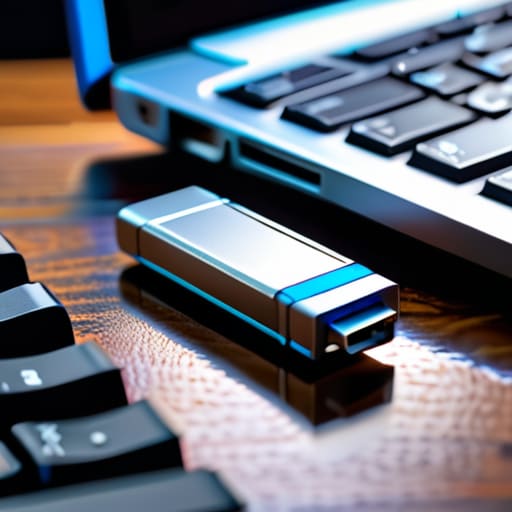
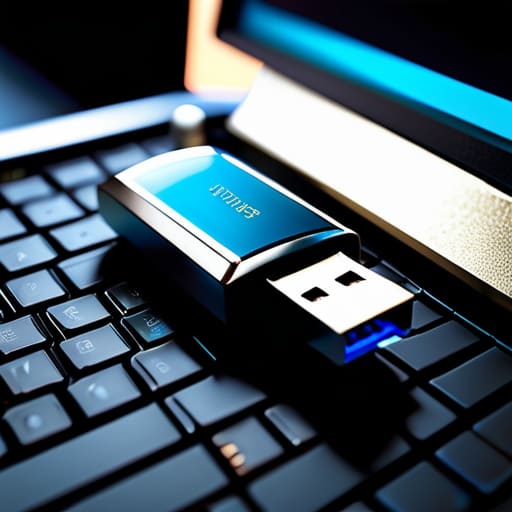
Look, I’ve spent enough time staring at blue screens to know that the hardest part isn’t the scan itself—it’s actually getting the tools onto a thumb drive without the virus jumping ship. When you’re creating bootable security media, you can’t just drag and drop an .exe file onto a USB like it’s a photo from your vacation. You need a dedicated tool that turns that drive into a standalone environment. I always recommend grabbing a clean, working computer—ideally one that hasn’t been on your local network lately—to build your malware removal bootable USB. If you try to build this on the machine that’s already acting possessed, you’re just inviting the infection to hitch a ride.
Once you have a clean machine, download an ISO from a reputable vendor and use a small utility like Rufus to flash it. It feels a bit technical, but don’t let the jargon spook you; it’s basically just telling the USB to act like a hard drive. I always write down the exact version number of the tool I used before I even start, just in case I have to troubleshoot the boot order later. Once that drive is ready, you’re officially prepared for the heavy lifting.
Five Things I’ve Learned From Cleaning Up Malware Messes
- Don’t skip the “unplug” step. Once you boot from that USB, pull the ethernet cable or kill the Wi-Fi. If the malware is still talking to its home base, it might try to hide or even wipe your files before the scanner catches it.
- Check your USB drive on a different, clean computer first. I’ve seen people try to run an offline scan using a bootable drive that was already infected, which is just… well, it’s a headache you don’t need.
- Give it time. I know you want to see that progress bar moving, but offline scans are heavy. They’re digging through every single sector of your drive without the OS helping them out. If it looks stuck, it’s probably just working.
- Write down the scan results immediately. Most of these tools don’t keep a pretty log you can look at later once you’re back in Windows. Grab a notepad and jot down exactly what files it flagged so you can deal with them once the machine is stable.
- Don’t assume a “clean” scan means you’re 100% safe. If your computer was acting weird before you started, run the scan twice. Sometimes a piece of stubborn malware can hide in a way that takes a second pass to actually trigger the detection.
One Last Check Before You Close the Lid
Look, we’ve covered a lot of ground here, and I know it feels like a lot of extra work just to feel safe. We talked about why running these scans while the OS is asleep is the only way to catch the really nasty stuff, and we walked through the headache of actually building that bootable media. Just remember: the goal isn’t to make your life complicated, it’s to make sure your security isn’t being bypassed by malware that’s currently hiding in your active system files. If you’ve got that USB drive ready and you’ve followed the steps to boot from it, you’ve already done more than 90% of users ever bother to do. You’ve essentially taken the high ground in this digital tug-of-war.
I know it’s tempting to just click “ignore” when a security warning pops up or when a scan feels like it’s taking forever, but sticking with it is what counts. Technology is supposed to work for us, not the other way around, and taking these extra twenty minutes to run an offline scan is how you reclaim control over your machine. Don’t let the frustration win. Once that scan finishes and you see a clean report, I promise you’ll feel a lot better knowing you didn’t just hope for the best—you actually verified the truth. Now, go grab a coffee; you’ve earned it.
Frequently Asked Questions
If my computer is already acting weird, how am I supposed to download the scanner tools in the first place?
That is the million-dollar question, isn’t it? It’s the classic “catch-22” of IT. If the malware is already hijacking your browser, you can’t trust the download anyway.
Will running an offline scan actually delete the virus, or is it just going to tell me it's there while I'm stuck staring at a loading bar?
I’ve seen that exact look of dread a thousand times. Here’s the truth: yes, it actually deletes the threat. The reason we do this is because a live virus is like a squatter in your house—it hides when the lights come on. By scanning offline, we’re catching it while it’s asleep. It won’t just sit there and stare at you; it’ll clean up the mess so you can actually get back to work.
Do I need to worry about my files getting wiped if the scanner decides a system file is actually a piece of malware?
Look, I’ve seen this panic before, and I get it. Here’s the deal: an offline scanner is designed to quarantine the threat, not nuking your whole hard drive. It might flag a system file, which can make things act wonky, but it isn’t going to go on a “delete everything” spree. If it hits a sensitive file, it’ll usually just isolate it. Just make sure you’ve got a backup before you start—better safe than sorry.