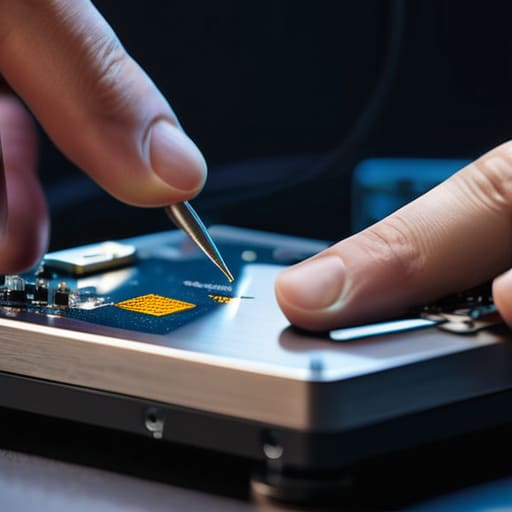
I remember sitting on the floor of a school library three years ago, staring at a spilled latte that had just turned a faculty member’s laptop into a very expensive paperweight. She was convinced her last ten years of lesson plans were gone forever, and honestly, looking at that smoking motherboard, I couldn’t blame her for panicking. Most people think that once the screen goes black and the power button stops responding, your digital life is just erased, but that is a total myth. Learning how to recover data from a dead laptop isn’t about magic or expensive forensic labs; it’s usually just about realizing that the “brain” of the computer is often perfectly fine even when the body is dead.
I’m not going to sell you on some overpriced, “miracle” recovery software that promises the world and delivers nothing but a headache. Instead, I’m going to walk you through the actual, physical steps I use in my own shop to pull those files out safely. We are going to focus on practical, hands-on methods—like bypassing the broken machine entirely to talk directly to the hard drive. I’ve written these steps down for you to follow one by one, so even if you’ve never opened a computer in your life, we’re going to get those files back.
Table of Contents
Guide Overview
Tools & Supplies
- External Hard Drive Enclosure or SATA-to-USB Adapter to connect the drive to a working computer
- Small Phillips head screwdriver to open the laptop chassis
- Working computer with USB ports to access the recovered files
- Anti-static wrist strap (1) to prevent electrostatic discharge
- Microfiber cloth (1) to clean the drive surface if necessary
Step-by-Step Instructions
- 1. First, we need to figure out if the laptop is actually “dead” or just having a minor tantrum. I always tell my techs to check the power indicator lights first. If you plug it in and absolutely nothing happens—no lights, no fan whirring, no sound—then we are officially moving into hardware recovery territory. If you see a light but the screen stays black, we might just be looking at a broken display, which is actually a much easier fix for your data.
- 2. Once we’ve confirmed the machine won’t boot, it’s time to perform some surgery. You’re going to need a small Phillips head screwdriver—the kind you’d use for eyeglasses usually works—and a flat surface. Flip the laptop over and start removing the screws from the bottom panel. I usually write down which screw goes where on a piece of paper because, trust me, they are not all the same length, and putting a long screw into a short hole can crack the casing.
- 3. After you’ve removed the bottom cover, your goal is to find the storage drive. Depending on how old your machine is, it will either be a 2.5-inch rectangular brick (a SATA drive) or a small, thin stick that looks like a piece of gum (an M.2 NVMe SSD). Gently wiggle it out of its slot. If it’s held in by a single screw, remove that first. Take a breath; you haven’t broken anything yet, you’re just opening the hood.
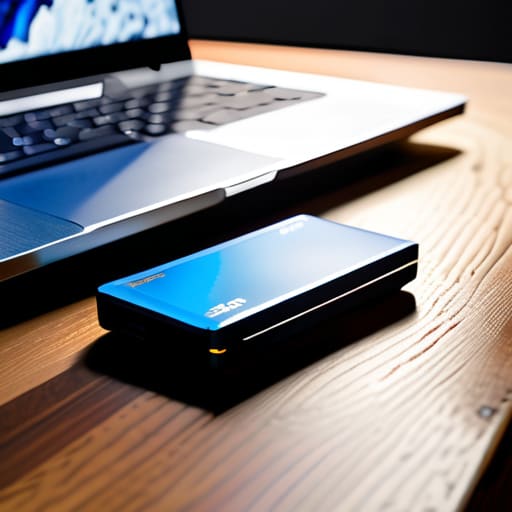
- 4. Now that the drive is out of the laptop, you can’t just plug it into a USB port like a thumb drive. You need an adapter or an external enclosure. You can find these for about fifteen bucks online. If you have an older SATA drive, look for a “SATA to USB adapter.” If you have the newer thin stick, you’ll need an “M.2 NVMe enclosure.” This device acts as a translator between your drive and a working computer.
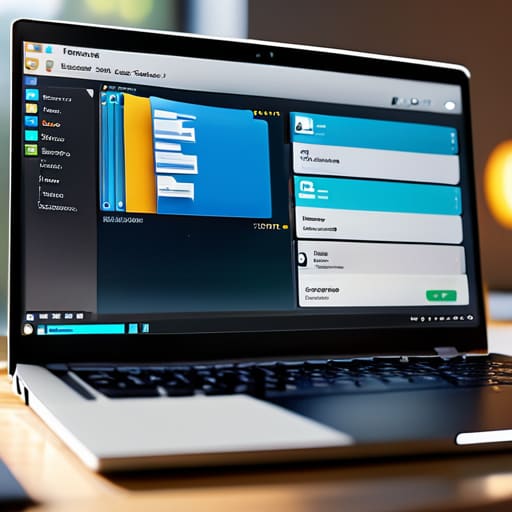
- 5. Plug your drive into the enclosure, and then plug that enclosure into a computer that actually works—like a friend’s laptop or your desktop. Give it a minute to settle. If you’re lucky, the computer will recognize it just like a new USB drive, and a folder will pop up on the screen. If it asks you to “Format the drive,” stop immediately and click cancel. Formatting means erasing everything, and we are here to save your files, not delete them.
- 6. Now comes the tedious part: the scavenger hunt. Once the drive opens up, you’ll likely see a folder named “Users.” Navigate into that, then into your old username. This is where your heart lives—your Documents, your Pictures, and your Desktop folders are all tucked away in there. I recommend copying them one folder at a time to your new computer rather than trying to drag the whole drive at once. It’s much easier on the connection and prevents the whole process from crashing halfway through.
- 7. Before you celebrate and throw the old laptop in the recycling bin, double-check your work. Open a few of those recovered files—a photo, a spreadsheet, a PDF—to make sure they actually open and aren’t corrupted. Once you are 100% certain that your digital life is safely tucked away on your new machine, you can finally let out that sigh of relief you’ve been holding since the screen first went black.
Ssd vs Hdd Data Retrieval Knowing Your Enemy
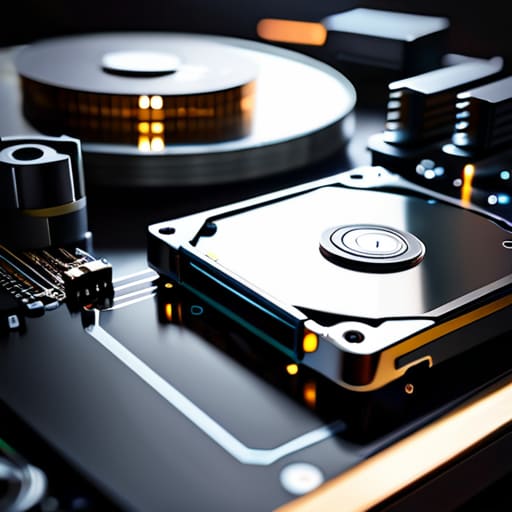
Before you start unscrewing anything, you need to figure out what kind of storage you’re actually dealing with. In my sixteen years on the service desk, I’ve seen people treat every drive like it’s the same, but SSD vs HDD data retrieval is a completely different beast. If you have an old-school mechanical hard drive, you’ll likely hear a clicking or grinding sound—that’s physical hardware failing. If it’s an SSD, it’s usually silent, but once the controller chip dies, the data can become much harder to reach.
If you’re working with an older laptop, a simple SATA to USB adapter setup is usually your best friend for getting that drive to show up on another computer. However, if you’ve got a modern, ultra-thin machine, you might be looking at an M.2 NVMe drive, which requires a specific type of enclosure. I always tell my users: don’t just plug it in and hope for the best. If the drive doesn’t appear immediately, don’t panic; we just need to make sure your external drive mounting process is being handled correctly by the new host machine.
The Sata to Usb Adapter Setup You Actually Need
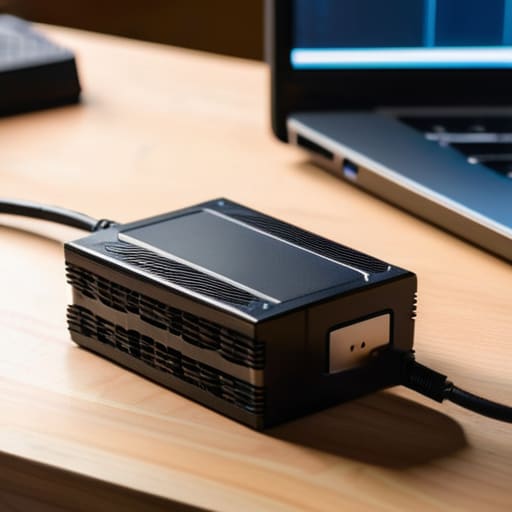
Now, before you run out to the electronics store, let’s talk about what you’re actually looking for. I’ve seen too many people buy a cheap, unpowered cable that works for a tiny thumb drive but fails the moment they plug in a heavy mechanical drive. If you have an older laptop with a spinning hard drive, you really want a SATA to USB adapter setup that includes an external power brick. Without that extra juice, your computer might not even recognize the drive is there, and that’s the last thing you need when you’re already stressed.
If you’re dealing with a newer, slimmer laptop, you’re likely looking at an M.2 drive, which requires a different kind of adapter entirely. I always tell my team to double-check the interface before they buy anything; there is nothing more frustrating than a failed boot drive solution that turns out to be the wrong physical plug. Once you have the right hardware, the external drive mounting process should be straightforward—just plug it into a port directly on your working computer, rather than using a flimsy USB hub, to ensure a stable connection while you move those precious files.
Five things I wish you knew before you started poking around inside
- Stop trying to turn it back on. I know you want to see if that little light flickers, but if there’s a short on the motherboard, every time you hit that power button, you’re playing Russian roulette with your hard drive. Leave the power cord unplugged.
- Don’t trust “Cloud Sync” blindly. Just because you use OneDrive or Dropbox doesn’t mean your most recent, unsaved work is actually up there. Always assume the local drive is the only source of truth until you’ve verified the files on your backup device.
- Listen for the “Click of Death.” If you’re working with an older HDD and you hear a rhythmic clicking or grinding sound, stop immediately. That’s mechanical failure, and no amount of SATA adapters or software is going to fix a physical head crash. At that point, you need a pro.
- Keep your workspace clean and static-free. I’ve seen too many people try to pull a drive out while sitting on a shag carpet in a dusty room. Grab an anti-static wrist strap if you have one, or at least touch a metal part of the laptop chassis before you grab the drive to discharge any static buildup.
- Label your cables and drives as you go. It sounds tedious, and I know you’re in a rush to get those photos back, but when you’re staring at three different USB adapters and two different external drives, you will forget which one is the “source” and which one is the “destination.” Write it down.
One Last Thing Before You Close the Lid
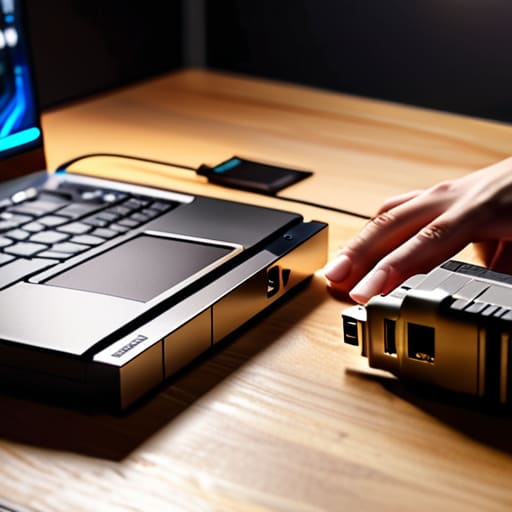
We’ve covered a lot of ground here, from figuring out whether you’re wrestling with a spinning HDD or a silent SSD to getting that SATA-to-USB adapter hooked up correctly. I know it feels like a lot of moving parts, but remember that the goal was never to turn you into a hardware engineer; it was simply to bridge the gap between a broken machine and your precious files. If you followed the steps and managed to see those folders pop up in your file explorer, then you’ve already won the hardest battle. Just please, for the love of all things holy, make sure you copy those files to a brand new location immediately. Don’t just move them; duplicate them onto a cloud drive or a fresh external disk so you aren’t relying on a drive that has already proven it can fail you when you need it most.
I know that sinking feeling in your stomach when the screen stays black, but I hope this process has helped take some of the panic out of the equation. Technology is inherently fragile, and even after sixteen years in IT, I still get a little nervous when a machine won’t boot. But as we’ve seen today, a dead laptop doesn’t have to mean a dead end for your data. Take a moment to breathe, celebrate the win, and then go set up an automated backup system. You’ve survived the crisis, and now you can make sure you never have to feel this way again.
Frequently Asked Questions
If I hear a clicking or grinding noise coming from the drive when I plug it in, should I immediately stop what I'm doing?
Yes. Stop immediately. Unplug that adapter right now. If you hear clicking, grinding, or any rhythmic scraping, that’s the sound of a mechanical arm physically gouging your data off the platters. Every second it stays powered on, you’re potentially turning a recoverable drive into a paperweight. I’ve seen too many people try to “power through” the noise only to end up needing a $1,000 professional recovery service. If it’s making noise, walk away.
Can I just pull the drive out and plug it into my desktop computer instead of buying a USB adapter?
You absolutely can, provided your desktop has the right ports. If it’s an older laptop with a standard 2.5-inch SATA drive, you can just plug it directly into an available SATA slot on your motherboard. It’s actually a cleaner connection than a USB adapter. Just make sure you have a spare SATA data cable handy and remember to power down the desktop before you start poking around inside.
Once I get the drive connected, what do I do if my computer asks me to "format the disk" before I can see my files?
Stop. Do not click “format.” I know that pop-up is terrifying, but clicking that button is exactly how you turn a recoverable situation into a permanent loss. Usually, this happens because the file system is “dirty” or slightly corrupted from the crash. I’ve seen this a dozen times. Before you do anything else, try plugging the adapter into a different USB port or a different computer entirely. If it still asks to format, we’ll move to software recovery.