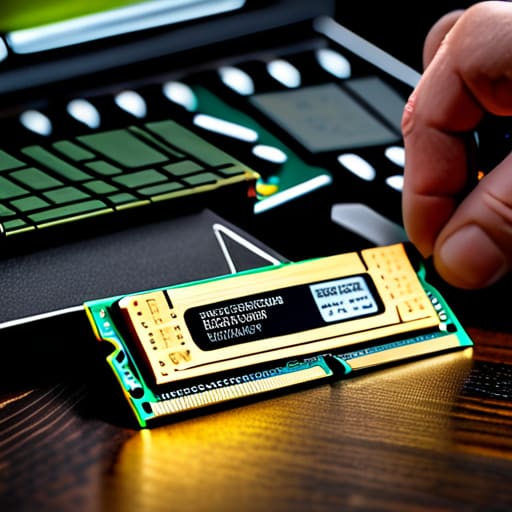
I was sitting there last Tuesday, staring at a student’s laptop that was taking a full three minutes just to open a single Chrome tab, and I realized something: most people think they need to go out and buy a brand-new machine just because their current one is crawling. They see the spinning wheel of death and assume the hardware is dead, but usually, you just need to learn how to upgrade RAM without losing your mind in the process. I’ve spent sixteen years on service desks seeing people panic over a simple memory bottleneck, and honestly, it’s almost always a five-minute fix that they’ve been overcomplicating for months.
I’m not going to give you a lecture on electrical engineering or some overly technical manual that skips the part where you actually open the case. Instead, I’m going to walk you through this step-by-step, starting with the stuff most guides forget—like how to actually verify what your motherboard can handle before you spend a dime. I’ll show you exactly how to identify your slots, how to seat the sticks so they don’t snap, and how to verify the fix so you aren’t left staring at a black screen.
Table of Contents
Guide Overview
Tools & Supplies
- Phillips head screwdriver (to open case/laptop)
- Anti-static wrist strap (to prevent ESD damage)
- RAM modules (matching speed/capacity for system)
- Microfiber cloth (to clean dust during process)
Step-by-Step Instructions
- 1. First, I need you to grab a screwdriver and a small container—a pill bottle or even a magnetic tray works—to hold your screws. I’ve seen too many people lose a tiny M.2 or chassis screw into the carpet, and trust me, you don’t want to be hunting for that for the next hour. Once you’ve got your tools, power the machine down completely and unplug the power cable. If it’s a laptop, and the battery is external, pop that out too.
- 2. Now, we need to get inside. Depending on what you’re working on, you’ll either be unscrewing the bottom panel of a laptop or the side panel of a desktop case. I always tell people to set the device on a flat, non-carpeted surface to avoid static. Once the panel is off, look for the existing RAM sticks. They’ll be tucked into slots, usually held in place by little metal clips on the sides.
- 3. Before you touch anything else, let’s verify what you actually have. I hate seeing people buy high-end DDR5 sticks only to realize their motherboard only supports DDR4. Open your Task Manager (Ctrl+Shift+Esc), click the ‘Performance’ tab, and then ‘Memory.’ Look at the speed and the form factor. Write that number down on a piece of paper—I do this every single time—so you don’t have to keep clicking back and forth while you’re mid-repair.
- 4. Time to clear out the old stuff. If you’re in a desktop, push those little silver clips on either side of the RAM stick outward, and the stick should pop up at an angle. If you’re on a laptop, it’s even easier; you just pull the clips back and the stick will tilt up. Gently pull the old module out by its edges. Avoid touching the gold contacts on the bottom, because the oils from your skin can actually cause connection issues later on.
- 5. Now, take your new RAM and line it up with the slot. This is where most people get stuck because they try to force it. Look closely at the notch in the middle of the gold pins; it’s offset so you can’t put it in backward. Line that notch up with the bump in the slot. If it doesn’t sit perfectly, don’t push harder—stop, look at it, and realign.
- 6. Once it’s lined up, press down firmly but steadily. If you’re on a desktop, you’ll hear a satisfying click as the side clips snap back into place automatically. On a laptop, you’ll push it into the slot at an angle and then press it down until the side arms grab it. If the stick looks crooked or isn’t sitting flush, it’s not seated correctly, and you’ll likely get a black screen when you try to boot.
- 7. Put the cover back on, plug everything in, and fire it up. Don’t panic if the first boot takes a little longer than usual; sometimes the BIOS needs a minute to re-map the new memory. Once you’re back at your desktop, jump back into that Task Manager window one last time. If the “Total Memory” number matches what you just installed, you’ve officially won the battle.
How to Check Current Ram Usage Without Losing Your Mind

Before you go out and drop money on new sticks, you need to see what your computer is actually doing when you’re in the middle of a task. I’ve seen so many people buy more memory when their real issue was a background process hogging everything. To see the truth, press `Ctrl + Shift + Esc` to pull up your Task Manager. Click the “Performance” tab and then select “Memory.” This is the easiest way of how to check current ram usage without getting bogged down in technical jargon. If you see that “In use” number is constantly sitting near your total capacity even when you aren’t doing much, then yes, you definitely need an upgrade.
While you’re looking at that screen, pay close attention to the “Slots used” section. This is a crucial detail because it tells you if you have room to grow or if you’re about to replace what you already have. If it says “1 of 2,” you’re in luck; you can just add another stick. If it says “2 of 2,” you’ll be swapping out your old modules entirely. Knowing this now prevents that mid-project realization that you can’t actually expand your capacity without throwing away the parts you just bought.
Checking Motherboard Ram Slots Before You Buy Anything
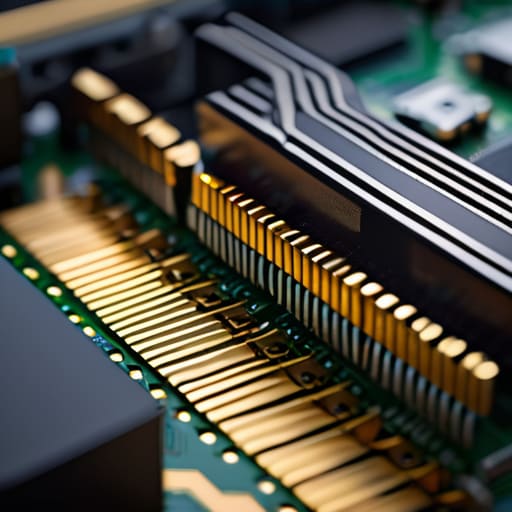
Before you go clicking “Buy Now” on some shiny new sticks of memory, we need to talk about the physical reality of your machine. I’ve seen so many people order high-end kits only to realize their motherboard is physically incapable of holding them. You need to spend a few minutes checking motherboard ram slots to see if you actually have an empty space waiting for an upgrade, or if you’re stuck in a “replace instead of add” situation. If you’re on a laptop, be especially careful; some manufacturers solder the memory directly to the board, meaning you can’t touch it without a soldering iron and a prayer.
Once you know you have the slots, you need to figure out if you’re aiming for a dual channel memory configuration. Most modern systems perform significantly better when you use two identical sticks rather than one big one. If you only have one slot filled, adding a second matching stick is usually the smartest move for a performance boost. Just make sure you aren’t trying to force a square peg into a round hole—pay attention to whether your system is looking for DDR4 or the newer DDR5, because they are definitely not interchangeable.
Five Things I Wish People Asked Me Before They Bought Parts
- Don’t just buy the biggest number you see. Just because a stick of RAM says “3200MHz” doesn’t mean your motherboard can actually use that speed; if your system caps out at 2666MHz, you’ve just thrown money away on speed you’ll never feel.
- If you’re adding a second stick to an existing setup, try your hardest to match the brand and specs of the one already in there. Mixing different brands or speeds is a recipe for “Blue Screen of Death” headaches that I really don’t want to troubleshoot for you later.
- Check your “Max Capacity” limits first. I’ve seen people try to shove 64GB of RAM into a budget laptop that physically can’t address more than 16GB, and it’s a heartbreaking waste of a Saturday afternoon.
- Static electricity is a real thing, even if it feels like a myth. Grab a cheap anti-static wrist strap or at least touch a grounded metal object before you start poking around the internals; I’ve seen too many fried motherboards because someone was too impatient to be careful.
- Give the new sticks a moment to breathe. After you’ve clicked them into place and powered everything back up, don’t panic if the first boot takes a little longer than usual—your computer is just doing a “memory training” cycle to get used to its new roommate.
One Last Check Before You Close the Case
So, there we have it. We’ve gone from staring at a frozen screen to actually knowing exactly what your machine needs. Just remember the workflow: verify your current usage so you aren’t guessing, double-check those motherboard specs so you don’t end up with expensive paperweights, and for heaven’s sake, match the speed and type before you hit that checkout button. I’ve seen too many people rush this part only to realize they bought DDR4 when their board is screaming for DDR5. If you take those few extra minutes to be certain, you’re going to save yourself a massive headache and a trip to the returns desk later this week.
I know it feels intimidating to reach inside the guts of your computer, especially when you’re already annoyed that it wasn’t working in the first place. But honestly? Once you click those sticks into place and see that boot screen come up smooth as silk, you’re going to feel like a total pro. You aren’t just “fixing a computer” anymore; you’re taking control of your own hardware. Don’t let the technical jargon win. You’ve got the steps, you’ve got the plan, and now you’ve got the tools to make that machine run the way it was actually meant to. Go get ’em.
Frequently Asked Questions
If I mix an old stick of RAM with a brand new one, is my computer just going to refuse to boot?
It’s not always a total blackout, but it’s definitely a gamble. Most modern systems are smart enough to realize the mismatch and will try to throttle everything down to the speed of the slowest stick. However, if the timings or voltages are too different, you’ll get a “no boot” scenario or, even worse, those dreaded blue screens of death. Honestly? Don’t do it. Just buy a matched pair and save yourself the headache.
Do I really need to worry about the "MHz" speed, or will the computer just automatically fix it for me?
Look, I’ve seen enough mismatched sticks to know this is where people get stuck. The short answer? Your computer will “fix” it, but not in the way you want. If you mix a fast stick with a slow one, the motherboard forces everyone to run at the slowest speed. It’s like forcing a sprinter to run in heavy boots just to keep pace with a walker. Buy matching speeds if you can; don’t let your new RAM go to waste.
Once I actually click the RAM into the slot, how do I know if it's seated properly and not just sitting there loosely?
Listen, I’ve seen enough “half-seated” sticks cause a blue screen of death to know this anxiety. When you press down, you should hear a distinct, physical click from the side clips. Once it’s in, give the stick a very gentle nudge with your fingertip. If it wiggles or feels springy, it’s not seated. It should feel like one solid unit with the motherboard. If it’s flush and firm, you’re golden.
