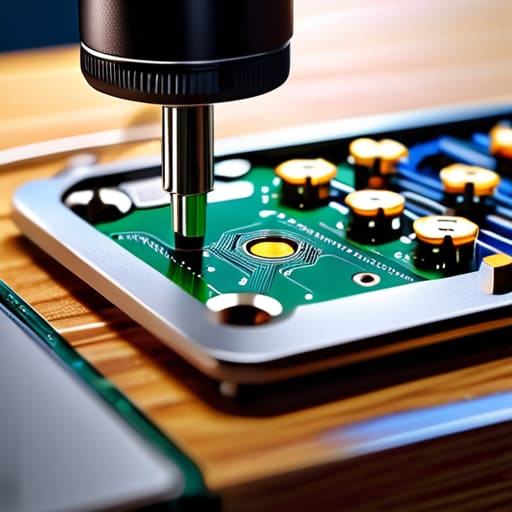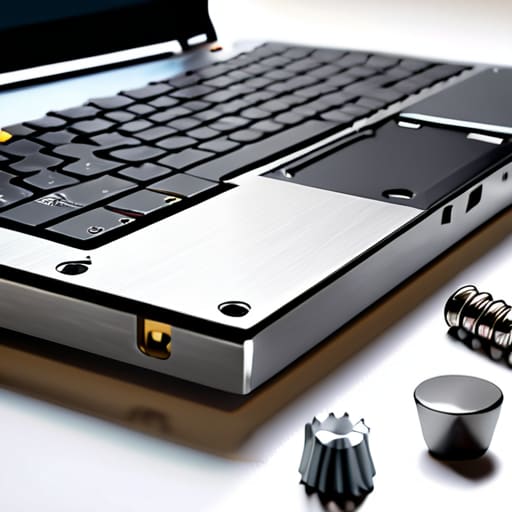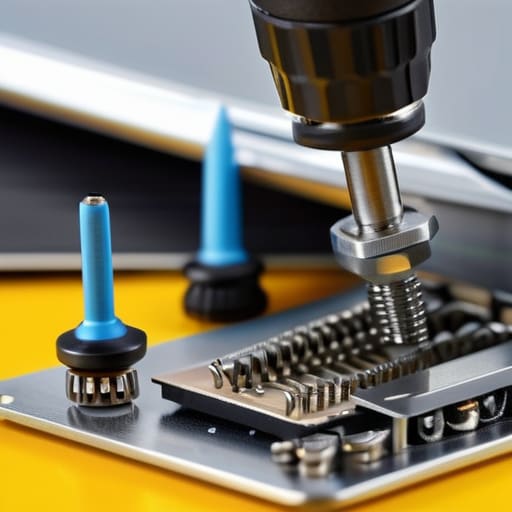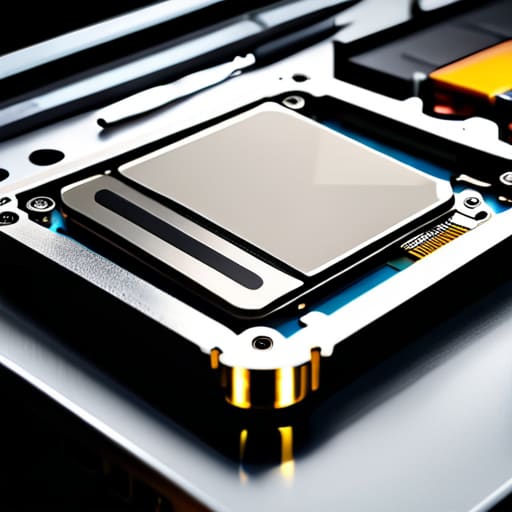
I was sitting at my workbench last Tuesday, surrounded by the smell of old solder and dust, staring at a ThinkPad that had given up the ghost. The user had called me, sounding absolutely defeated, because every YouTube tutorial they found assumed they already had a specialized toolkit and a steady hand like a surgeon. Here is the truth: most people think they need a degree in electrical engineering to figure out how to replace a laptop battery, but that is a total lie. You don’t need a lab; you just need to know which screw actually matters and how to avoid stripping it.
I’ve spent sixteen years on service desks, and I’ve seen too many people skip the most important part of the process because a manual was written by someone who has never actually held a screwdriver. In this guide, I’m going to walk you through this process without the technical fluff or the condescending tone. I’ll show you exactly how to navigate the hardware without turning your expensive machine into a very heavy paperweight. We are going to do this one verified step at a time, so you can finally stop living your life tethered to a wall outlet.
Table of Contents
Guide Overview
Tools & Supplies
- Precision screwdriver set (to remove chassis screws)
- Plastic spudger or pry tool (to pop casing clips)
- Replacement laptop battery (1 unit)
- Microfiber cloth (1 unit)
Step-by-Step Instructions
- 1. First things first, find a flat, well-lit surface where you won’t be interrupted. I always grab a small tray or even an empty egg carton to hold the screws; if you lose one of these tiny things in your carpet, you’re going to have a very long afternoon. Once you’re settled, shut the laptop down completely—don’t just close the lid, actually hit Shut Down so there’s no residual power running through the board.
- 2. Flip that thing over and look for the access panel. On older models, it might be a single door held by one or two screws, but on newer ones, you’re likely looking at the whole bottom chassis. Grab your screwdriver (usually a small Phillips) and start removing those screws. I like to write down which screw came from which hole on a piece of paper, because let’s be honest, they aren’t always the same length.
- 3. Now, carefully pry the bottom cover away. This is the part where people usually get nervous because it feels like you’re going to snap something. Use a plastic pry tool or even an old credit card to gently work your way around the edges. You’ll hear some little clicks; that’s just the plastic tabs releasing, so don’t let that spook you.
- 4. Once the cover is off, you’ll see the battery sitting there. Before you touch it, look for the connector cable that plugs the battery into the motherboard. Gently pull that connector straight out—don’t wiggle it side-to-side or you might damage the pins. I always double-check that the cable is actually disconnected before I move on to the next step.
- 5. Now you can actually unscrew the battery itself. Depending on your laptop, it might be held in by two screws or just a few more plastic clips. Lift the old battery out of its cradle and set it aside. If the battery looks swollen or bloated, please handle it with extreme care and put it straight into a recycling bin; don’t try to force it out if it’s pushing against the casing.
- 6. Take your new battery and line it up with the connectors in the laptop. It should drop into place with a satisfying fit, but if you have to force it, stop and re-examine the alignment. Once it’s seated, plug that connector cable back in—make sure it’s seated firmly and isn’t crooked.
- 7. Before you screw everything back together, I always do a quick “sanity check.” Make sure nothing is loose or dangling near the fan. If everything looks good, snap the bottom cover back on, replace those screws you saved in your tray, and then plug in your charger to see if the laptop recognizes the new power source. Success is much sweeter when you don’t have to take it all apart a second time.
The Tools Needed for Battery Replacement You Actually Need
Before you start tearing things apart, let’s talk about what you actually need on your desk. I’ve seen too many people try to force a casing open with a kitchen knife or a dull butter knife, and trust me, that is a one-way ticket to a cracked chassis. You really just need a decent set of precision screwdrivers—usually a small Phillips head—and a plastic pry tool, or even just an old guitar pick if you’re in a pinch. When it comes to opening laptop chassis safely, the goal is to apply even, gentle pressure rather than brute force.
I also highly recommend grabbing a small tray or even just an empty egg carton. When you’re mid-way through the laptop battery installation steps, you’re going to find screws of varying lengths, and if you mix them up, you might accidentally drive a long screw through your motherboard. One more thing: if your old battery looks even slightly puffy or “pregnant,” stop what you’re doing. That’s a sign of preventing battery swelling gone wrong, and you’ll want to handle that specific unit with extra care and immediate disposal.
Identifying Compatible Laptop Batteries Before You Waste Your Money
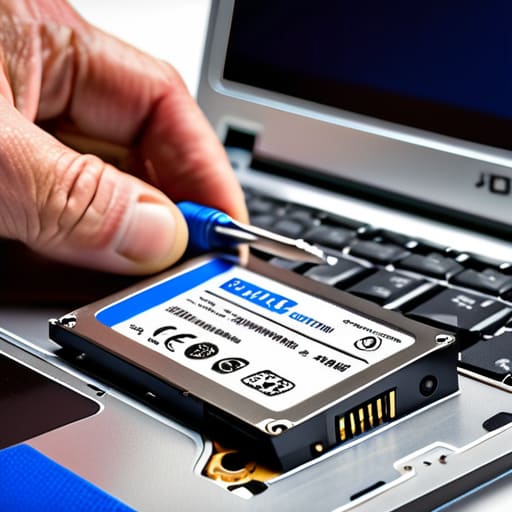
Before you go clicking “buy” on the first cheap charger you see on a random marketplace, let’s pause. I’ve seen way too many people order a battery based on their laptop model name alone, only to find out the manufacturer changed the internal connector halfway through the production year. The absolute best way to avoid this headache is identifying compatible laptop batteries by looking at the part number printed directly on the old unit. I always tell my techs: don’t trust the sticker on the bottom of the case; trust the label on the actual hardware.
If you can’t get the old battery out to check the label, you’re playing a dangerous game of guesswork. You might end up with a battery that fits the shell but doesn’t quite match the voltage requirements, which is a recipe for a very expensive paperweight. While you’re at it, take a close look at the old cell for any signs of preventing battery swelling—if it looks even slightly bloated or “pillowed,” you need to move fast. Once you’ve confirmed the exact part number, you can proceed with confidence knowing your replacement will actually do its job.
Five Things I Wish I Knew Before I Cracked Open My First Laptop
- Shut the thing down completely. I’m not talking about “Sleep” mode or just closing the lid; I mean a full, hard shutdown. If you try to swap a battery while the motherboard still has a trickle of power running through it, you’re just asking for a short circuit that’ll turn your laptop into a very expensive paperweight.
- Watch out for the “hidden” screws. Manufacturers love to hide one or two screws under those little rubber feet on the bottom of the case. If you feel like you’re forcing the plastic shell apart, stop. You’ve probably missed a screw, and forcing it will just snap the plastic clips.
- Treat the old battery with respect, but don’t be sentimental. Once that old, swollen, or dead battery is out, get it into a recycling bin immediately. Don’t just toss it in your kitchen trash can—lithium batteries are a fire hazard, and I’ve seen enough smoke to know better.
- Don’t be a hero with the cables. When you’re disconnecting the old battery, the connector is usually a tiny, fragile little plastic piece. Don’t yank on the wires; grab the plastic plug itself and pull it straight out. If you bend those pins, the new battery won’t matter because the connection will be toast.
- Give the new battery a “warm-up” period. Once you’ve got everything screwed back together, don’t just start working. Plug it in and let it charge to 100% without interruption. It helps the laptop’s software and the new hardware get on the same page about how much capacity they actually have.
You're Actually Done
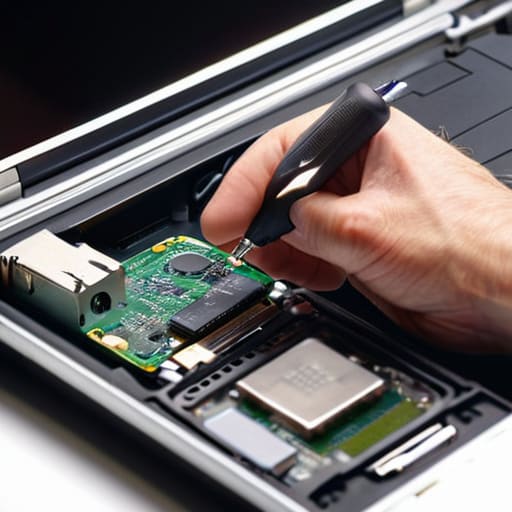
Look, if you’re sitting there with a handful of tiny screws and a fresh battery, you’ve already done the hardest part. We went through the headache of finding the right part number, gathered the proper tools, and navigated that delicate process of opening up the chassis without snapping any plastic clips. Just remember: if the laptop doesn’t boot immediately, don’t start sweating. Most of the time, it’s just a matter of reseating the connection or giving the new cell a proper initial charge. You’ve followed the steps, you’ve checked your work, and you didn’t break anything. That is a massive win in my book.
There is something deeply satisfying about taking a piece of “dead” hardware and breathing life back into it yourself. Most people would have just tossed that machine in a drawer or spent hundreds at a repair shop for something you just handled with your own two hands. It might feel a little intimidating when you’re staring at a motherboard for the first time, but trust your process. You aren’t just fixing a battery; you’re proving that you don’t have to be a slave to planned obsolescence. Now, go plug it in, let it charge, and enjoy that sweet, sweet mobile freedom again.
Frequently Asked Questions
Is it safe to keep the old battery in my house, or is it a fire hazard if I just toss it in the trash?
Please, do not—and I mean this from the bottom of my heart—just toss that old battery in your kitchen trash. Lithium-ion batteries are basically little chemical grenades if they get punctured or crushed in a garbage truck. As for keeping it in the house? Honestly, unless it’s in a fireproof container, I wouldn’t. Just grab a dedicated recycling bin or hit up a local tech recycler. It’s better to be safe than sorry.
I’ve already swapped the battery, but my laptop is still acting weird—did I break something during the install?
Deep breath. You probably didn’t break it, but you might have missed a tiny detail. Usually, when a new battery acts up, it’s because a ribbon cable isn’t seated quite right or a screw is slightly too tight, causing a tiny bit of pressure on the board. First, plug it in and see if it recognizes the charge. If it’s still acting wonky, I’d pop the back off one more time just to double-check those connections.
Do I need to do a full calibration on the new battery, or can I just plug it in and start working immediately?
Look, you can plug it in and start working right away—I’ve done it a thousand times and it won’t break anything. But, if you want that new battery to actually last, do a calibration cycle once it’s installed. Charge it to 100%, keep it plugged in for a bit, then let it drain down until the laptop dies. It helps the sensor learn where “empty” actually is so your percentage readings stay accurate.