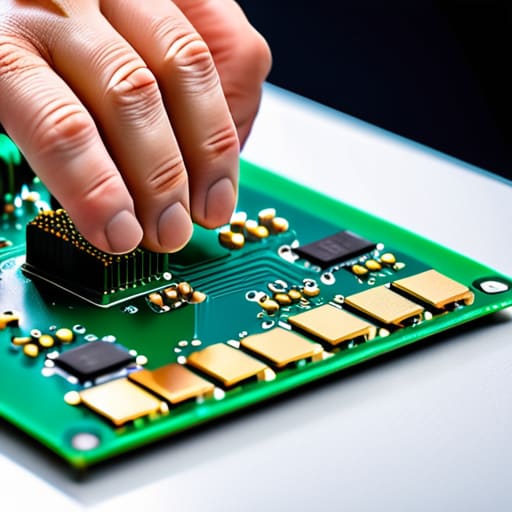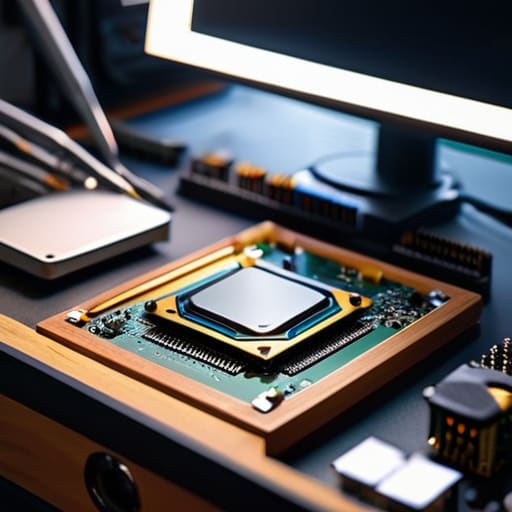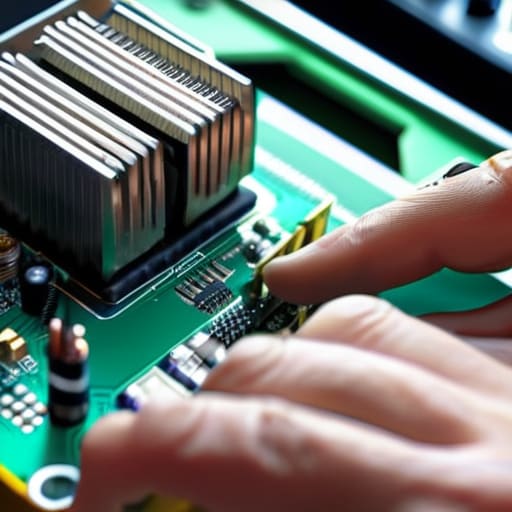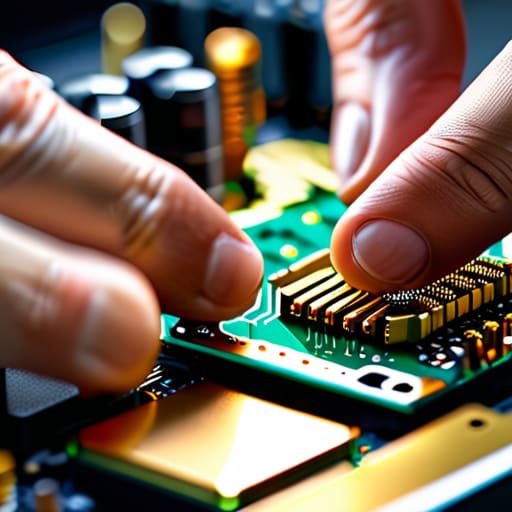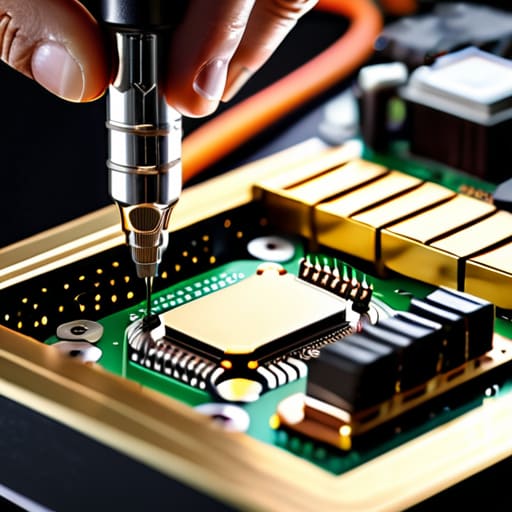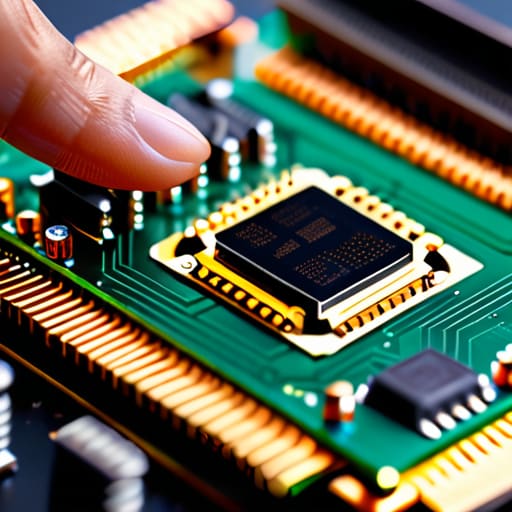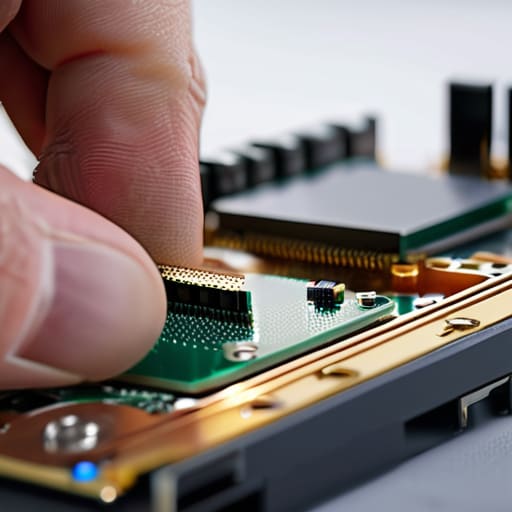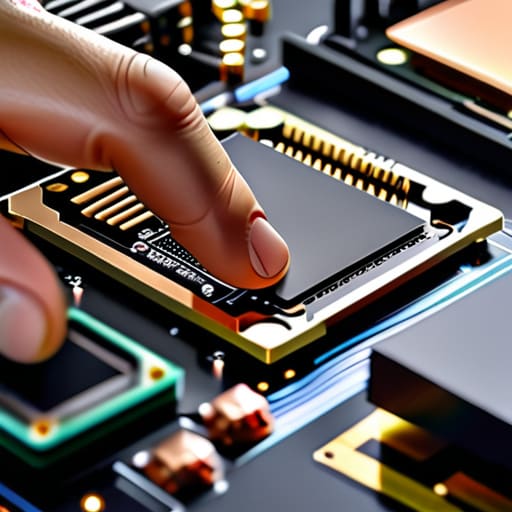
I was hunched over my workbench last Tuesday, staring at a stubborn ThinkPad from 1998, when I realized just how many “expert” tutorials are completely useless. Most of them tell you to spread the compound around with a spatula like you’re frosting a tiny, expensive cake, but that’s a recipe for air bubbles and overheating. If you’re staring at a tube of grey goop wondering how to apply thermal paste without turning your CPU into a space heater, you aren’t alone. I’ve spent sixteen years watching people overcomplicate this, and frankly, the more you fuss with it, the worse you’re doing it.
I’m not here to give you a lecture on the molecular physics of heat transfer; I’m here to make sure your machine actually runs. In this guide, I’m going to show you the only way I do it—the way that actually works for both modern rigs and my old hobbyist laptops. We are going to skip the unnecessary fluff and focus on the exact amount you need and the precise placement that prevents a total meltdown. I’ve written down the steps for the person who just wants their computer to stop sounding like a jet engine, so let’s get to work.
Table of Contents
Guide Overview
Tools & Supplies
- Isopropyl Alcohol (90% or higher for cleaning residue)
- Microfiber cloth or lint-free wipes (to wipe surfaces clean)
- Thermal Paste (1 small tube or pre-applied syringe)
- Paper towels (for cleaning up excess)
Step-by-Step Instructions
- 1. First, you need to get that old, crusty thermal paste off the CPU. I don’t care what the box says about “pre-applied” paste; if you’re doing this right, you’re starting fresh. Grab some 90% or higher isopropyl alcohol and a lint-free cloth—or a coffee filter if you’re out of microfiber—and wipe that silver mess away until the metal looks like a mirror.
- 2. Once the surface is clean, take a look at the CPU to make sure there isn’t a single speck of dust or a stray hair left behind. If there’s even a tiny bit of debris, it’ll create an air pocket, and we both know that’s just asking for a thermal throttle later this afternoon.
- 3. Now, grab your tube of paste. You don’t need to go overboard here; I’ve seen people try to frost a cake with this stuff, and it’s a disaster. Just squeeze a pea-sized amount right in the dead center of the heat spreader. If you’re working with a smaller chip, even a grain of rice is plenty.
- 4. Here is the part where most people get nervous: you aren’t going to spread it manually with a spatula. I know, it feels wrong, but you’re going to let the mounting pressure do the heavy lifting for you. When you lay the heatsink down, the pressure will spread that dollop into a perfectly even layer across the entire surface.
- 5. Lower the heatsink straight down. Do not, I repeat, do not slide it around once it makes contact. If you start wiggling it to try and “even out” the paste, you’re just introducing air bubbles, and we’ll be right back here troubleshooting a blue screen in twenty minutes.
- 6. Tighten your mounting screws in a crisscross pattern. If you have four screws, go top-left, then bottom-right, then top-right, then bottom-left. This ensures the pressure is applied evenly across the chip so the paste doesn’t squeeze out of one side like toothpaste from a broken tube.
- 7. Finally, before you go bolting the whole case back together, do a quick visual check around the edges of the CPU. If you see a massive ring of grey goo oozing out the sides, you used too much. If it looks like a clean, thin seal, you’ve done it exactly right.
Cleaning Old Thermal Paste With Isopropyl Alcohol for Cleaning Cpu
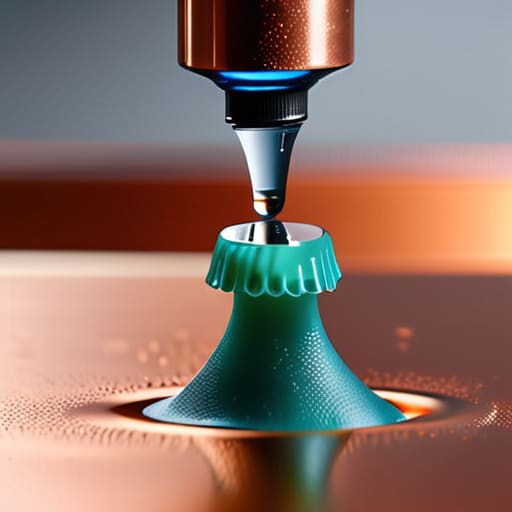
Before you even think about touching that new tube of paste, you have to deal with the dried-up crusty mess currently sitting on your processor. I’ve seen so many people try to scrape this off with a screwdriver or a paper towel, and honestly, it breaks my heart every time. You aren’t just moving the gunk around; you’re potentially scratching the delicate surface of the heat spreader. Instead, grab some isopropyl alcohol for cleaning CPU surfaces—and I mean the high percentage stuff, ideally 90% or higher. If you use the cheap stuff from the drugstore that’s mostly water, it takes forever to dry and leaves behind a residue that’ll ruin your work.
Take a lint-free cloth or a coffee filter—avoid those fuzzy cotton balls, trust me—and soak it just enough to be damp. Gently wipe in a circular motion until that metal looks like a mirror. If there’s a stubborn patch stuck in the corners, don’t force it; just add a tiny bit more alcohol and let it sit for a second. This step is the foundation of preventing overheating in PC builds later on. If that surface isn’t surgically clean, your new application won’t matter because the heat won’t transfer properly.
Mastering the Thermal Paste Pea Size Method for Cpu Temperature Optimizatio

Now that you’ve got that surface looking pristine, let’s talk about the actual application. I know it feels nerve-wracking—you’re staring at a piece of silicon that costs more than your first car—but the thermal paste pea size method is your best friend here. You aren’t trying to paint the whole thing like a fence; you just need one single, centered drop about the size of a garden pea. If you go too big, you’ll end up with a gooey disaster oozing out the sides when you tighten the cooler, which is a nightmare to clean up later.
The real magic happens when you lower the cooler onto the chip. You aren’t spreading that paste manually with a spatula; you’re letting the heatsink mounting pressure do the heavy lifting for you. As you tighten the screws in a cross-pattern, the pressure flattens that little bead into a perfectly thin, even layer. This is the secret to true cpu temperature optimization. If you skip the even pressure or use too much product, you’ll end up with air pockets, and that’s exactly how you end up preventing overheating in pc builds from actually working.
A Few Things I’ve Learned the Hard Way (So You Don't Have To)
- Watch out for the “over-application” trap. I know it feels safer to put a big glob on there to make sure everything is covered, but that’s how you end up with paste oozing out the sides and onto your motherboard. Less is actually more here.
- If you’re using a cloth to clean the CPU, make sure it’s lint-free. I once saw a kid try to use a paper towel and ended up with tiny white fibers stuck in the heat spreader. It’s a nightmare to get those out once you’ve clamped the cooler down.
- Don’t forget to check your pressure. It doesn’t matter how perfect your pea-sized drop is if your heatsink is sitting crooked. Tighten your mounting screws in a cross pattern—top left, bottom right, etc.—to make sure the pressure is even across the whole chip.
- Keep your workspace clean. I always keep a small tray or even just a clean piece of paper nearby for the syringe or the little spatula. There is nothing more frustrating than trying to fix a thermal issue only to realize you dropped the tube under a heavy desk.
- Give it a moment to settle. Once you’ve applied the paste and seated the cooler, don’t immediately go firing up a stress test. Let the hardware sit for a minute, and if you’re using a liquid metal type of compound (though I don’t recommend it for beginners), just be extra cautious about conductivity.
One Last Thing Before You Close the Case
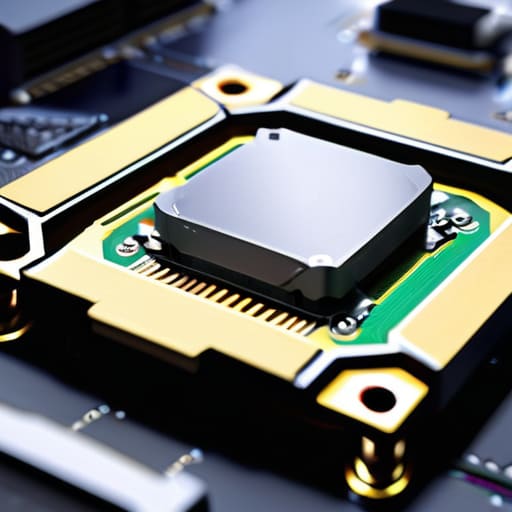
At this point, you’ve done the hard part. You’ve scrubbed that old, crusty residue away with the isopropyl alcohol, and you’ve carefully applied that perfect pea-sized amount right in the center of the die. Remember, the goal wasn’t to create some work of art; it was simply to fill those microscopic gaps so your heat sink can actually do its job. If you followed the steps, you didn’t leave a massive smear across the motherboard or end up with air bubbles trapped in the mix. You’ve successfully avoided the most common mistakes that usually lead to a frantic, mid-afternoon support call. Just take a breath and double-check that your cooler is seated firmly before you tighten those final screws.
I know how it feels when you’re staring at a piece of expensive hardware, wondering if you just ruined it. I’ve been there, usually hunched over a dusty ThinkPad in my workshop, feeling that same knot in my stomach. But honestly? You’ve got this. Once you boot that machine back up and see those temperatures sitting right where they belong, that frustration is going to turn into a really great sense of accomplishment. Don’t let the technical jargon intimidate you. You aren’t just “maintaining hardware”—you’re taking control of your tech, one tiny, precise step at a time. Now, go ahead and power it on.
Frequently Asked Questions
I accidentally got a little bit of paste on the green part of the motherboard; is my computer ruined?
Take a breath. You haven’t killed it. If it’s just a little smudge on the PCB (that green part), you’re likely fine. Thermal paste isn’t conductive like liquid metal, so it won’t short anything out just by sitting there. Grab some 90% isopropyl alcohol and a Q-tip. Gently dab the spot to lift the paste away. Don’t scrub like you’re cleaning a floor; just lift it off. You’ll be okay.
Does it actually matter if I use the "pea size" method versus spreading it manually with a spatula, or is that just something people say?
Look, I’ve seen both, and honestly? It doesn’t matter as much as the internet makes it seem. The pea-size method relies on the mounting pressure of the heatsink to spread the paste for you. If you use a spatula, you’re just trying to be “perfect,” but you often end up with tiny air gaps. I usually stick to the pea; it’s simpler, less messy, and it gets the job done every single time.
How long do I have to wait after putting the cooler back on before I can actually turn the computer on and start using it?
Honestly? You can flip that power switch as soon as the cooler is seated and the cables are tucked away. There’s no “curing time” for thermal paste like there used to be with the old stuff. Once it’s sandwiched between the CPU and the heatsink, it’s ready to work. Just double-check that your fan header is plugged in before you panic—I’ve seen too many people think they broke something just because they forgot the plug.