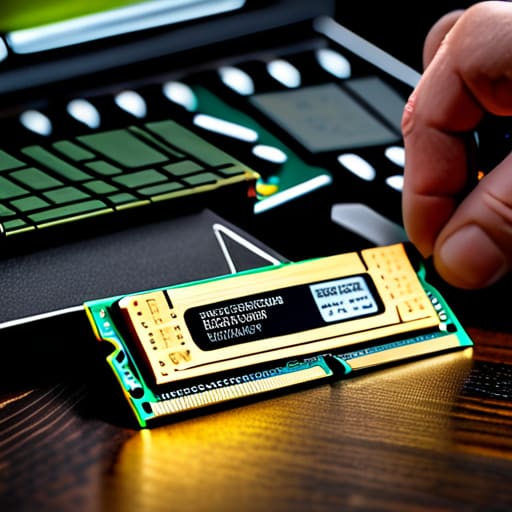
Adding Ram Without Buying Wrong

I was sitting there last Tuesday, staring at a student’s laptop that was taking a full three minutes just to open a single Chrome tab, and I realized something: most people think they need to go out and buy a brand-new machine just because their current one is crawling. They see the spinning wheel of death and assume the hardware is dead, but usually, you just need to learn how to upgrade RAM without losing your mind in the process. I’ve spent sixteen years on service desks seeing people panic over a simple memory bottleneck, and honestly, it’s almost always a five-minute fix that they’ve been overcomplicating for months.

I’m not going to give you a lecture on electrical engineering or some overly technical manual that skips the part where you actually open the case. Instead, I’m going to walk you through this step-by-step, starting with the stuff most guides forget—like how to actually verify what your motherboard can handle before you spend a dime. I’ll show you exactly how to identify your slots, how to seat the sticks so they don’t snap, and how to verify the fix so you aren’t left staring at a black screen.

Table of Contents

Guide Overview

Total Time: 15-30 minutes
Estimated Cost: $40-150
Difficulty: Beginner

Tools & Supplies

  • Phillips head screwdriver (to open case/laptop)
  • Anti-static wrist strap (to prevent ESD damage)
  • RAM modules (matching speed/capacity for system)
  • Microfiber cloth (to clean dust during process)

Step-by-Step Instructions

  • 1. First, I need you to grab a screwdriver and a small container—a pill bottle or even a magnetic tray works—to hold your screws. I’ve seen too many people lose a tiny M.2 or chassis screw into the carpet, and trust me, you don’t want to be hunting for that for the next hour. Once you’ve got your tools, power the machine down completely and unplug the power cable. If it’s a laptop, and the battery is external, pop that out too.
  • 2. Now, we need to get inside. Depending on what you’re working on, you’ll either be unscrewing the bottom panel of a laptop or the side panel of a desktop case. I always tell people to set the device on a flat, non-carpeted surface to avoid static. Once the panel is off, look for the existing RAM sticks. They’ll be tucked into slots, usually held in place by little metal clips on the sides.
  • 3. Before you touch anything else, let’s verify what you actually have. I hate seeing people buy high-end DDR5 sticks only to realize their motherboard only supports DDR4. Open your Task Manager (Ctrl+Shift+Esc), click the ‘Performance’ tab, and then ‘Memory.’ Look at the speed and the form factor. Write that number down on a piece of paper—I do this every single time—so you don’t have to keep clicking back and forth while you’re mid-repair.
  • 4. Time to clear out the old stuff. If you’re in a desktop, push those little silver clips on either side of the RAM stick outward, and the stick should pop up at an angle. If you’re on a laptop, it’s even easier; you just pull the clips back and the stick will tilt up. Gently pull the old module out by its edges. Avoid touching the gold contacts on the bottom, because the oils from your skin can actually cause connection issues later on.
  • 5. Now, take your new RAM and line it up with the slot. This is where most people get stuck because they try to force it. Look closely at the notch in the middle of the gold pins; it’s offset so you can’t put it in backward. Line that notch up with the bump in the slot. If it doesn’t sit perfectly, don’t push harder—stop, look at it, and realign.
  • 6. Once it’s lined up, press down firmly but steadily. If you’re on a desktop, you’ll hear a satisfying click as the side clips snap back into place automatically. On a laptop, you’ll push it into the slot at an angle and then press it down until the side arms grab it. If the stick looks crooked or isn’t sitting flush, it’s not seated correctly, and you’ll likely get a black screen when you try to boot.
  • 7. Put the cover back on, plug everything in, and fire it up. Don’t panic if the first boot takes a little longer than usual; sometimes the BIOS needs a minute to re-map the new memory. Once you’re back at your desktop, jump back into that Task Manager window one last time. If the “Total Memory” number matches what you just installed, you’ve officially won the battle.

How to Check Current Ram Usage Without Losing Your Mind

How to Check Current Ram Usage Without Losing Your Mind

Before you go out and drop money on new sticks, you need to see what your computer is actually doing when you’re in the middle of a task. I’ve seen so many people buy more memory when their real issue was a background process hogging everything. To see the truth, press `Ctrl + Shift + Esc` to pull up your Task Manager. Click the “Performance” tab and then select “Memory.” This is the easiest way of how to check current ram usage without getting bogged down in technical jargon. If you see that “In use” number is constantly sitting near your total capacity even when you aren’t doing much, then yes, you definitely need an upgrade.

While you’re looking at that screen, pay close attention to the “Slots used” section. This is a crucial detail because it tells you if you have room to grow or if you’re about to replace what you already have. If it says “1 of 2,” you’re in luck; you can just add another stick. If it says “2 of 2,” you’ll be swapping out your old modules entirely. Knowing this now prevents that mid-project realization that you can’t actually expand your capacity without throwing away the parts you just bought.

Checking Motherboard Ram Slots Before You Buy Anything
Checking Motherboard Ram Slots Before You Buy Anything

Before you go clicking “Buy Now” on some shiny new sticks of memory, we need to talk about the physical reality of your machine. I’ve seen so many people order high-end kits only to realize their motherboard is physically incapable of holding them. You need to spend a few minutes checking motherboard ram slots to see if you actually have an empty space waiting for an upgrade, or if you’re stuck in a “replace instead of add” situation. If you’re on a laptop, be especially careful; some manufacturers solder the memory directly to the board, meaning you can’t touch it without a soldering iron and a prayer.

Once you know you have the slots, you need to figure out if you’re aiming for a dual channel memory configuration. Most modern systems perform significantly better when you use two identical sticks rather than one big one. If you only have one slot filled, adding a second matching stick is usually the smartest move for a performance boost. Just make sure you aren’t trying to force a square peg into a round hole—pay attention to whether your system is looking for DDR4 or the newer DDR5, because they are definitely not interchangeable.

Five Things I Wish People Asked Me Before They Bought Parts

  • Don’t just buy the biggest number you see. Just because a stick of RAM says “3200MHz” doesn’t mean your motherboard can actually use that speed; if your system caps out at 2666MHz, you’ve just thrown money away on speed you’ll never feel.
  • If you’re adding a second stick to an existing setup, try your hardest to match the brand and specs of the one already in there. Mixing different brands or speeds is a recipe for “Blue Screen of Death” headaches that I really don’t want to troubleshoot for you later.
  • Check your “Max Capacity” limits first. I’ve seen people try to shove 64GB of RAM into a budget laptop that physically can’t address more than 16GB, and it’s a heartbreaking waste of a Saturday afternoon.
  • Static electricity is a real thing, even if it feels like a myth. Grab a cheap anti-static wrist strap or at least touch a grounded metal object before you start poking around the internals; I’ve seen too many fried motherboards because someone was too impatient to be careful.
  • Give the new sticks a moment to breathe. After you’ve clicked them into place and powered everything back up, don’t panic if the first boot takes a little longer than usual—your computer is just doing a “memory training” cycle to get used to its new roommate.

One Last Check Before You Close the Case
One Last Check Before You Close the Case.

So, there we have it. We’ve gone from staring at a frozen screen to actually knowing exactly what your machine needs. Just remember the workflow: verify your current usage so you aren’t guessing, double-check those motherboard specs so you don’t end up with expensive paperweights, and for heaven’s sake, match the speed and type before you hit that checkout button. I’ve seen too many people rush this part only to realize they bought DDR4 when their board is screaming for DDR5. If you take those few extra minutes to be certain, you’re going to save yourself a massive headache and a trip to the returns desk later this week.

I know it feels intimidating to reach inside the guts of your computer, especially when you’re already annoyed that it wasn’t working in the first place. But honestly? Once you click those sticks into place and see that boot screen come up smooth as silk, you’re going to feel like a total pro. You aren’t just “fixing a computer” anymore; you’re taking control of your own hardware. Don’t let the technical jargon win. You’ve got the steps, you’ve got the plan, and now you’ve got the tools to make that machine run the way it was actually meant to. Go get ’em.

Frequently Asked Questions

If I mix an old stick of RAM with a brand new one, is my computer just going to refuse to boot?

It’s not always a total blackout, but it’s definitely a gamble. Most modern systems are smart enough to realize the mismatch and will try to throttle everything down to the speed of the slowest stick. However, if the timings or voltages are too different, you’ll get a “no boot” scenario or, even worse, those dreaded blue screens of death. Honestly? Don’t do it. Just buy a matched pair and save yourself the headache.

Do I really need to worry about the "MHz" speed, or will the computer just automatically fix it for me?

Look, I’ve seen enough mismatched sticks to know this is where people get stuck. The short answer? Your computer will “fix” it, but not in the way you want. If you mix a fast stick with a slow one, the motherboard forces everyone to run at the slowest speed. It’s like forcing a sprinter to run in heavy boots just to keep pace with a walker. Buy matching speeds if you can; don’t let your new RAM go to waste.

Once I actually click the RAM into the slot, how do I know if it's seated properly and not just sitting there loosely?

Listen, I’ve seen enough “half-seated” sticks cause a blue screen of death to know this anxiety. When you press down, you should hear a distinct, physical click from the side clips. Once it’s in, give the stick a very gentle nudge with your fingertip. If it wiggles or feels springy, it’s not seated. It should feel like one solid unit with the motherboard. If it’s flush and firm, you’re golden.
How Much Ram for What You Do

I spent my morning hunched over a dusty ThinkPad from 1998, trying to coax a dying backlight back to life, and it reminded me of just how much nonsense is floating around the tech world lately. Every salesperson and “expert” YouTuber wants to convince you that if you don’t have 64GB of memory, you’re basically living in the stone age. They make it sound like your computer will simply melt if you don’t throw money at the motherboard, but honestly? Most of that advice is just designed to separate you from your paycheck. I’ve spent sixteen years sitting in the trenches of school IT departments, watching people waste hundreds of dollars on upgrades that didn’t actually fix their slow machines, all because they couldn’t figure out how much RAM you actually need for their specific workflow.

I’m not here to give you a sales pitch or a lecture on theoretical benchmarks that don’t matter in the real world. My goal is to cut through the marketing fluff and give you a straightforward, step-by-step reality check based on what I see on the service desk every single day. I’m going to help you look at your actual habits—not some imaginary workload—so you can stop overthinking the specs and start making decisions that actually make sense for your budget.

Table of Contents

The Minimum Ram for Windows 11 Without the Headache

The Minimum Ram for Windows 11 Without the Headache

If you’ve just installed Windows 11 and you’re staring at a computer that feels like it’s wading through molasses, we need to talk about reality versus the marketing fluff. Microsoft says you can get by with 4GB, but I’ve spent too many years on a service desk to believe that lie. In a real-world setting, 4GB is just enough to keep the lights on while the OS itself hogs most of the resources. If you want to actually use your machine without a constant headache, the absolute minimum RAM for Windows 11 should be 8GB. Even then, you’ll notice a stutter if you try to open more than five Chrome tabs alongside a Word document.

For most of the people I help, 8GB is the “bare minimum” that keeps the frustration levels low. It’s enough to handle basic office tasks, but the moment you start heavy multitasking and RAM capacity becomes your bottleneck, you’ll feel it. If you’re someone who keeps twenty tabs open, a music player running, and a Zoom call active, 8GB is going to feel very tight, very quickly. I always tell my users: don’t aim for the baseline; aim for the level where you can actually forget your computer exists while you work.

Multitasking and Ram Capacity Why Your Tabs Are Killing You

Multitasking and Ram Capacity Why Your Tabs Are Killing You

If you’re like most people I support, your “workflow” is actually just forty-two Chrome tabs, a Spotify playlist, and a Zoom call running simultaneously. This is where the real conversation about multitasking and RAM capacity begins. People often complain that their computer feels “slow,” but usually, it’s not the processor struggling—it’s the system running out of breathing room. When you run out of physical memory, your computer starts using your much slower hard drive as a temporary scratchpad. That’s the exact moment you see that dreaded spinning wheel of death.

I’ve seen countless users try to squeeze by on 8GB while expecting to run heavy applications. If you’re trying to jump between a spreadsheet, a video stream, and a few dozen browser tabs, you are going to hit a wall. You’ll notice the impact of RAM on computer speed most clearly when you try to switch windows and the screen freezes for three seconds. If you want that snappy, “instant” feeling back, you have to stop treating your memory like a finite resource you can bargain with and start giving it enough overhead to actually work.

Five ways to stop guessing and start measuring

  • Open your Task Manager—Ctrl+Shift+Esc—and look at the Performance tab. If that “Memory” graph is sitting at 80% or higher while you’re just doing basic stuff, you aren’t crazy; you actually need more RAM.
  • Don’t let manufacturers trick you with “up to” specs. Check your specific motherboard or laptop model to see if your RAM is soldered down. There is nothing more frustrating than buying a stick of memory only to realize your machine won’t let you plug it in.
  • Stop buying RAM in random increments. If you have one 8GB stick and you add another, you’re doing it right. Running in “dual channel” mode is a massive efficiency boost that most people overlook because they’re too focused on the total number.
  • Check your “Commit Charge” in the Performance tab if you really want to see the truth. Sometimes your RAM looks fine, but your system is struggling because it’s constantly swapping data to your hard drive because your virtual memory settings are a mess.
  • Before you go out and drop a hundred bucks on a kit, check your startup apps. I’ve seen so many people “need” more RAM when really they just have twenty different apps fighting for attention the second they log in. Turn off what you don’t use first.

The Bottom Line

The Bottom Line: RAM requirements explained.

Look, if you’re still staring at those spec sheets feeling paralyzed, let me simplify this one last time. If you just want the computer to turn on and handle basic emails without making you want to throw it out a window, 8GB is your absolute floor. If you’re the type who keeps thirty Chrome tabs open while running a Zoom call and a spreadsheet, stop settling for less and aim for 16GB. Anything beyond that is a luxury for specific professional workloads, not a requirement for your daily sanity. I’ve seen too many people waste money on 64GB sticks when their real bottleneck is actually a dying hard drive or a cluttered OS, so buy what fits your actual habits, not what the salesperson says sounds impressive.

At the end of the day, technology is supposed to serve you, not the other way around. You shouldn’t have to become an amateur hardware engineer just to get through a Tuesday afternoon without your system freezing up. My advice? Get the right amount of memory, set it up, and then get back to actually using your computer. Don’t let the pursuit of the “perfect” machine keep you from being productive. Once you have that sweet spot of RAM dialed in, you can finally stop worrying about the hardware and start focusing on what you’re actually trying to build.

Frequently Asked Questions

Can I just add more RAM later if my computer starts lagging, or am I stuck with what I buy now?

Look, before you panic-buy, check your hardware. If you’re on a desktop or a beefy workstation, you can usually just pop in another stick later. It’s a five-minute job. But if you’re looking at a thin laptop or a Mac, you’re likely stuck with what’s soldered to the board. I always write this down: check your model’s expansion slots before you pull the trigger, or you’ll be back in my queue feeling even more frustrated.

Does having more RAM actually make my internet faster, or is that just a myth?

It’s a myth, but a very common one. RAM won’t change your bandwidth or your ISP’s speed. If your connection is slow, it’s usually your router or the provider. However, if your browser feels sluggish while loading pages, that’s actually your RAM struggling to hold all those open tabs. It’s not making the internet faster; it’s just making your computer stop choking while it tries to use it.

I see different types like DDR4 and DDR5—will any random stick of RAM I find work in my laptop?

No, and please don’t try to force it. I’ve seen enough bent pins to last a lifetime. RAM isn’t “one size fits all.” DDR4 and DDR5 are physically different; the notch is in a different spot so you can’t even plug the wrong one in without a fight. You have to check your specific model’s manual or use a tool like Crucial to see exactly what your motherboard expects. Match the generation, or you’re just buying scrap metal.

Specifying a Machine for the Work

I was sitting at my desk last Tuesday, staring at a brand-new, $2,500 “pro-grade” workstation that a local architect had just returned to my queue. The poor guy was livid because the machine was still stuttering while he tried to run basic CAD software. It’s the same story I’ve seen for sixteen years: people think a higher price tag automatically solves their workflow problems, but they’re usually just paying for flashy lights and branding they don’t need. Most tech blogs make learning how to choose a computer for a specific job feel like you need a PhD in engineering, but that’s just a way to sell you more hardware.

I’m not here to give you a sales pitch or a list of buzzwords that will be obsolete by next Christmas. My goal is to give you the actual blueprint for matching hardware to your daily grind, without the marketing fluff. I’m going to walk you through the specs that actually matter for your specific tasks, so you can stop overpaying and start working. We’re going to do this one verified step at a time, ensuring you get a machine that actually works the moment you turn it on.

Table of Contents

Demystifying Hardware Requirements for Video Editing

Demystifying Hardware Requirements for Video Editing.

If you’ve ever tried to scrub through a 4K timeline only to have your computer freeze and turn into a very expensive paperweight, you know exactly why I’m writing this. Video editing isn’t like writing emails; it is a heavy, relentless strain on your machine. When people ask me about the hardware requirements for video editing, they usually want to know which shiny new model to buy. But I don’t care about the brand; I care about the bottleneck. You need to stop looking at the screen size and start looking at what’s under the hood, specifically how your system handles massive data streams without choking.

The real battle is won or lost on your CPU and RAM for professional workloads. Your processor is the engine doing the heavy lifting for every render, and if it’s weak, you’ll be staring at a progress bar for hours. Meanwhile, your RAM is the workspace; if you don’t have enough, your software will crash the moment you try to layer a few effects. I’ve seen too many people try to edit high-res footage on a machine meant for spreadsheets, and frankly, it’s a recipe for a headache you don’t need.

Finding the Best Laptop for Software Development Without Overpaying

Finding the Best Laptop for Software Development Without Overpaying

I’ve sat across from more developers than I can count, all of them staring at a spinning loading icon while their IDE struggles to compile a single line of code. Here is the thing: you don’t need a $4,000 liquid-cooled beast to write Python or manage a web server. The mistake I see most often is people chasing raw clock speeds when they should be looking at the relationship between CPU and RAM for professional workloads. If you’re running Docker containers, a dozen Chrome tabs, and a local database all at once, your processor is going to be fine, but your memory will scream for mercy.

Don’t get lured into the trap of buying a high-end gaming rig thinking it’s the best laptop for software development. Those machines are heavy, the battery life is usually abysmal, and they aren’t built for a desk in a coffee shop. Instead, focus on finding a machine with at least 16GB of RAM—ideally 32GB if you’re doing anything with virtualization—and a processor that handles multi-threading well. I always tell my users: prioritize memory over a fancy GPU. You can’t code your way out of a system that’s constantly swapping data to the hard drive because you ran out of headspace.

Five Things I Wish People Asked Me Before They Hit "Buy"

  • Stop looking at the sticker and look at the specs; a “Core i7” means nothing if it’s paired with 4GB of RAM that’s going to choke the second you open more than three Chrome tabs.
  • Don’t get blinded by the “gaming” aesthetic; just because a laptop has glowing neon lights and a fancy chassis doesn’t mean it has the thermal management required to survive an eight-hour shift of heavy data processing.
  • Check the port situation before you commit; there is nothing more soul-crushing than buying a beautiful new machine only to realize you need a $50 dongle just to plug in the external drive you use for every single project.
  • Prioritize your “bottleneck” component; if you’re an accountant, you need a great keyboard and plenty of RAM for massive spreadsheets, not a high-end graphics card that’s just going to sit idle and waste your money.
  • Always, always check the upgradeability; I’ve seen too many people buy a “budget” machine only to realize the RAM is soldered to the motherboard, meaning they’re stuck with a paperweight the moment their workflow gets even slightly more demanding.

Don't Let the Spec Sheet Win

Don't Let the Spec Sheet Win.

At the end of the day, choosing a computer isn’t about buying the most expensive box on the shelf; it’s about matching the machine to the actual work you do every single day. We’ve looked at how a video editor needs that massive RAM and a dedicated GPU, and how a developer needs a processor that won’t choke when they’re running five different environments at once. If you try to apply the “more is always better” logic to everything, you’re just going to end up with a heavy, expensive laptop that sits idle half the time. My advice? Focus on the bottleneck. Figure out which specific task makes your current machine groan, and spend your money there. Buy for the workload, not the marketing hype.

I know how it feels to stare at a screen that’s frozen mid-task, wondering why you spent so much on a machine that feels like it’s running through molasses. It’s frustrating, and it’s a waste of your time. But once you stop chasing every shiny new benchmark and start looking at your actual daily workflow, the decision gets a whole lot easier. You don’t need a supercomputer to write emails, and you don’t need a budget tablet to compile code. Get the right tool for the job, and then get back to doing the work that actually matters.

Frequently Asked Questions

I've already got a decent laptop, but can I just add more RAM or a better hard drive instead of buying a whole new machine?

Before you go clicking “Buy Now” on a new machine, let’s see if we can actually save your current one. I’ve spent plenty of afternoons opening up old ThinkPads just to see if a RAM upgrade would breathe life back into them. If your laptop isn’t “ultrathin” or soldered shut, adding more memory or a faster SSD is usually the smartest, cheapest move you can make. Let’s check your specs first.

If I'm doing a mix of things—like some light photo editing and a lot of office work—do I need to buy for the "heaviest" task or aim for a middle ground?

I always tell my users: don’t buy for your “dream” workload, buy for your daily reality. If you’re mostly in Excel but occasionally touch Photoshop, aim for the middle ground. You don’t need a workstation, but don’t skimp on RAM. I’d suggest 16GB of RAM and a decent processor. That way, your office apps won’t choke when you open a high-res photo, and you aren’t paying for power you’ll never actually use.

Is it actually worth paying the "premium" for a brand name, or can I get better specs for the same price if I go with a generic manufacturer?

Look, I’ve seen both sides of this on the service desk. If you’re buying a generic machine just to squeeze out an extra 8GB of RAM, you might be setting yourself up for a headache. You aren’t just paying for a logo; you’re paying for the driver support and the build quality that keeps a machine from dying in eighteen months. Buy the brand name if you need reliability; buy the generic if you’re a tinkerer.