
I spent most of yesterday morning in a dusty server closet at a local middle school, staring at a tangled mess of Cat5 cables and wondering why a “high-end” enterprise unit was currently acting like a very expensive paperweight. Most tech blogs will try to sell you on complex throughput metrics and obscure layer-3 features that you’ll never actually touch, making the whole process of learning how to choose a network switch feel like you need a PhD just to get your printer online. Honestly, it’s a scam. You don’t need a thousand-dollar piece of hardware that requires a specialized degree to manage; you just need something that actually stays connected when the workload hits.
I’m not here to feed you the marketing fluff or the jargon-heavy nonsense that makes my eyes roll. Instead, I’m going to walk you through this process based on sixteen years of seeing what breaks and what actually holds up under pressure. I promise to give you a straightforward, step-by-step way to figure out exactly what you need so you don’t waste your hard-earned money on gear that sits uselessly on your desk. We’re going to do this one verified step at a time.
Table of Contents
Unmanaged vs Managed Switches Stop Overpaying for Features Youll Never Use
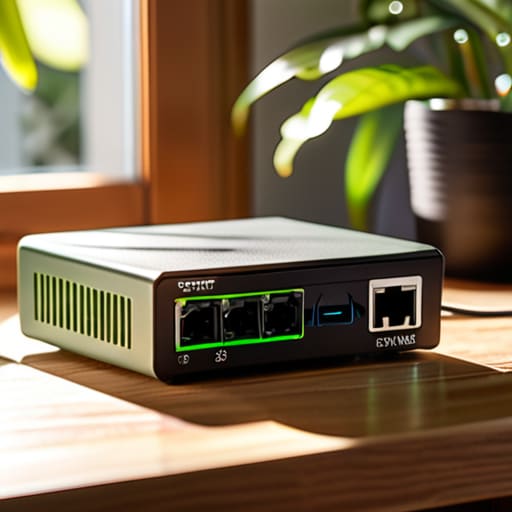
Look, I’ve seen it a dozen times: someone walks into my office, frustrated because their network is crawling, and they’ve spent a fortune on a high-end managed switch when all they really needed was a simple plug-and-play solution. When you’re looking at unmanaged vs managed switches, the simplest rule is this: if you don’t want to spend your Saturday morning configuring VLANs or troubleshooting complex routing rules, stick to unmanaged. It’s literally just “plug it in and forget it.” It’s perfect for a home office or a tiny shop where you just need more ports and nothing else.
Now, if you’re running a growing business or a school lab, that’s when the conversation shifts toward layer 2 vs layer 3 switching. You’ll want a managed switch if you need to segment your traffic—like keeping the guest Wi-Fi away from your private files—or if you need to monitor exactly which device is hogging all your bandwidth. But let’s be honest: if you aren’t planning on sitting there and managing that traffic, you’re just paying for a bunch of fancy software features that will sit idle. Don’t buy complexity just because it’s available.
Gigabit vs Multi Gigabit Speeds Dont Let Your Hardware Bottleneck Your Life
I’ve spent enough time in server closets to know that “fast enough” is a moving target. Most people think a standard Gigabit connection is the gold standard, and for a basic home office or a small clinic, it usually is. But if you’re running a high-end NAS for video editing or you’ve got a dozen high-speed Wi-Fi 6 access points screaming for bandwidth, you’re going to hit a wall. When you’re looking at gigabit vs multi-gigabit speeds, you aren’t just buying “extra speed”—you’re buying headroom so your network doesn’t choke the moment someone starts a large file transfer.
Don’t fall into the trap of buying a massive multi-gigabit setup if your actual devices can’t even utilize it. I see this all the time: people spend a premium on high-end hardware, only to realize their older laptops and printers are still stuck in the slow lane. Before you pull the trigger, take a quick inventory of your most demanding hardware. If your primary bottleneck is the wireless side or a central storage server, that’s where you want to invest. Otherwise, stick to standard Gigabit and save your budget for something that actually matters.
Five Things to Check Before You Hit "Buy"
- Count your ports twice and then add two more. I’ve seen so many people buy an 8-port switch only to realize three weeks later they have a printer, a NAS, and a desktop that need a home, leaving them with zero room to grow. Always leave yourself a little breathing room.
- Check the PoE budget if you’re using cameras or access points. It’s not enough to just see “PoE” on the box; you need to know if the switch actually has enough juice to power everything at once. If you under-spec the wattage, your fancy new security camera is just going to blink red and die.
- Look at the physical footprint. If this is going in a cramped media cabinet or a small office closet, don’t buy a massive enterprise rack-mount unit that requires a dedicated cooling system just to keep from melting. Make sure it actually fits where you intend to put it.
- Don’t ignore the noise level. If this switch is sitting on your desk next to your monitor, you do not want a loud, whirring fan constantly humming in your ear. If it’s for a home office, look for “fanless” designs—your sanity will thank you.
- Verify the “non-blocking” capacity. Some cheap switches claim high speeds but can’t actually handle all the data flowing through them at the same time. You want to make sure the internal hardware can actually keep up with the ports, otherwise, you’re just paying for speed you’ll never see.
Don't Overthink the Box
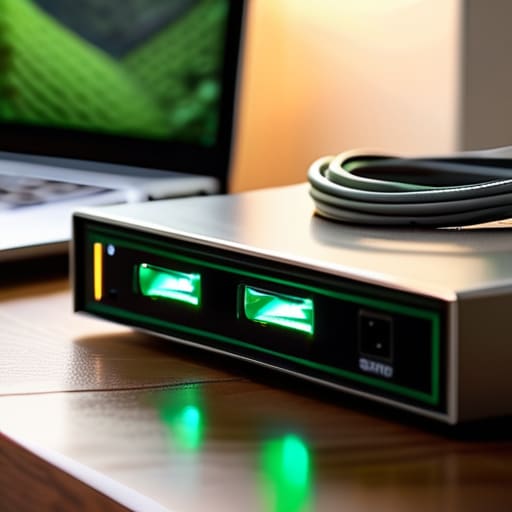
At the end of the day, picking a switch shouldn’t feel like you’re studying for a CompTIA exam you didn’t sign up for. Just take a breath and look at what you actually have sitting on your desk. If you’re just plugging in a couple of computers and a printer, an unmanaged Gigabit switch is going to be your best friend. You don’t need a managed beast with complex VLAN configurations unless you’re actually planning to segment your network. Figure out your port count first, check if you actually need those extra multi-gig speeds, and then just buy the hardware that fits your reality, not the one with the flashiest spec sheet.
I know how it feels when you’re staring at a wall of technical jargon and feeling like you’re about to make a massive, expensive mistake. Trust me, I’ve seen people spend hundreds on enterprise gear just to use one port, and I’ve seen people struggle with cheap junk that dies in a month. You’ve got this. Once you get that little box plugged in and the lights start blinking, the hard part is over. Go ahead and get your network back on track so you can get back to whatever you were actually supposed to be doing today.
Frequently Asked Questions
Do I really need PoE (Power over Ethernet) for my home setup, or is that just extra money down the drain?
Honestly, if you aren’t planning on mounting security cameras or setting up professional Wi-Fi access points in your ceiling, skip the PoE. It’s great for keeping cables tidy, but for a standard desk setup, it’s just extra cost for a feature you won’t touch. Unless you’re tired of hunting for power outlets near your devices, save your money. Stick to a standard switch and spend that extra cash on better cables instead.
How many ports do I actually need to buy so I'm not constantly playing musical chairs with my cables?
Here is the rule I live by: count every single device that needs a physical plug, then add three. I’m serious. If you have five computers, a printer, and a NAS, that’s eight. If you buy an 8-port switch, you’ve already lost. You’ll forget that smart TV or the new gaming console, and suddenly you’re back to unplugging things just to get work done. Buy the extra ports now so you don’t regret it later.
Is it worth buying a brand name, or can I just grab the cheapest one on the shelf and expect it to work?
Look, I’ve seen too many “bargain” switches die halfway through a Tuesday morning, leaving a whole office offline. If you’re just plugging in a single printer or a smart TV, the cheap generic stuff is fine. But if this is the backbone of your home office or a small business, buy a name you actually recognize. It’s worth the extra twenty bucks just to know the hardware won’t quit when you need it most.
