I was sitting on my living room floor last Tuesday, surrounded by three different types of Cat6 cable and a crimping tool that felt like it was mocking me, when I realized something: most tutorials on how to wire a home network completely skip the part where you realize your walls are actually solid concrete. You see some sleek diagram online showing cables gliding through pristine drywall like magic, but they never mention the sheer frustration of realizing your router is in the basement and your office is three rooms away behind a brick chimney. I’ve spent sixteen years on service desks fixing the fallout of “easy” DIY jobs, and I know that feeling of staring at a tangled mess of wires and wondering why you didn’t just stick to Wi-Fi.
I’m not here to sell you on some expensive, enterprise-grade rack system that you’ll never use. Instead, I’m going to show you the actual, messy reality of getting a stable connection from point A to point B. We are going to walk through the specific tools you actually need, how to navigate your specific house layout without losing your mind, and the little tricks I use to ensure you don’t have to rip your baseboards off twice.
Table of Contents
Guide Overview
Tools & Supplies
- Crimping tool for attaching RJ45 connectors
- Punch down tool for securing wires to jacks
- Network cable tester to verify connectivity
- Drill with masonry or wood bits for cable paths
- Fish tape for pulling cables through walls
- Cat6 Ethernet cable (bulk spool)
- RJ45 connectors (pack of 50)
- Ethernet wall plates (per room)
- Keystone jacks (per wall plate)
- Network switch (1 or more)
- Patch cables (various lengths)
Step-by-Step Instructions
- 1. First, I need you to grab a piece of paper and a pen—and no, your phone doesn’t count—and map out your rooms. Walk through your house and identify every single spot where a device actually needs a hardwired connection, like your TV, your gaming console, or that home office desk that’s currently struggling with spotty Wi-Fi. Don’t just guess; I’ve spent too many years listening to people complain about “dead zones” that could have been fixed with a single cable if they’d just planned ahead.
- 2. Once you know where the gear is going, you have to decide on your backbone cable. Don’t let some salesperson talk you into expensive, proprietary nonsense; just look for Cat6. It’s the sweet spot for most homes right now. I know, I know, you could go with Cat6a or Cat7, but unless you’re running a literal data center in your basement, Cat6 is more than enough to handle your speeds without breaking the bank or your spirit.
- 3. Now, let’s talk about the actual pathing. You’re going to need to find a way to get that cable from your router to your destination without it becoming a tripping hazard. If you’re feeling brave, you can fish them through the wall cavities, but if that sounds like a nightmare (and for most people, it is), just grab some adhesive cable clips or plastic raceway trunking. It’s not going to look like a professional installer did it, but at least it won’t be tripping your guests in the hallway.
- 4. This is the part where most people get stuck, so take a breath: you need to terminate the ends. If you aren’t buying pre-made cables with the plastic plugs already on them, you’re going to need a crimping tool, some RJ45 connectors, and a wire stripper. I always tell my trainees: measure twice, strip once. If you nick the copper inside the wire while stripping the jacket, the whole connection is going to be flaky, and you’ll be calling me in three weeks wondering why your ping is spiking.
- 5. If you have more devices than you have ports on your router, don’t try to “split” the signal with those cheap, old-school splitters. You need to buy a simple unmanaged switch. It’s basically a power strip, but for your internet. Plug the switch into your router, then plug all your various Ethernet cables into the switch. It’s a “plug-and-play” situation, meaning you don’t have to configure any fancy software; it just works.
- 6. Finally, it’s time for the moment of truth. Plug everything in, check the little blinking lights on your new switch or router, and test the connection. I always write down the exact sequence I used to fix a problem before I tell the user it’s done, just in case it fails. If you get a solid green light, you’re golden. If it’s blinking amber or not lighting up at all, go back to step four and check your crimps—I bet you a coffee that one of those tiny wires isn’t seated quite right.
Decoding the Chaos Choosing Cat6 vs Cat6a Cabling
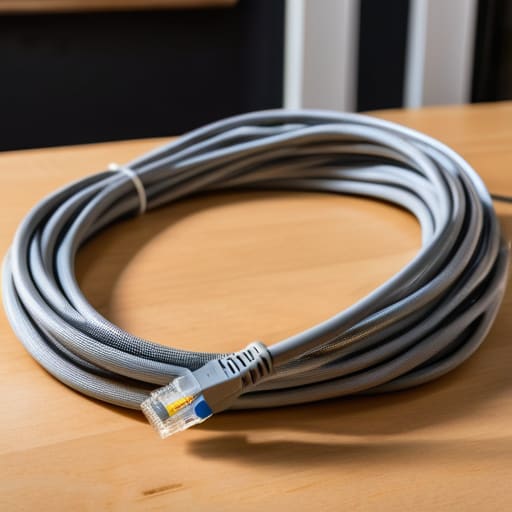
Look, I know the moment you walk into the hardware store and see a wall of colorful boxes, your brain probably just wants to shut down. It’s a mess of numbers and letters that all look exactly the same. When you’re staring at the cat6 vs cat6a cabling debate, don’t let the marketing jargon paralyze you. For most of us working in standard homes, Cat6 is more than enough to handle your gigabit speeds without breaking the bank. Cat6a is thicker, stiffer, and a total pain to bend around tight corners, but it’s better if you’re planning on running long distances or if you’re a bit of a future-proofer who wants to insulate against interference.
If you aren’t planning on running cables through industrial-grade conduits, stick with Cat6. It’s easier to work with, especially when you eventually get to the part where you’re wrestling with rj45 connector crimping or trying to tuck wires behind a desk. I’ve spent too many afternoons untangling stiff, heavy-duty cables that refused to stay in place just because someone wanted “the best” on paper. Just pick what fits your actual space, and let’s move on to the next headache.
Five Things I Wish I Knew Before I Started Pulling Cable
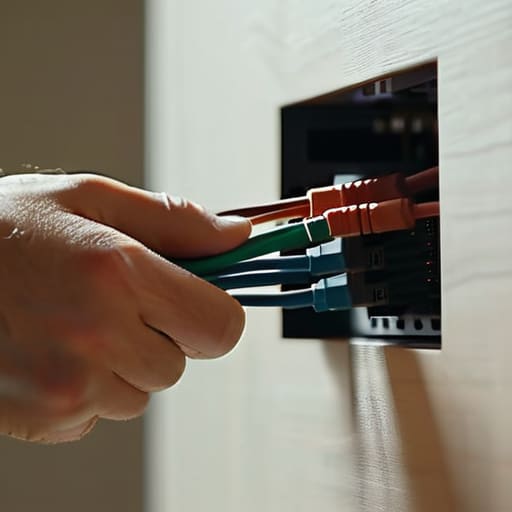
- Don’t skimp on the patch panels. I know, it feels like an extra expense when you’re already staring at a pile of receipts, but terminating cables directly into a switch is a recipe for a headache six months down the line. Get a small patch panel, mount it, and give your wires some actual structure.
- Label everything. Seriously. I’ve spent more time in my sixteen years of support tracing “mystery blue cables” through crawlspaces than I care to admit. Use a fine-tip permanent marker or a dedicated label maker on both ends of the cable before you even think about tucking it into the wall.
- Leave some slack at the ends. When you’re pulling wire through a stud bay, it’s tempting to pull it tight so it looks clean, but don’t do that. Leave an extra foot or two of “service loop” at the wall jack and at the rack. You’ll thank me when you inevitably have to re-terminate a bad connection later.
- Watch out for the heavy hitters. Keep your Ethernet lines at least a few inches away from your electrical wires. If you run them parallel in the same tight space, you’re going to get interference, and suddenly your “high-speed” network is dropping packets like a bad connection from 1998.
- Test as you go, not at the end. Don’t wait until you’ve finished the entire house to realize you crushed a pair of wires in a corner. Use a basic continuity tester after every single run. It’s much easier to fix a kinked cable while the wall is still open than it is when the drywall is up and the furniture is moved in.
Take a Breath, You’re Done
Look, if you’re staring at a pile of tangled Cat6 cables and a handful of wall plates, just take a second to realize you’ve actually done the hard part. We went through the headache of picking the right cable, figuring out if you actually needed that extra Cat6a shielding, and finally getting those lines tucked into the walls where they belong. It wasn’t pretty, and I’m sure your hands are a little dusty from crawling around, but you didn’t skip the foundational steps that most people ignore. By setting up a properly structured backbone now, you’ve essentially future-proofed your house against the next decade of bandwidth demands. You aren’t just plugging things in; you’ve actually built a reliable foundation that won’t crumble the next time you try to stream something in 4K.
I know how it feels when you’re halfway through a project like this—you just want to rip everything out and go back to relying on crappy, spotty Wi-Fi. But I promise you, once you see that steady, wired connection hit your desktop, it’s going to be worth every bit of the frustration. There is a specific kind of peace that comes from knowing exactly where your data is traveling. You’ve moved past the guesswork and the “why is the internet slow?” tantrums. You’ve taken control of your own space, and honestly, that is a massive win. Now, go grab a coffee, step away from the router, and enjoy the silence of a network that actually works.
Frequently Asked Questions
I've already run some cables through the attic, but do I really need to worry about shielding them if they're sitting right next to my power lines?
Look, if those cables are hugging your power lines in the attic, you’ve basically built a tiny interference factory. You don’t have to use shielded cable, but if you can avoid it, do it. If they have to run parallel, try to keep at least a few inches of breathing room between them. If you can’t, grab some shielded Cat6. It’s more of a pain to ground, but it beats fighting dropped packets later.
If I mess up the color order on the jack, is it a total disaster, or can I just re-strip the wire and try again?
Take a breath. It is definitely not a disaster. I’ve seen much worse on a Friday afternoon at the help desk. If the colors aren’t matching your T568B standard, just snip the wires, strip the jacket back, and start fresh. It’s a bit of a pain to re-strip them, but it beats troubleshooting a “ghost” connection for three hours because one tiny copper strand is out of place. You’ve got this.
Is it worth the extra headache of running all these wires to a central patch panel, or can I just keep plugging everything straight into the back of the router?
Look, if you’ve only got two or three devices, just plug them straight into the router and call it a day. Don’t overcomplicate your life. But if you’re planning on more than five cables, please, for the love of everything holy, get a patch panel. Plugging loose wires directly into a router is a recipe for a “spaghetti nightmare” that’ll make you want to throw the whole setup out the window in six months.
