I was elbow-deep in the guts of a dusty 1998 ThinkPad last Tuesday when it happened—the same dreaded scenario that’s kept me in IT support for sixteen years. You press the power button, you hear nothing, and suddenly you’re convinced your motherboard is fried and you’re about to drop two hundred bucks on a replacement. But before you go throwing parts at the problem, let’s slow down; most people jump straight to the expensive stuff because they don’t actually know how to test a power supply properly. I’ve seen so many frustrated users waste an entire afternoon replacing perfectly good hardware just because they skipped the one simple check that would have saved them the headache.
I’m not here to give you a lecture or a manual written by a robot that assumes you already have a lab full of professional diagnostic tools. Instead, I’m going to walk you through the real-world way to verify your power is actually hitting the rails. I’ll show you how to use a multimeter—or even just a simple paperclip trick—to get a definite answer so you can stop guessing. We are going to do this one verified step at a time, ensuring you don’t move forward until we know for sure what’s actually broken.
Table of Contents
Guide Overview
Tools & Supplies
- Digital Multimeter (to measure voltage output)
- Load Resistor or Device (to test stability under load)
- Replacement Power Supply (the unit being tested)
- Jumper Wires (to short pins if testing ATX supplies)
Step-by-Step Instructions
- 1. Before we touch a single screw, I need you to unplug the power cord from the wall. I’ve seen too many people try to swap components while the juice is still running, and we aren’t looking to add an electric shock to your list of frustrations today. Once that cord is out, press the power button on the front of the case a few times to drain any residual electricity left in the capacitors.
- 2. Now, we need to get inside. Open your case and locate the thick bundle of wires coming from the power supply unit (PSU) to the motherboard. You’re going to disconnect the large 24-pin connector—it’s usually the biggest one—and the 4 or 8-pin CPU power cable. I always make sure to note where these go before I pull them, because nothing ruins a repair faster than a handful of loose wires and no memory of where they belong.
- 3. Since we aren’t using a dedicated PSU tester, we’re going to perform the “paperclip test.” Grab a metal paperclip and bend it into a U-shape. You are looking for the green wire on that big 24-pin connector. This is the “PS_ON” signal. If you can’t find a green wire, look for the one with a small arrow printed on the plastic next to it; that’s your target.
- 4. Here is the part where you need to be careful. Take one end of your paperclip and insert it into the pin for that green wire. Take the other end of the paperclip and insert it into any of the black wires (which are the ground pins) nearby. Once they are bridged, you have essentially told the power supply, “Hey, it’s okay to turn on now,” without needing the motherboard to give it the command.
- 5. Now, plug the power cord back into the wall and flip the switch on the back of the PSU to the “on” position. Look at the power supply itself—most decent units have a small LED fan or a light that should kick in. If you hear the fan start to spin, that’s a good sign, but it isn’t a total victory just yet.
- 6. To be absolutely sure, I recommend grabbing a multimeter if you have one handy. With the paperclip still in place, set your multimeter to DC voltage and touch the probes to a black wire and a yellow wire. You are looking for a reading very close to 12V. If you see 11.5V or 12.2V, you’re doing fine, but if it reads zero or something wildly off, that unit is officially junk.
- 7. Once you’ve confirmed it’s actually putting out voltage, unplug everything again before you try to put the computer back together. Don’t just plug it back in and hope for the best; take a second to make sure all your connections are seated firmly. I always write down my results in my notebook before I move on to the next task—it keeps me from second-guessing myself later.
The Paperclip Test Safety Precautions for the Impatient
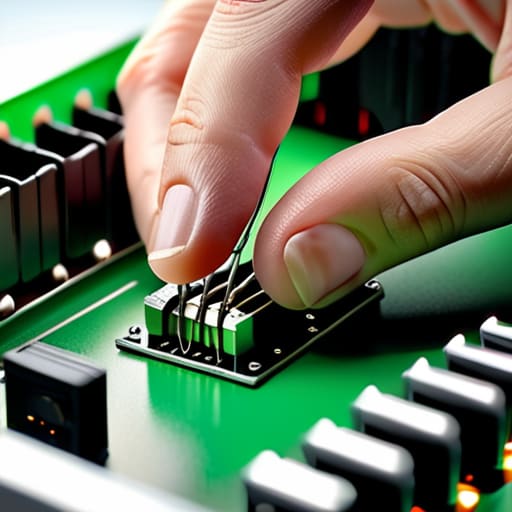
Look, I’ve seen people try to rush through this because they just want their PC back online, but please—slow down for a second. The paperclip test is a classic bit of computer power supply troubleshooting, but it’s not a magic wand. When you’re jumping the green wire to a black ground, you are essentially tricking the unit into thinking it’s under load. If you do this haphazardly, you risk a short that could turn a simple component swap into a much more expensive lesson. Always make sure the unit is completely unplugged from the wall before you start messing with the pins.
Once you have your paperclip in place and the unit is switched on, don’t just walk away to grab a coffee. Keep a close eye on it for a few minutes. I’m looking for more than just the fan spinning; I want to see if it stays consistent. If you hear any high-pitched whining or smell anything remotely like ozone, pull the plug immediately. Even if you aren’t testing psu rails with a multimeter yet, your eyes and nose are your first line of defense against a total hardware meltdown.
Signs of a Failing Power Supply You Cant Ignore
Before you even reach for your multimeter, your computer will usually try to tell you something is wrong. It’s rarely a sudden, clean death; it’s usually a slow, annoying descent into chaos. If you’ve noticed your system randomly rebooting during a heavy task, or if you’re seeing those dreaded Blue Screens of Death (BSOD) out of nowhere, don’t just assume it’s a bad driver. Often, these are the first signs of a failing power supply trying to tell you it can’t keep up with the load.
I’ve seen plenty of users spend hours reinstalling Windows only to realize the hardware was gasping for air the whole time. Keep an eye out for “coil whine”—that high-pitched electrical squealing—or a sudden smell of hot ozone near the back of the case. If your fans are spinning at max speed for no reason, or if you notice your PC stalling specifically when you start a game, you’re likely dealing with unstable power delivery. It’s much better to catch these hiccups now through some basic computer power supply troubleshooting than to wait until a surge takes your motherboard down with it.
A Few Things I’ve Learned the Hard Way
- Don’t trust the smell alone. I’ve seen plenty of units that don’t smell like ozone or burning plastic right up until the moment they pop a capacitor and take a motherboard with them. If the fan sounds like it’s struggling through gravel, start testing immediately.
- If you’re using a multimeter, check the rails individually. It’s easy to see if the 12V line is alive and call it a day, but if your 5V or 3.3V rails are sagging, you’re going to deal with weird, intermittent crashes that’ll drive you absolutely mad.
- Get rid of the cheap extension cords. If you’re testing a high-wattage PSU, don’t plug it into a flimsy, decade-old power strip you found in the back of a closet. You want a direct, solid connection to the wall so you aren’t chasing voltage drops caused by your wiring.
- Watch out for “phantom” successes. Sometimes a PSU will spin up just enough to pass a basic paperclip test, but it’ll fail the second you put a real load on it. If the computer won’t boot but the PSU fan spins, the paperclip test only tells you half the story.
- Keep a spare set of cables handy. Honestly, half the time I think a power supply is dying, it’s actually just a frayed SATA power cable or a loose 24-pin connector. Rule out the easy physical connections before you go declaring the whole unit dead.
The Final Verdict

At this point, you should have a pretty clear idea of where you stand. Whether you used a multimeter to verify the actual voltage rails or took the shortcut of the paperclip test to see if the fan even spins, you aren’t just guessing anymore. If those numbers were jumping all over the place or if the unit stayed silent, you’ve found your culprit. Don’t let a failing PSU trick you into thinking your motherboard or your GPU is fried; sometimes, it really is just a bad box of wires causing the chaos. I always make sure to write down my readings before I close the case, just so I don’t forget the evidence when I’m shopping for a replacement.
I know it feels like a massive setback when a core component fails, especially when you just want to get back to work or finish a build. But look at it this way: you just performed a piece of real-world troubleshooting that most people would have skipped in favor of just buying a new computer. You’ve gained a bit of technical intuition today, and that’s something no manual can give you. Take a breath, order the part you need, and remember that every broken machine is just an opportunity to learn how things actually work under the hood. You’ve got this.
Frequently Asked Questions
If my multimeter shows the voltage is correct but the PC still won't boot, is it the power supply or something else?
I’ve been in this exact spot more times than I care to admit. If your multimeter says the rails are steady but you’re still staring at a black screen, the PSU might be telling a half-truth. It can provide enough voltage to show a reading, but fail under the actual load of a boot sequence. That said, don’t go buying a new unit just yet—it’s just as likely to be a dead motherboard or a shorted component.
Can I use a cheap power supply tester from Amazon, or is that just going to give me more false hope?
Look, I’ve seen those little $15 digital testers pass a dozen times, only for the PC to blue-screen an hour later. They’re okay for a quick “is there electricity here?” check, but they don’t measure ripple or load stability. If you’re looking for a definitive answer before you go through the trouble of a rebuild, don’t trust a cheap Amazon toy. Stick to the multimeter; it’s the only way to be sure.
Is it safe to test a power supply while it's still plugged into my motherboard, or am I risking a total system fry?
Don’t do it. I know you just want to get this over with, but please, unplug that PSU from the motherboard first. Testing a live unit while it’s still connected to your components is a massive gamble. If the PSU is failing and sends a massive voltage spike through those rails, you aren’t just replacing a power supply—you’re replacing your CPU and motherboard, too. Let’s keep your hardware safe.
