
I was sitting in a cramped, windowless server room last Tuesday—the kind that smells like ozone and old dust—listening to a frantic teacher explain how she’d lost access to her entire gradebook. She had done everything “right,” including setting up two-factor authentication, but she’d forgotten the most vital part: how to store recovery codes in a way that actually works when the panic sets in. It wasn’t a lack of intelligence that tripped her up; it was the sheer, overwhelming friction of modern security that makes you want to throw your laptop out a window.
I’m not going to give you a lecture on high-level encryption or suggest you buy a $200 hardware key you’ll inevitably lose in your couch cushions. Instead, I’m going to show you exactly how I handle this in my own life, using methods that are actually repeatable even when you’re having a terrible day. We are going to walk through a few tried-and-true ways to secure these codes so that the next time your phone dies or your app glitches, you aren’t left staring at a login screen in total despair.
Table of Contents
Protecting Account Access Credentials Without Losing Your Mind

I’ve spent enough time on the help desk to know that when people talk about “security,” they usually mean making things so complicated that they end up getting locked out of everything. We’re trying to balance protecting account access credentials with the reality that you actually have to use your computer. If you make your security process a ten-step marathon, you’re eventually going to take a shortcut that leaves you vulnerable.
When you’re weighing physical vs digital recovery codes, don’t feel like you have to choose just one extreme. I personally like a hybrid approach. I keep my most critical stuff—like my primary email or my banking login—on a piece of paper tucked inside a physical safe or a specific drawer. For everything else, a secure digital vault for passwords is usually your best bet. It keeps things organized so you aren’t hunting through a dozen “New Folder (2)” directories on your desktop when you’re already mid-panic attack. Just make sure that if you go digital, you aren’t storing the “key” to the vault in the exact same place as the vault itself.
Two Factor Authentication Backup Methods That Actually Work
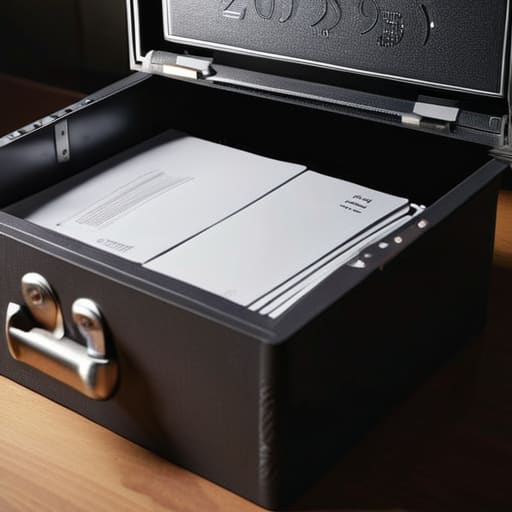
First, let’s talk about the physical route. I’ve seen too many people lose access because they thought a screenshot on their desktop was “safe enough.” If you want real peace of mind, you need to consider physical vs digital recovery codes. My personal rule? Print those codes out. Don’t just toss them in a junk drawer, though. Put them in a fireproof safe or a locked filing cabinet. It sounds old-school, and maybe it is, but when the digital world decides to glitch, having a piece of paper in your hand is the only thing that won’t require a password to read.
If you prefer staying digital, don’t just rely on your email. If you’re locked out of your primary account, you’re locked out of your recovery email, too—it’s a frustrating loop I’ve spent way too many afternoons untangling. Instead, look into using a secure digital vault for passwords. A reputable password manager allows you to store these emergency keys in an encrypted environment that is separate from your browser. It’s a much more reliable way of handling emergency access management without the constant fear of a single point of failure.
My Five Golden Rules for Not Getting Locked Out of Your Own Life
- Print them out and put them in a physical folder. I know, I know—it feels old school, but a piece of paper doesn’t care if your phone dies or your cloud account gets hacked. Just keep it somewhere sensible, like a filing cabinet or a safe, not just taped to your monitor.
- Don’t just save them in a “Passwords” doc on your desktop. If you’re going to keep them digital, use a dedicated password manager. It’s one more thing to learn, but it’s a hell of a lot better than having a file named “RECOVERY_CODES_DO_NOT_DELETE” sitting in your downloads folder.
- Treat them like your house keys. You wouldn’t leave your front door key under the doormat where anyone can see it, so don’t leave your recovery codes in a plain text email to yourself. That’s just asking for trouble.
- Test your backup method before the crisis hits. I’ve seen so many people realize their “backup” was a screenshot they deleted by accident. Once you save those codes, try to verify you can actually access the backup location. It takes two minutes and saves a week of headaches.
- Update your list when you change your setup. If you get a new phone or switch from an authenticator app to a hardware key, go back and grab those new codes immediately. Don’t assume the old ones will still work; they won’t.
One Last Check Before You Close This Tab

At the end of the day, it really comes down to this: don’t just copy those codes and leave them sitting in your Downloads folder or a random Notepad file on your desktop. We’ve talked about using a dedicated password manager, keeping a physical copy in a fireproof safe, or even the old-school method of a printed sheet tucked away in a secure drawer. The goal isn’t to make your life complicated; it’s to ensure that when your phone dies or your authenticator app glitches, you aren’t staring at a login screen feeling completely helpless. Just pick one reliable method and actually do it right now while you still have access to the account.
I know, I know—it feels like just one more thing on an already overflowing to-do list. But trust me, the five minutes you spend organizing these codes today is going to save you five hours of frantic troubleshooting and headache-inducing support calls later. You don’t have to be an IT expert to stay secure; you just have to be a little bit intentional. Take a breath, get those codes tucked away somewhere safe, and give yourself the peace of mind you deserve. You’ve got this.
Frequently Asked Questions
If I lose my phone and my recovery codes at the same time, am I just completely locked out for good?
Look, I’m going to give it to you straight: if you lose both your device and those codes, you are in a world of hurt. Most services won’t have a “backdoor” for you, and that’s actually a good thing for your security. Without those keys, you’re essentially locked out for good. It’s a nightmare scenario, which is exactly why I’m always nagging you to print those codes out and hide them somewhere physical.
Is it actually safe to keep a digital copy of these codes in a password manager, or is that asking for trouble?
Look, I get the hesitation. You’ve spent years being told “don’t put all your eggs in one basket,” and a password manager feels like a very large, digital basket. But honestly? It’s much safer than a sticky note on your monitor or an unencrypted Notepad file on your desktop. Just make sure your vault has a strong master password and its own 2FA. If the vault is locked down tight, your codes are safe there.
How often should I be checking these codes to make sure they still work and haven't been invalidated?
Honestly? You don’t need to go checking them every week. That’s just extra work you don’t need. I usually tell my users to just do a quick “sanity check” whenever they perform a major security update—like if they reset their 2FA method or change their primary password. If you’ve updated your security settings, that’s your cue to make sure those old codes didn’t get wiped out in the process. Otherwise, just leave them alone.
