Managed Versus Unmanaged Switches

I spent most of yesterday morning in a dusty server closet at a local middle school, staring at a tangled mess of Cat5 cables and wondering why a “high-end” enterprise unit was currently acting like a very expensive paperweight. Most tech blogs will try to sell you on complex throughput metrics and obscure layer-3 features that you’ll never actually touch, making the whole process of learning how to choose a network switch feel like you need a PhD just to get your printer online. Honestly, it’s a scam. You don’t need a thousand-dollar piece of hardware that requires a specialized degree to manage; you just need something that actually stays connected when the workload hits.

I’m not here to feed you the marketing fluff or the jargon-heavy nonsense that makes my eyes roll. Instead, I’m going to walk you through this process based on sixteen years of seeing what breaks and what actually holds up under pressure. I promise to give you a straightforward, step-by-step way to figure out exactly what you need so you don’t waste your hard-earned money on gear that sits uselessly on your desk. We’re going to do this one verified step at a time.

Table of Contents

Unmanaged vs Managed Switches Stop Overpaying for Features Youll Never Use
Unmanaged vs Managed Switches Stop Overpaying for Features Youll Never Use

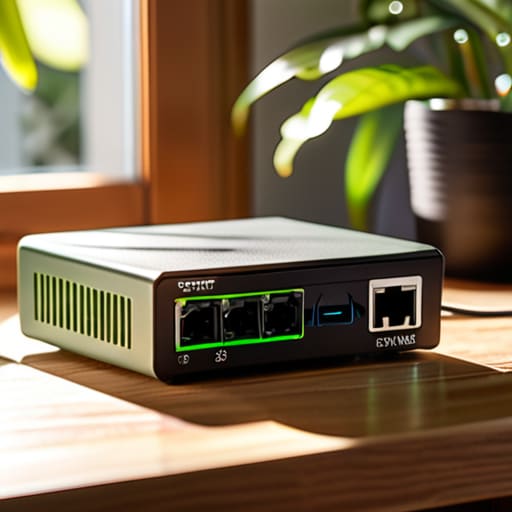
Look, I’ve seen it a dozen times: someone walks into my office, frustrated because their network is crawling, and they’ve spent a fortune on a high-end managed switch when all they really needed was a simple plug-and-play solution. When you’re looking at unmanaged vs managed switches, the simplest rule is this: if you don’t want to spend your Saturday morning configuring VLANs or troubleshooting complex routing rules, stick to unmanaged. It’s literally just “plug it in and forget it.” It’s perfect for a home office or a tiny shop where you just need more ports and nothing else.

Now, if you’re running a growing business or a school lab, that’s when the conversation shifts toward layer 2 vs layer 3 switching. You’ll want a managed switch if you need to segment your traffic—like keeping the guest Wi-Fi away from your private files—or if you need to monitor exactly which device is hogging all your bandwidth. But let’s be honest: if you aren’t planning on sitting there and managing that traffic, you’re just paying for a bunch of fancy software features that will sit idle. Don’t buy complexity just because it’s available.

Gigabit vs Multi Gigabit Speeds Dont Let Your Hardware Bottleneck Your Life

Gigabit vs Multi Gigabit Speeds Dont Let Your Hardware Bottleneck Your Life

I’ve spent enough time in server closets to know that “fast enough” is a moving target. Most people think a standard Gigabit connection is the gold standard, and for a basic home office or a small clinic, it usually is. But if you’re running a high-end NAS for video editing or you’ve got a dozen high-speed Wi-Fi 6 access points screaming for bandwidth, you’re going to hit a wall. When you’re looking at gigabit vs multi-gigabit speeds, you aren’t just buying “extra speed”—you’re buying headroom so your network doesn’t choke the moment someone starts a large file transfer.

Don’t fall into the trap of buying a massive multi-gigabit setup if your actual devices can’t even utilize it. I see this all the time: people spend a premium on high-end hardware, only to realize their older laptops and printers are still stuck in the slow lane. Before you pull the trigger, take a quick inventory of your most demanding hardware. If your primary bottleneck is the wireless side or a central storage server, that’s where you want to invest. Otherwise, stick to standard Gigabit and save your budget for something that actually matters.

Five Things to Check Before You Hit "Buy"

  • Count your ports twice and then add two more. I’ve seen so many people buy an 8-port switch only to realize three weeks later they have a printer, a NAS, and a desktop that need a home, leaving them with zero room to grow. Always leave yourself a little breathing room.
  • Check the PoE budget if you’re using cameras or access points. It’s not enough to just see “PoE” on the box; you need to know if the switch actually has enough juice to power everything at once. If you under-spec the wattage, your fancy new security camera is just going to blink red and die.
  • Look at the physical footprint. If this is going in a cramped media cabinet or a small office closet, don’t buy a massive enterprise rack-mount unit that requires a dedicated cooling system just to keep from melting. Make sure it actually fits where you intend to put it.
  • Don’t ignore the noise level. If this switch is sitting on your desk next to your monitor, you do not want a loud, whirring fan constantly humming in your ear. If it’s for a home office, look for “fanless” designs—your sanity will thank you.
  • Verify the “non-blocking” capacity. Some cheap switches claim high speeds but can’t actually handle all the data flowing through them at the same time. You want to make sure the internal hardware can actually keep up with the ports, otherwise, you’re just paying for speed you’ll never see.

Don't Overthink the Box

Don't Overthink the Box: Choose simple hardware.

At the end of the day, picking a switch shouldn’t feel like you’re studying for a CompTIA exam you didn’t sign up for. Just take a breath and look at what you actually have sitting on your desk. If you’re just plugging in a couple of computers and a printer, an unmanaged Gigabit switch is going to be your best friend. You don’t need a managed beast with complex VLAN configurations unless you’re actually planning to segment your network. Figure out your port count first, check if you actually need those extra multi-gig speeds, and then just buy the hardware that fits your reality, not the one with the flashiest spec sheet.

I know how it feels when you’re staring at a wall of technical jargon and feeling like you’re about to make a massive, expensive mistake. Trust me, I’ve seen people spend hundreds on enterprise gear just to use one port, and I’ve seen people struggle with cheap junk that dies in a month. You’ve got this. Once you get that little box plugged in and the lights start blinking, the hard part is over. Go ahead and get your network back on track so you can get back to whatever you were actually supposed to be doing today.

Frequently Asked Questions

Do I really need PoE (Power over Ethernet) for my home setup, or is that just extra money down the drain?

Honestly, if you aren’t planning on mounting security cameras or setting up professional Wi-Fi access points in your ceiling, skip the PoE. It’s great for keeping cables tidy, but for a standard desk setup, it’s just extra cost for a feature you won’t touch. Unless you’re tired of hunting for power outlets near your devices, save your money. Stick to a standard switch and spend that extra cash on better cables instead.

How many ports do I actually need to buy so I'm not constantly playing musical chairs with my cables?

Here is the rule I live by: count every single device that needs a physical plug, then add three. I’m serious. If you have five computers, a printer, and a NAS, that’s eight. If you buy an 8-port switch, you’ve already lost. You’ll forget that smart TV or the new gaming console, and suddenly you’re back to unplugging things just to get work done. Buy the extra ports now so you don’t regret it later.

Is it worth buying a brand name, or can I just grab the cheapest one on the shelf and expect it to work?

Look, I’ve seen too many “bargain” switches die halfway through a Tuesday morning, leaving a whole office offline. If you’re just plugging in a single printer or a smart TV, the cheap generic stuff is fine. But if this is the backbone of your home office or a small business, buy a name you actually recognize. It’s worth the extra twenty bucks just to know the hardware won’t quit when you need it most.


Device Manager Error Codes

I was sitting in a cramped, lukewarm server room last Tuesday—the kind that smells like ozone and old dust—watching a teacher try to troubleshoot a flickering monitor. She had already spent forty minutes following a “pro” forum thread that suggested she needed to buy a new graphics card, when the entire issue was just a driver conflict. It’s the same story I’ve seen for sixteen years: people think they need expensive software or a degree in computer science just to figure out how to use device manager properly. Honestly, most of those online tutorials are useless because they skip the actual reason your hardware is acting up, jumping straight to the “fix” without checking if the device is even being seen by the system.

I’m not here to give you a lecture or throw a bunch of jargon at you that you’ll just have to Google later. Instead, I’m going to show you how I actually navigate this tool when I’m on a service call, focusing on the steps that actually matter when things go wrong. We are going to strip away the fluff and look at the real-world way of doing things, one verified step at a time. My goal is to make sure you stop fighting your hardware and start actually controlling it.

Table of Contents

Manage System Hardware Components Without the Chaos

Manage System Hardware Components Without the Chaos

Once you’ve actually got the window open, the first thing you’ll notice is that it looks like a giant, intimidating list of technical jargon. Don’t let it rattle you. To effectively manage system hardware components, you need to stop looking at the whole list at once and start focusing on the categories. If your sound isn’t working or your screen is flickering, skip the “Processors” section and head straight for “Audio inputs and outputs” or “Display adapters.” I always tell my juniors: if you don’t know where to look, you’re just spinning your wheels.

If something is acting up but doesn’t show a yellow warning triangle, it’s easy to assume everything is fine. That’s a mistake. Sometimes a component is failing silently, and you’ll need to view hidden hardware in device manager to see what’s actually happening under the hood. I usually keep a notepad handy to jot down the specific error codes I see; it makes troubleshooting device error codes a lot less of a guessing game when you’re trying to figure out if the hardware is actually dead or if it’s just a software hiccup.

Update Hardware Drivers Windows Style to Save Time

Update Hardware Drivers Windows Style to Save Time

Now, here’s where most people get stuck. You see a little yellow exclamation mark next to an icon, and suddenly you feel like the computer is personally attacking you. When you need to update hardware drivers Windows style, don’t just blindly click “Update Driver” and hope for the best. Windows often tells you that you already have the best driver installed, even when it’s clearly lying to you. If the automatic search fails, you need to go straight to the source—the manufacturer’s website—and grab the specific driver package meant for your exact model.

If the update doesn’t stick, or if the system starts acting even weirder, it’s time for some actual device manager troubleshooting steps. Sometimes, the “fix” isn’t adding something new, but rather uninstalling problematic drivers that have become corrupted over time. I’ve spent many late nights doing exactly that on old ThinkPads. Once you uninstall the culprit, don’t panic; just restart your machine. Windows will attempt to rediscover the hardware and pull in a clean, fresh driver. It’s a simple process, but it’s the most effective way to stop the glitching.

Five Things I Wish People Did Before They Called Me

  • Stop clicking “Update Driver” blindly. If Windows says you have the best driver installed, it’s often lying to you. Sometimes the “best” driver is actually the one that broke your Wi-Fi. I always check the manufacturer’s website directly instead of trusting the automated button.
  • Learn the magic of the “Uninstall Device” trick. If a component is acting possessed, don’t just stare at it. Right-click, uninstall it, and then restart your computer. Windows will realize it’s missing and try to reinstall a fresh copy of the driver on boot. It’s my go-to move for a reason.
  • Keep an eye out for those yellow exclamation marks. If you see one, don’t ignore it thinking it’s just a minor glitch. That little icon is the computer screaming that something is broken, missing, or incompatible. It’s the first place I look when a user says, “Everything was fine ten minutes ago.”
  • Use the “Scan for hardware changes” button when things go missing. If you just plugged in a new peripheral and it isn’t showing up, don’t go pulling cables out of the back of the machine. Just click that button at the top of the window; it forces the system to actually look at what’s connected.
  • Always expand the categories before you start clicking. It’s tempting to just dive into “Network Adapters,” but sometimes the problem is actually hiding under “Universal Serial Bus controllers.” Take ten seconds to look at the whole tree so you aren’t chasing ghosts in the wrong section.

A Little Peace of Mind

A Little Peace of Mind managing hardware.

At the end of the day, Device Manager isn’t some scary black box designed to break your computer; it’s just a map of everything plugged into your machine. We’ve gone over how to navigate the chaos, how to hunt down those stubborn yellow warning triangles, and how to handle driver updates without just clicking “yes” to everything and hoping for the best. If you can master the art of identifying the specific hardware causing the headache, you’ve already done eighty percent of the work. I always tell my team that the goal isn’t to know every single driver name by heart, but to know exactly where to look when things inevitably go sideways.

I know it feels overwhelming when your screen freezes or your audio cuts out right in the middle of something important. It’s easy to feel like the machine is winning, but I promise you, it isn’t. Technology is just a series of small, logical connections, and once you learn how to peek under the hood, those connections become much less intimidating. Take a breath, open that window, and remember that you are the one in control here. You’ve got the tools, you’ve got the steps, and now you’ve got the knowledge to stop guessing and start fixing.

Frequently Asked Questions

If I disable a device by mistake, is there a way to undo it without restarting the whole computer?

Don’t panic—you haven’t broken anything permanent. I’ve done this myself more times than I care to admit. You don’t need to reboot. Just go back into Device Manager, find that device (it’ll likely have a little downward arrow icon on it), right-click it, and select “Enable device.” It should spring back to life instantly. I’m writing this down now so I don’t forget it when I’m halfway through a coffee later.

What should I do if I see a yellow exclamation mark next to a driver but Windows says "the best drivers are already installed"?

That little yellow exclamation mark is lying to you. When Windows says “the best drivers are already installed,” it just means it can’t find a newer version in its own little database, not that the one you have actually works.

Is it actually safe to uninstall a driver if I'm planning to reinstall it immediately, or am I going to break something?

Look, I’ve seen people panic over this, but you aren’t going to break your machine. It’s actually a standard move. If you uninstall a driver and immediately reinstall it, you’re just giving the hardware a clean slate. The only real risk is if you uninstall something critical—like your keyboard driver—and then realize you can’t use the mouse to reinstall it. Just make sure you have the installer file sitting on your desktop first.

Inviting Across Four Timezones

I remember sitting in a dimly lit server room back in 2008, staring at a flickering monitor while trying to coordinate a patch deployment with a team in London. I had three different spreadsheets open, a notepad full of scribbled math, and a growing sense of dread that I was about to wake someone up at 3 AM. Most “expert” guides tell you to download some fancy, subscription-based enterprise tool to solve this, but honestly? That’s just more bloat to manage. Learning how to schedule a meeting across timezones shouldn’t require a PhD in mathematics or a monthly credit card charge; it should just require a bit of common sense and the right workflow.

I’m not here to sell you on a new piece of software or some “productivity hack” that takes twenty minutes to set up. Instead, I’m going to give you the actual, battle-tested methods I’ve used over sixteen years of troubleshooting and coordination. We are going to walk through the simplest, most reliable ways to get this done so you can stop doing the mental math and start actually working. I promise to keep it stepwise and simple, focusing on the tools you already have sitting right in front of you.

Table of Contents

Calculating Utc Offsets for Scheduling Without Losing Your Sanity

Calculating Utc Offsets for Scheduling Without Losing Your Sanity

Look, I’ve spent enough time staring at spreadsheets to know that trying to do the math in your head is a recipe for a disaster. You think you’ve figured out that a 9 AM start works for everyone, only to realize you’ve just scheduled a midnight call for your developer in Bangalore. When you’re handling global team meeting coordination, you can’t rely on “vibes” or a quick glance at a clock. You need to anchor everything to Coordinated Universal Time (UTC). Think of UTC as the “system clock” of the world; it doesn’t observe Daylight Savings, which is usually where most of us trip up and fail.

I always tell my junior techs: stop guessing and start calculating UTC offsets for scheduling as your baseline. If you know your home base is UTC-5, you can mathematically find anyone else’s position without the guesswork. It’s tedious, I know, but it’s the only way to ensure you aren’t accidentally burning people out. Once you have that anchor point, the rest of the math becomes a simple addition or subtraction problem rather than a frantic search through Google every five minutes.

The Best Tools for Timezone Conversion When Youre Done Guessing

The Best Tools for Timezone Conversion When Youre Done Guessing

Once you’ve wrapped your head around the math, you really shouldn’t be doing it manually anymore. I’ve spent enough years watching people stare blankly at a calculator only to realize they forgot about Daylight Saving Time in London. If you want to master global team meeting coordination without the headache, you need to let a specialized tool do the heavy lifting.

For my daily workflow, I usually lean on World Time Buddy. It’s not flashy, but it gives you a visual grid that shows you exactly where everyone’s working hours overlap. It’s one of the best tools for timezone conversion because it lets you stack multiple cities on top of each other, so you can see at a glance if you’re accidentally asking someone to join a call during their dinner hour.

If you’re strictly managing remote team calendars within a specific ecosystem, don’t sleep on the built-in features in Google Calendar or Outlook. They aren’t perfect, but if you enable the “secondary timezone” setting, it keeps your own clock in check. Just remember: a tool is only as good as the person using it, so always double-check that “auto-detect” hasn’t tripped you up.

Five Rules I Live By to Stop the Calendar Chaos

  • Always, always include the timezone in the actual invite text. Don’t just say “the meeting is at 3 PM.” Say “3 PM EST / 8 PM GMT.” I’ve seen too many people miss calls because they assumed everyone was looking at the same clock.
  • Check for Daylight Saving Time shifts before you hit send. This is the one that trips up even the pros. One region might have moved their clocks forward while the other is still on winter time, and suddenly your “perfect” meeting time is an hour off for half the group.
  • Use the “World Clock” feature on your phone or desktop as a secondary check. I don’t trust a single tool blindly; I like to see the same time reflected in two different places before I commit to a slot. It’s my version of double-checking a patch before deployment.
  • Stop trying to find the “perfect” time for everyone. If you have a team spanning from California to Singapore, someone is going to be working outside their 9-to-5. Rotate the pain. If it’s early for the West Coast this week, make it the East Coast’s problem next week.
  • Send a calendar invite, not just an email. An email is just a suggestion that lives in an inbox; a calendar invite is a hard block on the schedule. It forces the software to do the heavy lifting of converting the time for their specific local settings.

Don't Let the Clock Win

Don't Let the Clock Win scheduling.

At the end of the day, scheduling a meeting shouldn’t feel like you’re trying to debug a corrupted registry file. We’ve covered the basics: understand your UTC offsets so you aren’t doing mental gymnastics, and more importantly, stop trying to do the math in your head. Use a dedicated conversion tool or a synchronized calendar to do the heavy lifting for you. If you follow these steps, you won’t be the person accidentally inviting a developer to a sync call at 4:00 AM their time. It’s about verifying the step before you hit send, ensuring that the time you see on your screen is actually the time they see on theirs.

I know how it feels when the technology seems to be working against you, adding unnecessary friction to an already long workday. But once you have a reliable system in place, the chaos settles down. You’ll find that most of these “impossible” scheduling headaches are just small, preventable errors waiting to be patched. Take a breath, trust your tools, and remember that consistency is better than speed. You’ve got this handled, and your colleagues—and their sleep schedules—will definitely thank you for it.

Frequently Asked Questions

What happens if someone is traveling and their device updates to a new timezone automatically?

That’s a classic headache. When a device jumps timezones automatically, it’s usually because “Set time zone automatically” is toggled on in your settings. It’s great for travelers, but a disaster for anyone trying to stick to a strict meeting schedule. If your calendar starts drifting, I usually just go into the system settings and toggle that automatic feature off. I’ll write that down first: manually lock your primary timezone so your meetings don’t move without your permission.

How do I handle Daylight Saving Time changes when one person is in London and the other is in New York?

This is where things get messy. Here’s the thing: London and New York don’t switch their clocks on the same day. There’s usually a two-week window in March and October where the math just breaks. Don’t try to do this in your head; you’ll end up looking like a fool in the calendar invite. Always use a tool like World Time Buddy to verify the actual meeting date, not just the current offset.

Is there a way to send a calendar invite that shows the meeting time in everyone's local time automatically?

Yes, and honestly, you shouldn’t be doing the math manually anyway. If you use Google Calendar or Outlook, just send the invite normally. The software handles the heavy lifting; it embeds the specific UTC timestamp into the invite, and the recipient’s calendar automatically shifts it to their local clock. If you’re worried they’ll see the wrong time, just double-check that your own primary time zone is set correctly in your settings first.

A Security Policy of One Page

I was sitting in a cramped office at a local school district last Tuesday, staring at a hundred-page “compliance framework” that looked more like a legal textbook than a practical guide. It’s the same old story: some consultant sells a massive, expensive binder that nobody actually reads, and then everyone wonders why a single weak password still brings the whole network down. Most of the advice you find online about how to write a simple security policy is designed to make you feel like you need a PhD in cybersecurity just to protect your files. Honestly, it’s exhausting, and it’s exactly why most small businesses end up with zero protection at all.

I’m not here to sell you a subscription or drown you in jargon that doesn’t work in the real world. My goal is to show you how to strip this process down to the bare essentials so you can actually protect your data and get back to your real job. I’m going to walk you through the exact steps I use to build something functional, readable, and—most importantly—actually enforceable. We aren’t building a fortress; we’re just building a solid foundation.

Table of Contents

Ditch the Fluff With a Real Information Security Policy Template

Ditch the Fluff With a Real Information Security Policy Template

I’ve seen it a hundred times: someone tries to build a security policy from scratch, spends three days staring at a blank cursor, and ends up with a fifty-page monster that nobody actually reads. That’s not a policy; that’s a paperweight. If you want this to actually work, you need to find a decent information security policy template and treat it like a blueprint rather than a finished house. You aren’t reinventing the wheel here; you’re just making sure the wheel fits your specific office.

The trick is to take that template and aggressively prune anything that doesn’t apply to your actual workflow. If the template says you need a biometric scanner at every door but you’re running a three-person accounting firm in a shared office space, delete it immediately. We are looking for functional organizational security guidelines that people can actually follow without needing a law degree. My rule of thumb is simple: if a step is so complicated that a frustrated employee is going to find a way to bypass it just to get their work done, the policy has already failed.

Pick a Cybersecurity Compliance Framework That Actually Works

Pick a Cybersecurity Compliance Framework That Actually Works

Now, here is where most people hit a wall. You start looking up “compliance” and suddenly you’re drowning in a sea of acronyms like NIST, ISO, or CIS. It feels like you need a PhD just to pick a starting point. But let me let you in on a secret from my years on the service desk: you don’t need to master every single one of them right out of the gate. You just need to find a cybersecurity compliance framework that actually fits the size of your team and the type of data you’re handling. If you’re a small practice, trying to implement a massive enterprise-grade framework is like trying to install a server-grade OS on a 1995 ThinkPad—it’s just going to crash and burn.

Instead of trying to boil the ocean, I suggest you look for a framework that offers clear, bite-sized organizational security guidelines. You want something that tells you exactly what to do, rather than just giving you a list of vague goals. Once you pick one, don’t feel like you have to implement the whole thing by Monday. Pick the most critical data protection protocols first, get those working, and build from there. It’s much better to have three rules that people actually follow than fifty rules that everyone ignores.

Five Ways to Keep Your Policy From Becoming a Paperweight

  • Write for humans, not lawyers. If a staff member has to read your policy twice just to figure out if they’re allowed to use a USB drive, you’ve already lost them. Keep the sentences short and the language plain. If it sounds like a legal textbook, people will just skim it and ignore the actual rules.
  • Focus on the “Why” just a little bit. I’ve found that people are much more likely to follow a rule if they understand the consequence. Instead of just saying “Don’t click suspicious links,” try “Don’t click links in unexpected emails, because that’s how we end up with ransomware locking down the entire school network.” It turns a chore into a shared responsibility.
  • Don’t try to boil the ocean. You don’t need a fifty-page manual covering every single possible digital catastrophe. Start with the big stuff: password habits, device handling, and how to report something that looks “off.” You can add the niche stuff later once the foundation is actually holding weight.
  • Make the “Right Way” the easiest way. If your policy says everyone needs a complex 20-character password changed every month, they are going to find workarounds that are way less secure. If you want them to follow a rule, make sure the tools you provide—like a decent password manager—actually make following that rule easy.
  • Build in a “What Now?” section. The biggest mistake I see in these documents is telling people what not to do, but failing to tell them what to do when things go sideways. If an employee thinks they clicked something bad, they shouldn’t be afraid of getting in trouble; they should know exactly which extension to call or which button to hit to report it immediately.

You’ve Got This

Motivational text saying You’ve Got This.

Look, we’ve covered a lot of ground here, and I know your brain is probably feeling a little fried. Just remember the core of what we talked about: stop trying to write a legal dissertation and start focusing on what actually protects your data. We stripped away the fluff, picked a framework that doesn’t require a PhD to understand, and focused on building a template that people will actually read instead of just ignoring. If you can keep your policy lean, actionable, and realistic, you’ve already done more than ninety percent of the small businesses I see struggling with this. You don’t need a hundred-page manual; you just need a clear set of rules that your team can follow without needing a translator.

I know it feels like you’re just adding more to your plate, but think of this policy as the digital equivalent of locking the front door at night. It isn’t about being perfect or having every single edge case covered from day one; it’s about building a foundation that grows with you. Don’t let the fear of doing it “wrong” stop you from doing it at all. Just get those first few rules down on paper, make them stick, and give yourself permission to refine them as you go. You’re doing the right thing for your team and your sanity, so take a breath, close this tab, and go get started.

Frequently Asked Questions

I've already picked a framework, but how do I actually know if my team is following these rules without me breathing down their necks all day?

You don’t want to be the office police, and honestly, neither do they. Instead of hovering, you need to bake the checks into the workflow. I always tell my techs: if it isn’t logged, it didn’t happen. Set up a simple monthly audit checklist or use automated alerts for policy breaches. It turns “policing” into “process.” Let the system catch the slips so you can focus on actually fixing things.

Do I really need to write a separate policy for every single piece of software we use, or can I just group them together?

Please, don’t do that to yourself. If you try to write a unique policy for every single app, you’ll spend your entire life updating documents instead of actually securing anything. Group them by function instead. Create one “Software Usage Policy” that covers the rules for all cloud apps, another for your local desktop tools, and maybe one for specialized industry software. It keeps things manageable and, more importantly, actually readable.

What happens if I make the policy too strict and it actually makes it harder for my staff to do their jobs?

That’s the million-dollar question, isn’t it? If you make the rules so tight that people can’t actually work, they won’t follow them—they’ll just find a workaround. I’ve seen it a dozen times: someone gets so frustrated by a clunky login process that they start leaving passwords on sticky notes just to get through the day. A policy that kills productivity isn’t security; it’s just a hurdle that creates even bigger risks. Keep it functional.

What the Tpm Does

I remember sitting in a cramped server closet back in ’08, surrounded by the hum of cooling fans and the smell of ozone, staring at a machine that refused to boot because of a security handshake error. It’s that same feeling of hitting a brick wall that most people have when they start looking into how to manage the TPM. You read one article and it’s all high-level enterprise jargon about “cryptographic modules,” and the next one is a paid advertisement for software you don’t even need. It’s exhausting because most of these guides assume you’ve already mastered the three steps that actually matter, leaving you stuck in a loop of error codes and confusion.

I’m not here to sell you a subscription or lecture you on theoretical security architectures. My goal is to give you the actual workflow I use when a machine is acting up on my desk. I’m going to break down the practical side of how to manage the TPM by focusing on the settings that actually move the needle, without skipping the foundational steps that everyone else ignores. We’re going to do this one verified step at a time so you can stop fighting your hardware and finally get back to work.

Table of Contents

Enabling Tpm in Bios Settings Before You Throw Your Pc

Enabling Tpm in Bios Settings Before You Throw Your Pc

Before you reach for the hammer, let’s check the most common culprit: the BIOS. I’ve seen so many people assume their hardware is broken when, in reality, the feature is just sitting there with its arms crossed, refusing to cooperate. To get things moving, you’ll need to restart your machine and mash that specific key—usually F2, F12, or Del, depending on your motherboard—to enter the setup menu. Once you’re in, don’t panic if the interface looks like it’s from 1998; it’s just functional.

You are looking for a tab labeled “Security,” “Advanced,” or “Computing.” Somewhere in that labyrinth, you’ll find the setting for enabling TPM in BIOS settings. Depending on your manufacturer, it might be called “PTT” if you’re on Intel or “fTPM” if you’re on AMD. This is a vital part of your TPM 2.0 configuration guide, because if this toggle is set to “Disabled,” Windows isn’t going to see the chip no matter how many times you reboot. Once you flip that switch, make sure you actually save and exit. I’ve lost count of how many times I’ve seen a user skip that last step and wonder why nothing changed.

Five things I wish people knew before they started clicking around in TPM settings

Five things I wish people knew before they started clicking around in TPM settings
  • Back up your BitLocker recovery keys first. I can’t stress this enough. If you decide to clear or reset your TPM and you haven’t saved that long string of numbers somewhere safe, you aren’t just “managing” your security—you’re effectively locking yourself out of your own life. I always write my recovery key on a physical sticky note and put it in my desk drawer before I even touch a BIOS setting.
  • Don’t mistake “TPM 2.0” for a magic wand. Just because you’ve enabled it doesn’t mean Windows 11 is suddenly going to behave. Sometimes the hardware is there, but the OS still needs a nudge to realize the chip is actually awake and talking to the motherboard.
  • Learn the difference between “Clear TPM” and “Reset TPM.” In my experience, people often hit “Clear” thinking it’s a simple reboot, but that command wipes the cryptographic keys stored on the chip. It’s a heavy-duty move. If you’re just trying to fix a glitch, try a driver update or a Windows Update check before you go nuking the keys.
  • Keep an eye on your firmware updates. I’ve seen plenty of cases where the TPM acts up or becomes “invisible” to the system simply because the BIOS is running an outdated version that doesn’t play nice with newer security protocols. It’s annoying, but a quick firmware flash usually solves the mystery.
  • Check your device manager if things feel “off.” If you think the TPM is managed correctly but Windows is still throwing errors, go into the Device Manager and look under “Security devices.” If there’s a yellow exclamation mark next to your Trusted Platform Module, you don’t have a TPM problem; you have a driver problem.

Take a Breath, You’ve Got This

Take a Breath, You’ve Got This.

We’ve covered a lot of ground, and I know it probably feels like a lot of hoops to jump through just to get a computer to behave. We started by digging through those intimidating BIOS menus to flip the right switches, and we talked about how to verify that the chip is actually talking to your operating system. If you’ve followed these steps, you’ve already done the heavy lifting that most people give up on halfway through. Remember, managing your TPM isn’t about mastering complex cryptography; it’s simply about ensuring your hardware and software are actually on the same page so you can get back to your actual work. If it’s still acting up, don’t panic—just go back and double-check that one specific setting we talked about earlier, because usually, it’s just one tiny checkbox that’s playing hard to get.

At the end of the day, technology is supposed to work for us, not the other way around. It is incredibly easy to feel like the machine is winning when you’re staring at a cryptic error message, but I promise you, you are the one in control here. Every time you solve a problem like this, you’re building that muscle memory that makes you more capable for the next hiccup. So, once you’ve confirmed everything is running smoothly, close those extra tabs, grab a coffee, and take a moment to appreciate the win. You tackled a headache that would have sent most people running for the hills, and that’s something to be proud of.

Frequently Asked Questions

I've checked my BIOS and it says "No TPM detected," but I know my computer is modern enough—what am I missing?

I’ve seen this a hundred times. You’re looking for “TPM,” but your motherboard is playing hide-and-seek. Most modern chips don’t call it TPM in the BIOS; they use brand-specific names. If you’re on an Intel system, look for “PTT” (Platform Trust Technology). If it’s AMD, hunt for “fTPM.” It’s likely sitting there, enabled, but just labeled differently. I’m writing this down now: check the security or advanced tab for those specific acronyms.

Do I actually need to clear my TPM if I'm just planning to reinstall Windows, or is that going to lock me out of my own files?

Look, I’m writing this down before I even tell you the answer: if you haven’t backed up your BitLocker recovery key, stop right there. If you clear the TPM, those encryption keys are gone for good, and your files will be nothing but digital gibberish. If you’re just doing a clean Windows reinstall and you’ve already got your files backed up elsewhere, you’re fine to clear it. Just don’t skip the backup step.

If I turn TPM off to fix a specific error, am I going to break my BitLocker encryption or lose my login credentials?

Look, I’m going to be blunt because I’ve seen too many people panic-reset their way into a locked drive. If you turn off TPM, BitLocker is going to freak out. It uses that chip as a key, so without it, your computer won’t trust you anymore. You won’t necessarily “lose” your credentials, but you’ll be staring at a blue screen demanding a Recovery Key. Find that key in your Microsoft account before you touch the BIOS.

Driver Problems and Rollbacks

I was sitting at my workbench last night, the smell of old solder and dust hanging in the air, trying to coax a 1998 ThinkPad back to life. I had just spent forty minutes staring at a screen that refused to recognize a simple network card, and I realized something: most tech guides are written by people who have never actually sat in front of a machine that’s actively fighting them. They jump straight to “reinstall the software” without ever explaining how to diagnose a driver problem in the first place. It’s incredibly frustrating to follow a ten-step guide only to realize step one was something you already tried an hour ago.

I’m not here to give you a lecture or sell you some “magic” optimization tool that just bloats your registry. Instead, I’m going to walk you through this the way I do it on the service desk: one verified step at a time. We are going to look at the actual evidence your computer is giving you so you can stop guessing and start fixing. My promise to you is simple: no fluff, no skipped steps, and zero wasted time.

Table of Contents

Decoding Those Cryptic Driver Error Codes Without Losing Your Mind

Decoding Those Cryptic Driver Error Codes Without Losing Your Mind

So, you’ve finally opened up the Device Manager and are staring at a yellow exclamation mark that feels like it’s mocking you. I’ve been there, usually at 4:45 PM on a Friday when I just want to go home and work on my old ThinkPad. When you see those cryptic driver error codes—like Code 10 or Code 43—don’t panic. These aren’t some secret language designed to keep you out; they are just the computer’s very clumsy way of saying it doesn’t know how to talk to its own parts. Usually, a Code 10 just means the device can’t start, which is often a sign of hardware compatibility issues or a driver that simply gave up the ghost.

Before you go throwing your mouse across the room, let’s look at what the error is actually telling us. If you’re seeing a sudden Blue Screen of Death, we aren’t just looking at a glitch; we’re looking at a fundamental breakdown in communication. Sometimes, the system is actually working fine, but driver signature enforcement is blocking a piece of software because it doesn’t recognize the “ID card” the driver is carrying. I always tell my team: don’t try to guess the fix until you’ve actually read the code. It saves a lot of unnecessary reinstalling device drivers when you realize the problem is actually something much simpler.

Hunting Down Blue Screen of Death Driver Causes Immediately

Hunting Down Blue Screen of Death Driver Causes Immediately

When that bright blue screen hits, your first instinct is probably to just restart and hope it doesn’t happen again. I’ve been there, staring at a frozen screen while a deadline looms, but if you want to actually stop the cycle, we need to look at the logs. Most people ignore the little bit of text at the bottom of the crash screen, but those blue screen of death driver causes are usually hiding right there in the stop code. I always keep a notepad next to my workstation for this exact reason; if I don’t write down that specific error code immediately, it’s gone the moment the machine reboots.

Once you’ve got that code, your next move is heading straight into your device manager troubleshooting. I like to look for any little yellow warning triangles that might be waving at us. If everything looks “fine” but the crashes persist, we might be dealing with hardware compatibility issues where a new piece of gear just isn’t playing nice with your older OS. Before you go tearing your PC apart, try reinstalling device drivers for your most essential components—like your GPU or network card—to see if a clean slate settles the nerves of your motherboard.

Five Ways to Stop Guessing and Start Fixing

  • Check the “Last Known Good” configuration. I always tell people to look at what changed right before the chaos started. If you just updated a driver and everything went sideways, don’t keep trying to “fix” the new one—just roll it back to the version that actually worked.
  • Use Device Manager like a detective, not a bystander. If you see a little yellow exclamation mark, don’t just ignore it. Right-click that specific piece of hardware and look at the “Properties” tab under “Events.” It’ll usually tell you exactly when the driver decided to quit on you.
  • Stop relying on “Automatic Updates” for everything. Windows is great, but it isn’t always great at picking the right driver for your specific hardware. Sometimes, the “latest” driver is actually the broken one. I’ve learned the hard way that sometimes the older, stable driver is your best friend.
  • Run a clean boot to rule out the software fighting itself. A lot of the time, it isn’t even the driver’s fault; it’s another program trying to hijack the hardware. By turning off your non-essential startup items, you can see if the driver behaves when it’s left alone.
  • Grab the manufacturer’s driver, not the generic one. If you’re having trouble with a graphics card or a specialized printer, stop using the driver the OS provided out of the box. Go straight to the source—the manufacturer’s website—and download the specific package meant for your model.

One Last Check Before You Walk Away

One Last Check Before You Walk Away

We’ve covered a lot of ground today, from deciphering those nonsense error codes to chasing down the culprits behind a sudden Blue Screen. If you’ve followed along, you’ve likely already identified whether the issue is a rogue update, a hardware conflict, or just a driver that decided to retire without notice. Remember, the goal isn’t just to make the error message disappear, but to actually find the root cause so you aren’t sitting right back here in twenty minutes doing this all over again. I always make sure to write down the specific version number of the driver that finally worked before I close my ticket; it’s a small habit, but it’s the difference between a quick fix and a never-ending cycle of frustration.

I know how it feels when you’re staring at a screen that refuses to cooperate, and it feels like the machine is winning. But honestly? You’ve already done the hardest part by not throwing the laptop out the window. Computers are just complicated sets of instructions, and once you learn how to peel back the layers, they become a lot less intimidating. Take a breath, grab a coffee, and remember that every technical headache is just a puzzle waiting to be solved. You’ve got the tools now, so go ahead and get that machine back in working order.

Frequently Asked Questions

If I just updated my driver and everything started breaking, should I try to roll it back or just hunt for a newer version?

Roll it back. Right now.

Can a driver problem actually be caused by a physical hardware failure, or is it always just a software glitch?

That’s the million-dollar question, isn’t it? Honestly, it’s usually a bit of both. I’ve seen plenty of cases where a driver is throwing a tantrum just because a piece of hardware—like a dying Wi-Fi card or a failing hard drive—is sending back garbage data. The software is just the messenger, reporting that something is wrong. So, if the software fixes don’t stick, don’t be surprised if we’re looking at a physical replacement.

Is it safe to use those "one-click" driver updater tools I see advertised everywhere, or am I just asking for more trouble?

Look, I’m going to save you a massive headache right now: stay far away from those “one-click” updater tools. I’ve seen too many people try to save five minutes only to end up with a bricked system because some random software installed a generic driver that didn’t actually match their hardware. It’s a recipe for disaster. If you want it done right, go straight to the manufacturer’s website. It’s slower, sure, but it actually works.

A Shared Calendar That Works

Ever spent twenty minutes playing “calendar tag” with a colleague, only to realize you’re both looking at different time zones or, worse, different software entirely? I’ve sat in the service desk trenches for sixteen years, and if I had a nickel for every time a “simple” scheduling conflict turned into a full-blown meltdown, I’d have retired long ago. Most of the guides you find online make learning how to set up a shared calendar sound like you’re configuring a high-end server rack, adding layers of unnecessary jargon that just leave you more confused than when you started. It shouldn’t be this hard to see when your team is actually free.

I’m not here to sell you a subscription to some bloated enterprise suite or walk you through a twenty-step manual that assumes you already know the basics. My goal is to show you the actual buttons to click so you can stop the endless back-and-forth emails. I’ll give you the straightforward, no-nonsense steps to get your schedules synced up without the headache, focusing on the settings that actually matter. We’re going to do this one verified step at a time, because I know you’ve already had a long enough day.

Table of Contents

Mastering Google Calendar Sharing Settings Without the Headache

Mastering Google Calendar Sharing Settings Without the Headache

First, let’s get one thing straight: the settings menu isn’t trying to hide things from you, but it certainly doesn’t make it easy. When you’re digging through the google calendar sharing settings, the biggest mistake people make is choosing “See all event details” when they actually just need someone to see if they’re busy. I’ve spent way too many afternoons on the help desk explaining that giving a coworker full access to your private life is a recipe for disaster. You want to find that specific dropdown menu next to the person’s name and pick the exact level of visibility they need.

Once you’ve picked a permission level, you need to double-check the “Make available to public” checkbox—usually, you want that turned off unless you’re running a public event. If you’re trying to get everyone on the same page, pay close attention to the calendar access control options. I always tell my users to test the permissions on their own phone immediately after saving. If you can’t see the changes on your mobile app, don’t panic; just give it a minute to sync. It’s usually just a matter of the cloud catching up to your click.

Syncing Shared Calendars Across Devices for Real Time Sanity

Syncing Shared Calendars Across Devices for Real Time Sanity

Once you’ve finally wrestled the settings into submission on your desktop, the real test begins: making sure it actually shows up on your phone. There is nothing quite as infuriating as confirming a meeting on your laptop, only to have your phone act like you’re a stranger to your own schedule. If you’re syncing shared calendars across devices, the first thing I do is check the sync settings within the mobile app itself. Most of the time, the calendar is technically “shared,” but your phone hasn’t been told to actually display it yet.

Go into your app settings, find the specific account, and make sure the new shared calendar is checked off. If it’s still not showing up, don’t panic and don’t start deleting your account; just try a manual refresh or check your data usage settings. I’ve spent way too many afternoons troubleshooting why a spouse or colleague’s schedule wasn’t appearing, and 90% of the time, it’s just a matter of toggling that little checkbox in the app menu. Once that’s done, you can finally stop manually double-checking your phone every five minutes.

Five Little Things That Save Me From Constant "Are You Free?" Emails

  • Don’t just share the whole calendar if you don’t have to. If you’re just trying to coordinate a lunch with a colleague, set the permissions to “See only free/busy” so they aren’t accidentally seeing your dentist appointments or private doctor notes.
  • Check your notification settings immediately after you hit share. There is nothing worse than a shared calendar that pings your phone every single time a teammate adds a minor task, effectively turning your pocket into a vibrator.
  • Color-code the shared events differently from your personal ones. I always set shared family or team calendars to a specific shade of blue or green so that when I glance at my week, I instantly know what’s “my business” and what’s “the group’s business.”
  • Name the calendar something obvious. “Calendar 2” or “Shared” is a recipe for disaster. Call it “Project X – Deadlines” or “Sandoval Household” so you aren’t staring at a list of five identical names trying to figure out which one to click.
  • Test the sync on your phone before you tell everyone it’s working. I’ve learned the hard way to open the mobile app and make sure the new calendar actually shows up in the list; otherwise, you’ll spend the whole afternoon telling people they missed a meeting that was actually right there.

One Less Thing to Worry About

One Less Thing to Worry About.

At the end of the day, we’ve covered the heavy lifting: getting those Google permissions right so you aren’t constantly playing phone tag, and making sure your phone actually talks to your desktop so you aren’t blindsided by a meeting while you’re out grabbing coffee. It’s easy to get bogged down in the menus and the “permission denied” errors, but once you have the syncing settings dialed in and the right people added to the loop, the system finally starts working for you instead of against you. Just remember, if a change doesn’t show up immediately, give the app a second to breathe—or better yet, refresh the page before you start assuming the whole thing is broken.

I know it feels like just another digital chore on an already overflowing to-do list, but getting this right is about more than just seeing a colored block on a screen. It’s about reclaiming those tiny pockets of mental space that usually get eaten up by the question, “Wait, what time was that again?” When your schedule is finally visible to the people who need to see it, you can stop managing the chaos and start actually focusing on your work. You’ve done the hard part of setting it up; now, let the software do the heavy lifting so you can finally get back to your life.

Frequently Asked Questions

If I share my calendar with someone, can they see my private notes or just the event titles?

I’ve seen so many people panic about this, thinking they’ve just broadcasted their entire life story to the office. Take a breath; you’re fine. It all depends on the permission level you chose. If you set it to “See only free/busy,” they won’t see a single word of your notes or even the event titles. If you chose “See all event details,” then yes, they’ll see your private notes. Just double-check that setting before you hit save.

Is there a way to stop sharing a specific calendar without having to delete the whole thing and start over?

Don’t panic—you definitely don’t need to scrap the whole calendar. I’ve seen people do that when they’re frustrated, and it’s a total waste of time. Just go back into those same sharing settings where you started. Find the person’s name in the list, click the “X” next to their permissions, or just change them to “See only free/busy.” It unplugs them from your schedule without touching anything else.

Why isn't the shared calendar showing up on my phone even though it's working perfectly on my laptop?

I’ve seen this exact same thing a dozen times this week. Your laptop is fine, so don’t panic—the calendar is there, your phone just hasn’t been told to look for it yet. Open your mobile app, tap the three horizontal lines (the “hamburger” menu), and scroll down to ‘Settings.’ Find the shared calendar in that list, tap it, and—this is the part everyone misses—make sure the ‘Sync’ toggle is actually turned on.

Running Ethernet in an Existing House

I was sitting on my living room floor last Tuesday, surrounded by three different types of Cat6 cable and a crimping tool that felt like it was mocking me, when I realized something: most tutorials on how to wire a home network completely skip the part where you realize your walls are actually solid concrete. You see some sleek diagram online showing cables gliding through pristine drywall like magic, but they never mention the sheer frustration of realizing your router is in the basement and your office is three rooms away behind a brick chimney. I’ve spent sixteen years on service desks fixing the fallout of “easy” DIY jobs, and I know that feeling of staring at a tangled mess of wires and wondering why you didn’t just stick to Wi-Fi.

I’m not here to sell you on some expensive, enterprise-grade rack system that you’ll never use. Instead, I’m going to show you the actual, messy reality of getting a stable connection from point A to point B. We are going to walk through the specific tools you actually need, how to navigate your specific house layout without losing your mind, and the little tricks I use to ensure you don’t have to rip your baseboards off twice.

Table of Contents

Guide Overview

Total Time: 4-8 hours
Estimated Cost: $150-400
Difficulty: Intermediate

Tools & Supplies

  • Crimping tool for attaching RJ45 connectors
  • Punch down tool for securing wires to jacks
  • Network cable tester to verify connectivity
  • Drill with masonry or wood bits for cable paths
  • Fish tape for pulling cables through walls
  • Cat6 Ethernet cable (bulk spool)
  • RJ45 connectors (pack of 50)
  • Ethernet wall plates (per room)
  • Keystone jacks (per wall plate)
  • Network switch (1 or more)
  • Patch cables (various lengths)

Step-by-Step Instructions

  • 1. First, I need you to grab a piece of paper and a pen—and no, your phone doesn’t count—and map out your rooms. Walk through your house and identify every single spot where a device actually needs a hardwired connection, like your TV, your gaming console, or that home office desk that’s currently struggling with spotty Wi-Fi. Don’t just guess; I’ve spent too many years listening to people complain about “dead zones” that could have been fixed with a single cable if they’d just planned ahead.
  • 2. Once you know where the gear is going, you have to decide on your backbone cable. Don’t let some salesperson talk you into expensive, proprietary nonsense; just look for Cat6. It’s the sweet spot for most homes right now. I know, I know, you could go with Cat6a or Cat7, but unless you’re running a literal data center in your basement, Cat6 is more than enough to handle your speeds without breaking the bank or your spirit.
  • 3. Now, let’s talk about the actual pathing. You’re going to need to find a way to get that cable from your router to your destination without it becoming a tripping hazard. If you’re feeling brave, you can fish them through the wall cavities, but if that sounds like a nightmare (and for most people, it is), just grab some adhesive cable clips or plastic raceway trunking. It’s not going to look like a professional installer did it, but at least it won’t be tripping your guests in the hallway.
  • 4. This is the part where most people get stuck, so take a breath: you need to terminate the ends. If you aren’t buying pre-made cables with the plastic plugs already on them, you’re going to need a crimping tool, some RJ45 connectors, and a wire stripper. I always tell my trainees: measure twice, strip once. If you nick the copper inside the wire while stripping the jacket, the whole connection is going to be flaky, and you’ll be calling me in three weeks wondering why your ping is spiking.
  • 5. If you have more devices than you have ports on your router, don’t try to “split” the signal with those cheap, old-school splitters. You need to buy a simple unmanaged switch. It’s basically a power strip, but for your internet. Plug the switch into your router, then plug all your various Ethernet cables into the switch. It’s a “plug-and-play” situation, meaning you don’t have to configure any fancy software; it just works.
  • 6. Finally, it’s time for the moment of truth. Plug everything in, check the little blinking lights on your new switch or router, and test the connection. I always write down the exact sequence I used to fix a problem before I tell the user it’s done, just in case it fails. If you get a solid green light, you’re golden. If it’s blinking amber or not lighting up at all, go back to step four and check your crimps—I bet you a coffee that one of those tiny wires isn’t seated quite right.

Decoding the Chaos Choosing Cat6 vs Cat6a Cabling

Decoding the Chaos Choosing Cat6 vs Cat6a Cabling

Look, I know the moment you walk into the hardware store and see a wall of colorful boxes, your brain probably just wants to shut down. It’s a mess of numbers and letters that all look exactly the same. When you’re staring at the cat6 vs cat6a cabling debate, don’t let the marketing jargon paralyze you. For most of us working in standard homes, Cat6 is more than enough to handle your gigabit speeds without breaking the bank. Cat6a is thicker, stiffer, and a total pain to bend around tight corners, but it’s better if you’re planning on running long distances or if you’re a bit of a future-proofer who wants to insulate against interference.

If you aren’t planning on running cables through industrial-grade conduits, stick with Cat6. It’s easier to work with, especially when you eventually get to the part where you’re wrestling with rj45 connector crimping or trying to tuck wires behind a desk. I’ve spent too many afternoons untangling stiff, heavy-duty cables that refused to stay in place just because someone wanted “the best” on paper. Just pick what fits your actual space, and let’s move on to the next headache.

Five Things I Wish I Knew Before I Started Pulling Cable

Five Things I Wish I Knew Before I Started Pulling Cable
  • Don’t skimp on the patch panels. I know, it feels like an extra expense when you’re already staring at a pile of receipts, but terminating cables directly into a switch is a recipe for a headache six months down the line. Get a small patch panel, mount it, and give your wires some actual structure.
  • Label everything. Seriously. I’ve spent more time in my sixteen years of support tracing “mystery blue cables” through crawlspaces than I care to admit. Use a fine-tip permanent marker or a dedicated label maker on both ends of the cable before you even think about tucking it into the wall.
  • Leave some slack at the ends. When you’re pulling wire through a stud bay, it’s tempting to pull it tight so it looks clean, but don’t do that. Leave an extra foot or two of “service loop” at the wall jack and at the rack. You’ll thank me when you inevitably have to re-terminate a bad connection later.
  • Watch out for the heavy hitters. Keep your Ethernet lines at least a few inches away from your electrical wires. If you run them parallel in the same tight space, you’re going to get interference, and suddenly your “high-speed” network is dropping packets like a bad connection from 1998.
  • Test as you go, not at the end. Don’t wait until you’ve finished the entire house to realize you crushed a pair of wires in a corner. Use a basic continuity tester after every single run. It’s much easier to fix a kinked cable while the wall is still open than it is when the drywall is up and the furniture is moved in.

Take a Breath, You’re Done

Organized Cat6 cables: Take a Breath, You’re Done.

Look, if you’re staring at a pile of tangled Cat6 cables and a handful of wall plates, just take a second to realize you’ve actually done the hard part. We went through the headache of picking the right cable, figuring out if you actually needed that extra Cat6a shielding, and finally getting those lines tucked into the walls where they belong. It wasn’t pretty, and I’m sure your hands are a little dusty from crawling around, but you didn’t skip the foundational steps that most people ignore. By setting up a properly structured backbone now, you’ve essentially future-proofed your house against the next decade of bandwidth demands. You aren’t just plugging things in; you’ve actually built a reliable foundation that won’t crumble the next time you try to stream something in 4K.

I know how it feels when you’re halfway through a project like this—you just want to rip everything out and go back to relying on crappy, spotty Wi-Fi. But I promise you, once you see that steady, wired connection hit your desktop, it’s going to be worth every bit of the frustration. There is a specific kind of peace that comes from knowing exactly where your data is traveling. You’ve moved past the guesswork and the “why is the internet slow?” tantrums. You’ve taken control of your own space, and honestly, that is a massive win. Now, go grab a coffee, step away from the router, and enjoy the silence of a network that actually works.

Frequently Asked Questions

I've already run some cables through the attic, but do I really need to worry about shielding them if they're sitting right next to my power lines?

Look, if those cables are hugging your power lines in the attic, you’ve basically built a tiny interference factory. You don’t have to use shielded cable, but if you can avoid it, do it. If they have to run parallel, try to keep at least a few inches of breathing room between them. If you can’t, grab some shielded Cat6. It’s more of a pain to ground, but it beats fighting dropped packets later.

If I mess up the color order on the jack, is it a total disaster, or can I just re-strip the wire and try again?

Take a breath. It is definitely not a disaster. I’ve seen much worse on a Friday afternoon at the help desk. If the colors aren’t matching your T568B standard, just snip the wires, strip the jacket back, and start fresh. It’s a bit of a pain to re-strip them, but it beats troubleshooting a “ghost” connection for three hours because one tiny copper strand is out of place. You’ve got this.

Is it worth the extra headache of running all these wires to a central patch panel, or can I just keep plugging everything straight into the back of the router?

Look, if you’ve only got two or three devices, just plug them straight into the router and call it a day. Don’t overcomplicate your life. But if you’re planning on more than five cables, please, for the love of everything holy, get a patch panel. Plugging loose wires directly into a router is a recipe for a “spaghetti nightmare” that’ll make you want to throw the whole setup out the window in six months.

Encrypting a Drive and Keeping the Key

I remember sitting in a cramped, dimly lit server closet at a local middle school, staring at a laptop that had been stolen right out of a teacher’s bag. The panic in her voice over the phone was palpable, but the real tragedy wasn’t the hardware; it was that her entire curriculum—years of lesson plans and student data—was sitting there on an unencrypted drive, completely exposed. Most tech blogs will tell you that learning how to use BitLocker is some high-level enterprise task meant only for IT departments with massive budgets, but that is a total lie. If you have a Windows Pro license, you already have a powerful security tool sitting right under your nose, and ignoring it is just asking for a disaster.

I’m not going to bore you with a lecture on high-level cryptography or give you a manual that assumes you already know where every sub-menu is hidden. Instead, I’m going to walk you through this exactly how I’d do it for a colleague on the service desk: one verified step at a time. I’ll show you how to get it running, how to back up your recovery key so you don’t lock yourself out of your own life, and how to make sure it actually stays on. No fluff, no jargon—just the practical reality of keeping your data safe.

Table of Contents

Enable Bitlocker on Windows 1011 Right Now

Enable Bitlocker on Windows 1011 Right Now

First, let’s get the actual work done. Go ahead and hit that Start button and type in “Manage BitLocker.” It should pop up right there in your search results. Once you click it, you’ll see a list of your drives. Look for the one you actually want to protect—usually your C: drive—and click the link that says “Turn on BitLocker.” Before you get too far, keep in mind that your computer needs to meet certain TPM chip requirements for BitLocker to run smoothly without a bunch of extra hoops to jump through. If your machine is relatively modern, it’ll handle this just fine.

Once you click that button, Windows is going to start asking you some very important questions. It’ll ask how you want to back up your recovery key. Do not skip this part. I’ve seen too many people lose years of photos because they ignored the prompt to save their key. You can save it to your Microsoft account, a USB flash drive, or even print it out. I personally prefer printing it and putting it in a physical file cabinet—digital keys are great until the computer won’t boot. Just follow the prompts to finish the Windows drive encryption setup, and let it run in the background. It might slow things down for a minute, but just let it do its thing.

The Tpm Chip Requirements for Bitlocker You Actually Need

The Tpm Chip Requirements for Bitlocker You Actually Need

Before you go diving into the settings, we need to talk about the hardware hurdle that trips everyone up: the TPM. Think of the Trusted Platform Module as a tiny, dedicated vault inside your computer that holds the keys to your kingdom. When we talk about TPM chip requirements for BitLocker, what we’re really saying is that your computer needs this physical chip to handle the encryption without you having to type a massive password every single time you boot up. If your machine is older than a few years, it might not have one, or it might just be turned off in the BIOS.

I’ve spent way too many afternoons staring at a “BitLocker is unavailable” error message because someone didn’t realize their TPM was disabled. To check if you’re actually ready for Windows drive encryption setup, just hit your Windows key, type “tpm.msc,” and hit enter. If a window pops up saying “Compatible TPM cannot be found,” don’t start tearing your laptop apart just yet. It usually just means you need to go into your motherboard settings and flip the switch from “Discrete” to “Firmware” or simply enable it. Once that chip is talking to Windows, the rest of the process becomes much less of a headache.

Five Things I Wish Every User Knew Before They Hit 'Encrypt'

  • Print that recovery key out right now. I cannot stress this enough. Don’t just save it to a file on the same computer you’re encrypting—that’s like locking your keys inside a safe and then losing the combination. Get a physical piece of paper or a USB stick that stays in your desk drawer.
  • Check your drive space before you start. If your hard drive is already screaming for mercy because it’s 99% full, BitLocker is going to struggle to move things around to encrypt them. Clear out your Downloads folder first so the process doesn’t hang halfway through.
  • Don’t freak out if the encryption takes forever. Depending on how much data you have and how old your drive is, this could take an hour or it could take all afternoon. I usually just let it run in the background while I tinker with one of my old ThinkPads; just don’t force a shutdown while it’s working.
  • Remember that BitLocker isn’t a magic shield against everything. It protects your data if someone steals your laptop, but it won’t save you if you click a phishing link or download a virus. It’s a lock on the door, not a bodyguard for your browser habits.
  • Keep an eye on your “System Reserved” partition. If you’re using an older machine or a custom build, sometimes the boot files aren’t on the same drive as the OS. If BitLocker asks you to encrypt a second drive or a specific partition, read the prompt carefully—you don’t want to accidentally lock yourself out of the boot sequence.

Don't Let This Be a "Later" Task

Don't Let This Be a "Later" Task.

We’ve covered a lot of ground here, from navigating the Control Panel to making sure your TPM chip isn’t acting up. If you’ve followed these steps, you’ve done the heavy lifting of securing your drive and, more importantly, you’ve actually backed up your recovery key. I cannot stress that enough. I’ve spent way too many afternoons on the service desk staring at a frozen screen, listening to a user explain that they “thought they saved the key somewhere in their email.” Please, for your own sanity, save that key in a physical spot or a separate cloud account before you close this tab. You’ve done the hard part; now just make sure you don’t lock yourself out of your own life.

I know that setting up encryption feels like one more thing on an already overflowing plate, especially when you just want your computer to work. But trust me, the five minutes you spend doing this now is a massive gift to your future self. It’s the difference between a minor inconvenience and a total digital catastrophe. Take a breath, finish that last backup step, and then go grab a coffee. You’ve taken a real, tangible step toward making your digital life a little more stable, and that is a win worth celebrating.

Frequently Asked Questions

What happens to my files if I lose my BitLocker recovery key?

I’ll give it to you straight: if you lose that recovery key and you’re locked out, your files are effectively gone. There is no “backdoor” and no magic reset button I can use to bypass the encryption. It’s a security feature, which means it works exactly as intended—by keeping everyone out, including you. Before we go any further, please, for the love of everything, print that key out or save it to your Microsoft account.

Will enabling BitLocker make my computer run slower or affect my gaming?

I get asked this every time I roll out a security update. The short answer? No, you won’t notice a difference. Modern CPUs have a dedicated piece of hardware designed specifically to handle this encryption in the background. It’s not like those old machines from my restoration bench that would chug just opening a browser. Your frame rates in games will stay exactly where they are. Just turn it on and stop worrying about the lag.

Can I still access my data if my hard drive physically fails?

The short answer is no. If the actual metal and silicon inside that drive physically snap or burn out, BitLocker isn’t going to save you. Encryption protects your data from thieves, not from hardware failure. I’ve seen too many people think BitLocker is a backup solution—it isn’t. Please, for the love of your sanity, make sure you have an external backup running. Encryption secures the door, but it won’t rebuild the house if it collapses.

Mesh Nodes and Backhaul

I was sitting in a cramped school admin office last Tuesday, listening to a teacher describe the exact same thing I’ve heard for sixteen years: her Wi-Fi works perfectly in the hallway, but the second she walks into her classroom, the connection just dies. Most tech blogs will try to sell you on some ridiculous, thousand-dollar enterprise-grade setup by drowning you in jargon about gigabit throughput and proprietary backhaul protocols. Honestly, stop listening to them. Learning how to choose a mesh system shouldn’t feel like you’re studying for a networking certification just to watch a Netflix show in your bedroom.

I’m not here to give you a sales pitch or a list of specs that only engineers care about. My goal is to give you the actual, unvarnished truth based on what I’ve seen break on a service desk a thousand times. I’m going to walk you through the practical stuff—like your home’s actual layout and how many devices are actually fighting for airtime—so you can buy something that works the first time. I promise to skip the hype and give you the step-by-step reality of what you actually need.

Table of Contents

Eliminating Dead Zones Without the Constant Headache

Eliminating Dead Zones Without the Constant Headache

We’ve all been there: you’re sitting on the couch, halfway through a video call, and suddenly your connection drops because you moved three feet to the left. It’s maddening. When people ask me about eliminating dead zones, they usually think they just need “more signal,” but what they actually need is better distribution. A single powerful router is like a loud person in a single room; a mesh system is like having a conversation that follows you from the kitchen to the bedroom.

The trick to making this actually work is understanding how your nodes talk to each other. If you have a lot of heavy traffic—streaming 4K in one room while gaming in another—you really want to look into tri-band vs dual-band mesh options. The third band acts like a private lane on a highway, dedicated solely to the routers communicating with one another. If you skip this, your devices end up fighting for the same narrow lane, and you’ll find yourself right back where you started: staring at a spinning loading icon.

Tri Band vs Dual Band Mesh Making the Right Call

Tri Band vs Dual Band Mesh Making the Right Call

Now, this is where most people get stuck, and it’s usually because the marketing jargon makes it sound way more complicated than it actually is. When you’re looking at tri-band vs dual-band mesh options, you’re basically deciding how much “breathing room” your data needs. A dual-band system is fine if you’re just scrolling through news sites or checking email, but it can get crowded fast. Think of it like a single-lane road; once a few cars—or in your case, a smart TV and a couple of phones—get on it, everything slows down to a crawl.

If you have a house full of devices, I always suggest looking into Wi-Fi 6 mesh routers with that extra third band. That third band acts like a private HOV lane just for the nodes to talk to each other, which keeps your actual internet speed from tanking. However, if you’re a bit of a tinkerer and you’ve already run wires through your walls, you can skip the expensive tri-band headache entirely. You can just use an ethernet backhaul to connect your nodes, which is honestly the most stable way to handle a heavy load.

Five Things to Check Before You Hit 'Buy'

  • Don’t trust the box. Those “up to 5,000 sq. ft.” claims are marketing fluff designed to make you spend more. I always tell people to look at their actual floor plan and assume at least one wall—maybe two—is going to eat your signal for breakfast. Buy for the house you have, not the one the salesperson is describing.
  • Check your device count. If you’ve got a smart fridge, three tablets, a dozen phones, and a couple of streaming sticks, a cheap dual-band system is going to choke. You need something with enough “lanes” on the highway to handle all those devices talking at once without everything lagging.
  • Look for “Ethernet Backhaul” support. Even if you aren’t a networking pro, this is huge. If you have any existing Ethernet ports in your walls, a good mesh system lets you plug the nodes into the wall. It takes the heavy lifting off the Wi-Fi signal itself, which makes everything much more stable.
  • Don’t ignore the app. You’re going to be using the manufacturer’s app to manage your network, so if the interface looks like it was designed in 1998 or feels like a labyrinth, skip it. You want something that lets you see which device is hogging the bandwidth without needing a degree to navigate the menus.
  • Placement is everything, so make sure the system is modular. You don’t want a setup where you’re forced to have one giant, ugly hub in the middle of the living room. Look for units that are small enough to tuck away on a bookshelf or a side table so they actually blend into your life instead of becoming a focal point.

Don't Let the Specs Paralyze You

Don't Let the Specs Paralyze You.

At the end of the day, picking a mesh system isn’t about winning a technical debate or buying the most expensive box on the shelf. It’s about looking at your actual floor plan, deciding if you truly need that extra tri-band lane for your heavy gaming or streaming, and making sure you aren’t buying a solution for a problem you don’t actually have. I’ve spent too many years watching people over-engineer their home networks only to realize they just needed a slightly better node in the hallway. Just focus on your square footage, your device count, and your budget, and you’ll be ahead of ninety percent of the people I support on the help desk.

I know it feels overwhelming when every single product description reads like a math textbook, but remember that technology is supposed to serve you, not the other way around. You don’t need to become a network engineer just to watch a movie in the bedroom without the spinning loading circle of death. Once you get this right, the tech should just disappear into the background of your life. Go ahead and make your choice, get it installed, and then go back to actually enjoying your home. You’ve got this.

Frequently Asked Questions

Do I really need to buy a whole new system if my current router is just old, or can I just add one of these nodes to what I already have?

Look, I know it feels like a waste to toss a perfectly good router, but adding a mesh node to your old setup is usually a recipe for a headache. They won’t “talk” to each other properly, and you’ll end up with a single, slow network that drops every time you move rooms. If you want actual stability, you need to replace the whole system. It’s worth the extra bit of cash.

How much do these things actually cost once you factor in adding more nodes to cover a bigger house?

Here’s the thing: the price on the box is a lie. You’ll see a “starter kit” for $200, but that usually only covers two rooms. Once you realize your guest bedroom is a dead zone and you need that third node, you’re looking at another $100 to $150 per unit. If you’re trying to cover a massive house, budget for the extra nodes upfront. Don’t let the entry price trick you.

Is there a specific brand I should avoid if I don't want to spend my entire weekend troubleshooting the setup?

Look, I’m going to be blunt: stay away from the ultra-budget, no-name brands you see on those deep-discount sites. They promise “easy setup,” but you’ll spend your Saturday afternoon fighting a buggy app that won’t recognize your phone. If you want to actually enjoy your weekend, stick to the big names like Eero or TP-Link Deco. They might cost a few more bucks upfront, but they won’t make you want to throw your router out the window.